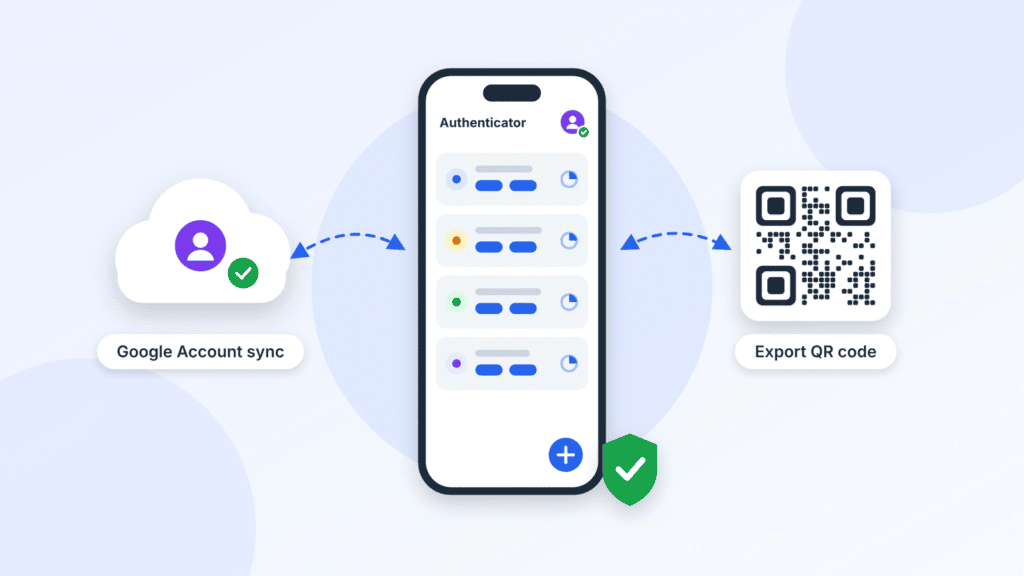
The easiest way to back up Google Authenticator on iPhone is to sign in with your Google Account and let the app sync your codes. Your verification codes are then saved to the cloud and come back automatically on any new iPhone or Android phone. If you’d rather keep your codes off Google’s servers, you can move them with the app’s Export accounts QR code instead.
Getting this right matters. If you lose your phone without a backup, you may have to recover every account that uses Google Authenticator one by one. This guide explains both backup methods, how to transfer Google Authenticator to a new iPhone, what to do if your old phone is gone, and whether iCloud backup saves your codes.
Which method should you use?
| Your situation | What to do |
|---|---|
| You want codes backed up automatically | Turn on Google Account sync |
| You don’t want codes stored with Google | Use Export accounts (QR code) with both phones |
| Old phone is lost, and sync was on | Sign in on the new iPhone; your codes come back |
| Old phone is lost, and sync was off | Use backup codes and each site’s account recovery |
Does Google Authenticator Back Up Automatically on iPhone?
Only if you’re signed in to a Google Account in the app. Since version 4.0 on iOS (6.0 on Android), Google Authenticator can sync your codes to your Google Account. If you skipped sign-in and chose Use without an account, your codes live only on that iPhone, and nothing backs them up.
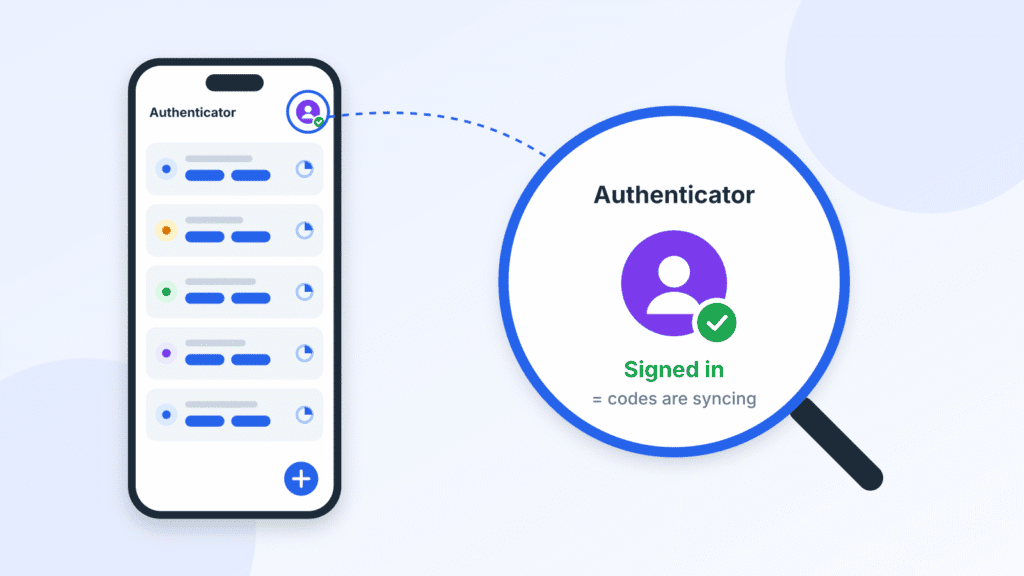
To check, open Google Authenticator and tap your profile picture in the top-right corner. If your Google Account shows as signed in, your codes are syncing to it.
Many app versions also show a small cloud icon with a green check mark beside the picture, but the signed-in account is the surer sign. If you’re not signed in, your codes are stored on this phone only.
How to Back Up Google Authenticator With Your Google Account
Google Account sync is the only backup built into the app. Once it’s on, every code you add is saved to your account automatically.
- Update Google Authenticator from the App Store. You need version 4.0 or later, and Google says your iPhone should run the latest iOS available for it.
- Open the app and tap your profile icon in the top-right corner.
- Sign in with your Google Account. Then follow the on-screen prompt to start saving your codes to that account.
- Tap your profile picture again to confirm the right Google Account is signed in.
That’s it. Your Google Authenticator backup now updates on its own whenever you add or delete a code.
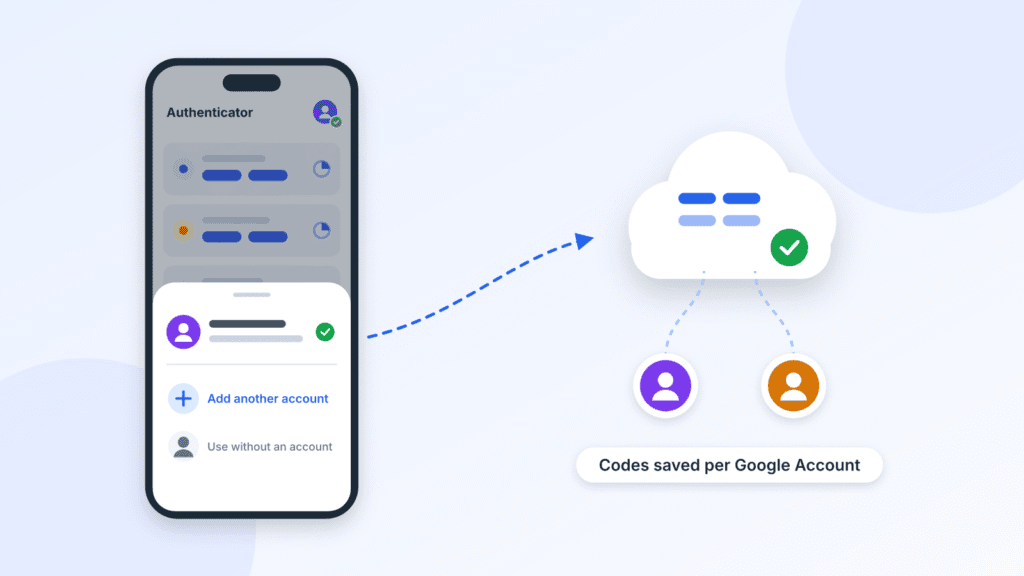
Using more than one Google Account? Tap your profile picture, then Add another account. To change which account a code is saved to, swipe left on the code and edit it.
Wondering how secure synced codes are? The safety section later in this guide explains the tradeoff.
How to Transfer Google Authenticator to a New iPhone
With sync turned on, moving to a new iPhone takes about a minute. You don’t need the old phone, but it’s safer to keep it until you’ve tested your codes. If you are still moving the rest of your data, see how to set up a new iPhone from your old iPhone.
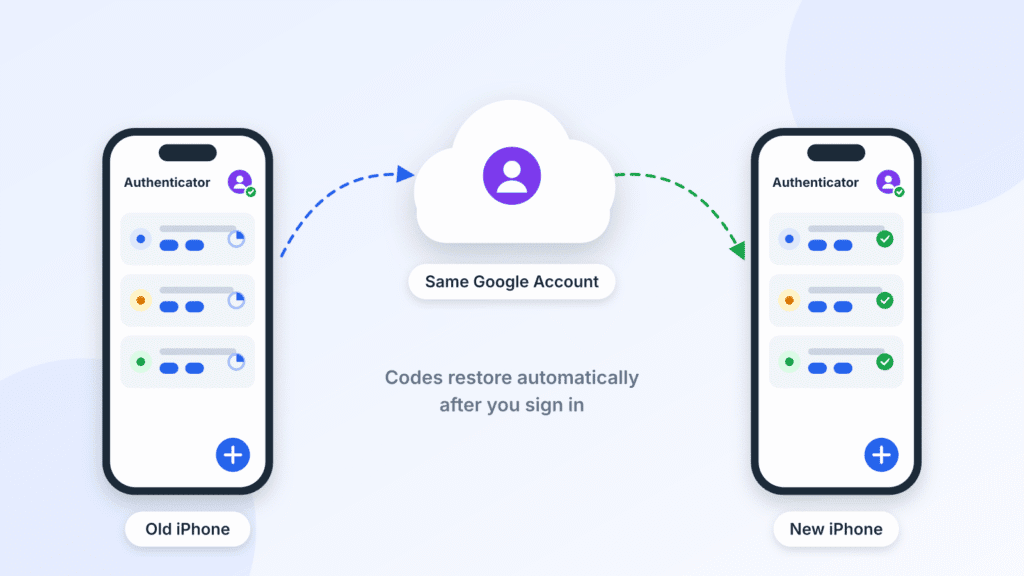
- On your old iPhone, tap your profile picture and note which Google Account is signed in.
- On your new iPhone, install Google Authenticator from the App Store.
- Open the app, tap Get started, and sign in with the same Google Account.
- Your codes appear automatically. Sign in to two or three of your accounts to confirm they work.
- Only then erase, sell, or trade in the old iPhone. Our guide to wiping your old iPhone covers each step.
Codes not showing? You’re probably signed in to a different Google Account. Codes are saved per account, so tap your profile picture and switch to the one you used before.
How to Transfer Google Authenticator Without Cloud Sync (QR Code Method)
If you use Google Authenticator without an account, move your codes with the app’s built-in Export accounts feature. You need both phones in hand, and the latest app version on the old one.
On your old iPhone:
- Open Google Authenticator and tap Menu, then Transfer accounts, then Export accounts.
- Unlock with Face ID, Touch ID, or your passcode when asked.
- Select the accounts you want to move and tap Next. A QR code appears. If you’re moving many accounts, you may get several QR codes.
On your new iPhone:
- Install Google Authenticator and open it. When it offers sign-in, you can sign in or tap Use without an account.
- Tap Scan QR code, or go to Menu > Transfer accounts > Import accounts.
- Point the new iPhone’s camera at the QR code on the old iPhone. Repeat for each code.
You’ll see a confirmation once your codes have been transferred.
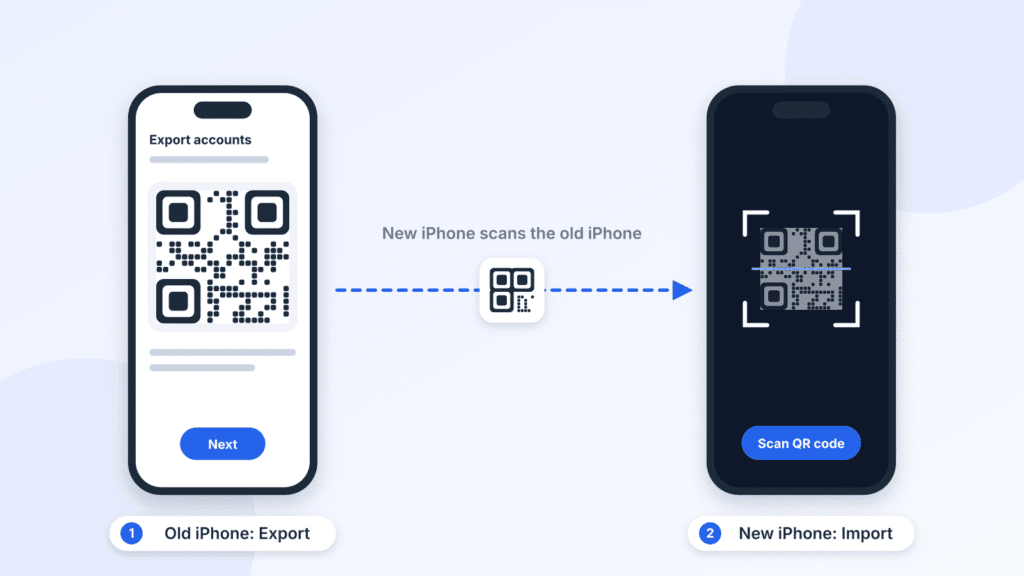
Exporting doesn’t remove codes from the old phone. Both phones keep generating the same codes until you delete them from one. Keep the old copies until every code works on the new iPhone, then delete them before you sell or recycle the old phone.
How to Move Google Authenticator From Android to iPhone (or Back)
Both methods work across platforms, so switching from Android to iPhone is no harder than switching between two iPhones.
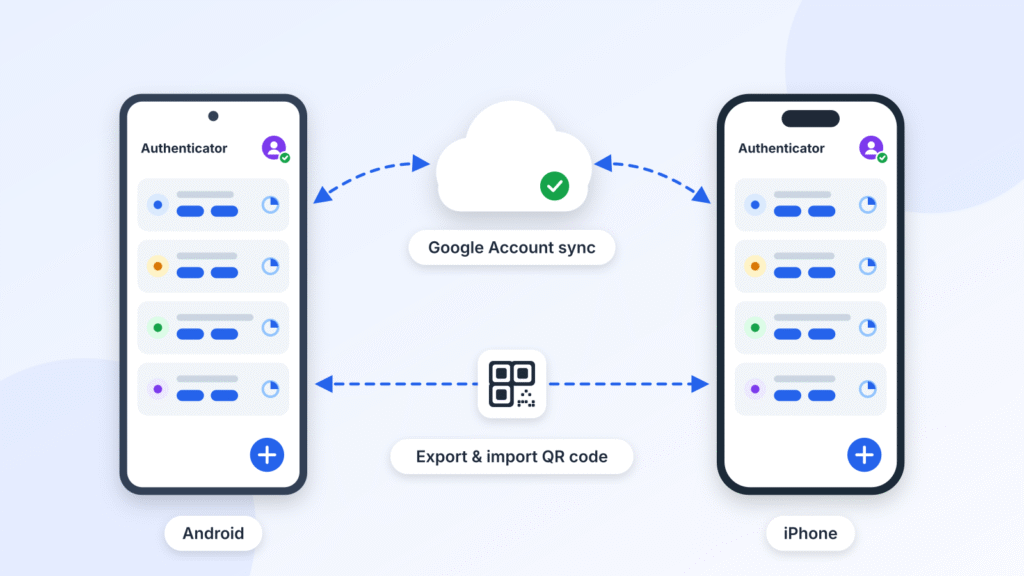
- With sync: Make sure the app on your Android phone is version 6.0 or later and signed in. Then install it on the iPhone, sign in with the same Google Account, and your codes appear.
- Without sync: Use Transfer accounts > Export accounts on the Android phone and Import accounts on the iPhone. The menus are the same on both systems.
iCloud can’t help with this move. Android phones don’t back up to iCloud, so your Google Account or the QR code is the only way to carry codes across.
How to Recover Google Authenticator Without Your Old Phone
What you can recover depends on one thing: whether sync was on before you lost the phone.
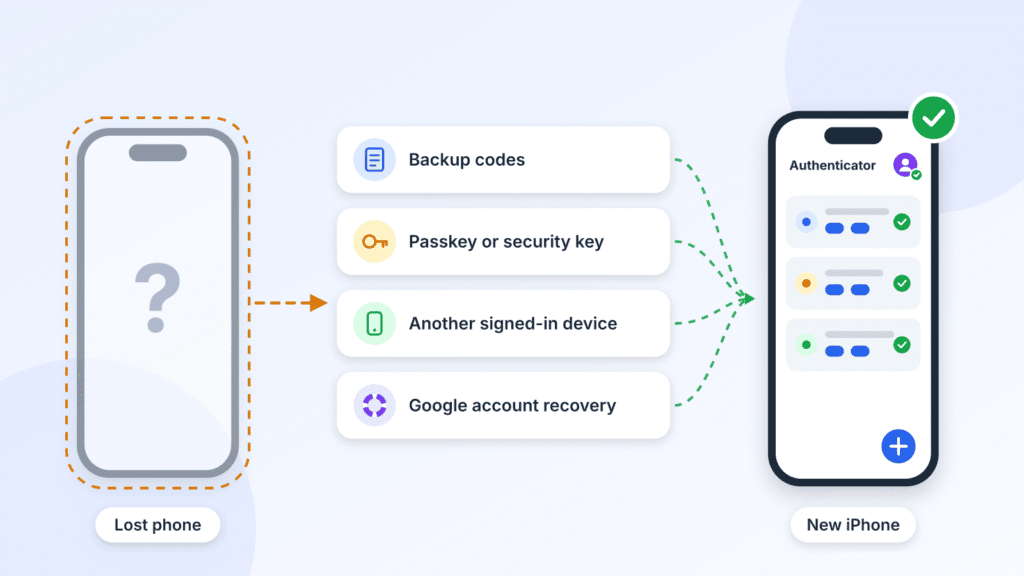
If sync was on
- Install Google Authenticator on your new iPhone and sign in with the same Google Account. Your codes come back.
- Sign out of the lost phone from your Google Account and change your Google password.
- If the phone was stolen, erase it remotely with Find My so no one can read the codes stored on it.
If sync was off
The codes on the lost phone can’t be recovered. You’ll need to regain access to each account separately.
- Your Google Account. Sign in and choose Try another way. Google accepts a prompt on another signed-in device, a backup phone number, a backup code, a security key, or a passkey. If you have none of these, use Google account recovery. Recovery may take several business days, depending on your circumstances; Google’s estimate for accounts with 2-Step Verification is 3–5 business days.
- Every other service. Crypto exchanges, social networks, and other sites have their own process. Use the backup or recovery codes they gave you, or follow their 2FA reset steps. Expect ID checks or waiting periods, and some services can’t reset 2FA at all.
- Reconnect your new iPhone. Once you’re back in each account, remove the old authenticator in its security settings. Then scan the new setup QR code with Google Authenticator on your new iPhone.
For your Google Account, it can take up to 7 days for a newly added Google Authenticator to appear as a sign-in option, so keep another method on hand.
This is exactly why it pays to turn on sync, or save backup codes, before anything goes wrong. Google’s guide to fixing 2-Step Verification issues lists every recovery option.
Does iCloud Backup Include Google Authenticator Codes?
Don’t count on it. Restoring an iCloud backup puts the Google Authenticator app back on your new iPhone, but Google doesn’t list iCloud as a way to restore your codes. Many users who restored a backup to a new iPhone found the app empty and asking them to set it up again.
Google Authenticator also has no iCloud setting of its own. Its only built-in backup is Google Account sync, covered above.
If you specifically want codes backed up through iCloud, you’d need a different app. Apple’s Passwords app, for example, can store verification codes and sync them with iCloud Keychain.
How to Keep Your Authenticator Codes Safe
A backup protects you from losing your codes. These habits also protect you from someone else getting them.
- Turn on Privacy Screen. Go to Menu > Settings > Privacy Screen. The app will then ask for Face ID or Touch ID before showing any codes.
- Save your Google backup codes. In your Google Account, go to Security & sign-in > 2-Step Verification > Backup codes. You get 10 single-use, 8-digit codes, and making a new set cancels the old one. Print them and store them offline.
- Save recovery codes from every other site. Google’s backup codes only unlock your Google Account. The recovery codes each service gives you are your safest offline backup, so save them whenever you turn on two-factor authentication.
- Add a second sign-in method to your Google Account. A passkey, security key, or backup phone number means Google Authenticator is never your only way in.
- Know the tradeoff of cloud sync. Google’s help page says synced codes are encrypted in transit and at rest. It doesn’t describe them as end-to-end encrypted, where only you hold the key. Anyone who takes over your Google Account could also reach your synced codes, so protect it with a passkey or security key, or use the app without an account.
- Treat an export QR code as a last resort. If you don’t sync, you could print the Export accounts QR code as an offline copy. But it holds the secret keys for every account in it, so anyone who scans it can generate your codes. Prefer recovery codes. If you keep the QR code anyway, lock it away, keep it out of your photo library, and re-export when you add accounts.
- Don’t rush to erase your old phone. Keep it until every code works on the new one.
Frequently Asked Questions
Can I use Google Authenticator on two iPhones at once?
Yes. With sync, your codes appear on every device signed in to the same Google Account. With the QR code method, both phones generate identical codes until you delete them from one.
Why did my Google Authenticator codes disappear?
Usually you’ve been signed out, or you’re signed in to a different Google Account. Tap your profile picture to check, and switch accounts if needed.
Why is my Google Authenticator code not working?
Codes depend on your iPhone’s clock. Since version 7.0, the app uses your system time, so turn on Settings > General > Date & Time > Set Automatically. Also check that you entered the code for the right account before it expired.
Does deleting the app delete my codes?
If your codes are synced, they stay in your Google Account and return when you sign in again. If they aren’t synced, assume deleting the app deletes them for good.
How do I stop syncing Google Authenticator codes?
Tap your profile picture, then Use Authenticator without an account. Your codes are removed from your Google Account and kept on that iPhone only.
How do I delete my codes from my Google Account?
Swipe right on a code in the app to delete it from every synced device. To remove all of them, delete the Google Authenticator service from your Google Account; the rest of your account stays intact.
Conclusion
For most people, the easiest way to back up Google Authenticator on iPhone is Google Account sync. Sign in once, confirm you’re using the right account, and your codes follow you to any new phone, iPhone or Android.
If you’d rather keep codes off the cloud, the Export accounts QR code moves them between phones in minutes, as long as you have the old phone in hand. Either way, save your backup codes, and don’t erase your old iPhone until every code works on the new one. An iCloud backup is not a substitute for either method.

Louis Mugan writes how-to and troubleshooting guides for EasyTechLife, covering Android phones, iPhones, laptops, Chromebooks, headphones and everyday software.
He aims to base each guide on official manufacturer documentation and support pages, and to link the sources so readers can check the steps for themselves. Questions or corrections? Use the contact page.