
When your Android phone starts running out of space, the first question is simple: what’s taking it all up? On many phones, photos and videos take the most room, but big apps, games, offline downloads and system files can take just as much, depending on how you use your phone. But categories like “System” and “Other” can be surprisingly large too, and they’re the ones that confuse people most.
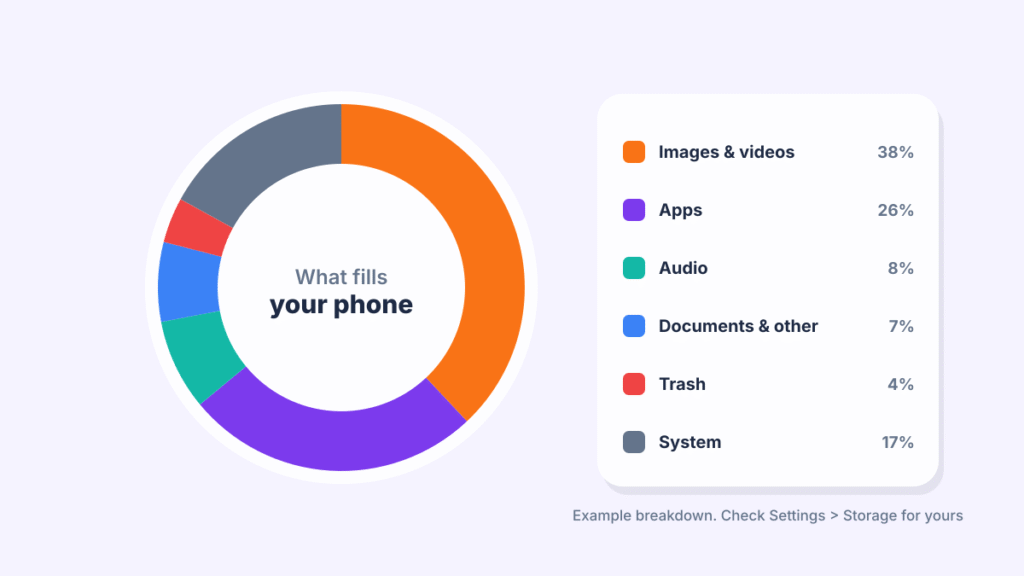
Quick answer: On many Android phones, photos and videos take up the most storage, followed by apps (especially games, social media and streaming apps with offline downloads) and chat media from apps like WhatsApp. To see your own breakdown, open Settings > Storage, or Settings > Device care > Storage on Samsung. “System” is Android itself and can’t be deleted.
How to see what’s using your storage
- Pixel and most Android phones: Settings > Storage. Wait a moment for the numbers to load, then tap any category for details.
- Samsung Galaxy: Settings > Device care > Storage. Scroll down for categories like Images, Videos, Audio, Documents, Apps and Other files.
- Files by Google: open the app and tap Clean to see suggestions for junk files, duplicates and large files.
What each storage category means
| Category | What’s in it | Can you clear it? |
|---|---|---|
| Images and videos | Photos, screenshots, recordings and downloaded media | Yes, after backing up |
| Apps | The apps themselves plus their data and cache | Yes: clear cache, archive or uninstall |
| Audio | Music, podcasts, voice recordings | Yes |
| Documents and other | PDFs, downloads, APK files and files without a clear type | Usually yes |
| Trash | Items you deleted that haven’t been removed yet | Yes, empty it |
| System | Android itself and files it needs to run | No |
1. Photos and videos
This is the biggest category for most people. A single minute of 4K video can take several hundred megabytes, and a few years of photos can easily reach dozens of gigabytes. Screenshots and photos saved from chats add up too.
To find them, see our guides on where photos are stored on Android and where screenshots are saved. If your photos are backed up to Google Photos, use its Free up space option to remove the phone copies.
2. Apps and their data
Every app takes space in three ways: the app itself, its data (your account, settings and saved content) and its cache (temporary files). Social media, streaming and navigation apps tend to grow over time, and games can be several gigabytes each.
To find the biggest ones, open Settings > Apps, tap the menu or sort option and sort by size, if your phone offers it. Then:
- Clear the cache for apps that have grown large. See how to clear cache on Android.
- Archive apps you use rarely (Android 15 and later), which keeps your data but removes the app.
- Uninstall apps you don’t use at all.
3. Offline downloads
Songs in Spotify, episodes in Netflix, videos in YouTube and offline maps in Google Maps are stored inside each app. They often count toward the Apps category, so they’re easy to miss. Delete downloads you’ve already watched or listened to.
4. Chat and message media
WhatsApp, Telegram, Messenger and Google Messages save photos, videos, GIFs and voice notes on your phone. Group chats are often the biggest culprits. In WhatsApp, go to Settings > Storage and data > Manage storage to see the largest chats and files.
Does deleting text messages free up space on Android?
Plain text messages take almost no space, so deleting them won’t make much difference. Deleting conversations with lots of photos and videos, though, can free up hundreds of megabytes or more. Our guide shows how to delete pictures from text messages on Android without losing the conversation.
5. Documents, downloads and “Other”
The Download folder collects PDFs, installers, memes and files you opened once. APK files from sideloaded apps can be large and are rarely needed after installing. “Other” or “Documents and other” also includes files Android can’t sort into a category. Open the Files app, go to Downloads and sort by size to find the biggest items.
6. Trash
On many phones, deleted photos and files go to a trash folder and stay there for 30 to 60 days. They still count against your storage until the trash is emptied. Check Google Photos, Files and Samsung Gallery.
7. System storage
“System” is the space Android needs to run, including the operating system, built-in apps and files used for updates. It’s normal for it to take 10 GB to 20 GB or more, depending on the phone. You can’t delete it, but it can grow temporarily during an update. If it seems unusually large:
- Install any pending software update.
- Restart your phone.
- Check again after a day. The number may drop once temporary update files are cleaned up, though there’s no guarantee it will shrink.
Typical storage hogs at a glance
| Item | Typical size |
|---|---|
| A 1-minute 4K video | Several hundred MB |
| A big mobile game | 2 GB to 15 GB or more |
| Social media app with cache | 500 MB to several GB |
| Offline music playlist | Hundreds of MB to several GB |
| A busy WhatsApp group | Can reach several GB |
| Android system files | 10 GB to 20 GB or more |
These are rough ranges, and your numbers will depend on your phone, settings and habits.
Frequently asked questions
What takes up the most storage on an Android phone?
For most people, photos and videos take the most space, followed by apps, offline downloads and chat media.
What is “Other” storage on Android?
It’s files that don’t fit neatly into categories like images or apps, such as downloads, documents, APK files and some app files. Clean it up from the Downloads folder or with the Clean tab in Files by Google.
Why is System storage so big on my phone?
System includes Android itself and files needed for updates. It’s normal for it to use a lot of space. It may grow temporarily during an update and shrink again after you install it and restart.
Can I delete System storage?
No. It’s needed for your phone to work. You can only reduce it indirectly by installing updates, restarting and, as a last resort, resetting the phone.
My storage is full but I can’t find what’s using it. What now?
Follow our step-by-step fix for Android storage full when nothing is on it.
How we researched this guide
We put this breakdown together on November 21, 2026, using the storage screens in current Android versions on Pixel and Samsung phones and the official Android storage help pages. Sizes are typical ranges rather than lab measurements, since they vary by phone, camera settings and app versions.

Louis Mugan writes how-to and troubleshooting guides for EasyTechLife, covering Android phones, iPhones, laptops, Chromebooks, headphones and everyday software.
He aims to base each guide on official manufacturer documentation and support pages, and to link the sources so readers can check the steps for themselves. Questions or corrections? Use the contact page.


