
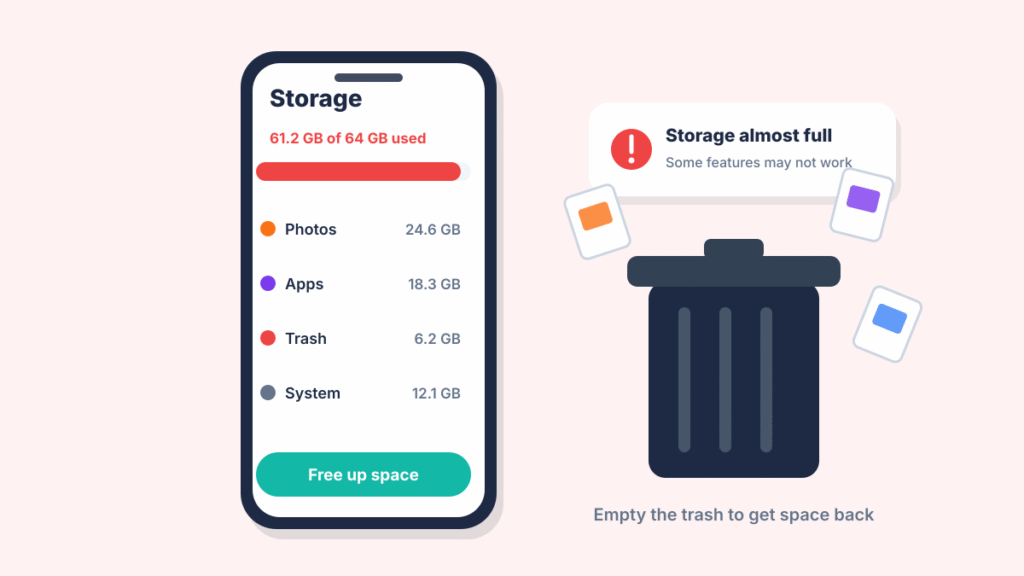
You’ve deleted photos, cleared out apps and your Android phone still says storage is full. That’s one of the most frustrating phone problems, because the space seems to vanish into thin air. In most cases, the space is still being used by things you can’t easily see: deleted files waiting in the trash, cached app data, offline downloads, message attachments or leftover update files.
Quick answer: Open Settings > Storage (on Samsung, Settings > Device care > Storage) and look for the biggest category. Then empty the trash in Google Photos, Files and Gallery, clear the cache of your largest apps, delete offline downloads in apps like Spotify, Netflix and YouTube, and restart the phone. If the “System” category looks unusually large, install any pending update and restart again.
Why your phone says storage is full when it isn’t
| What’s using the space | Why you don’t see it | Where to clear it |
|---|---|---|
| Deleted photos and files | They sit in a trash folder for 30 to 60 days | Trash in Google Photos, Files or Samsung Gallery |
| App cache | Temporary files build up in the background | Settings > Apps > app > Storage > Clear cache |
| Offline downloads | Saved inside apps, not in your Files app | Each app’s downloads or storage settings |
| Message media | Photos and videos from chats stay on the phone | Google Messages, WhatsApp and other chat apps |
| Update and system files | Leftovers from updates or a stuck download | Install the update, then restart |
1. Check what’s actually using your storage
Before deleting anything, find out where the space went.
- Google Pixel and most Android phones: open Settings > Storage. You’ll see a bar split into categories such as Apps, Images, Videos, Audio, Documents and other, Trash and System. Tap any category to see what’s inside.
- Samsung Galaxy: open Settings > Device care > Storage. Samsung also lists duplicate files, large files and unused apps you can remove.
Focus on the biggest category first. Freeing 5 GB from one place is faster than hunting for 50 MB in ten places. For a full breakdown of each category, see our guide to what takes up the most storage on Android.
2. Empty the trash folders
This is the most common reason storage doesn’t go down after you delete things. Android apps move deleted items to a trash folder and keep them for a while, so the space isn’t freed right away. Google Photos keeps backed-up items in its trash for 60 days and items that weren’t backed up for 30 days. Look through the trash before emptying it, because emptied items can’t be recovered.
- Google Photos: open Collections > Trash, tap the three dots > Empty trash, then confirm Delete permanently.
- Files by Google: tap the menu > Trash, select the files you want to remove, tap Delete and confirm.
- Samsung Gallery: tap the menu > Trash > Empty.
- Pixel storage settings: open Settings > Storage > Trash to clear it in one place.
Not sure where your phone keeps it? Our guide on where the recycle bin is on Android walks through each brand.
3. Clear the cache of your biggest apps
Apps like Chrome, TikTok, Instagram, Facebook and YouTube can quietly store several gigabytes of temporary files. Clearing the cache removes those temporary files while keeping you signed in and leaving your personal data alone. The app may just need to download some content again.
- Open Settings > Apps.
- Tap the app.
- Tap Storage (or Storage & cache).
- Tap Clear cache.
Skip Clear storage and Clear data here. Those reset the app completely, which signs you out and wipes its settings. Our full guide explains how to clear cache on Android for every app, including Chrome and the Play Store.
4. Delete offline downloads inside apps
Downloaded music, podcasts, movies and maps don’t show up in your Files app, because they’re stored inside each app. They’re often the biggest hidden storage users.
- Spotify: Settings > Storage > Remove all downloads.
- Netflix and other streaming apps: open the Downloads tab and delete shows you’ve already watched.
- YouTube and YouTube Music: Library or You > Downloads.
- Google Maps: profile picture > Offline maps, then delete maps you no longer need.
5. Clean up message attachments
Every photo, video and voice note you’ve ever received in a chat can still be on your phone.
- WhatsApp: Settings > Storage and data > Manage storage, then review large files and busy chats.
- Google Messages: delete old conversations with lots of photos and videos. Our guide on deleting pictures from text messages on Android shows how to remove just the media.
6. Remove photos and videos that are already backed up
If you use Google Photos backup, you can remove the phone copies of photos that are safely in the cloud.
- Open Google Photos and tap your profile picture.
- Tap Free up space (it may say Free up space on this device).
- Confirm. Only items that are already backed up are removed from the phone.
Make sure backup is turned on and finished before you do this.
7. Archive apps you rarely use
On Android 15 and later, you can archive an app instead of uninstalling it. Archiving removes the app itself but keeps its icon and your data, so you can restore it later with one tap.
- Open Settings > Apps, tap the app and choose Archive.
- To let Android do it for you, open the Play Store, tap your profile picture > Settings > General and turn on Automatically archive apps.
8. Restart and install pending updates
A restart lets Android finish cleaning up temporary files, and a stuck update download can take up gigabytes on its own. Go to Settings > System > Software updates (or Settings > Software update on Samsung), install anything pending, then restart.
If the System category is still huge afterward, the reported number may be a glitch. An update or a restart usually corrects it.
What not to do
- Don’t install “cleaner” or “booster” apps. Android already manages memory well, and many of these apps show ads, use battery and do little that the built-in tools can’t.
- Don’t delete files you don’t recognize in system folders. If you browse your internal storage with a file manager, stick to Download, DCIM, Pictures and Movies.
- Don’t factory reset as a first step. It erases everything and is rarely needed just to free space.
Frequently asked questions
Why is my phone storage full when nothing is on it?
The space is usually taken by things you can’t see in your gallery or files, such as trash folders, app cache, offline downloads, message media and system files. Check Settings > Storage to find the biggest category.
Why does my phone keep saying storage is full after I delete things?
Deleted items often go to a trash folder first and stay there for 30 to 60 days. Empty the trash in Google Photos, Files or Gallery to free the space right away.
Does clearing cache delete anything important?
No. Cache is temporary data that apps rebuild as needed. Clearing it doesn’t delete your photos, messages or logins. Clearing an app’s storage or data is different, because that resets the app.
How much free storage should I keep on my Android phone?
Try to keep at least 10 to 15 percent free. With less than that, updates can fail, the camera may stop saving photos, and the phone can slow down.
Will moving photos to an SD card help?
Yes, if your phone has a microSD slot. Many newer phones don’t, so cloud backup is usually the easier option.
How we researched this guide
This guide was put together on November 21, 2026, by comparing the storage tools in current versions of Android on Pixel and Samsung phones with the official help pages for Android, Google Photos and the Play Store. It wasn’t tested step by step on every brand. Menu names vary a little between phone makers, so if a label doesn’t match, search for “Storage” in your Settings app.

Louis Mugan writes how-to and troubleshooting guides for EasyTechLife, covering Android phones, iPhones, laptops, Chromebooks, headphones and everyday software.
He aims to base each guide on official manufacturer documentation and support pages, and to link the sources so readers can check the steps for themselves. Questions or corrections? Use the contact page.


