
You can view text messages stored in iCloud, but not by signing in to iCloud.com. Messages synced with iCloud appear in the Messages app on any iPhone, iPad or Mac that uses the same Apple Account and has Messages in iCloud turned on.
Getting back a deleted or older conversation is a different process. Depending on your settings, you may be able to recover it from the Recently Deleted folder or, in narrower cases, from an older iCloud backup.
This guide explains how to turn on syncing on each device, why iCloud.com can’t show your texts, and which recovery options actually work.
Can You View Text Messages Directly on iCloud?
Yes, but only inside the Messages app on an Apple device. Apple doesn’t offer a web version of Messages, so iCloud.com won’t show your texts.
To see the same conversations on every device, you need:
- The same Apple Account signed in to iMessage on each iPhone, iPad and Mac
- Messages in iCloud turned on on each device
- Two-factor authentication and iCloud Keychain turned on for your Apple Account
- Enough free iCloud storage, because synced messages and attachments count toward your plan
Messages in iCloud also brings your SMS, MMS and RCS texts (the green bubbles) to your iPad and Mac. Text Message Forwarding is built into Messages in iCloud, so you only need to set it up separately if you don’t use Messages in iCloud.
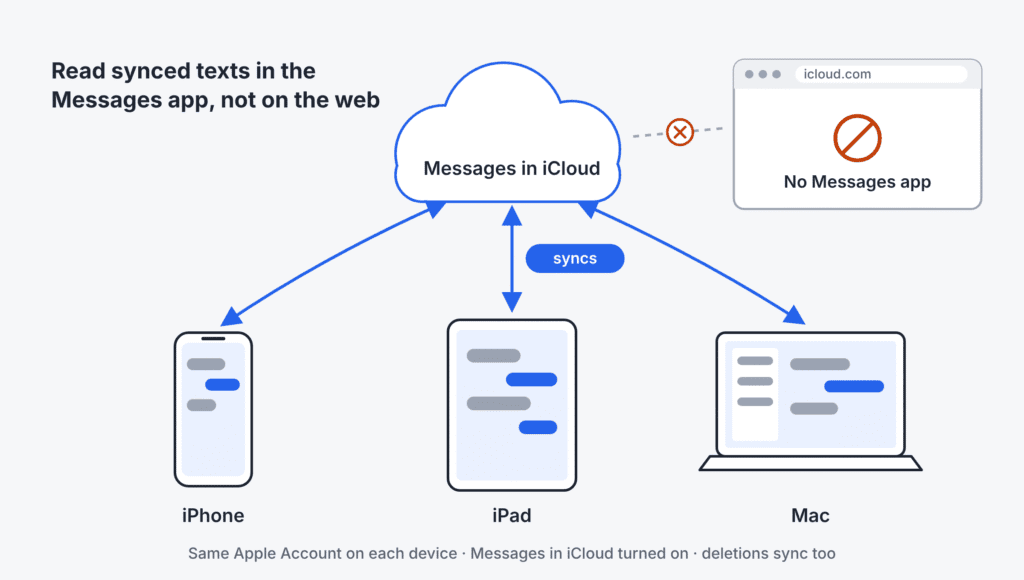
Messages in iCloud keeps every signed-in device in sync. iCloud.com has no way to show your texts.
How to View iCloud Messages on Your iPhone
Turn on Messages in iCloud, then read your conversations in the Messages app. On iOS 17.2 or later:
- Open Settings and tap your name at the top.
- Tap iCloud.
- Tap See All (or Show All) next to the list of apps using iCloud.
- Tap Messages in iCloud, then turn on Use on this iPhone.
- Open the Messages app. Your synced conversations appear there.
On iOS 16 to 17.1, the path is slightly different: tap Show All, tap Messages, then turn on Sync this iPhone.
The first sync can take a while if you have years of messages and attachments. Keep the iPhone on Wi-Fi and connected to power until it finishes.
How to View iCloud Messages on an iPad
The iPad uses the same setting as the iPhone. Sign in with the same Apple Account, then:
- Open Settings and tap your name.
- Tap iCloud, then See All (or Show All).
- Tap Messages in iCloud, then turn on Use on this iPad.
- Open Settings > Apps > Messages and make sure iMessage is turned on.
- Open the Messages app to see your conversations.
Your green-bubble texts (SMS, MMS and RCS) come from your iPhone’s phone number. With Messages in iCloud turned on, they reach your iPad automatically, because Text Message Forwarding is built in.
If you don’t use Messages in iCloud, set up Text Message Forwarding on the iPhone instead: go to Settings > Apps > Messages > Text Message Forwarding, then turn on your iPad.
How to Access Synced Messages on a Mac
On a Mac, you turn on Messages in iCloud from inside the Messages app.
- Check that your Mac is signed in to iCloud with the same Apple Account you use for Messages. Open System Settings and click your name at the top of the sidebar.
- Open Messages, then choose Messages > Settings from the menu bar.
- Click iMessage. On recent versions of macOS, click the Settings tab inside it.
- Select Enable Messages in iCloud.
Your existing iCloud conversations then download to the Mac, and new messages you send or receive there are stored in iCloud. With a large message history, the first download can take some time, but you can keep using Messages meanwhile.
If older conversations aren’t showing up, for example on a new Mac, open Messages > Settings > iMessage and click Sync Now. Keep the Mac online while messages download.
To turn the feature off later, deselect the same checkbox. macOS asks whether to disable it on all your devices or on this Mac only. Choosing this Mac only keeps your messages in iCloud for your other devices.
Can You Read Text Messages on iCloud.com?
No. iCloud.com has web apps for Mail, Photos, Notes, iCloud Drive and more, but no Messages app. Apple states that even though your messages are stored in iCloud, you can’t see them on iCloud.com.
Apple encrypts Messages in iCloud and only lets you read your conversations in the Messages app on your signed-in Apple devices, never in a web browser.
How strong that protection is depends on your settings, as Apple explains in its iCloud data security overview. With standard data protection, Messages in iCloud is end-to-end encrypted only while iCloud Backup is off. If iCloud Backup is on, your backup holds a copy of the Messages in iCloud key so Apple can help you recover your messages. With Advanced Data Protection turned on, Messages in iCloud is always end-to-end encrypted, including that key.
Be wary of websites or apps that promise to show your iCloud texts online. Many ask for your Apple Account password, and none can offer a web inbox Apple itself doesn’t provide.
Messages in iCloud vs. iCloud Backup
These two features store your message history differently. If Messages in iCloud is on, your conversations sync through iCloud to each device and are left out of your iCloud Backup. If it’s off, the messages on your iPhone are included in your iCloud Backup instead. Apple lists the details in What does iCloud back up?
| Messages in iCloud | iCloud Backup | |
|---|---|---|
| What it does | Keeps conversations in sync across your Apple devices | Saves a snapshot of your device to restore later |
| Where you read messages | The Messages app on any signed-in device | Nowhere; you can’t open or browse a backup |
| Holds your texts when | Messages in iCloud is on | Messages in iCloud is off |
| Deleting a message | Removes it from every synced device | Doesn’t change a backup already made |
| Viewable on iCloud.com | No | No |
| Recovery option | Recently Deleted folder | Erase the device and restore an older backup |
So if you use Messages in iCloud, don’t count on an iCloud backup to hold your texts. It won’t contain them.
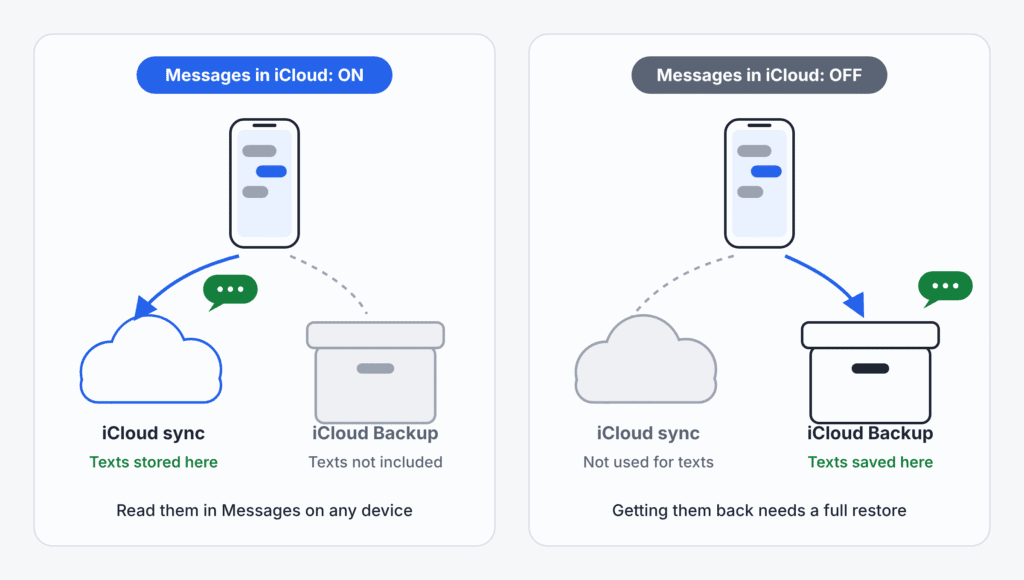
Your texts go to iCloud sync or to iCloud Backup, depending on one setting.
How to Recover Recently Deleted Text Messages
Check the Recently Deleted folder first. It’s the fastest way to get a conversation back, and it doesn’t erase anything.
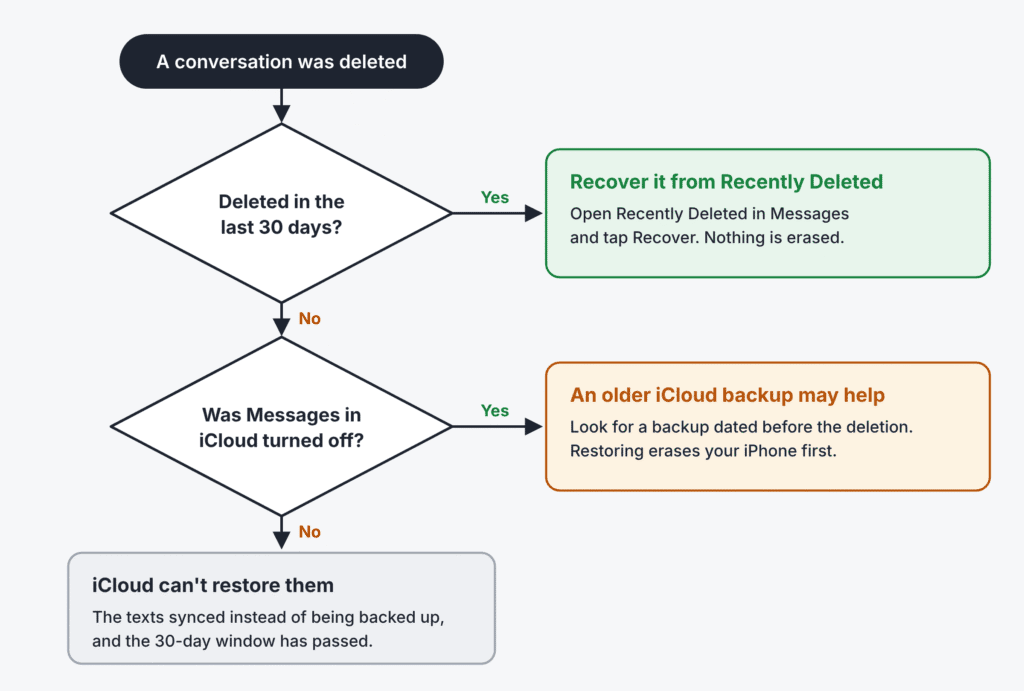
Which recovery option fits your situation.
On iPhone or iPad:
- Open Messages and go to the conversations list.
- Tap the Filters button. On iOS 18, tap Edit instead.
- Tap Recently Deleted.
- Select the conversations you want back, then tap Recover.
- Confirm by tapping Recover Message or Recover [Number] Messages.
On a Mac (Apple’s Mac guide):
- Open Messages and choose View > Recently Deleted.
- Select the conversation in the sidebar, then click Recover.
A few limits apply:
- You need iOS 16, iPadOS 16.1 or macOS Ventura, or later.
- Deleted messages stay in Recently Deleted for up to 30 days, then disappear from your devices. Apple permanently removes them from iCloud after 40 days, which is why some Apple articles say 30 to 40 days. Plan on 30.
- Messages deleted before you updated to iOS 16 can’t be recovered this way.
- With Messages in iCloud, recovering a conversation on one device restores it on all of them.
[Screenshot: the Recently Deleted screen in Messages with Recover highlighted]
Can You Restore Old Messages From an iCloud Backup?
Only if Messages in iCloud was turned off when the backup was made. If it was on, your texts were synced rather than backed up, so restoring an older backup won’t bring deleted conversations back.
If your messages were in a backup, know the trade-offs before you start:
- You must erase the device first. Apple’s restore only runs during setup, so you’ll erase the iPhone and set it up again.
- Everything rolls back to the backup date. Anything newer that isn’t synced to iCloud, such as recent app data, may be lost.
- You can’t preview what’s inside. You can see each backup’s date and size, but not its messages.
- Check the backup date first. iCloud backs up automatically when the iPhone is locked, charging and on Wi-Fi, so an older backup that held your messages may no longer be available. Look at the date of the backup you’d restore before erasing anything. If it’s from after the deletion, it may not contain the messages you’re trying to recover.
Important: before you erase anything, protect what’s on the iPhone now. Make sure photos, files and other data are synced to iCloud or copied to a computer. If you want a full safety copy, back up to a computer (Finder on a Mac or the Apple Devices app on Windows), not with Back Up Now in iCloud, which could replace the older backup you’re trying to restore. Even then, there’s no guarantee that backup holds the messages you want.
To restore (see Apple’s restore guide):
- Erase the iPhone: go to Settings > General > Transfer or Reset iPhone > Erase All Content and Settings.
- Turn it on and follow the setup steps until you reach the Transfer Your Apps & Data screen.
- Tap From iCloud Backup and sign in with your Apple Account.
- Choose a backup dated before the messages were deleted.
- Keep the iPhone on Wi-Fi and power until the restore finishes.
If you can’t confirm that Messages in iCloud was off at the time, check Recently Deleted instead. Erasing your phone for a backup that has no messages in it gains you nothing.
What to Do if iCloud Messages Aren’t Syncing
Most sync problems come down to a mismatched account, a setting that’s off, or full storage. Work through this list:
- Match your accounts. iMessage and iCloud must use the same Apple Account on every device. An error saying the accounts are different means iMessage is signed in with another account.
- Check the setting on each device. Messages in iCloud has to be on for every iPhone, iPad and Mac you want in sync.
- Confirm security settings. Two-factor authentication and iCloud Keychain must be on.
- Free up iCloud storage. Synced messages and attachments use your iCloud storage, so a full plan stops new messages from uploading.
- Give it time. A first sync over a large history can take a long time. Keep devices on Wi-Fi and power. On a Mac, you can click Sync Now in Messages > Settings > iMessage.
- Update your software. Install the latest iOS, iPadOS or macOS on each device.
- Green bubbles missing on iPad or Mac? Check that iMessage is on and signed in with the same account, then look for the device under Settings > Apps > Messages > Text Message Forwarding on your iPhone.
- Old messages missing everywhere? Open Settings > Apps > Messages > Keep Messages. If it’s set to 30 Days or 1 Year, older messages are deleted automatically, and Messages in iCloud carries that deletion to your other devices.
- Rule out an outage. Check Apple’s System Status page for problems with iCloud or iMessage.
Frequently Asked Questions
Can I read my iPhone texts on a Windows PC through iCloud?
No. iCloud.com has no Messages app, and the iCloud for Windows app doesn’t sync Messages. You need an Apple device signed in to your Apple Account.
If I delete a text on my iPhone, does it disappear from my Mac?
Yes, if Messages in iCloud is on. The deletion syncs to every device using the feature, and the message moves to Recently Deleted.
Does deleting a message remove it from the other person’s phone?
No. Deleting or recovering a message only changes your own conversations, not your recipients’.
How long does iCloud keep my messages?
Until you delete them, as long as Keep Messages is set to Forever. Deleted messages stay in Recently Deleted for up to 30 days.
Can I use iCloud to see someone else’s text messages?
Only by signing in to their Apple Account, which needs their password and verification code. Don’t do it without their clear permission; accessing another person’s account can be illegal.

Louis Mugan is a seasoned technology writer with a talent for turning complicated ideas into clear, practical guidance. He focuses on helping everyday readers stay confident in a world where tech moves fast. His style is approachable, steady, and built on real understanding.
He has spent years writing for platforms like EasyTechLife, where he covers gadgets, software, digital trends, and everyday tech solutions. His articles focus on clarity, real-world usefulness, and helping people understand how technology actually fits into their lives.
Outside of his regular columns, Louis explores emerging tools, reviews products, and experiments with new tech so his readers don’t have to. His steady, friendly approach has made him a reliable voice for anyone trying to keep up with modern technology. get in touch at louismugan@gmail.com


