
Clearing the cache is one of the quickest fixes on an Android phone. It frees up storage and often solves apps that freeze, crash or act strangely, all without deleting your photos, messages or logins. The catch is that Android doesn’t have a single “clear all cache” button anymore, so you clear it app by app, plus a few special places like Chrome and the Play Store.
Quick answer: Open Settings > Apps, tap the app, then tap Storage (or Storage & cache) > Clear cache. For Chrome, open the app, tap the three dots > Delete browsing data and choose Cached images and files. Don’t tap Clear storage or Clear data unless you want to reset the app completely.
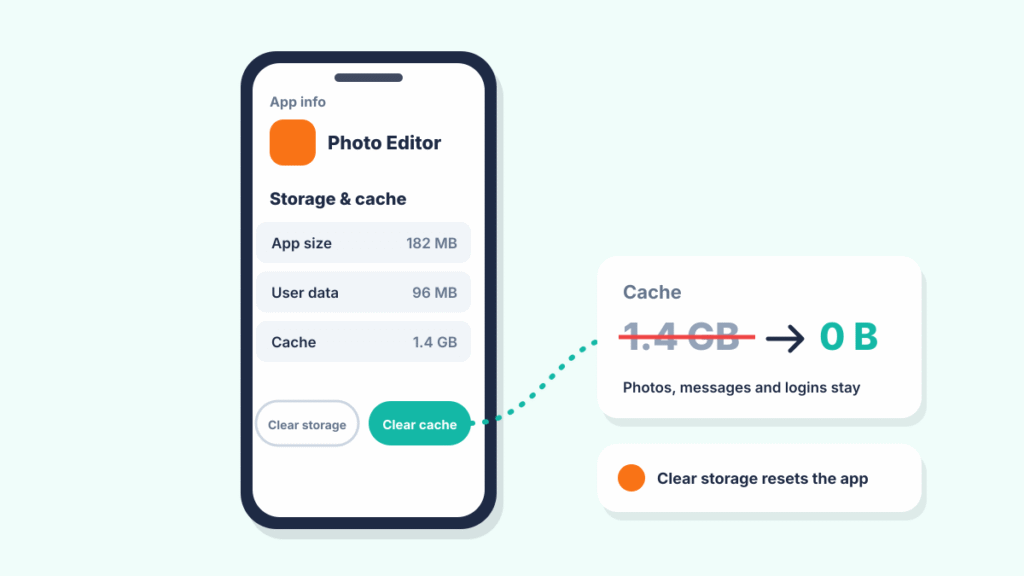
What is cache, and is it safe to clear?
Cache is temporary data that apps save to load faster, such as images, thumbnails and pieces of web pages. It’s safe to delete because apps rebuild it as needed. The app may feel a little slower the first time you open it afterward, while it downloads things again.
| Option | What it removes | Signs you out? |
|---|---|---|
| Clear cache | Temporary files only | No |
| Clear storage / Clear data | All app data, settings and saved content | Yes, the app resets |
| Uninstall | The app and its data | Yes |
How to clear an app’s cache on Android
- Open Settings.
- Tap Apps. On some phones, tap See all apps.
- Tap the app you want to clean up.
- Tap Storage or Storage & cache.
- Tap Clear cache.
You can also press and hold the app’s icon, tap App info (the small “i” icon), then go to Storage.
On Samsung Galaxy phones
Open Settings > Apps, tap the app > Storage > Clear cache. Samsung’s Device care screen also has an Optimize now button that closes background apps and tidies up memory, but it doesn’t replace clearing a specific app’s cache.
How to clear the cache in Chrome
The easiest way to clear Chrome’s cache is from inside the browser. You can also clear it from Settings > Apps > Chrome > Storage, like any other app.
- Open Chrome and tap the three dots in the top-right corner.
- Tap Delete browsing data. On older versions, it’s under History > Clear browsing data.
- If you see a quick-delete screen, tap More options. Then choose a time range, such as All time.
- Check Cached images and files. Uncheck Cookies and Browsing history if you want to stay signed in to sites and keep your history.
- Tap Delete data.
How to clear the Google Play Store cache
Clearing the Play Store cache is the most common fix when apps won’t download or updates get stuck.
- Open Settings > Apps > See all apps.
- Tap Google Play Store > Storage & cache > Clear cache.
- Open the Play Store and try again.
If downloads are still stuck, see our full fix for Play Store not downloading apps.
Can you clear all cache at once?
Not on most current Android phones. Older Android versions had a “cached data” button in Storage settings that cleared everything at once, but it was removed years ago. Your options today are:
- Clear the cache of your biggest apps one by one. Sort apps by size in Settings > Apps if your phone allows it.
- Use the Clean tab in Files by Google, which suggests junk files you can remove.
- On Pixel phones, use Settings > Storage > Free up space to review large files and unused apps.
What about “wipe cache partition”?
Many older guides tell you to boot into recovery mode and choose “Wipe cache partition.” Pixels and other phones that use seamless updates generally don’t offer it, and Samsung has dropped it from recovery mode on recent One UI updates for many Galaxy phones. Clearing individual app caches is the recommended approach now.
When should you clear cache?
- An app keeps crashing, freezing or showing old content.
- An app has grown to several gigabytes.
- Your phone is low on storage. See Android storage full when nothing is on it.
- Web pages in Chrome load incorrectly.
There’s no need to clear cache every day. Apps use cache to run faster, and clearing it constantly can make them slower and use more data.
If clearing cache doesn’t fix an app
- Force stop the app. In App info, tap Force stop, then open it again. Our guide explains what Force stop means.
- Update the app from the Play Store.
- Clear storage or data. This resets the app, so make sure you know your login and that anything important is backed up first.
- Uninstall and reinstall the app.
Frequently asked questions
Does clearing cache delete photos or messages?
No. Clearing cache removes only temporary files. Your photos, messages, contacts and accounts stay where they are.
Will clearing cache log me out of apps?
No. Clearing cache keeps you signed in. Clearing storage or data is what logs you out.
How do I clear cache on a Samsung phone?
Go to Settings > Apps, tap the app, then tap Storage > Clear cache.
Does clearing cache make my phone faster?
It can help if a specific app is slow or buggy, or if your storage is nearly full. It won’t speed up a phone that’s slow for other reasons. See why your Android phone is running slow.
How often should I clear my cache?
Only when there’s a problem, such as an app misbehaving or taking up a lot of storage. There’s no need for a fixed schedule.
How we researched this guide
We matched each step to the app settings on current Pixel and Samsung software and to Chrome’s and Google Play’s help pages on November 21, 2026. Not every phone model was tried. If a menu label is slightly different on your phone, look for “Storage” inside the app’s info screen.

Louis Mugan writes how-to and troubleshooting guides for EasyTechLife, covering Android phones, iPhones, laptops, Chromebooks, headphones and everyday software.
He aims to base each guide on official manufacturer documentation and support pages, and to link the sources so readers can check the steps for themselves. Questions or corrections? Use the contact page.


