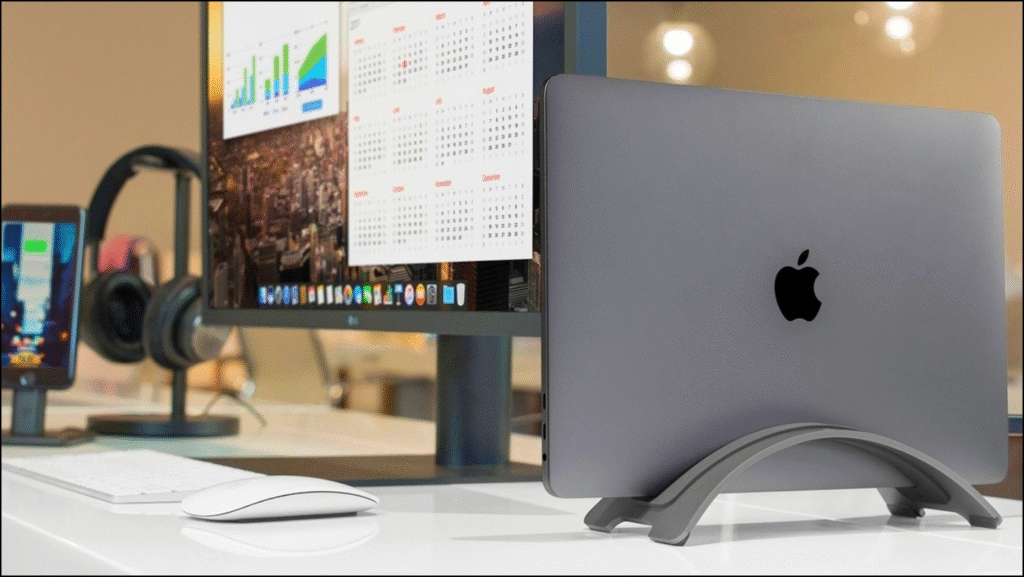
When you already have everything you need on a bigger monitor, you may not need an extra screen. By simply turning off your MacBook screen, you can remove that distraction and avoid keeping an unused display lit. This can make it a lot easier for you to use the external monitor for your everyday work. Your windows stay on the screen you’re actually looking at.
To work with the lid closed, connect the monitor, plug your laptop into power, and connect an external keyboard and mouse. Then close the lid. This leaves your MacBook external display as your workspace, with the built-in screen off while you continue working.
Disabling Mac Screen When Using an External Monitor
A quick screen break is where the Hot Corners feature comes in handy. Before changing your MacBook external monitor settings, remember that its display sleep action affects the connected monitor too.
Open your System Settings, click Desktop & Dock, and select Hot Corners. You can use a corner’s menu to choose “Put Display to Sleep,” and then click Done. Whenever you want the screens to go dark, move your pointer into that corner.
This will help you to temporarily disable your MacBook’s display when you step away from the desk. It doesn’t let you turn off your Mac screen and keep using the external monitor, so it won’t suit that particular setup.
Turning Off Laptop Screen Using Display Settings
Choosing your external monitor as the main display won’t turn off your laptop screen. This is the reason why the built-in panel usually stays lit even after you have changed the setting. You can find your display preferences by opening System Settings and clicking Displays with your monitor connected.
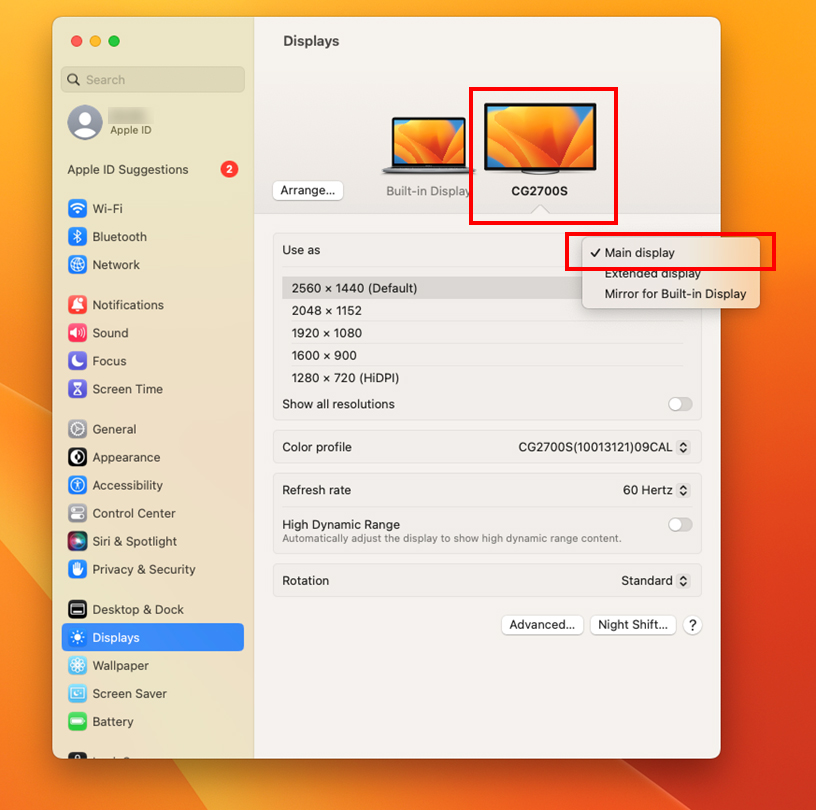
Select that monitor and choose “Main display” under “Use as.” Your display settings don’t include “Show only on display 2,” so there’s no switch there that turns off just the laptop panel.
To disable the laptop screen with an external monitor connected, plug in power and connect an external keyboard and mouse. Close the lid, and you can carry on using the monitor.
Using Clamshell Mode on Your MacBook
Your laptop doesn’t need to stay open just because you’re still working. This is where Clamshell mode comes in. It lets you close the lid, turn off the built-in screen, and continue working on your external monitor.
To keep your MacBook closed with an external monitor, connect the display, an external keyboard, and a mouse or trackpad. Connect the laptop to power, too.
As soon as your laptop appears on the monitor, you should close the lid. When you use your MacBook closed with an external display, it means that your external keyboard and mouse now take over. This means that you have to check that both work before closing it.
Troubleshooting Mac External Monitor Blackouts
An external monitor blackout doesn’t always mean that the screen needs to be replaced. First check that its power and video cables are firmly connected at both ends. You can troubleshoot display issues on your Mac by opening the laptop lid so that you can access System Settings > Displays.
Then hold Option, and click Detect Displays to check for the connected screen.
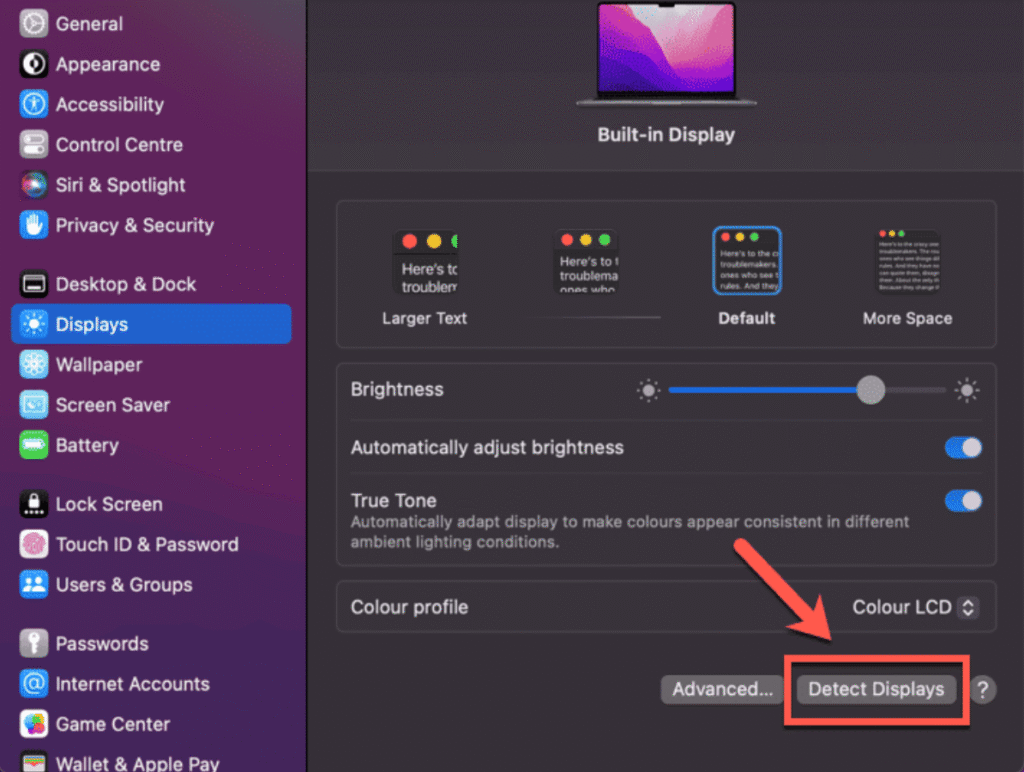
When you’re trying to fix an external monitor black screen, you should try a compatible replacement cable and connect directly to the laptop instead of through a dock.
With an external monitor not showing on your Mac after closing the lid, check that the laptop has power and an external keyboard and mouse connected.
Using MacBook in Extended Display Mode and Closing the Laptop
Closing the lid doesn’t have to mean putting your work away. You can take advantage of extended display mode to spread your desktop across supported screens and give your open windows more room.
For a MacBook that has multiple monitors, you should check the model’s display limit before you connect everything. In System Settings > Displays, choose a monitor and use the “Use as” menu to select an extended desktop.
Before you close the laptop to work on external displays, connect power and an external keyboard and mouse. You can then work with your MacBook lid closed using an external monitor. The laptop’s screen turns off, leaving the supported external screens available for your documents, browser, and other apps.
Keeping the External Monitor On When MacBook M1 is Closed
To keep your monitor on with your MacBook M1 closed, connect the laptop to power, an external display, a keyboard, and a mouse. Check out your M1 external monitor settings under System Settings > Displays while the lid is still open. Make sure your desktop appears on the connected screen.
Next, open your M1 power preferences through System Settings > Battery > Options. Turn on “Prevent automatic sleeping on power adapter when the display is off.”
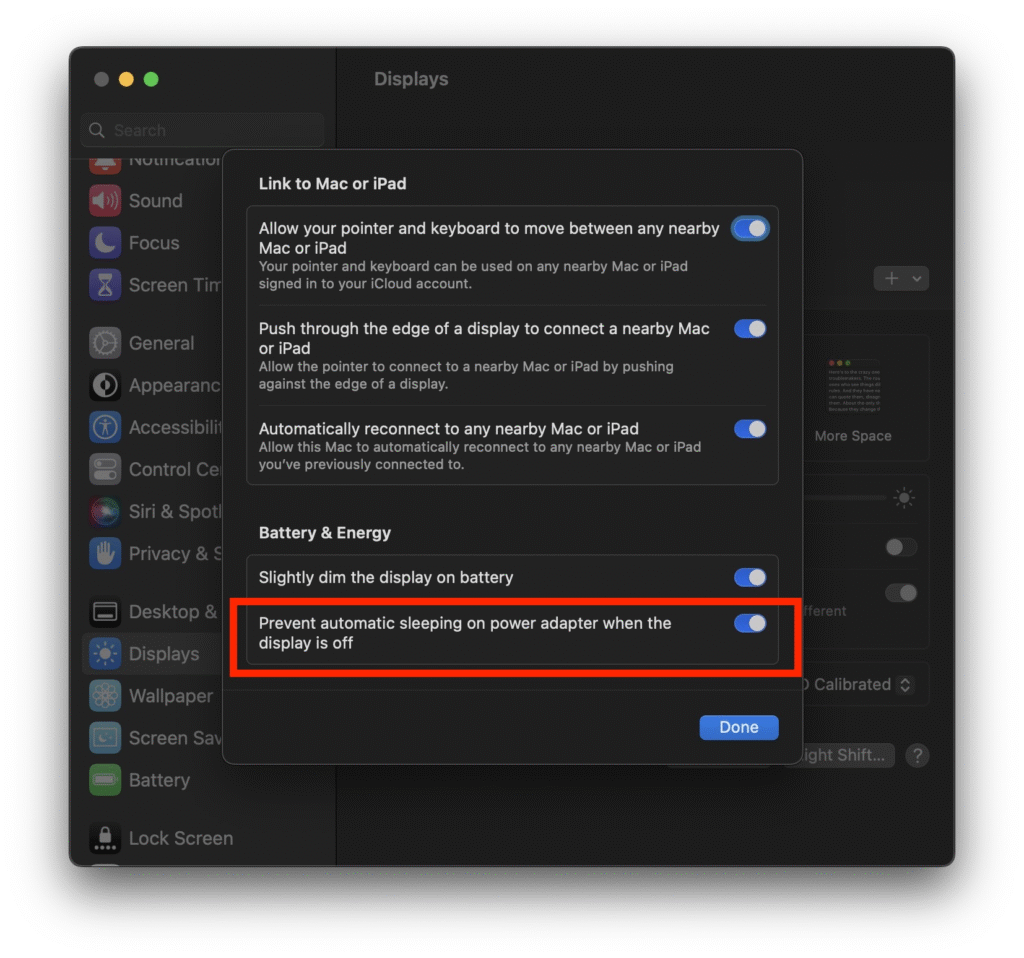
To help ensure your MacBook M1 monitor stays on during inactivity, open Lock Screen settings and set the plugged-in display timeout to Never. You can then close the lid.
Conclusion: Efficient Use of External Monitors with MacBook
Your laptop screen doesn’t need to stay on when all your work is happening on the monitor. A comfortable MacBook external monitor setup can help keep your attention on the task in front of you. To use your MacBook with an external monitor while the lid is closed, keep it connected to power and use an external keyboard and mouse.
From there, adjust your MacBook display settings so that text is comfortable to read and windows are easy to manage. Those small changes can help with MacBook productivity by reducing the distractions of an extra screen.

Louis Mugan is a seasoned technology writer with a talent for turning complicated ideas into clear, practical guidance. He focuses on helping everyday readers stay confident in a world where tech moves fast. His style is approachable, steady, and built on real understanding.
He has spent years writing for platforms like EasyTechLife, where he covers gadgets, software, digital trends, and everyday tech solutions. His articles focus on clarity, real-world usefulness, and helping people understand how technology actually fits into their lives.
Outside of his regular columns, Louis explores emerging tools, reviews products, and experiments with new tech so his readers don’t have to. His steady, friendly approach has made him a reliable voice for anyone trying to keep up with modern technology. get in touch at louismugan@gmail.com