
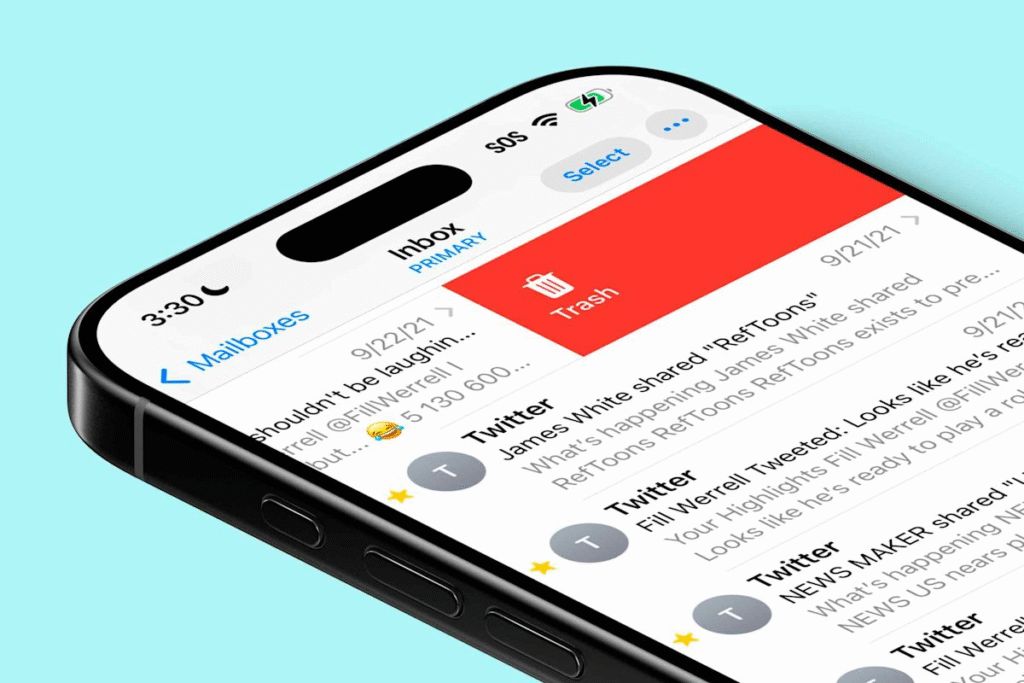
It can be really frustrating when you can’t find a message you need in your inbox due to a huge amount of newsletters that you never read. However, when you organize your iPhone emails better, you won’t have to deal with clutter getting in your way.
If you want to delete the emails on your iPhone, you don’t have to open every unwanted message. The Gmail app allows you to select a group of messages and remove them together.
You can also clear your Gmail inbox without getting rid of those conversations that you might still need again. All you have to do is archive them, and you’ll have those messages available outside your inbox.
Step-by-Step Guide to Delete Emails from Gmail on iPhone
Clearing unwanted emails doesn’t have to become a chore that takes up your afternoon. You can delete emails via the Gmail app as you come across messages that have served their purpose.
Start by opening the app on your phone and then going through your inbox. As soon as you find an email that you no longer need, simply touch and hold it to select it.
Check that you’ve selected the right message, then tap the trash icon at the top. That will help to send the email to Trash. You can follow the same steps for any other unwanted messages that you want to get rid of.
How to Mass Delete Emails in Gmail on iPhone
If you don’t want to waste time deleting old mails individually, then you can take advantage of the feature that allows you to delete multiple emails at once.
When you get into the Gmail app, open the inbox category that you want to clear. Touch and hold a message to bring up the selection options. Tap the checkbox beside “Select all” at the top left to select all the emails in the current batch.
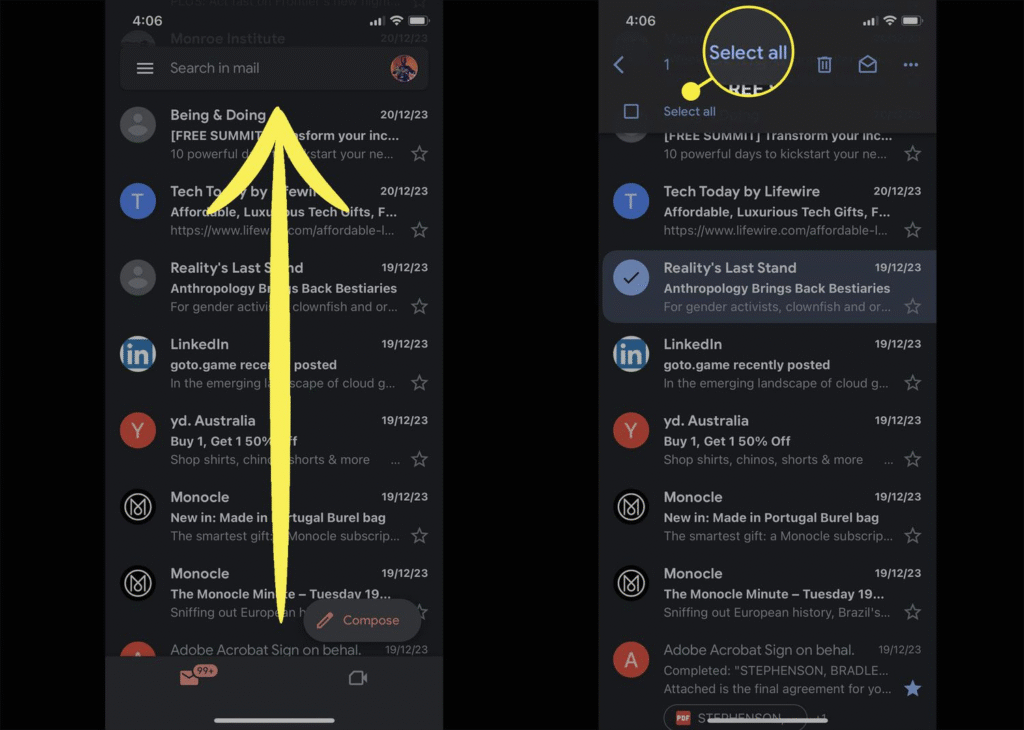
Always double-check the messages that you selected before going further, especially if there are any personal messages mixed with unwanted mail. Then tap the trash icon at the top to delete all of the emails in that selection. Repeat if more unwanted messages remain in your inbox.
Clearing Your Gmail Inbox Completely
For a complete inbox clean-up, remember to check the other categories where unread offers and updates collect. In the app, you should open categories such as Promotions, hold a message, and then tap “Select all.” You can then tap the trash icon to get rid of the selected batch.
You’ll need to repeat this to delete all the emails in the category, then do the same for the others. Check for messages you want to keep along the way. After that, you can empty the Trash folder by following Menu > Trash > Empty trash now.
What Happens to Deleted Emails in Gmail on iPhone
When you delete an email, it may still be available in the Trash folder. You can go through the folder and check for anything that you were meant to keep.
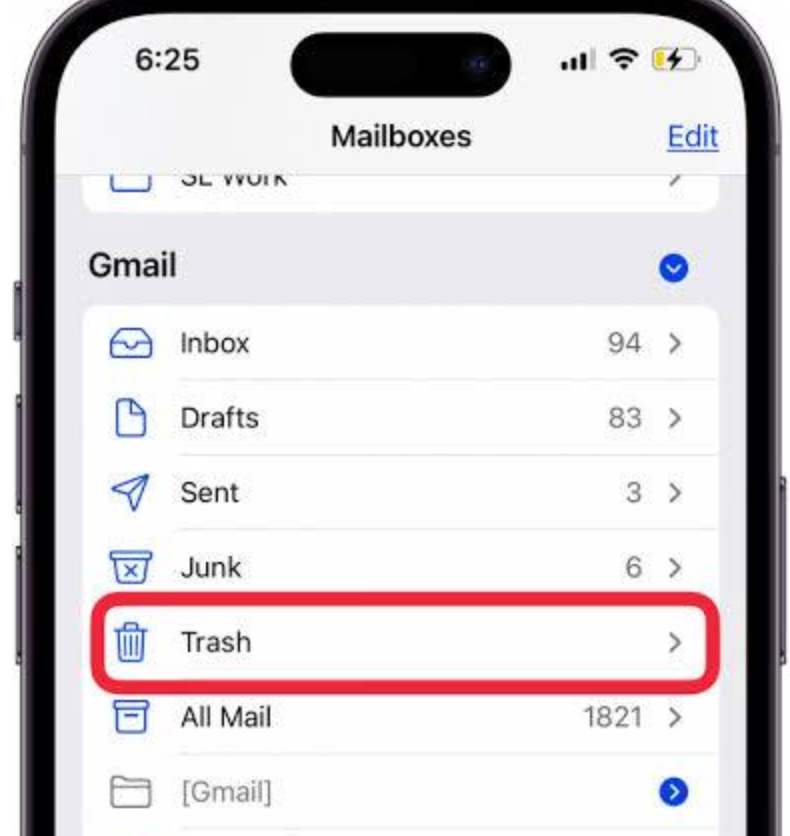
Gmail has a thirty-day retention policy, and this means that any messages that you send to the Trash stay there temporarily before being permanently deleted.
However, they’ll be gone sooner if you clear the Trash. While they’re still there, you can recover the deleted emails by touching and holding them, tapping More, choosing Move, and selecting Inbox.
Troubleshooting: What to Do If You Can’t Delete Emails in Gmail on iPhone
An email that stays put after you tap Delete can make clearing your inbox frustrating. To troubleshoot Gmail issues, check whether a website loads in your browser. If it doesn’t, then you can try out another internet connection.
Once you’re sure that a good connection has been established, swipe down from the top of your inbox. This refreshes your messages and also helps when your Gmail is not syncing properly.
If the app freezes when you try again, close it completely and then reopen it. If you’re still experiencing any issues with your Gmail app, then you may need to do an app update or restart your phone.
Conclusion: Keeping Your Gmail Inbox Organized on iPhone
Taking the time to organize your inbox makes it a lot easier to spot those messages that need your attention.
You can follow all of the steps we have mentioned in this article to delete any unwanted emails and archive those that you might need later. When your inbox is clean, you’ll have less clutter to scroll through when you need to check for something important.
Keeping up with that habit makes efficient email management part of your regular routine. You can deal with unwanted messages before they pile up again.

Louis Mugan is a seasoned technology writer with a talent for turning complicated ideas into clear, practical guidance. He focuses on helping everyday readers stay confident in a world where tech moves fast. His style is approachable, steady, and built on real understanding.
He has spent years writing for platforms like EasyTechLife, where he covers gadgets, software, digital trends, and everyday tech solutions. His articles focus on clarity, real-world usefulness, and helping people understand how technology actually fits into their lives.
Outside of his regular columns, Louis explores emerging tools, reviews products, and experiments with new tech so his readers don’t have to. His steady, friendly approach has made him a reliable voice for anyone trying to keep up with modern technology. get in touch at louismugan@gmail.com