Every Android phone ships with apps you didn’t pick. Some come from Google, some from the company that built the phone, and some from your carrier or a company that paid to be there. That’s why there’s no single Android pre-installed apps list that fits every phone: each of those groups changes by brand, model, carrier and country.
This guide sorts the apps by who put them on your phone, shows you how to see the exact list on your own device, and explains which ones you can safely turn off. Not every pre-installed app is bloatware, though. Some handle essential phone functions, while others are optional tools, carrier apps or promotions you may never open.
Quick answer
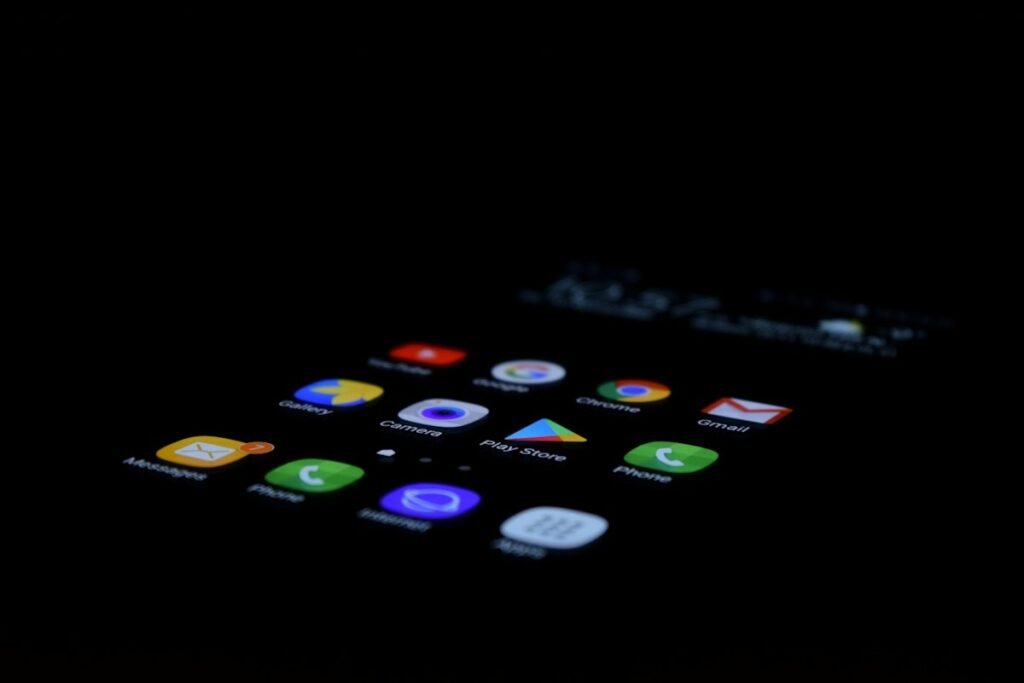
- Google apps: most Android phones sold in the US include the Google app, Chrome, YouTube, the Play Store, Gmail, Google Maps, Google Drive, Google Photos and YouTube Music.
- Core system apps: Settings and background services such as Google Play services keep the phone working, along with the Phone, Messages and Contacts apps. Many of them can’t be removed.
- Phone maker apps: Samsung, Google, Motorola, OnePlus and others add their own, such as Galaxy Store and Bixby on Samsung phones or Recorder on Pixel phones.
- Carrier and partner apps: phones bought from a carrier often add an account app such as My Verizon or, on some T-Mobile phones, T-Life, plus partner apps such as Facebook or Netflix.
- To see your own list: open Settings > Apps, tap See all apps or All apps, and turn on Show system apps if your phone offers that option.
Why there’s no single list of pre-installed apps
Google’s own apps aren’t part of Android itself. They come as a separate bundle called Google Mobile Services (GMS), which phone makers license from Google. Google’s GMS page says the apps in that bundle can vary by country, and that the Google app and Chrome aren’t included in GMS on devices shipped in the European Economic Area.
Then each phone maker adds its own apps, and phones sold through a carrier usually carry that carrier’s apps too. Samsung’s US support page notes that the screens and settings you see can differ by carrier, software version and model. So two phones of the same model can show different app lists if one came from a carrier and the other was bought unlocked.
The Android pre-installed apps list, by who installed them
The table groups the apps you’re most likely to find on an Android phone sold in the US. Your phone won’t have every app listed here, and it may have some that aren’t.
| Group | Common examples | Can you remove them? |
|---|---|---|
| Google apps (GMS) | Google app, Chrome, YouTube, Play Store, Gmail, Google Maps, Google Drive, Google Photos, YouTube Music | Varies. Some are system apps that can only be disabled; others can be uninstalled. |
| Core system apps | Settings, Google Play services, Phone, Messages, Contacts; Samsung also protects Gallery and My Files | Usually not. Leave Settings and Google Play services on. |
| Samsung apps (Galaxy phones) | Galaxy Store, Bixby, Samsung Health, Samsung Wallet, SmartThings, Samsung Internet, Samsung’s Music app (varies by model) | Some can be uninstalled, some only disabled, and Samsung says any pre-installed app can be hidden |
| Google Pixel apps | Google Maps and Google Wallet, which Google says come loaded on every Pixel, plus Pixel apps such as Recorder (Pixel 3 and later) | Google says most system apps on a Pixel can be disabled |
| Other phone maker apps | OnePlus Notes, OnePlus My Files, Motorola Notifications | Often disable-only |
| Carrier apps | My Verizon, T-Life (on some T-Mobile phones), Verizon Protect, AT&T ActiveArmor | Many can be uninstalled; some can only be disabled |
| Partner apps | Facebook, Instagram, Netflix | Often fully removable |
Sources for the table: the Google app list comes from Google’s GMS page. The Samsung core apps come from Samsung’s guide to deleting pre-installed apps, which says Phone, Messages, Contacts, Gallery and My Files can’t be deleted. The other Samsung examples are from Samsung’s apps page, which notes that features vary by device, country, carrier and One UI version. The Pixel examples come from the Google Store and Google’s Recorder help page. The other phone maker, carrier and partner examples come from BGR’s July 2026 roundup, and T-Mobile’s support page describes T-Life as its all-in-one app.
How to see every app on your phone
The fastest way to get your real list is to check the phone itself. Menu names vary a little by brand and Android version, but the path is close on most phones.
One catch: Settings shows the apps installed right now, but it doesn’t label which ones came from the factory. An app that offers Disable instead of Uninstall is usually built in, but that isn’t proof. Some pre-installed apps uninstall normally, and a work or school phone may lock apps for other reasons.
On a Google Pixel or most Android phones
- Open Settings and tap Apps.
- Tap All apps or See all apps.
- If the list seems short, look for a three-dot menu or a filter icon. If you see Show system or Show system apps, turn it on to include background apps. Not every phone or Android version offers this option.
On a Samsung Galaxy phone
- Open Settings and tap Apps.
- To include system apps, open the filter or More options menu, if your phone has one, and turn on Show system apps.
Where this setting sits varies by Galaxy model and One UI version. If the Settings icon itself is missing, see our guide on how to get the Settings icon back on Android.
Uninstall, disable or hide: what each option does
Android gives you up to three ways to deal with an app you don’t want. They aren’t the same, and the right one depends on the app.
| Option | What it does | When you’ll see it |
|---|---|---|
| Uninstall | Removes the app and its app-specific data from the phone. | Apps you installed, and some pre-installed apps the phone lets you remove |
| Disable (or Turn off) | Keeps the app installed but stops normal use and background activity while it’s off. Its icon usually disappears, but you can still find it in Settings and turn it back on. | Many pre-installed apps that can’t be uninstalled |
| Hide (Samsung) | Removes the icon from the Home and Apps screens. The app stays installed. | Every pre-installed app on Galaxy phones, according to Samsung |
Google’s Android guide to removing apps calls disabling the safer choice for pre-installed apps because you can undo it. If you only want the icon gone and still use the app, you can also remove the app from your Home screen without uninstalling it.
How to disable or remove pre-installed apps
On a Google Pixel
- Open Settings.
- Tap Apps, then All apps, then the app you want to turn off.
- Tap Disable. If you see Uninstall instead, the app can be removed completely.
Google’s Pixel Help page says you can’t delete some system apps that came with your Pixel, but you can disable most of them.
On a Samsung Galaxy
- Swipe up from the Home screen to open the Apps screen.
- Touch and hold the app you don’t want.
- Tap Uninstall if it’s offered. If not, tap Disable.
You can also go to Settings > Apps, tap the app, then tap Disable and confirm. Samsung’s US support page notes that not every pre-installed app can be disabled.
For an app you can’t remove or disable, hide it instead:
- Touch and hold an empty spot on the Home screen, then tap Settings.
- Tap Hide apps on Home and Apps screens.
- Select the apps and tap Done.
On other Android phones
- Open Settings > Apps and tap the app.
- Tap Uninstall, Disable or Turn off, whichever appears.
- If you’re disabling an updated pre-installed app, Android may ask whether to replace it with the factory version. Tap OK only if you want to continue. This removes the app’s installed updates.
Verizon’s Galaxy guide shows this prompt and warns that disabling an app can make related apps stop working properly.
If Disable is grayed out, the phone maker or carrier has locked that app. Tapping Force stop only closes it until the next time it starts. Our guide explains what Force stop really does on Android.
Which pre-installed apps are safe to turn off?
Google’s own advice is a good starting point: not everything that comes preloaded is bloatware. Many built-in apps handle security, updates, backups and sign-in, so turning off the wrong one can break other features.
Usually fine to disable or remove if you don’t use them
- Partner apps you never opened, such as preloaded social media, streaming or game apps.
- Duplicate apps, such as a second calendar or notes app when you already use Google’s version.
- Carrier extras you don’t use. BGR points out that carrier account apps aren’t needed to pay your bill, since the carrier’s website does the same job.
- Preloaded security apps from carriers or antivirus brands may be optional. BGR argues most aren’t needed because Google Play Protect covers the basics, but check whether your plan includes protection features you use before removing one.
Leave these alone
- Google Play services. Google says it connects apps to services like Google Sign-In and Maps, and that you can’t force stop or uninstall it. It isn’t the same as the Google Play Store, and disrupting it can affect sign-in and other Google features in many apps.
- Google Play Store. You need it to update apps and to turn disabled apps back on.
- Settings, plus your Phone, Messages and Contacts apps, especially if they’re your defaults. On Galaxy phones, Samsung protects these, along with Gallery and My Files, from normal removal.
- Samsung’s built-in maintenance tools, such as Device Care. BGR warns that battery tuning depends on Device Care, so leave it on unless Samsung offers a supported way to remove it.
- Anything with a technical name you don’t recognize, such as names containing “system,” “services” or “framework.” Look it up before you touch it.
A simple habit helps: disable one app at a time, then use your phone normally for a day. If something stops working, turn that app back on.
How to turn a disabled app back on
Disabled apps disappear from your app drawer, which can look like they were deleted. You can bring them back in either of two ways.
From Settings
- Open Settings > Apps and show all apps, including system apps.
- Tap the disabled app.
- Tap Enable or Turn on.
From the Google Play Store
- Open the Play Store and tap your profile icon.
- Tap Manage apps & device, then Manage.
- Find the app and tap Enable. If you can’t find it, tap the filter at the top, choose Not installed, and look again. If it’s still missing, use Settings instead.
This works for apps that Google Play manages. If the app isn’t listed there, use Settings instead, since some built-in system packages never appear in the Play Store. These steps come from Google’s Reinstall and re-enable apps help page. If an app vanished and you don’t remember disabling it, our guide to why apps disappear and how to restore them covers the other causes.
For advanced users: list every system package with ADB
Settings shows app names. If you want the complete technical list, including background packages, you can pull it from a computer with Android Debug Bridge (ADB), Google’s free command-line tool.
- Install Google’s free SDK Platform-Tools on your computer. ADB is part of that package.
- Turn on Developer options. On a Pixel, go to Settings > About phone and tap Build number seven times. On a Samsung Galaxy, it’s under Settings > About phone > Software information > Build number.
- Open Developer options and turn on USB debugging.
- Connect the phone to your computer with a USB cable and run
adb devicesto check the connection. Approve the prompt on the phone if one appears. - Run
adb shell pm list packages -sto list system packages only.
Swap -s for -3 to see third-party packages, or for -d to see disabled packages. Third-party packages can include some apps that came preloaded, so -3 isn’t strictly a list of apps you installed. These flags show how Android classifies packages, not a guaranteed record of what shipped on your phone. The results show package names, such as com.google.android.youtube, rather than app names. Turn off USB debugging when you’re done. The commands and options come from Google’s ADB documentation, and the Developer options steps from its developer options guide.
Some online guides go further and use ADB to remove system packages. That goes beyond what Google and Samsung support for everyday users, and BGR warns it can break features, so this guide doesn’t cover it.
Frequently asked questions
What apps come preinstalled on Android?
Most US Android phones include Google’s core apps, such as Chrome, YouTube, Gmail, Google Maps, Google Photos and the Play Store. They also include system apps such as Phone, Messages and Settings, plus extra apps from the phone maker and, for carrier-sold phones, the carrier. The exact list depends on your model, carrier and country.
How do I see a list of previously installed apps on Android?
Open the Google Play Store, tap your profile icon, then tap Manage apps & device > Manage. Tap the Installed menu at the top and choose Not installed. You’ll see eligible apps tied to your Google account that aren’t on this phone right now, and you can reinstall them from there. It isn’t a full history of every app you’ve had, and apps from Galaxy Store or other sources won’t appear.
How do I find preinstalled apps?
Go to Settings > Apps, open the full app list, and turn on Show system apps if your phone offers it. Settings doesn’t label factory-installed apps, but an app that shows Disable instead of Uninstall on its App info page is usually built in.
Is there a way to delete preinstalled apps on Android?
Yes for some of them. Partner apps and some phone maker apps show a normal Uninstall button. Core system apps can’t be deleted through Settings, but many can be disabled, and Samsung lets you hide any of them.
How do I remove all traces of an app on Android?
A normal uninstall removes the app and its app-specific local data. According to Google’s Android developer documentation, photos, videos and documents the app saved to shared storage stay on the phone, and data kept in the cloud stays too. Uninstalling also doesn’t delete your online account. To clean up fully, check your Files and Photos apps for leftovers and close your account with the service if you no longer need it. On a pre-installed app, removing its updates only rolls it back to the factory version; the app stays on the phone.
What pre-installed apps should I uninstall?
Start with apps you never open that aren’t tied to how the phone works: partner apps, duplicates of apps you already use, and carrier extras. Leave Settings, Google Play services and the Play Store on, and be careful with your default Phone, Messages and Contacts apps.
Why can’t I delete an app on Android?
If there’s no Uninstall button, it’s usually a system app the phone maker or carrier has protected. On a work or school phone, your organization may also block removal. Use Disable if it’s available. On a Samsung phone, you can hide it from the Home and Apps screens instead.
Conclusion
The Android pre-installed apps list on your phone is a mix of Google apps, system apps, phone maker apps and, on carrier-sold phones, carrier and partner apps. To see yours, go to Settings > Apps and show system apps. To clean it up, uninstall apps that allow removal, disable unwanted apps where that option is available, or hide their icons. Leave Google Play services and other essential system services on.
The steps in this guide were checked against the linked Google, Samsung, Verizon and Android Developers pages in November 2026. Menu names can differ slightly by phone, carrier and Android version.

Louis Mugan is a seasoned technology writer with a talent for turning complicated ideas into clear, practical guidance. He focuses on helping everyday readers stay confident in a world where tech moves fast. His style is approachable, steady, and built on real understanding.
He has spent years writing for platforms like EasyTechLife, where he covers gadgets, software, digital trends, and everyday tech solutions. His articles focus on clarity, real-world usefulness, and helping people understand how technology actually fits into their lives.
Outside of his regular columns, Louis explores emerging tools, reviews products, and experiments with new tech so his readers don’t have to. His steady, friendly approach has made him a reliable voice for anyone trying to keep up with modern technology. get in touch at louismugan@gmail.com