
If you’re trying to send a bulk message to all of your contacts on your iPhone at once, you might be surprised to learn that iPhones do not offer an option to do this natively. One of the reasons for this is likely to prevent spam, as having that option would allow people to spam all of their contacts quite easily.
However, there are some alternatives if you want to get your message out to many people, including using the Shortcuts app, setting up a group text, or using a commercial bulk SMS tool.
Quick answer: iPhone has no single button that texts every saved contact. For a handful of people, start a group text. To send separate messages, use a shortcut and pick the recipients. A Contacts list keeps a set of people ready to message, and a business SMS service is the right tool for large, permission-based lists.
Fastest (Small Lists): Build a Group Text Manually
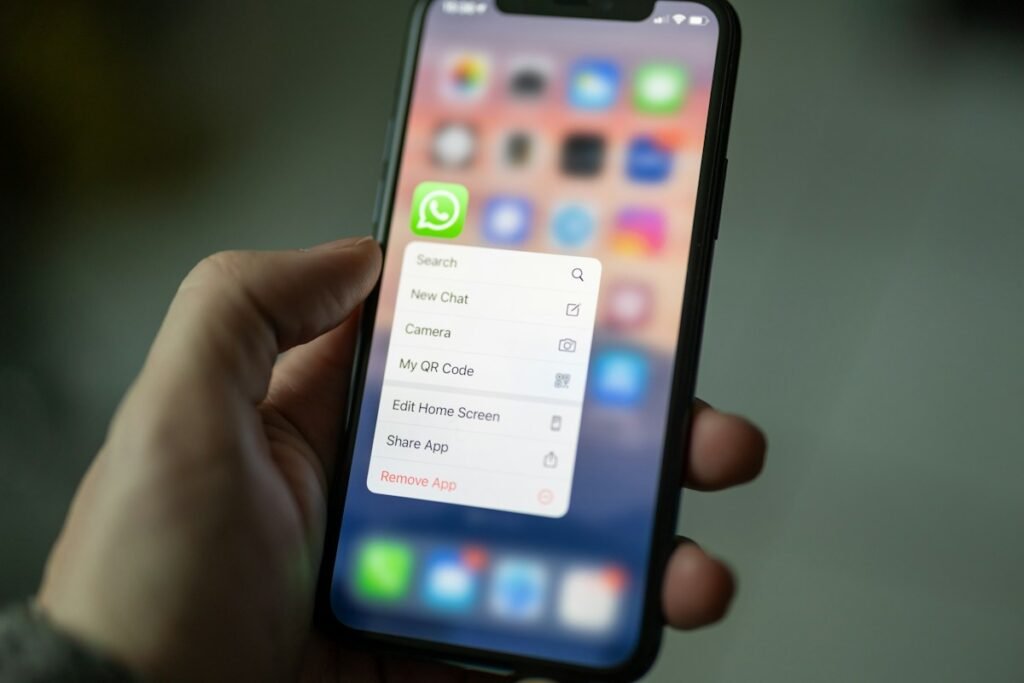
The fastest way to text multiple people at once is to create a group text. To do that, open Messages and tap the compose (pencil) icon to write a new message.
Tap the To field, then add people by tapping the plus icon and selecting them from your contacts. Alternatively, type in their phone number if they are not saved as contacts. Once you have finished adding people, type your message in the text field (or add attachments) and then tap the send button.

How many people can you add to a group text?
The answer is that it depends. Apple doesn’t publish a maximum for group iMessages, so for a large group, plan to split it into smaller ones.
However, if someone in the group doesn’t use iMessage, the conversation goes through your carrier instead, as SMS/MMS or, on iOS 18 and later with carriers that support it, RCS. You will know if someone is not using iMessage, because the messages you send will appear in green bubbles instead of blue ones. The maximum then depends on your carrier and plan. Some carriers cap group texts at 10 or 20 people, while others allow more.
Send a Mass Message With Shortcuts
Although iPhones don’t have a built-in mass message option, the Shortcuts app can send the same text to several contacts one by one.
The crucial part is that, when the shortcut is set up to send one message per person, it doesn’t create a group. Each contact gets a separate conversation and won’t see who else received the message. Depending on its settings, the shortcut may ask you to confirm before it sends.
You can build the shortcut yourself in a few minutes. Our guide on how to send group messages individually on iPhone walks through the steps. You can also install a mass-message shortcut that someone else has shared online. Only add shortcuts from sources you trust, because they get access to your contacts and can send messages for you. Test any shortcut with one or two contacts first, since shared shortcuts can stop working after an iOS update.
Make an “All Contacts” List You Control
In the Contacts app, you can also create a list of the people you want to reach. Open the Contacts app, tap Lists (the back arrow) at the top left, and then tap Add List.
Name your list and add people to it. To message or email everyone on it, go back to the Lists screen, touch and hold the list, and choose Message All or Email All. Note that Message All opens a group message draft. It doesn’t send separate messages, and the group limits above still apply. For a large list, split it into smaller lists or use the Shortcuts method instead. A list is still useful for segmenting your contacts, and you can email everyone on it if there are too many people for a group chat.
Large Lists & Compliance: Use an A2P/Bulk SMS Service
If you are mass messaging people for business purposes, it’s best to use a compliant SMS platform. You have to get opt-in consent before sending people promotional messages. Under FCC rules, marketing texts sent with an autodialer generally need the person’s prior express written consent, and Do Not Call rules may also apply.
The main federal law for business texting is the Telephone Consumer Protection Act (TCPA). The CAN-SPAM Act mostly covers commercial email, and it reaches text messages only in some cases, such as commercial messages sent to a phone through an email address. Various state laws also exist, restricting messages after certain hours or limiting how often you can send them.

Settings to Review Before Sending
If you’re texting people who aren’t saved in your contacts, know where their replies may go. Screen Unknown Senders doesn’t stop you from sending messages, but it can move replies from unknown numbers out of your main conversation list.
If a reply seems to be missing in iOS 26, open Messages, tap the Filters button and choose Unknown Senders. Tap the conversation, then tap Mark as Known to move it to your main list, as Apple describes. You can also turn the feature off under Settings > Apps > Messages > Unknown Senders. In iOS 18, the setting is called Filter Unknown Senders.
Avoid Getting Rate-Limited or Flagged
If you plan on using a commercial provider to send bulk SMS messages, here are some tips and text outreach best practices to avoid spam filters:
- Register your sending number through your provider. For US business texting, regular 10-digit numbers go through A2P 10DLC registration, toll-free numbers need toll-free verification, and short codes have their own approval process. Unregistered numbers often get filtered or blocked, and registration doesn’t replace getting consent.
- Build up slowly; avoid sending too many messages at first.
- Break lists into segments to stagger delivery. Bulk SMS providers can usually do this automatically for you.
- Follow your provider’s content rules. Public link shorteners such as Bitly, all caps and pushy wording like “urgent” or “limited-time offer” can trigger carrier spam filters, so use links on your own domain and identify your business.
- Clear inactive numbers and filter out landlines to reduce your error rate.
- Tell recipients how to opt out (usually by replying STOP), and honor any reasonable request to stop, not only the keyword.
- Make sure to get opt-in consent before messaging a number.
- Don’t send marketing texts to numbers on the National Do Not Call Registry unless the person has given you permission in advance, in writing.
- Check before sending content in the categories carriers call SHAFT (Sex, Hate, Alcohol, Firearms and Tobacco), which carriers and providers may restrict or block.
- Use personalization to avoid sending the same message to everyone.
Frequently asked questions
Can I select all my contacts at once on iPhone?
Not in Messages. There’s no option to add your whole address book to one message. A Contacts list helps you select multiple recipients at once, and it opens a draft rather than sending automatically. A properly set-up shortcut can send separate messages to the contacts you select.
Will recipients see each other’s numbers?
In a group iMessage, MMS or RCS conversation, everyone can see who else is in the group. If you don’t want that, send separate messages with a shortcut, as described above.
Conclusion
Mass text options are limited on iPhones, but there are a few ways you can text multiple people at once: a group text for small lists, a shortcut that sends individual messages, and a Contacts list for people you message often. If you are texting people for commercial purposes, use a registered business texting provider and follow federal and state rules.
How this guide was put together: the iPhone steps were checked against Apple’s support documentation and the business texting rules against FCC guidance in November 2026. This is general information, not legal advice.

Louis Mugan is a seasoned technology writer with a talent for turning complicated ideas into clear, practical guidance. He focuses on helping everyday readers stay confident in a world where tech moves fast. His style is approachable, steady, and built on real understanding.
He has spent years writing for platforms like EasyTechLife, where he covers gadgets, software, digital trends, and everyday tech solutions. His articles focus on clarity, real-world usefulness, and helping people understand how technology actually fits into their lives.
Outside of his regular columns, Louis explores emerging tools, reviews products, and experiments with new tech so his readers don’t have to. His steady, friendly approach has made him a reliable voice for anyone trying to keep up with modern technology. get in touch at louismugan@gmail.com