You don’t need to unlock an Android phone to answer a call. When someone calls, the call screen appears on top of the lock screen, and one gesture picks it up. On the current Google Phone app, which Pixel phones and many other Android phones use, you swipe right to answer and swipe left to decline, according to Google’s Phone app help. Samsung’s Phone app uses a swipe by default, and you can switch it to a single tap.
This guide covers several ways to answer a locked Android phone, including options that skip the swipe entirely, and what to do when the call screen doesn’t appear on the lock screen at all.
Quick answer
- Google Phone app (Pixel and many other phones): swipe right on the incoming call to answer, or swipe left to decline.
- Samsung Galaxy: swipe the green Answer button, or switch to one tap in Phone > More options > Settings > Answering and ending calls > Gesture to answer calls > Tap.
- Without touching the screen: Samsung phones can answer with the Volume up button, and supported Pixel phones can answer when you say “Answer.”
- Call screen missing? Check the Phone app’s notification settings, your lock screen notifications, Do Not Disturb and, for apps such as WhatsApp, the full screen notification permission.
Answering a call generally doesn’t unlock the rest of your phone. Basic call controls such as speaker and hang up stay available, but opening other apps and some features still needs your PIN, pattern or fingerprint.
How to answer with the Google Phone app (Pixel and other phones)
- When the call comes in, look for the call controls on the lock screen.
- Swipe right to answer. If you see an Answer button instead, tap it.
- To decline, swipe left or tap Dismiss. To decline and send a text, tap the Message icon.
Older versions of the Google Phone app used a vertical gesture instead: swipe up to answer and down to decline, as Android Authority described. Google’s current help page describes the horizontal swipe, so follow whatever gesture your call screen shows.
On supported phones, you can also tap Screen call or Urgent? to let Google’s Call Assist answer for you and ask who’s calling. This screens the caller; it doesn’t connect you to a normal conversation.
How to answer on a Samsung Galaxy phone
Swipe to answer (the default)
When a call comes in on a locked Galaxy phone, drag the green Answer button in the direction the screen shows. Drag the red button to decline.
Switch to one tap
- Open the Phone app and tap More options (the three dots).
- Tap Settings, then Answering and ending calls.
- Tap Gesture to answer calls and choose Tap.
These steps come from Samsung’s US guide to the Phone app. On Galaxy phones running One UI 6.0 or earlier, Samsung Australia gives a different route: Settings > Accessibility > Interaction and dexterity > Assistant menu. Turn on Assistant menu, then turn on Replace Swipe with Single Tap.
Answer with the Volume up button
- Open Settings > Accessibility > Interaction and dexterity.
- Tap Answering and ending calls.
- Turn on the option to press Volume up to answer.
Samsung’s US accessibility guide lists Volume up answering and having caller names read aloud among these options. It notes that the setting may not be available on tablets, and that screens vary by carrier, software version and model.
Two more Samsung options
- Answer using speaker: under Phone > More options > Settings > Answering and ending calls, this switch puts calls on speaker when you answer without headphones or a Bluetooth device connected.
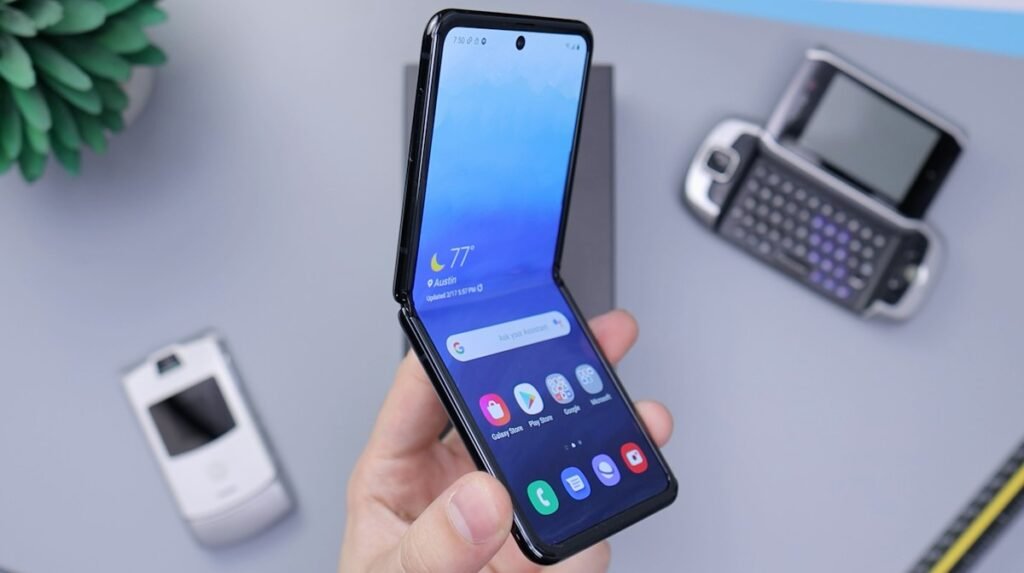
- Galaxy Z Flip: under Phone > More options > Settings > Flip options, you can turn on Open phone to answer calls.
How to answer without touching the screen
Say “Answer” on a supported Pixel
Pixel phones support Quick phrases, which let Google’s assistant respond to a few words without “Hey Google” first. Google’s Pixel Help page gives these steps:
- Say “Hey Google, open Assistant settings.”
- Tap Quick phrases and turn on Incoming calls.
- When the phone rings, say “Answer.” Say “Decline” to reject the call.
Google’s Phone app help also lets you find the feature by searching Settings, and adds “Silence” to mute a ringing call. Quick phrases depends on your Pixel model, language and assistant setup. If you don’t see it in your settings, your phone may not support it. Google also warns that a call can connect by accident if you, or someone near you, says “answer” while the phone is ringing and you don’t notice.
Use a headset, earbuds or your car
Most Bluetooth earbuds, headsets and car systems have a button or touch control that answers a call while the phone stays locked in your pocket. Check your accessory’s manual for the exact gesture.
Use TalkBack gestures
If you use TalkBack, Android’s screen reader, Google’s TalkBack call help says to swipe up with two fingers to answer and swipe down with two fingers to reject. On devices that support multi-finger gestures, a two-finger double tap also answers or hangs up a call.
Why incoming calls don’t show on the lock screen (and how to fix it)
If your phone rings but the incoming call screen doesn’t appear, notification settings, the default Phone app or a temporary software problem may be responsible. Work through these checks in order. The menu paths follow Google-style Android, so Samsung and other brands may use slightly different labels.
- Check the Phone app’s call notifications. Touch and hold the Phone app, tap App info > Notifications, then open Incoming calls if your phone lists that category. Make sure it’s on and isn’t set to show silently or minimized. Guiding Tech traces many missing call screens to this setting.
- Check lock screen notifications. Go to Settings > Notifications > Notifications on lock screen and make sure notifications are allowed there. The labels come from Google’s Android notification help.
- Check Do Not Disturb. If it’s on, make sure it allows calls from the people who call you, or turn it off.
- Check your default phone app. If you installed a third-party dialer, go to Settings > Apps > Default apps > Phone app and switch back to the built-in one to test. If you turned off the built-in Phone app earlier, our guide to pre-installed apps shows how to turn it back on.
- For WhatsApp and other calling apps, check full screen notifications. On Android 14 and later, some calling apps use a special full screen notification permission. If one of them shows only a banner instead of a full screen call alert, go to Settings > Apps > Special app access and open Full screen notifications (on some phones, Manage full screen intents). Then make sure the calling app is allowed. Google’s Android Open Source Project documentation explains this permission.
- Restart the Phone app. Force stop it and reopen it, or restart the phone. Our guide explains what Force stop does on Android.
On a Samsung Galaxy, also check Phone > Settings > Call display while using apps. Guiding Tech’s Samsung troubleshooting guide suggests choosing Full screen there if calls only show as a small pop-up. This setting controls how calls appear while you’re using other apps, so it may not be the cause if calls are missing from the lock screen.
What if the phone rings but the screen stays black?
If the screen stays black or doesn’t respond when the phone rings, and it also stays black or unresponsive at other times, the problem is likely the display or the phone itself rather than a notification setting. Until it’s fixed, you can still answer with a Bluetooth headset or, on a Samsung Galaxy, the Volume up option above. Our guide to accessing an Android phone with a broken screen covers more options.
Once you can answer, if callers say they can’t hear you, our guide to fixing callers who can’t hear you on Android covers the next steps.
Frequently asked questions
How can I answer calls without unlocking my phone screen?
Just answer from the lock screen. The call screen appears over the lock screen, so you can swipe right on the Google Phone app, or swipe or tap on a Samsung phone, without entering your PIN first.
How can I answer my Android phone without sliding?
On a Samsung Galaxy, switch the answer gesture to Tap in the Phone app’s settings, or turn on Volume up answering under Accessibility. On a supported Pixel, turn on Quick phrases for incoming calls and say “Answer.” Some newer versions of the Google Phone app may also offer tap buttons.
Why do missed calls not show up on my lock screen?
Check that lock screen notifications are on under Settings > Notifications > Notifications on lock screen, and that the Phone app’s missed call notifications are enabled under App info > Notifications. If the notification appears but without the caller’s details, sensitive notification content is probably hidden. This is a separate problem from a live call screen that doesn’t appear.
How do I get “Hey Google” to work when my phone is locked?
If Gemini is your assistant, open the Gemini app, tap Menu, then your profile picture or initial, then Settings > Gemini on lock screen. Turn on Use Gemini without unlocking, then Make calls and send messages without unlocking. These steps come from Google’s Gemini lock screen help page, and labels can vary by app version. This lets Gemini place calls and send messages from the lock screen; Google’s page doesn’t say it can answer incoming calls. “Hey Google” itself must also be turned on in the app’s settings.
How do I make a call on a locked Android phone?
For an emergency, use the Emergency call option on the lock screen, which doesn’t need your PIN. For other calls, you can ask Gemini once the lock screen settings above are on. Otherwise, you’ll need to unlock the phone.
Can I bypass my screen lock to answer a call?
You don’t need to. Use the answer controls on the lock screen. If you’ve forgotten your PIN, that’s a separate recovery problem, not something to solve to answer calls. Google’s Find Hub help page explains how to erase a phone remotely, but that permanently deletes its data and you’ll need your Google Account password afterward, so treat it as a last resort.
Does answering a call unlock my phone?
Generally, no. The call works normally, but the rest of the phone stays locked until you unlock it.
Conclusion
To answer a locked Android phone, use the gesture on the call screen: swipe right on the Google Phone app, or swipe or tap on a Samsung. If swiping is hard, switch Samsung to Tap or Volume up, or use Quick phrases on a supported Pixel. If the call screen never appears, start with the Phone app’s notification settings and work down the list above.
Related: if unwanted callers keep getting through, see why blocked numbers can still call you.
The steps in this guide were checked against the linked Google, Samsung and Android Open Source Project pages in November 2026. Menu names can differ by phone model, carrier and software version.

Louis Mugan is a seasoned technology writer with a talent for turning complicated ideas into clear, practical guidance. He focuses on helping everyday readers stay confident in a world where tech moves fast. His style is approachable, steady, and built on real understanding.
He has spent years writing for platforms like EasyTechLife, where he covers gadgets, software, digital trends, and everyday tech solutions. His articles focus on clarity, real-world usefulness, and helping people understand how technology actually fits into their lives.
Outside of his regular columns, Louis explores emerging tools, reviews products, and experiments with new tech so his readers don’t have to. His steady, friendly approach has made him a reliable voice for anyone trying to keep up with modern technology. get in touch at louismugan@gmail.com