
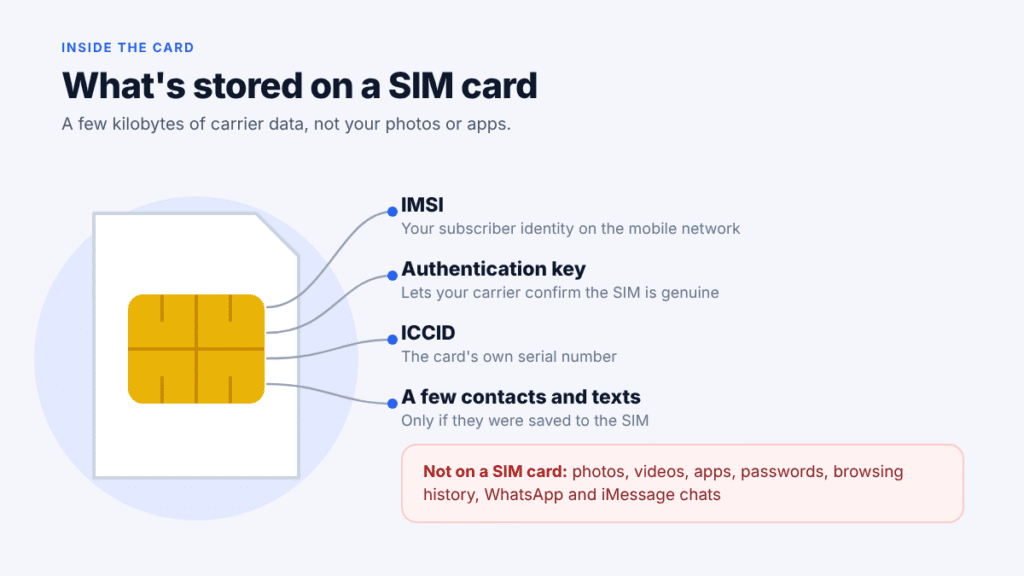
No, taking out your SIM card won’t delete everything on your phone. Your photos, videos, apps, chats and files live in the phone’s internal storage, on a memory card, or in your iCloud or Google account. None of it sits on the SIM.
What changes is your connection to your carrier. Without the SIM, regular calls, SMS texts and mobile data on that line stop until you put it back.
There are a few real exceptions, though. Contacts saved to the SIM itself can vanish from view, SMS login codes stop arriving, and many newer iPhones have no physical SIM to remove at all. This guide covers each one, then shows how to remove a SIM card safely.
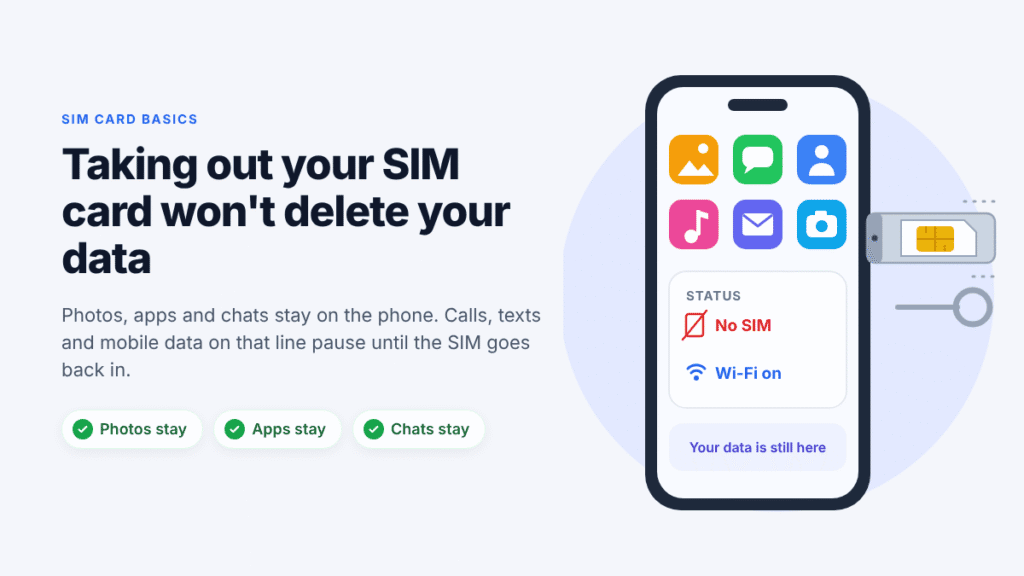
What stays on your phone and what stops working
Removing the SIM cuts your link to the mobile network. It doesn’t touch anything stored on the phone.
| Item | After you remove the SIM |
|---|---|
| Photos, videos and files | Stay on the phone |
| Apps and app data | Stay; most keep working on Wi-Fi |
| Text message history | Stays (it’s saved on the phone) |
| WhatsApp and iMessage chats | Stay; both keep working on Wi-Fi |
| Contacts saved to the phone or a cloud account | Stay |
| Contacts saved to the SIM | Hidden until you reinsert the SIM or import them |
| Calls and SMS on your number | Stop |
| Mobile data | Stops; Wi-Fi still works |
| SMS login (2FA) codes | Stop reaching this phone |
| Emergency calls | Usually still possible (see below) |
Removing the SIM doesn’t cancel your phone number, which is tied to your carrier account. It works again as soon as you put the card back in (Mint Mobile).
If your phone has a second active SIM or eSIM, calls and texts carry on through that line, and it can handle mobile data too (Apple).
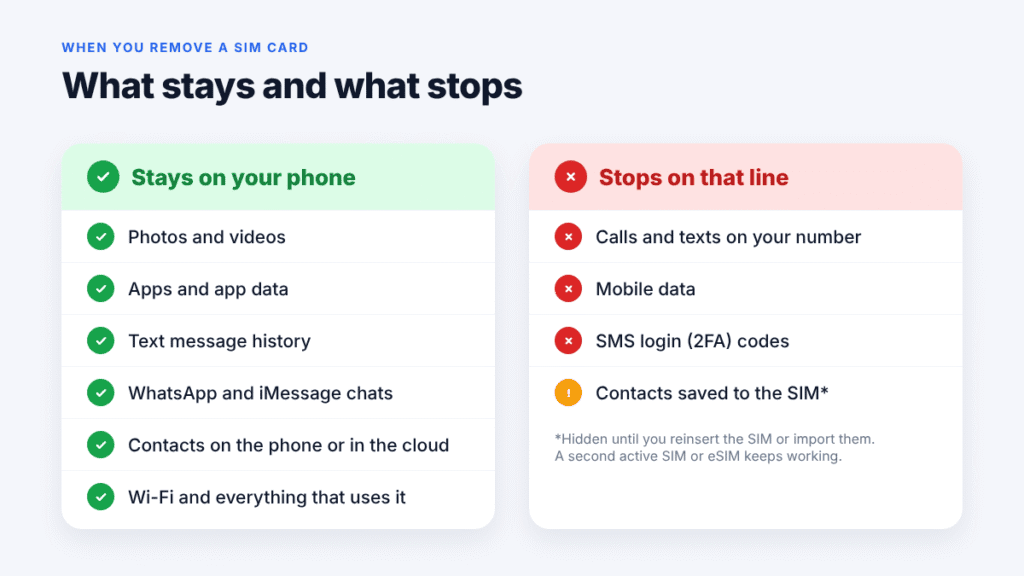
What is stored on a SIM card?
A SIM card is mainly an ID card for your mobile line. It holds the codes your carrier uses to recognize you, such as the IMSI (your subscriber identity), an authentication key and the ICCID serial number (Mint Mobile).
It can also hold a small amount of personal data. Its storage is measured in kilobytes, usually enough for a couple of hundred contacts and a few text messages (Mint Mobile).
That’s far too little for photos. A single smartphone photo usually takes a few megabytes, many times more than an entire SIM can hold.
A SIM card does not store:
- Photos, videos or music
- Apps, app data or passwords
- Browsing history
- WhatsApp, iMessage or RCS chats
Will you lose your photos, contacts or text messages?
Photos and videos
No. Photos and videos are saved to internal storage, an SD card, or a cloud service such as iCloud Photos or Google Photos. Removing the SIM card has no effect on any of them.
Contacts
This is the one place people can lose something, at least for a while. It depends on your phone.
- iPhone: iPhones don’t save contacts to the SIM card, so your contacts stay in iCloud or another account (Apple). An iPhone can still import contacts an older phone saved to a SIM: go to Settings > Apps > Contacts > Import SIM Contacts.
- Android: Many Android phones can save contacts to the SIM. Those contacts disappear from the Contacts app while the SIM is out and come back when you reinsert it. To keep them for good, import them to your Google account from the Contacts app. The option’s name varies by model and software version: on a Pixel, look under Fix & manage or Organize > Manage SIM (Vodafone); on a Samsung Galaxy, open the Contacts menu and choose Import or export contacts (Samsung).
Text messages
Your text history stays on the phone. Modern phones save SMS and chat history in their own storage, and Android’s built-in backup includes SMS messages (Android Authority).
The exception is older or basic phones that let you save texts to the SIM. Those messages travel with the card instead.
Voicemail
Voicemail is worth saving before a SIM swap. Apple warns that voicemail messages might not be available after you swap SIM cards (Apple).
Can you still use your phone without a SIM card?
Yes. Without a SIM, your phone works much like a tablet: anything that runs over Wi-Fi keeps working.
- Still works: Wi-Fi browsing, apps, streaming, email, the camera and gallery, Bluetooth, and WhatsApp, iMessage and FaceTime over Wi-Fi.
- Stops: regular calls and texts on your number, mobile data, and your carrier’s Wi-Fi calling, which needs your SIM’s line.
Emergency calls without a SIM
In the US, wireless carriers must pass along all 911 calls, including calls from phones with no active service (FCC). That covers a phone with no SIM inside.
There’s a catch. A phone without service has no callback number, so if the call drops, the dispatcher can’t ring you back (FCC). Give your location at the start of the call.
Outside the US, rules differ by country, so don’t rely on a SIM-less phone as your only way to call for help.
What happens to WhatsApp, iMessage and login codes?
Removing the SIM doesn’t log you out of WhatsApp or delete your chats. The app keeps working over Wi-Fi (Guiding Tech).
You need the SIM again only if WhatsApp asks you to re-verify your number, which it does by SMS or voice call. Keep the number active if you want to keep the account.
iMessage and FaceTime
Both can keep working over Wi-Fi with your Apple Account email address (Apple). Your phone number is less reliable without the SIM, because an iPhone needs SMS to activate a number for iMessage and FaceTime.
If the SIM will be out for a while, choose your email address under Settings > Apps > Messages > Send & Receive.
Two-factor authentication codes
This is the consequence most guides miss. Banks, email providers and social apps often send login codes by SMS to your number.
With the SIM out, those codes won’t reach the phone. If the SIM is in another phone, the codes go there instead.
Before removing the SIM for long, move important accounts to an authenticator app or save their backup codes. If you’re getting rid of the phone, the FTC also advises removing it from each account’s trusted-device list (FTC).
What happens if you put your SIM card in another phone?
Your phone number and plan move with the SIM, plus any contacts or texts saved on it (eSIM Europe). Calls, texts and mobile data start working on the other phone once it connects to your carrier.
Nothing else moves. Photos, apps and chats stay on the old phone unless you transfer them with iCloud, a Google backup or a transfer tool.
Two things can stop a SIM from working in another phone:
- Carrier lock. A phone locked to one carrier won’t accept another carrier’s SIM. On an iPhone, go to Settings > General > About; “No SIM restrictions” next to the carrier lock line means it’s unlocked (eSIM Europe).
- SIM size. Most current phones use a nano-SIM. An older, larger card needs a replacement from your carrier.
What if you take the SIM out and put it back in?
Once you reinsert the SIM and the phone reconnects to your carrier, calls, texts and mobile data on that line should work again. Contacts saved on the SIM should reappear too. If you’ve set a SIM PIN, you’ll enter it first.
While the SIM was out, incoming calls usually went to voicemail. Some texts sent while the SIM was out may arrive after you reconnect, depending on your carrier. Any that expire before then won’t arrive at all.
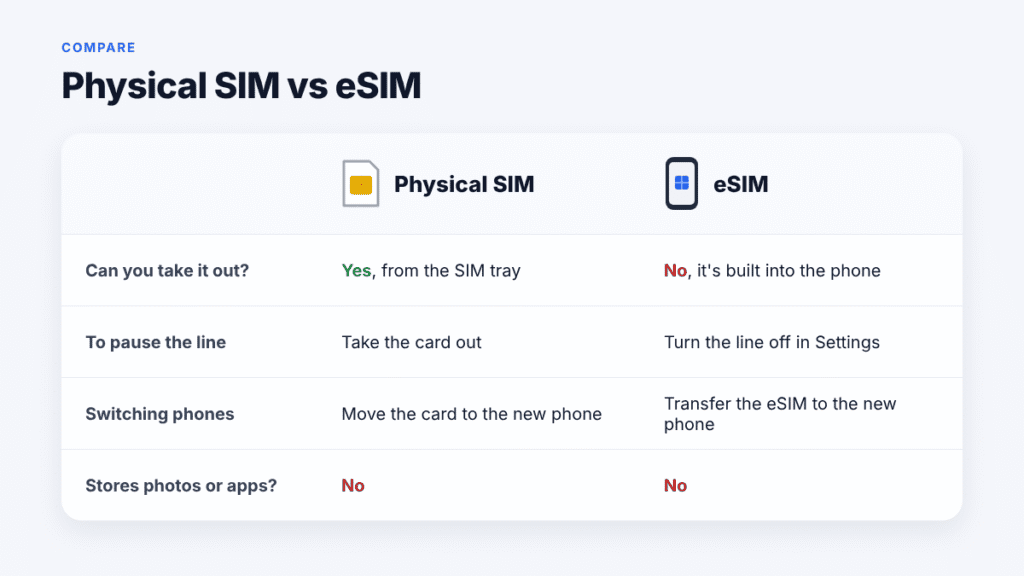
What about eSIM?
An eSIM is a SIM built into the phone and set up digitally, so there’s no card to take out. It does the same job as a physical SIM and, like one, stores no photos or apps.
More phones now rely on it. iPhone 14 and later models bought in the US work with eSIM only (Apple). The iPhone Air is eSIM-only worldwide, and iPhone 17 models are eSIM-only in countries including Canada, Japan, Mexico and the UAE (MacRumors).
Unlike a physical SIM, an eSIM can’t be taken out of the phone. To pause that line without deleting it, turn it off instead: on an iPhone, go to Settings > Cellular, tap the line and switch off Turn On This Line (Apple).
Only erase an eSIM when you no longer need it on that phone, such as after moving the line to a new phone or before selling this one. Apple also advises against erasing one to fix a problem unless your carrier tells you to. On an iPhone, the option is Settings > Cellular > Delete eSIM (Apple).
Erasing an eSIM removes the line from the phone, not your data, and it doesn’t cancel your plan or number. You’d need a new eSIM from your carrier to use the line on that phone again, and only your carrier can cancel the plan (Apple).
How to remove a SIM card safely
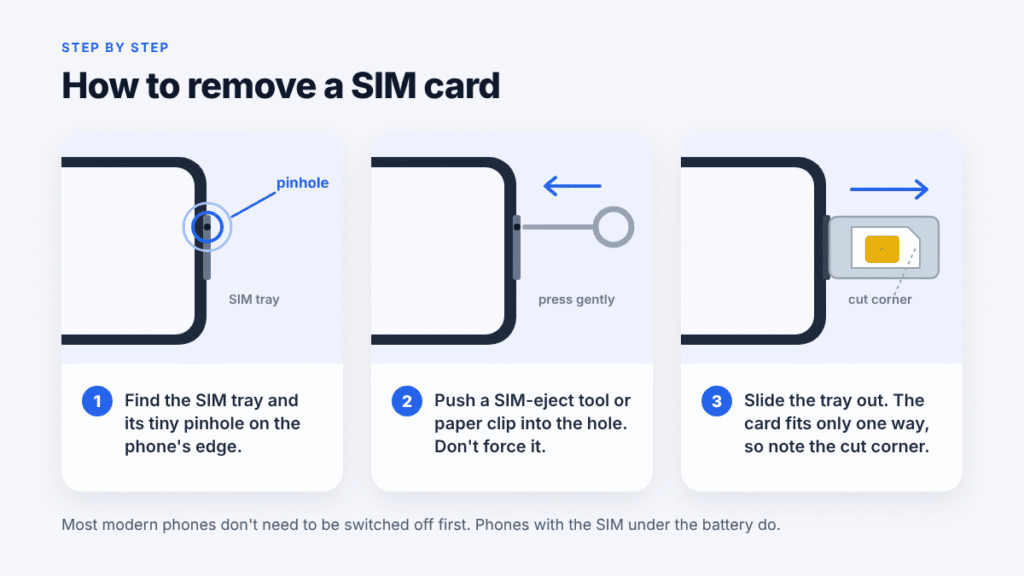
iPhone, Samsung and most Android phones
- Find the SIM tray: a thin slot on the edge of the phone with a tiny hole beside it. On Samsung Galaxy phones it may sit on the top or bottom edge.
- Push a SIM-eject tool or a straightened paper clip into the hole. Press gently toward the phone, without forcing it (Apple).
- Slide the tray out and lift the card out. Note the cut corner, because the card fits only one way.
- Push the tray back in the same way it came out, with or without a SIM in it.
Older phones with a removable back
Turn the phone off, take off the back cover and battery, then slide the SIM out of its slot.
Do you need to turn the phone off first?
Not on most modern phones. Apple’s removal steps don’t include powering off (Apple). Turning the phone off is a harmless precaution, and it’s required when the SIM sits under the battery.
Protect your SIM with a PIN
A SIM card is your phone number in a portable form. Anyone who puts it in their phone can make calls on your line and receive your texts, including login codes.
A SIM PIN stops that. Once it’s on, the SIM locks every time the phone restarts or the card is removed (Apple). On an iPhone, turn it on in Settings > Cellular > SIM PIN; on Android, search Settings for “SIM lock.”
Start with your carrier’s default PIN, and never guess it. Too many wrong tries lock the SIM until you get a PUK code from your carrier (Apple).
Checklist before you take out your SIM card
- Check where your contacts are saved. On Android, import any SIM contacts to your Google account.
- Back up the phone to iCloud or Google, so photos and messages are safe whatever happens next.
- Sort out SMS login codes. Move key accounts to an authenticator app or save their backup codes.
- Save voicemails you want to keep.
- Know your SIM PIN if one is set, and store the SIM somewhere safe.
- On an eSIM phone, don’t delete the plan. Transfer it to the new phone instead.
- Selling or recycling the phone? Removing the SIM doesn’t erase your data. Back up, remove the SIM and any SD card, unlink your accounts, then factory reset the phone, as the FTC recommends (FTC).
Frequently asked questions
Does removing a SIM card delete photos?
No. Photos live on the phone, a memory card or the cloud, never on the SIM. A SIM holds kilobytes, while a single photo takes megabytes.
Will I lose anything if I switch my SIM card?
Nothing stored on the phone. You lose access only to contacts or texts saved on the old SIM, and saved voicemails may not carry over, so keep a copy first.
Is it different on an iPhone, Samsung or other Android phone?
On an iPhone, nothing personal is stored on the SIM at all. On Samsung and other Android phones, photos, apps and messages sit in internal storage or on a microSD card. Some contacts may be saved to the SIM, though, so check before you remove it.
Does taking out the SIM log me out of Google or iCloud?
No. Your Google account and Apple Account stay signed in and keep syncing over Wi-Fi.
Can someone get my data from my SIM card?
They can’t see your photos, apps or chats, because none of those are on the SIM. They can use your number, though, which means your calls and SMS login codes. Set a SIM PIN, and ask your carrier to block the SIM if it’s lost or stolen.
Should I remove my SIM card before a factory reset?
It’s a good habit, especially before selling the phone. The reset erases the phone, and taking the SIM out keeps your number and any SIM-saved contacts with you.
The bottom line
So, will taking out my SIM card delete everything? No. Your photos, apps, chats and files stay on the phone, and your number comes back the moment the SIM goes back in.
The things to plan for are SIM-saved contacts on Android, SMS login codes and voicemails. Handle those first, and removing your SIM won’t cost you anything.

Louis Mugan is a seasoned technology writer with a talent for turning complicated ideas into clear, practical guidance. He focuses on helping everyday readers stay confident in a world where tech moves fast. His style is approachable, steady, and built on real understanding.
He has spent years writing for platforms like EasyTechLife, where he covers gadgets, software, digital trends, and everyday tech solutions. His articles focus on clarity, real-world usefulness, and helping people understand how technology actually fits into their lives.
Outside of his regular columns, Louis explores emerging tools, reviews products, and experiments with new tech so his readers don’t have to. His steady, friendly approach has made him a reliable voice for anyone trying to keep up with modern technology. get in touch at louismugan@gmail.com


