
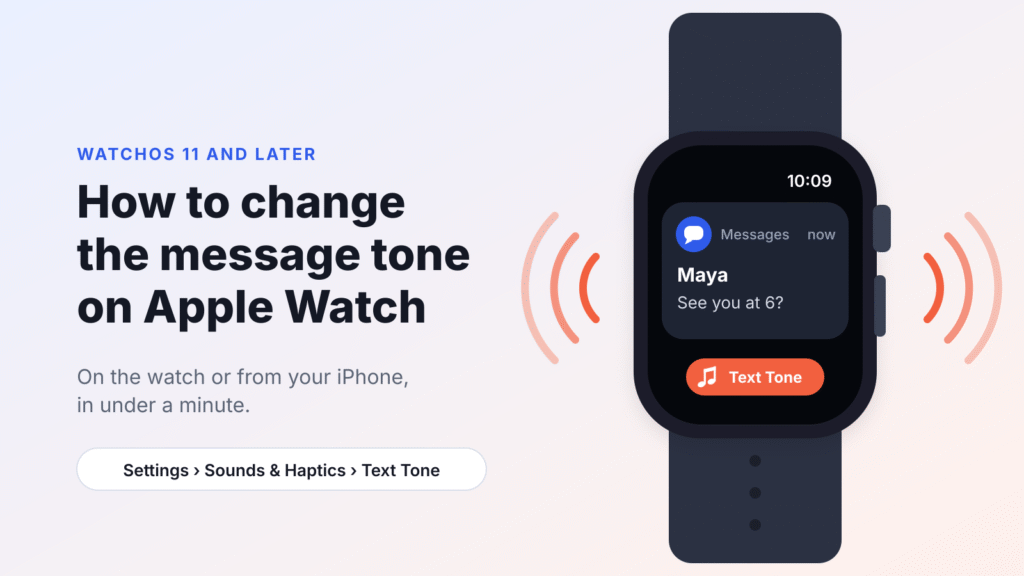
You can change the Apple Watch message tone in Settings > Sounds & Haptics > Text Tone on the watch, or in the Watch app on your iPhone. The option arrived with watchOS 11 and is still in place in current versions of watchOS.
Before watchOS 11, every Apple Watch played the same fixed sound for texts, mail and most other alerts. Now you can pick a separate text tone, a separate ringtone for calls, and different sounds for mail, calendar alerts and reminders. That makes it easier to tell what just arrived without looking at your wrist.
There are two limits to know up front. You can only choose from Apple’s built-in alert sounds, so you can’t add your own audio file as a text tone. And the Apple Watch plays one text tone for all conversations, so contact-specific tones you set on your iPhone won’t carry over to the watch.
What you need:
- An Apple Watch running watchOS 11 or later
- A paired iPhone running iOS 18 or later (needed to change the tone from the Watch app)
- Sound turned on for Messages notifications (covered in the troubleshooting section below)
How to Change the Message Tone Directly on Apple Watch
The fastest way to change your Apple Watch text tone is on the watch itself. It takes about 30 seconds and doesn’t need your iPhone nearby.
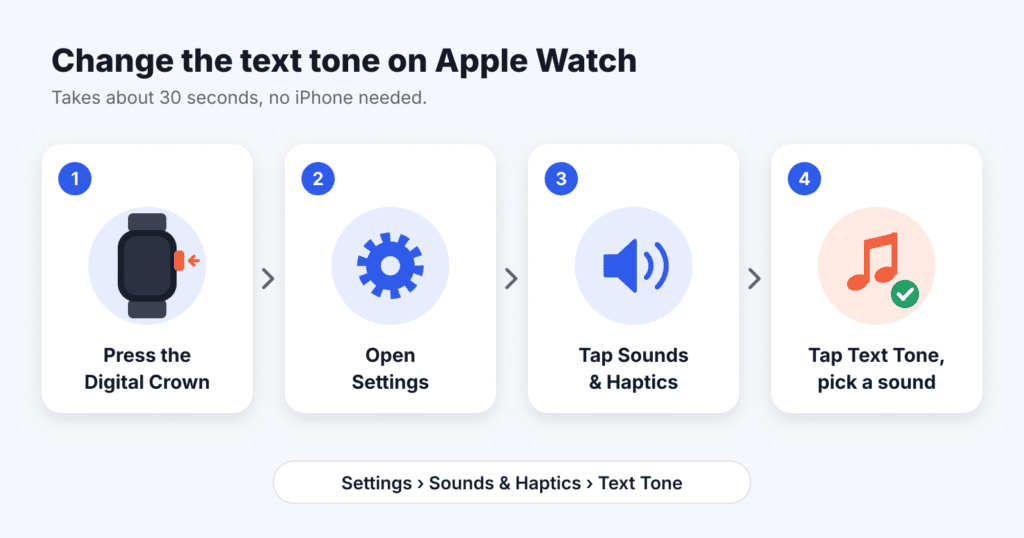
- Press the Digital Crown to open your apps.
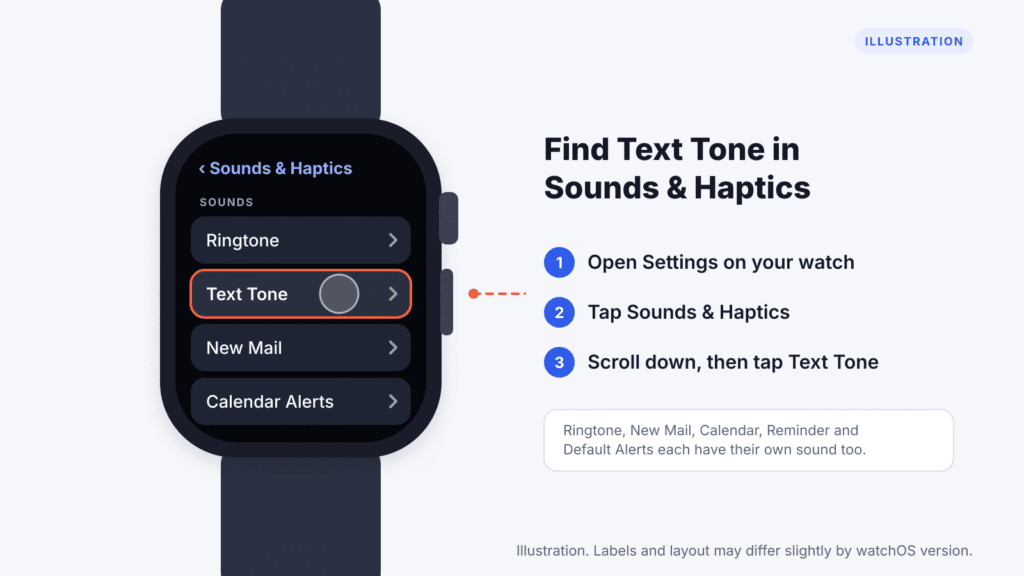
- Open Settings.
- Tap Sounds & Haptics.
- Scroll down to the alert sounds and tap Text Tone.
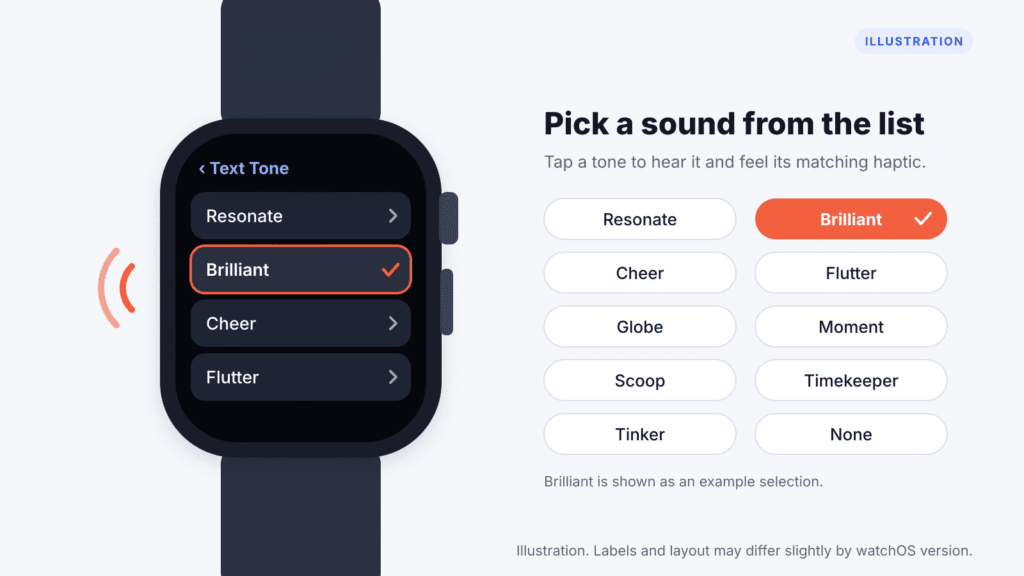
- Tap a sound to preview it. Each tone plays with its own matching haptic pattern, so you’ll also feel it on your wrist.
- Leave the one you like selected, then press the Digital Crown to return to the watch face.
Want the original sound back? Pick the default tone, which is listed first in watchOS 11 and later. If you’d rather feel texts than hear them, choose None at the bottom of the list; you’ll still get a tap on the wrist as long as haptics are on.
How to Change the Apple Watch Message Tone Using Your iPhone
If you find the watch screen fiddly, the Watch app on your iPhone has the same alert sound settings on a bigger screen.
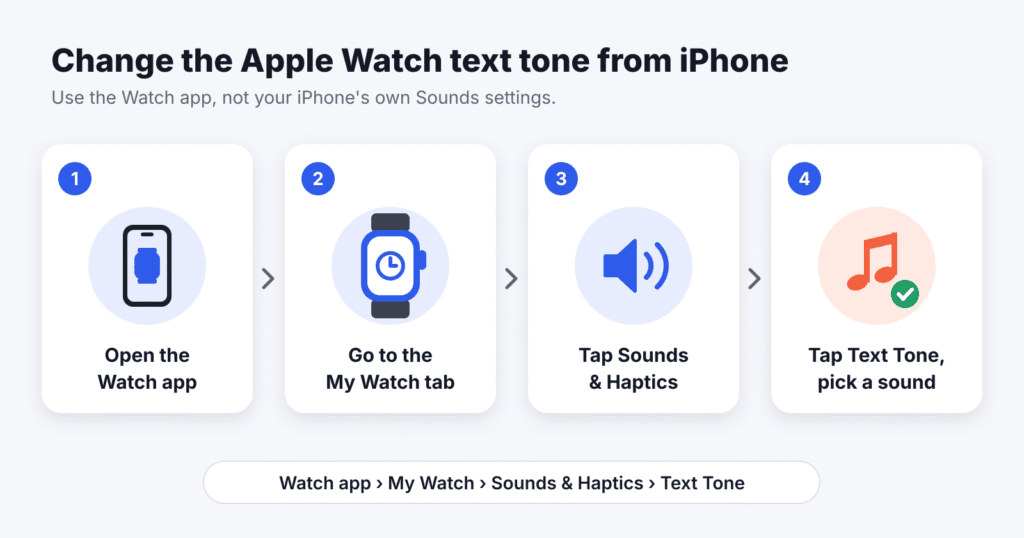
- Open the Watch app on your iPhone.
- Make sure you’re on the My Watch tab.
- Tap Sounds & Haptics.
- Tap Text Tone.
- Tap the sound you want. Your Apple Watch plays the matching haptic on your wrist so you can feel each option as you choose.
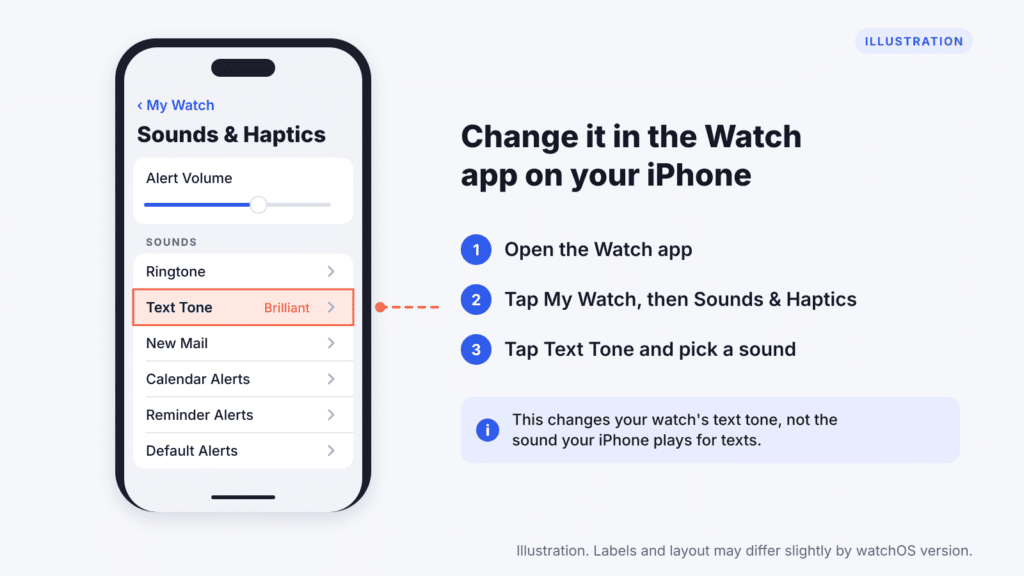
One point that trips people up: this setting is separate from Settings > Sounds & Haptics > Text Tone on the iPhone itself. That one controls the sound your iPhone plays. The Apple Watch has its own set of sounds, so changing your iPhone text tone won’t change your watch, and turning on Mirror my iPhone for Messages won’t copy it over either.
What Message Tones and Alert Sounds Are Available on Apple Watch?
Apple Watch uses two separate sound libraries: one set of ringtones for calls and one set of alert tones for texts and other notifications. You’ll find six sound categories in Sounds & Haptics, and each can use a different sound.
| Category | When it plays | Sound options |
|---|---|---|
| Ringtone | Incoming phone and FaceTime audio calls | Pebbles, Focus, Jingle, Nighthawk, Transmit, Twirl, Windup, Wonder |
| Text Tone | New messages in the Messages app | Resonate, Brilliant, Cheer, Flutter, Globe, Moment, Scoop, Timekeeper, Tinker, None |
| New Mail | New emails in the Mail app | Same alert tones as Text Tone |
| Calendar Alerts | Event alerts and invitations | Same alert tones as Text Tone |
| Reminder Alerts | Reminders that come due | Same alert tones as Text Tone |
| Default Alerts | Most other apps, including third-party apps like WhatsApp and Slack | Same alert tones as Text Tone |
The ringtone names above are only for calls, so you won’t see Pebbles or Wonder in the Text Tone list. Sound names are based on watchOS 11 and later; Apple occasionally adds or renames sounds in updates, so your list may differ slightly.
Tips for choosing an Apple Watch text tone:
- Give texts and mail different sounds. With Text Tone and New Mail set apart, you’ll know whether to check your wrist right away or finish what you’re doing.
- Make urgent alerts stand out. If calendar alerts matter most to you, give Calendar Alerts the most distinct sound and keep Default Alerts quieter.
- Preview in the place you’ll hear it. A tone that sounds clear in a quiet room can disappear in a busy office, so test a few before you settle.
- Pick None for silent texts. You’ll still get a haptic tap, which works well for meetings or classes.
Can You Add a Custom Message Tone to Apple Watch?
No. Apple Watch only plays its own built-in alert sounds. You can’t import an MP3, use a song from your music library, or bring over a ringtone you bought for your iPhone. Music you sync to the watch can be played, but it can’t be selected as a text tone or notification sound.
If your goal is simply a sound you can hear more easily, the closest options are to pick a different built-in text tone, raise the alert volume, or switch haptics to Prominent (all covered below).
Can you set a different text tone for each contact?
Not on the watch. Apple Watch plays the same text tone for every conversation, and the option to assign a tone to an individual contact still isn’t available in current versions of watchOS.
Your iPhone does support contact-specific tones (Contacts > select a contact > Edit > Text Tone), but those only play when a text alerts on the iPhone. That happens when your iPhone is unlocked and in use, or when your watch is locked or off your wrist. When the alert goes to your watch, you’ll hear the watch’s single text tone instead.
Can third-party apps change Apple Watch notification sounds?
Not individually. Apple Watch has no per-app sound setting for third-party apps, and most of them, including WhatsApp, Telegram and Slack, play the sound you pick under Default Alerts, so that’s the setting to change if you want WhatsApp messages to sound different from regular texts. Behavior can vary by app, so send yourself a test message after changing it.
How to Adjust Apple Watch Haptics and Alert Volume
A new text tone only helps if you can hear or feel it. Both volume and haptic strength live in the same place: Settings > Sounds & Haptics on the watch, or Watch app > My Watch > Sounds & Haptics on your iPhone.
| Setting | Options | What it does |
|---|---|---|
| Silent mode | On / Off | Silences all alert sounds. Haptics still work if they’re turned on. |
| Alert volume | Slider up to 100% | Sets how loud ringtones, text tones and other alerts play. |
| Automatically Adjust Volume | Default, Louder, Quieter | Raises or lowers alert volume based on the noise around you. Available on Apple Watch Series 9, Ultra 2, SE 3 and later. |
| Haptics | Default, Prominent, Off | Controls haptic feedback for alerts. Prominent adds an extra introductory tap before certain notifications, while Off disables alert haptics. |
| Crown Haptics | On / Off | Clicks you feel when you turn the Digital Crown to scroll. |
| System Haptics | On / Off | Taps for system controls and interactions. |
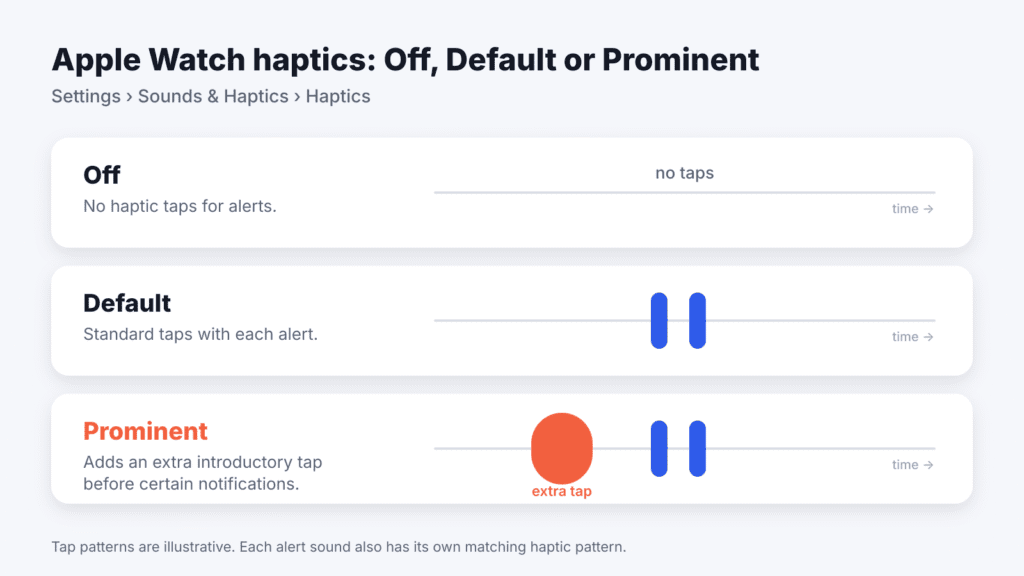
Every alert sound has a synchronized haptic pattern, so changing your text tone also changes how the tap feels. If you often miss texts in noisy places, try Prominent haptics together with a distinct text tone. If alerts are too loud, turn on Automatically Adjust Volume and choose Quieter; while this feature is on, alert volume never goes above a set level.
Why Isn’t My Apple Watch Message Tone Playing?
If you changed the text tone but still hear nothing, the cause is usually where the alert went, not the tone itself. Work through these checks in order.
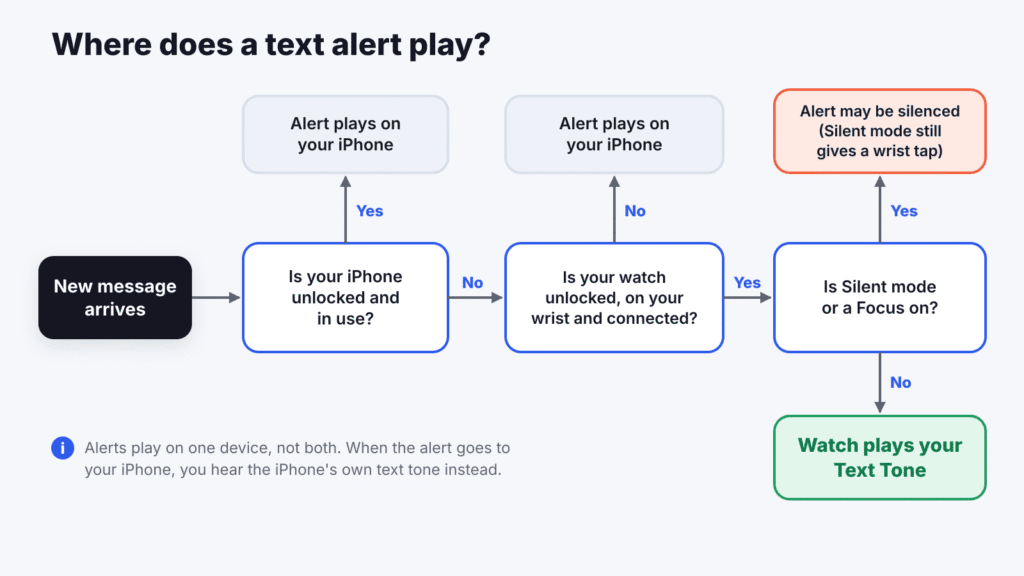
- Your iPhone is unlocked. Notifications appear on your Apple Watch or your iPhone, never both. If your iPhone is unlocked, the text alerts there instead. Lock your iPhone and send yourself a test message.
- Your watch is locked or off your wrist. When the watch is locked (a lock icon shows on the watch face), alerts go to your iPhone. A loose band can make the watch think it’s off your wrist, so make sure it fits snugly.
- Silent mode is on. Press the side button to open Control Center. If the bell icon is highlighted, tap it to turn sounds back on. You can also check Settings > Sounds & Haptics > Silent Mode.
- Do Not Disturb or another Focus is on. If Do Not Disturb or another Focus is enabled, your Apple Watch may silence message notifications. Open Control Center and temporarily turn off the active Focus to test your message tone. If you use a custom Focus, allow Messages or the people who text you.
- Messages alerts are muted or set to deliver quietly. In the iPhone Watch app, go to My Watch > Notifications > Messages. With Mirror my iPhone selected, the watch follows your iPhone’s Messages notification settings, so check that sounds are on in your iPhone’s Settings > Notifications > Messages. With Custom selected, choose Allow Notifications; Send to Notification Center delivers texts with no sound at all.
- You muted Messages from a notification. If you tapped Mute 1 Hour or Mute for Today, swipe left on a Messages notification, tap the More button, then tap Unmute.
- A single conversation has alerts hidden. In Messages on your iPhone, swipe left on the conversation and tap the bell icon to turn alerts back on.
- Text Tone is set to None, or the volume is too low. Check Settings > Sounds & Haptics on the watch and raise the alert volume.
- Your watch and iPhone are disconnected. A red iPhone icon or red X in Control Center means they’ve lost contact, and alerts go to the iPhone. Keep both devices close, turn off Airplane Mode, and make sure Bluetooth and Wi-Fi are on.
- Low Power Mode is on. When Low Power Mode is on and your iPhone isn’t nearby, Apple Watch turns off incoming notifications and only checks for missed ones about once an hour. Turn Low Power Mode off, or keep your iPhone close, to test your tone.
- Nothing else worked. Restart your Apple Watch and iPhone, then update both to the latest watchOS and iOS.
For WhatsApp and other third-party apps, alerts reach your watch only when your paired iPhone is connected to a network, so also check your iPhone’s Wi-Fi or cellular connection.
Frequently Asked Questions
Can I use my iPhone’s text tone on my Apple Watch?
No. The Apple Watch has its own set of alert sounds that’s separate from the iPhone’s. Choosing a text tone on your iPhone has no effect on the watch, so set it in Sounds & Haptics on the watch or in the Watch app.
How do I change the WhatsApp notification sound on Apple Watch?
Change Default Alerts in Settings > Sounds & Haptics. There’s no separate sound setting for WhatsApp on the watch, and most third-party apps play whatever you pick there.
Why does my Apple Watch vibrate but not make a sound for texts?
The most common causes are Silent mode being on, Text Tone set to None, or a very low alert volume. Open Control Center to check the bell icon, then check the Text Tone and volume in Sounds & Haptics.
Why do my texts sound on my Apple Watch but not on my iPhone?
That’s by design. Alerts go to only one device: your watch when it’s unlocked on your wrist and your iPhone is locked, or your iPhone when it’s unlocked or the watch is locked.
Which Apple Watch models can change the message tone?
Any Apple Watch running watchOS 11 or later can change its text tone. That includes Series 6 and newer, SE (2nd generation) and newer, and every Apple Watch Ultra. The current watchOS 27 runs on Series 9 and newer, Ultra 2 and newer, and SE 3; older supported models stay on watchOS 26, which also has this setting.
How do I reset my Apple Watch text tone to the default?
Go to Settings > Sounds & Haptics > Text Tone and choose the default sound, which is listed first in watchOS 11 and later. Apple can reorder sounds in updates, so check the list on your version.
Conclusion
Changing the message tone on your Apple Watch takes less than a minute. On the watch, go to Settings > Sounds & Haptics > Text Tone; on your iPhone, use Watch app > My Watch > Sounds & Haptics > Text Tone.
You’re limited to Apple’s built-in sounds, and one text tone covers every contact. You can still give texts, mail, calendar alerts, reminders and third-party apps their own sounds, then fine-tune volume and haptics so you never miss an important alert. If a new tone doesn’t play, check where the alert went first: a locked iPhone, an unlocked watch on your wrist, and Silent mode off.

Louis Mugan is a seasoned technology writer with a talent for turning complicated ideas into clear, practical guidance. He focuses on helping everyday readers stay confident in a world where tech moves fast. His style is approachable, steady, and built on real understanding.
He has spent years writing for platforms like EasyTechLife, where he covers gadgets, software, digital trends, and everyday tech solutions. His articles focus on clarity, real-world usefulness, and helping people understand how technology actually fits into their lives.
Outside of his regular columns, Louis explores emerging tools, reviews products, and experiments with new tech so his readers don’t have to. His steady, friendly approach has made him a reliable voice for anyone trying to keep up with modern technology. get in touch at louismugan@gmail.com


