
To turn off Live Listen on your iPhone, open Control Center, tap the Live Listen control, then turn off the Live Listen switch. If you use the Hearing Devices control instead, tap it, choose your AirPods or hearing aid, then turn off Live Listen. The sound from your iPhone’s microphone stops streaming to your ears right away.
If you came here because of the viral “your iPhone is listening to you” posts, the setting they point to is different. Go to Settings > Accessibility > Audio & Visual > Live Listen and turn off Remote Control. That stops nearby devices signed in to your Apple Account from starting or controlling Live Listen on your iPhone. The setting is optional, and you don’t need to touch it to end a normal session.
Below you’ll find every way to stop Live Listen: with AirPods or Beats, with Made for iPhone hearing aids, from the triple-click shortcut and from Apple Watch. There are also fixes for when it won’t turn off, and a plain answer to whether Live Listen records you.
What is Live Listen on iPhone?
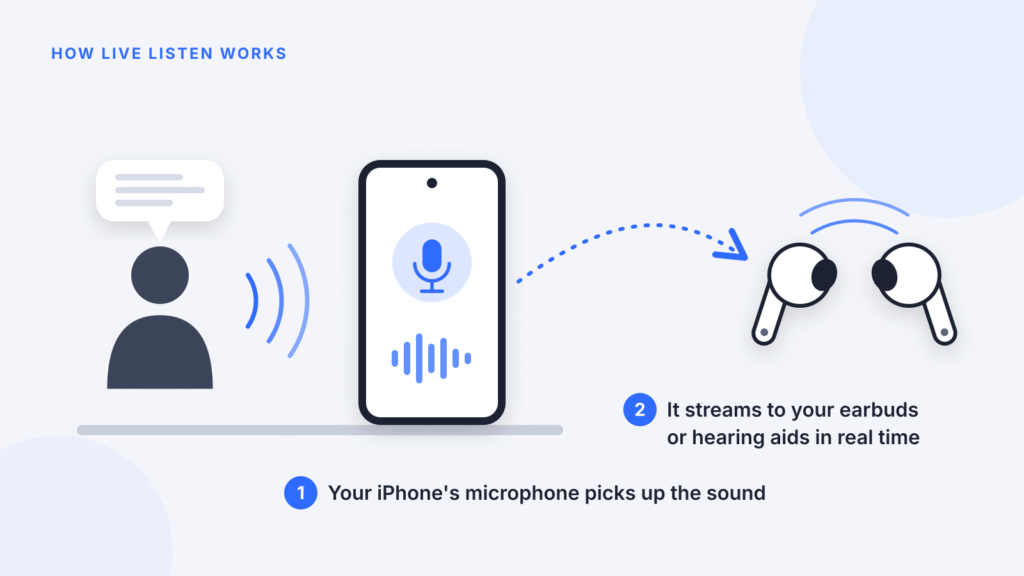
Live Listen is an Apple accessibility feature that turns your iPhone or iPad into a remote microphone. It streams whatever the iPhone’s microphone picks up to your AirPods, supported Beats headphones or Made for iPhone (MFi) hearing aids (Apple iPhone User Guide). It’s designed for people who are hard of hearing: you place the iPhone near the person speaking in a noisy restaurant or lecture hall, and you hear them clearly in your ears.
Live Listen uses the iPhone’s microphone, not the microphones in your AirPods. That’s why the phone has to sit close to the sound you want to hear.
| What you need | Details |
|---|---|
| Headphones | AirPods, AirPods Pro, AirPods Max, Powerbeats Pro, Beats Fit Pro, Powerbeats Fit or Beats 360 |
| Hearing aids | Made for iPhone (MFi) hearing devices paired with your iPhone or iPad |
| Software | iOS or iPadOS 14.3 or later for AirPods and Beats; iOS 26 or later to see Live Captions during a session |
| Optional | An external wired microphone plugged into the USB-C or Lightning port |
Live Listen works only with the devices above. Other Bluetooth headphones can play music from your iPhone but can’t use Live Listen (Apple: Use Live Listen with AirPods or Beats).
How to turn off Live Listen on AirPods or Beats
The fastest way to stop Live Listen with AirPods or Beats is the Live Listen button in Control Center. These steps match Apple’s current instructions for iOS 18 and later.
- Open Control Center. On an iPhone with Face ID, swipe down from the top-right corner. On an iPhone with a Home button, swipe up from the bottom edge.
- Tap the Live Listen control, then turn off the Live Listen switch.
- If you use the Hearing Devices control instead, tap it, tap your AirPods, then turn off Live Listen.
- Check that the room sound in your AirPods has stopped. That confirms the session has ended.
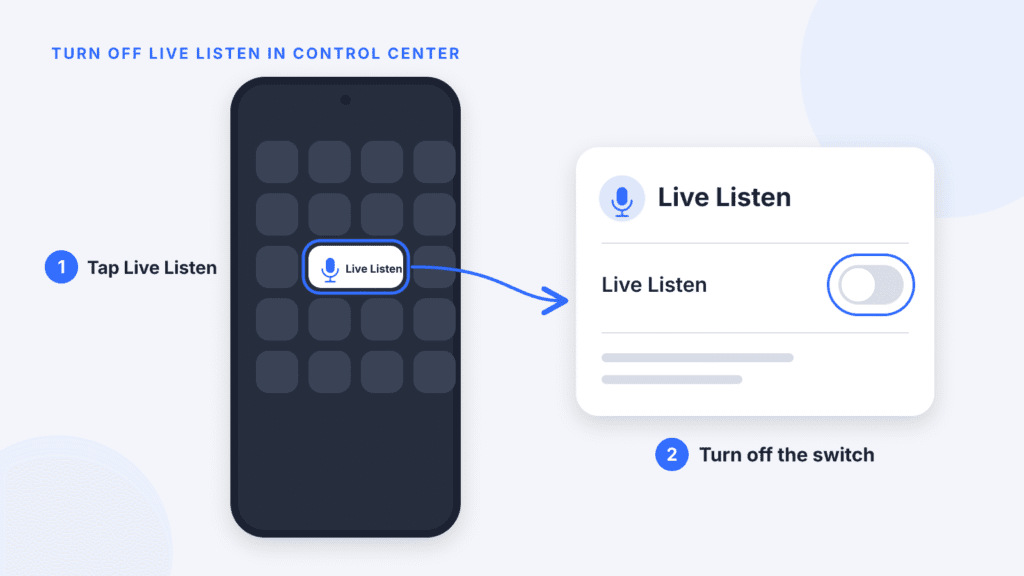
On iOS 26 and later, the same Live Listen panel also shows live captions and rewind controls while a session is running (Apple iPhone User Guide).
On iOS 17 or earlier: open Control Center, tap the Hearing button (the ear icon), then tap Live Listen to turn it off.
Can’t find the button? The Live Listen control only appears in Control Center if it was added there. See “How to remove Live Listen from Control Center” below for how to add or remove it.
How to turn off Live Listen with Made for iPhone hearing aids
With MFi hearing aids, you can end Live Listen from Settings or from Control Center.
From Settings:
- Go to Settings > Accessibility > Hearing Devices.
- Under MFi Hearing Devices, tap the name of your hearing aid.
- Tap End Live Listen.
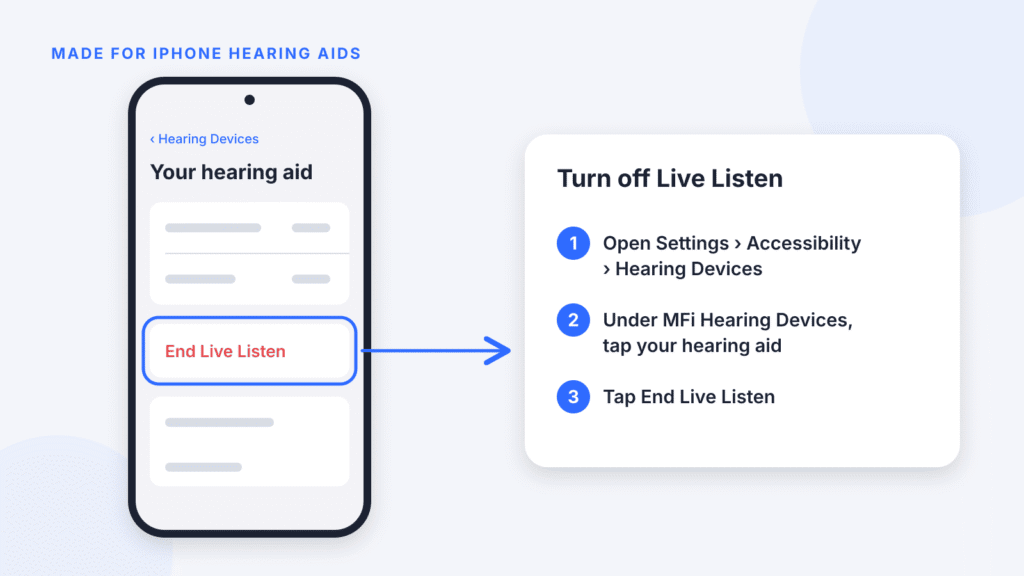
From Control Center: tap the Hearing Devices button, tap your hearing aid, then tap Live Listen to switch it off.
If the Live Listen option is missing, make sure your hearing aid is connected. Then open Control Center and check that your hearing aid is the selected audio device in the playback controls. If another accessory is selected, tap it and choose your hearing aid from the list (Apple: Use Live Listen with Made for iPhone hearing devices).
How to turn off Live Listen Remote Control for privacy
Remote Control is optional. It lets a nearby Apple Watch, iPhone or iPad signed in to your Apple Account control Live Listen, and you don’t need to turn it off to end a normal session. If your concern is privacy, switching it off takes three taps:
- Open Settings on your iPhone.
- Tap Accessibility > Audio & Visual > Live Listen.
- Turn off Remote Control.
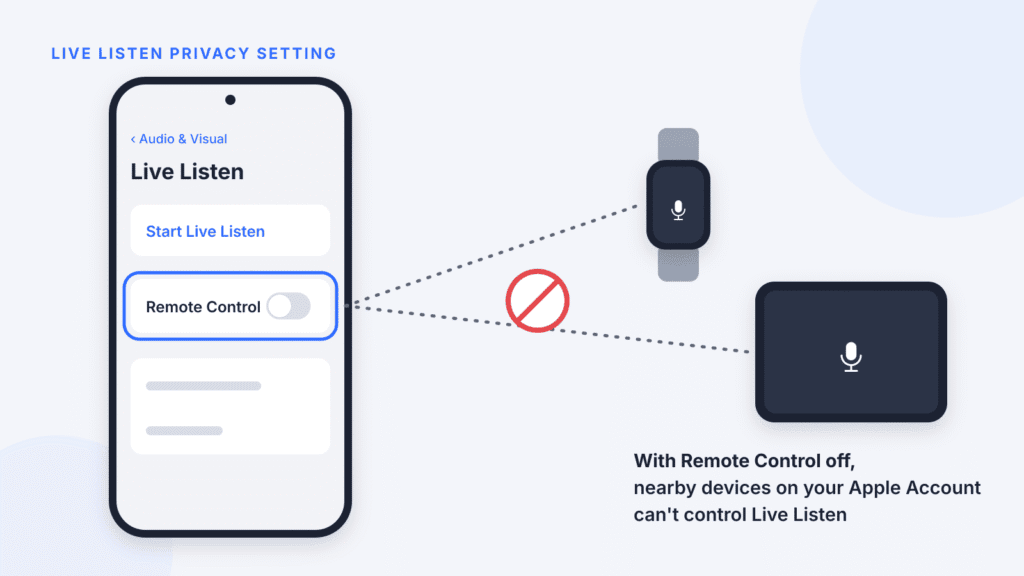
When Remote Control is on, your paired Apple Watch or another nearby iPhone or iPad signed in to the same Apple Account can start, stop or rewind a Live Listen session on your iPhone. That device also shows the session’s live captions (Apple iPhone User Guide; Apple Watch User Guide). With it off, Live Listen still works on the iPhone itself, but your Apple Watch can no longer control it.
If you don’t see a Live Listen page under Audio & Visual, your iPhone is likely on an older iOS version without the Remote Control option.
Is your iPhone listening to you? What the viral posts get wrong
In late October 2026, posts on Instagram, TikTok and Facebook claimed the iPhone is “always listening” and keeping transcripts through Live Listen. The setting they show is real, but the claim is mostly wrong:
- Live Listen is not always on. It runs only after a session is started, either on your iPhone or from a nearby Apple Watch, iPhone or iPad signed in to your Apple Account with Remote Control on.
- It’s built for real-time streaming, not recording. On iOS 26 and later, Live Captions show what’s said during a session as it happens. Apple doesn’t document an automatically saved history of Live Listen captions (Cyber Unit fact check).
- It’s an accessibility tool, not spyware. Apple built it for people who are deaf or hard of hearing (Tom’s Guide).
The real risks are narrower. Someone could start a session on a phone left in a room and listen from nearby, within Bluetooth range. Or someone with access to your Apple Account could control a session from a compatible nearby device signed in to your account. To guard against the second, go to Settings > [your name], scroll to your device list, and remove any device you don’t recognize.
Other ways to stop Live Listen
You can also stop a Live Listen session without opening Control Center on your iPhone.
Triple-click shortcut. If you’ve added hearing controls to the Accessibility Shortcut, triple-click the side button (iPhone with Face ID) or the Home button. Tap Hearing Devices, then tap Live Listen to turn it off (Apple iPhone User Guide).
Apple Watch. Press the side button to open Control Center on your watch and tap the Hearing Controls button. In the Hearing Devices window, scroll to Live Listen and turn it off. This works only if Remote Control is on in your iPhone’s Live Listen settings and you’ve added Hearing Controls to the watch’s Control Center (Apple Watch User Guide).
Another iPhone or iPad. A nearby iPhone or iPad signed in to the same Apple Account can also start, stop or rejoin your session, again with Remote Control on.
How to remove Live Listen from Control Center
Removing the Live Listen button prevents accidental taps, but it doesn’t disable the feature. On iOS 18 and later:
- Open Control Center.
- Tap the + button in the top-left corner, or touch and hold an empty area, to start editing.
- Tap the Remove button (–) on the Live Listen or Hearing Devices control.
- Swipe up to close Control Center.
On iOS 17 or earlier: go to Settings > Control Center, tap the red minus button next to Hearing, then tap Remove.
To add the button back, enter editing mode, tap Add a Control, and choose Live Listen under Hearing Accessibility. You can also type “Live Listen” into the search field (Apple: Use Live Listen with AirPods or Beats).
For Live Listen to be fully out of the way, also turn off Remote Control (see above). If you use the triple-click shortcut, remove hearing controls from Settings > Accessibility > Accessibility Shortcut too.
What to do if Live Listen won’t turn off
Most stuck sessions end with one of these fixes. Try them in order.
- Stop it from the Live Listen panel. Open Control Center, tap the Live Listen or Hearing Devices control, and turn off the Live Listen switch. If you use the triple-click shortcut, triple-click the side or Home button, tap Hearing Devices, then turn off Live Listen. With hearing aids, go to Settings > Accessibility > Hearing Devices and tap End Live Listen.
- Check whether another device is starting it. If Live Listen keeps turning back on, an Apple Watch, iPad or second iPhone on your Apple Account may be controlling it. Turn off Remote Control in Settings > Accessibility > Audio & Visual > Live Listen.
- Disconnect your headphones. Put your AirPods back in their case, or turn off Bluetooth for a moment, then reconnect.
- Restart your iPhone. Users on Apple’s Support Community have reported sessions that only a restart would end (Apple Community thread).
- Update iOS. Go to Settings > General > Software Update and install any available update, in case a software bug is keeping the session stuck.
If Live Listen won’t turn on
Make sure Bluetooth is on and your AirPods or Beats are charged and connected (Apple). Check that your headphones are on the supported list above, since other Bluetooth headphones don’t work. With hearing aids, confirm the hearing aid is the selected audio device in Control Center.
Live Listen vs Transparency mode and Conversation Boost
Live Listen is often confused with AirPods listening modes. The difference is which microphone does the work.
| Feature | Microphone used | What it does | Best for |
|---|---|---|---|
| Live Listen | Your iPhone or iPad (or a wired mic plugged into it) | Streams sound from where the phone sits to your AirPods, Beats or hearing aids | Hearing someone across a table or at the front of a room |
| Transparency mode | Your AirPods | Lets outside sound in while you listen to audio | Staying aware of your surroundings |
| Conversation Boost | Your AirPods Pro | Focuses on the person talking in front of you | Face-to-face conversations in noisy places |
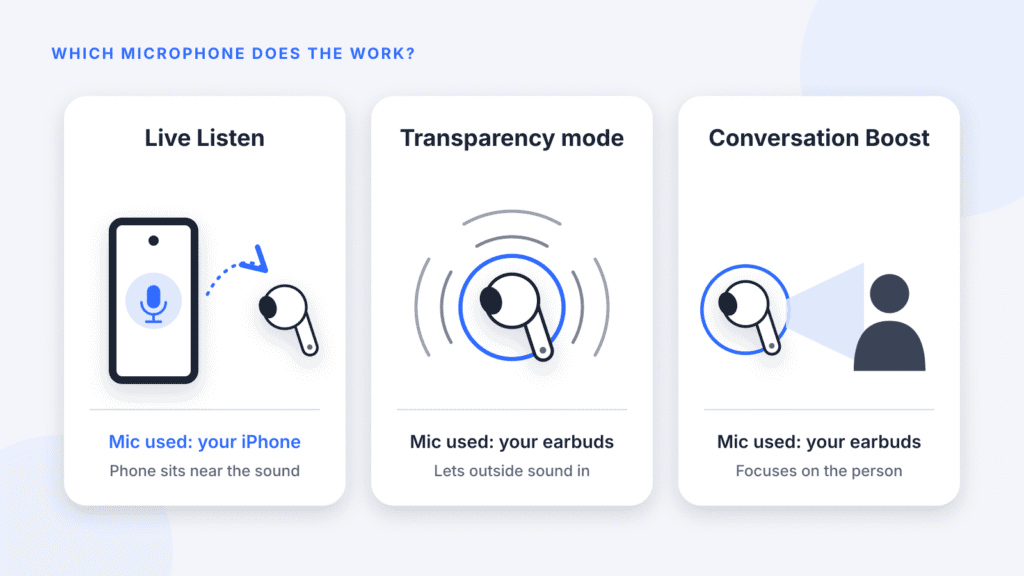
Turning off Live Listen doesn’t change Transparency mode or Conversation Boost, and turning those off doesn’t stop a Live Listen session. Apple covers both AirPods features in its AirPods User Guide.
Live Listen FAQ
Where is Live Listen in iPhone settings?
On current iOS versions, go to Settings > Accessibility > Audio & Visual > Live Listen. That page lets you start a session and turn Remote Control on or off. For hearing aids, the controls are in Settings > Accessibility > Hearing Devices.
Should I turn off Live Listen on my iPhone?
Live Listen isn’t running unless a session has been started, so there’s nothing to switch off day to day. If you don’t use it, turning off Remote Control and removing the button from Control Center is a sensible precaution with no downside.
Does Live Listen record conversations or keep transcripts?
Live Listen is designed for real-time audio streaming, not recording. On iOS 26 and later, Live Captions can show what’s being said during an active session. Apple doesn’t document an automatically saved history of Live Listen captions.
Can someone use Live Listen to spy on me?
Only in limited situations. Someone would need to start a session on your unlocked iPhone and stay within Bluetooth range, or control it from a compatible nearby device signed in to your Apple Account with Remote Control on. Turning off Remote Control and removing unknown devices from your Apple Account closes the remote route.
Can I use Live Listen without AirPods?
Yes. Live Listen also works with Powerbeats Pro, Beats Fit Pro, Powerbeats Fit, Beats 360 and Made for iPhone hearing aids. It doesn’t work with other Bluetooth headphones.
Does Live Listen work on iPad?
Yes. Live Listen works the same way on an iPad running iPadOS 14.3 or later, and you turn it off the same way (Apple iPad User Guide).
Why is Live Listen grayed out or missing?
Live Listen needs compatible headphones or hearing aids connected to your iPhone. Connect your AirPods, Beats or hearing aid first, then check Control Center again.
Conclusion
Turning off Live Listen takes a few seconds once you know which control you need. With AirPods or Beats, open Control Center, tap the Live Listen control and turn off the Live Listen switch. With Made for iPhone hearing aids, go to Settings > Accessibility > Hearing Devices and tap End Live Listen.
If privacy is your concern, check Remote Control in Settings > Accessibility > Audio & Visual > Live Listen. It’s optional: turning it off stops nearby devices on your Apple Account from controlling Live Listen, but you don’t need it off to end a session. Live Listen is designed for real-time streaming, and Apple doesn’t document a saved history of its captions. If you don’t use the feature, removing its button from Control Center also prevents accidental taps.
If you rely on Live Listen to follow conversations, there’s no need to disable it for good. End each session when you’re finished, and leave Remote Control on only if you start or stop sessions from your Apple Watch.

Louis Mugan is a seasoned technology writer with a talent for turning complicated ideas into clear, practical guidance. He focuses on helping everyday readers stay confident in a world where tech moves fast. His style is approachable, steady, and built on real understanding.
He has spent years writing for platforms like EasyTechLife, where he covers gadgets, software, digital trends, and everyday tech solutions. His articles focus on clarity, real-world usefulness, and helping people understand how technology actually fits into their lives.
Outside of his regular columns, Louis explores emerging tools, reviews products, and experiments with new tech so his readers don’t have to. His steady, friendly approach has made him a reliable voice for anyone trying to keep up with modern technology. get in touch at louismugan@gmail.com


