
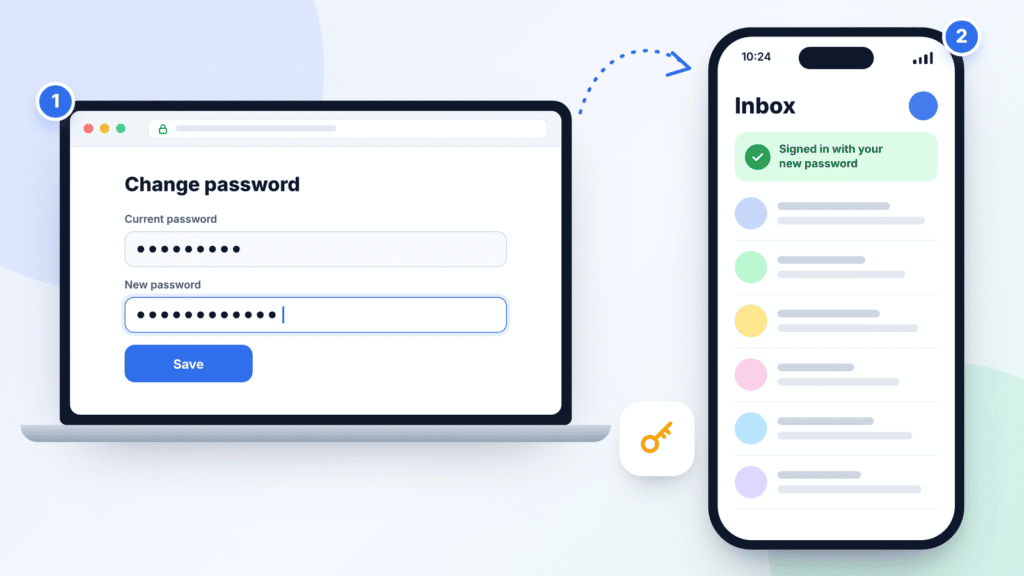
You can’t change your Outlook password inside the Outlook app. You change it on Microsoft’s account website, which works fine in Safari on your iPhone, and then sign in to Outlook again with the new password.
Your Outlook.com, Hotmail or Live password is the same as your Microsoft account password. Changing it updates it everywhere you use that account, including OneDrive and Microsoft 365 apps.
The short version:
- Change the password at account.microsoft.com.
- Open Outlook (and the iPhone Mail app, if you use it) and sign in with the new password.
Using a work or school email instead? Skip to the work or school section below, because the steps are different.
How to change your Outlook password on iPhone
For a personal Outlook.com, Hotmail, Live or MSN account, you change the password on Microsoft’s account website. You can do this in Safari without a computer.
- Open Safari on your iPhone and go to account.microsoft.com.
- Sign in with your Outlook email address and current password.
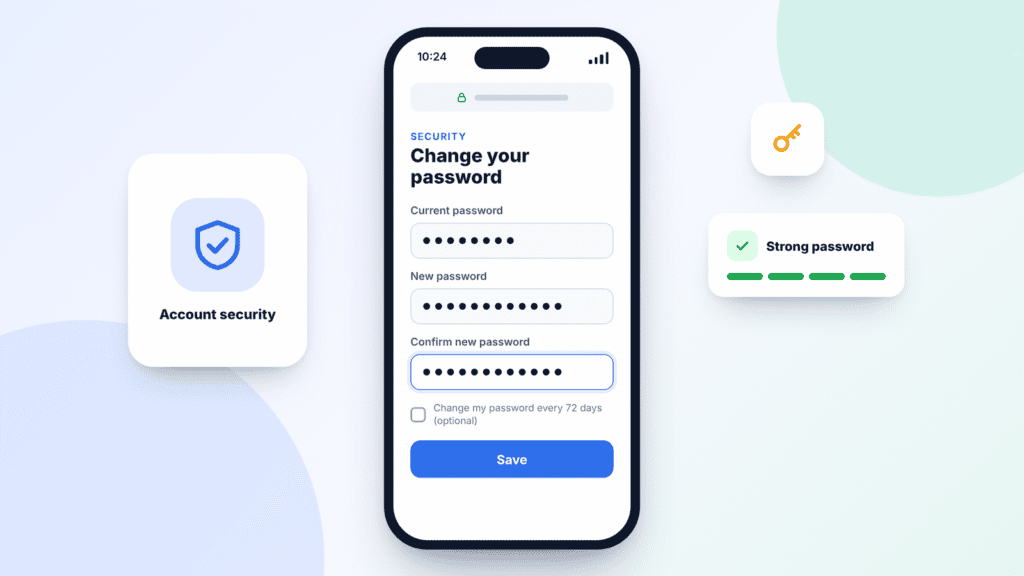
- Tap Security, then tap Change password near the top of the page.
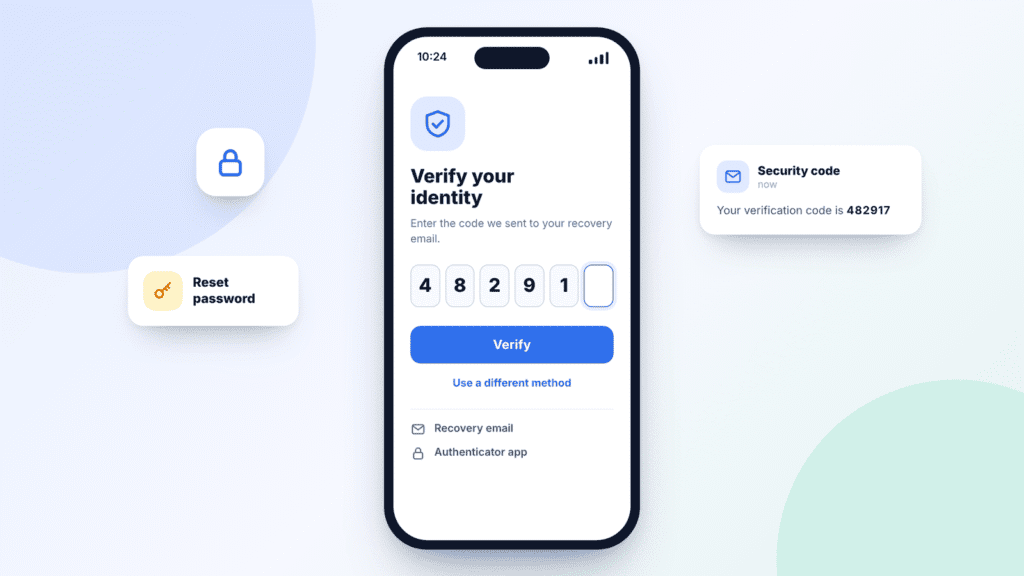
- If Microsoft asks you to confirm it’s you, choose an available method, such as the Microsoft Authenticator app, a passkey or your recovery email, and follow the prompts.
- Enter your current password, then your new password twice.
- Tap Save.
The new password works immediately. Devices still signed in with the old one will ask you to sign in again, though some apps keep working for a while before they ask. The next section covers what to do.
Tips:
- Use a password you don’t use for any other site. Let your iPhone save it to the Passwords app so you don’t have to remember it.
- Microsoft’s change-password page has an optional checkbox that makes you change your password every 72 days. You don’t need to turn it on just because you’re changing your password now. A strong, unique password plus two-step verification does more to protect you.
Source: Microsoft Support, Change your password in Outlook.com
How to update your password in Outlook and iPhone Mail
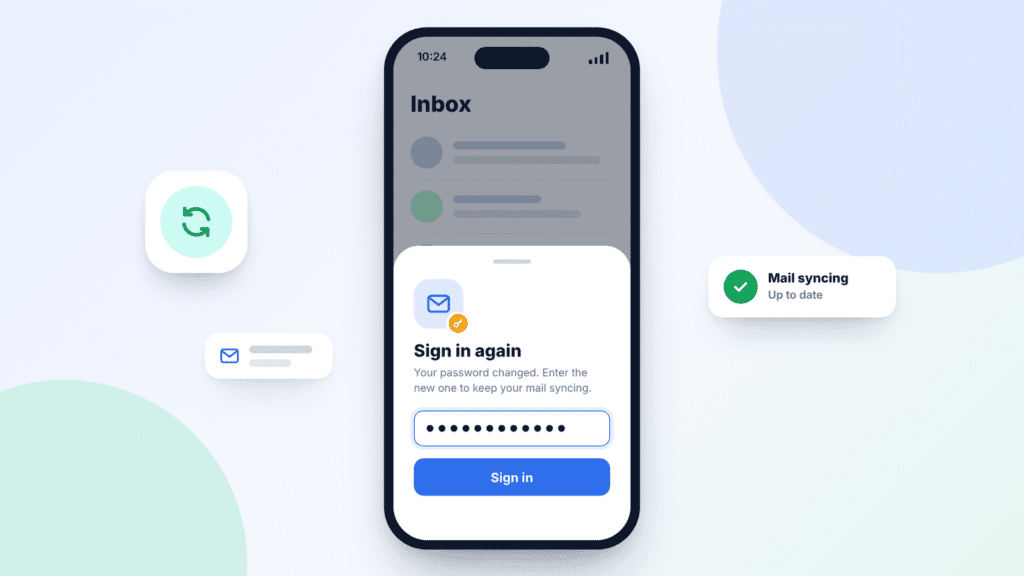
After the change, Outlook and the iPhone Mail app need you to sign in again. Usually they ask on their own the next time they try to sync.
In the Outlook app
- Open Outlook. If a banner or pop-up asks you to sign in, tap it.
- Enter your new password and approve any verification request.
- Pull down on your inbox to check that new mail arrives.
No sign-in prompt after a few minutes? Close Outlook completely (swipe it away in the app switcher) and reopen it. If that doesn’t work, reset the account:
- Tap your profile picture at the top left, then the Settings gear.
- Tap your Outlook account.
- Scroll to the bottom and tap Reset Account. Follow any on-screen instructions.
- When the reset finishes, reopen Outlook if it closed, and sign in with the new password when asked.
Still stuck? On the same screen, tap Delete Account, then add the account back. Your email is stored on Microsoft’s servers, so removing it from the app doesn’t delete it.
In the iPhone Mail app
- Open Mail and pull down to refresh. If you see a password or account error, tap it and sign in with your new password.
- No prompt? Open Settings → Apps → Mail → Mail Accounts and tap your Outlook account. On iOS 17 and earlier, the path is Settings → Mail → Accounts.
- If there’s no option to sign in again, tap Delete Account, then add it back with Add Account → Outlook.com and sign in with the new password.
Removing the account from your iPhone doesn’t delete anything in your Microsoft mailbox. Only the email, contacts and calendars synced from that account disappear from the iPhone, and they come back when you add the account again. Anything stored separately on the iPhone isn’t affected.
Adding back a work or school account? Choose Microsoft Exchange instead of Outlook.com, then follow your organization’s sign-in steps.
Sources: Microsoft Support, reset the Outlook mobile app · Apple Support, Mail account settings path
How to change a work or school Outlook password
If your Outlook address comes from your employer or school (Microsoft 365), you change the password in Microsoft’s My Account portal instead, and your organization’s rules apply.
- In Safari, go to myaccount.microsoft.com and sign in with your work or school email and current password.
- Tap Change password in the menu.
- Enter your old password, then your new password twice.
- Tap Submit. You’ll be asked to sign in again.
Then update Outlook and Mail on your iPhone using the steps in the previous section.
Your organization decides the password rules and how often you must change it. If you don’t see a Change password option, your organization may handle password changes through a different system or not let you change it yourself. Contact your IT help desk for instructions.
Sources: Microsoft Support, change your work or school account password · Microsoft Support, change your Microsoft 365 for business password
How to reset a forgotten Outlook password
If you don’t know your current password, you can’t change it. Reset it instead, which Microsoft lets you do after confirming your identity.
Personal Outlook.com, Hotmail or Live account:
- In Safari, go to account.live.com/password/reset and enter your Outlook email address. You can also tap Forgot password? on any Microsoft sign-in screen.
- Choose one of the recovery methods Microsoft shows and follow its on-screen instructions. The options depend on the security info saved on your account.
- If you picked an email or phone, confirm the hint Microsoft shows (the last four digits of the phone number or the start of the email), then tap Get code.
- Enter the code you received, or finish whatever check Microsoft asks for, then type your new password.
- Sign in to Outlook and Mail on your iPhone again, as described above.
No longer have that phone number or email? Use Microsoft’s Sign-in helper to try other ways back in. Microsoft’s support staff can’t send reset links or change account details, so treat anyone who offers to do that as a scam.
Work or school account: go to passwordreset.microsoftonline.com. If you see a message telling you to contact your administrator, your IT team has to reset it for you.
Sources: Microsoft Support, reset a forgotten Microsoft account password · Microsoft Support, reset your work or school password
How to find a saved Outlook password on iPhone
If your iPhone saved your Outlook password when you signed in, you can look it up. Viewing or editing it here doesn’t change your Microsoft password. It only changes what your iPhone fills in for you.
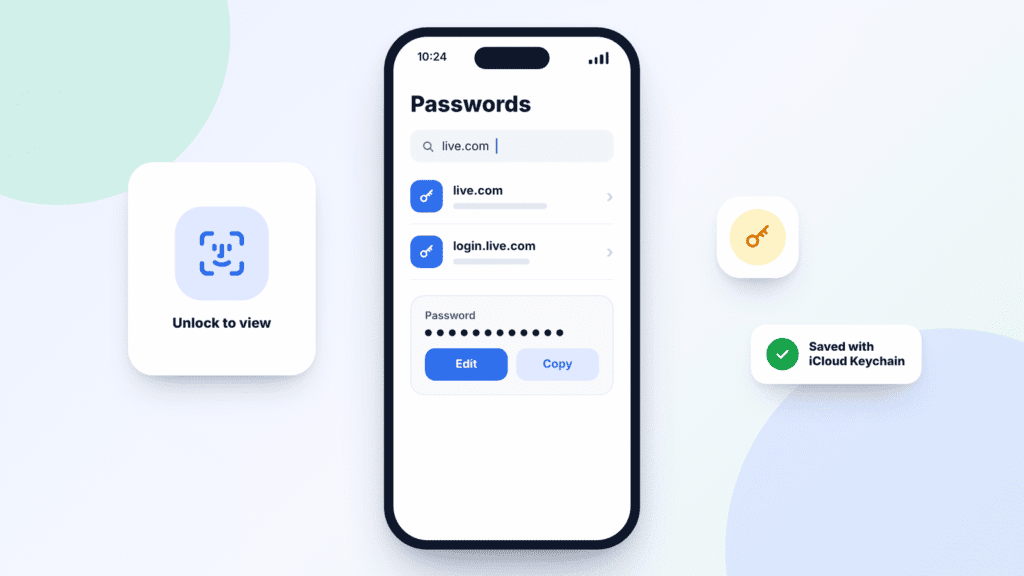
iOS 18 and later (including iOS 26):
- Open the Passwords app.
- Unlock it with Face ID, Touch ID or your passcode.
- Tap All, then search for “microsoft” or “live.com” and tap the entry.
iOS 17 and earlier:
- Open Settings → Passwords.
- Unlock with Face ID, Touch ID or your passcode.
- Search for “microsoft” or “live.com” and tap the entry.
After changing your password, open the same entry and tap Edit to update the saved copy, so AutoFill doesn’t keep entering the old one.
Nothing there? The password was never saved on this iPhone, or it’s saved on another device without iCloud Keychain turned on. Use the reset steps above.
Source: Apple Support, find saved passwords and passkeys on your iPhone
What to do if Outlook keeps asking for your password
Most sign-in loops after a password change are fixed by resetting or re-adding the account. Find your problem below.
| Problem | What to do |
|---|---|
| Outlook keeps asking for your password | Sign in at outlook.com in Safari to confirm the new password works. Then use Reset Account in the Outlook app, or delete and re-add the account (steps above). |
| The verification code doesn’t arrive | Check your junk folder for a message from @accountprotection.microsoft.com. Don’t request many codes in a row, because Microsoft may pause sending them. Try a different verification method, or switch between Wi-Fi and mobile data. |
| Text-message codes keep failing | Microsoft is phasing out text-message codes for personal accounts. Add the Microsoft Authenticator app or a backup email in your account’s security settings. |
| Mail app says it can’t get mail | Delete the account in Settings → Apps → Mail → Mail Accounts, then add it back with the Outlook.com option, or Microsoft Exchange for a work or school account. |
| An older app or device rejects your password | Update the app first. If it still fails and two-step verification is on, try an app password instead, though some older apps won’t work even with one. Outlook for iPhone and Mail’s Outlook.com option don’t need one. |
| Microsoft says your account is locked | Follow Microsoft’s locked account steps to unlock it with a security code. |
| Nothing above works | Try Microsoft’s Sign-in helper, then contact Microsoft Support. |
Frequently asked questions
Does changing my Outlook password change my Apple Account password?
No. They’re separate accounts. Changing your Outlook password only affects your Microsoft account.
I use the Outlook app with Gmail, Yahoo or iCloud. Where do I change that password?
On that provider’s website or app, not Microsoft’s. Then sign in again in Outlook, or remove and re-add the account if it doesn’t ask.
Do I need to update my iPad and Mac too?
Usually, yes. Each device signs in separately, so you may need to enter the new password on your iPad, Mac or other devices. Some apps stay signed in for a while before asking. The steps on iPad are the same as on iPhone.
I got a code or reset email I didn’t ask for. What should I do?
Don’t share the code or click any links in the message. Someone may have typed your address by mistake, or may be trying to get in. Go to account.microsoft.com/security yourself to review recent sign-in activity, and turn on two-step verification if it isn’t on already.
Can I stop using a password altogether?
Yes. Microsoft lets you go passwordless and sign in with the Microsoft Authenticator app, a security key or Windows Hello instead.

Louis Mugan is a seasoned technology writer with a talent for turning complicated ideas into clear, practical guidance. He focuses on helping everyday readers stay confident in a world where tech moves fast. His style is approachable, steady, and built on real understanding.
He has spent years writing for platforms like EasyTechLife, where he covers gadgets, software, digital trends, and everyday tech solutions. His articles focus on clarity, real-world usefulness, and helping people understand how technology actually fits into their lives.
Outside of his regular columns, Louis explores emerging tools, reviews products, and experiments with new tech so his readers don’t have to. His steady, friendly approach has made him a reliable voice for anyone trying to keep up with modern technology. get in touch at louismugan@gmail.com


