
You need to send the same text to a dozen people, but you don’t want a group chat where every “thanks!” pings everyone else. The catch: Apple’s Messages app has no BCC field. Add more than one name to a message and your iPhone usually starts a group conversation.
You still have good options. This guide shows how to send group messages individually on iPhone, which method fits your situation, and why some methods only work for certain contacts. Steps are written for iOS 18 and later, including iOS 26 and iOS 27, where Messages settings live under Settings > Apps > Messages.
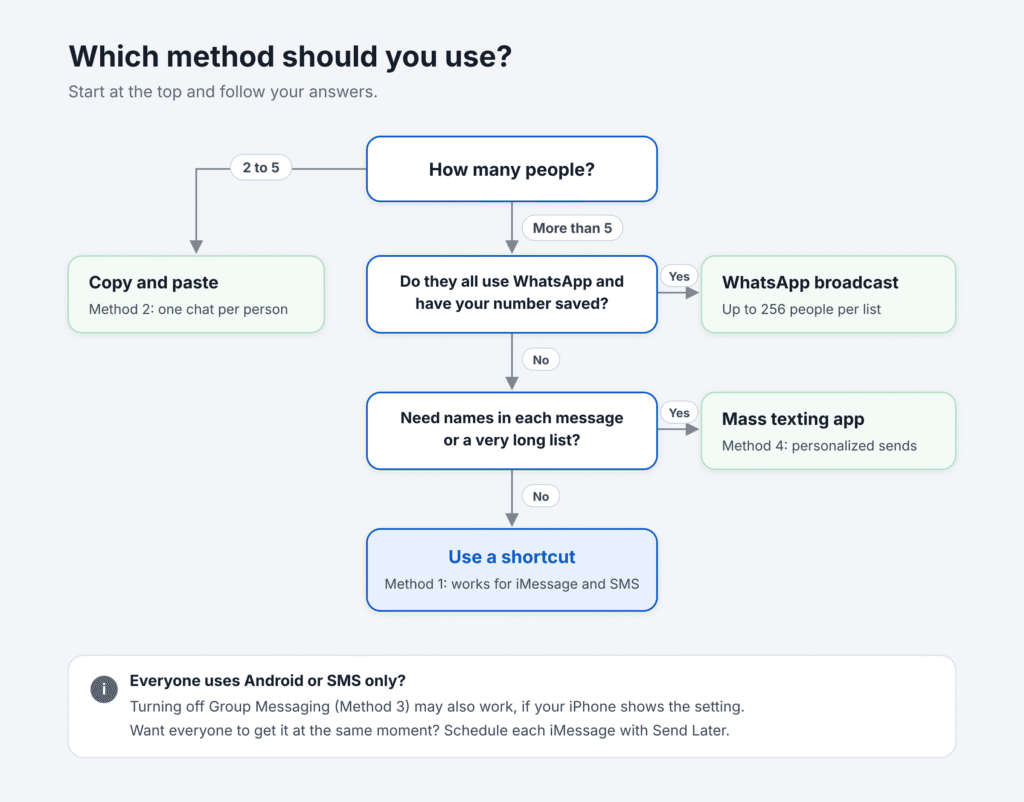
Quick answer: Messages can’t do it in one tap, because it has no BCC. To text multiple contacts without a group message, use a free shortcut in the Shortcuts app that sends each person their own copy, or copy and paste for just a few people. On some carriers, turning off Group Messaging may change how SMS texts to several recipients are sent, but it doesn’t affect iMessage. For long lists, use a mass texting app or a WhatsApp broadcast list.
Every method at a glance
| Method | Works for | Cost | Best for |
|---|---|---|---|
| Shortcut (Shortcuts app) | iMessage and SMS contacts | Free | The same text to a handful or a few dozen people |
| Copy, paste and Send Later | Everyone (Send Later: iMessage only) | Free | Two to five people, or personalized notes |
| Turn off Group Messaging | SMS contacts, if your iPhone shows the setting | Free | Quick announcements to Android users |
| Mass texting app | iMessage and SMS contacts | Free tiers, paid plans | Personalized messages to larger lists |
| WhatsApp broadcast list | WhatsApp users who saved your number | Free | Up to 256 people per list |
Group Chat vs. Individual Texts: What Your iPhone Actually Sends
Your iPhone picks the message type on its own, based on your settings, your recipients’ devices and your carrier plan (Apple Support). That choice decides whether recipients see each other and every reply.
| Group type | When iPhone uses it | Bubble color | Do recipients see each other’s replies? |
|---|---|---|---|
| Group iMessage | Every recipient uses an Apple device with iMessage on | Blue | Yes |
| Group RCS | Some recipients aren’t on iMessage, and RCS is supported (iOS 18 or later) | Green | Yes |
| Group MMS | Some recipients aren’t on iMessage, and MMS is on | Green | Yes |
| Group SMS | Some recipients aren’t on iMessage, and the text goes out as plain SMS | Green | No, each reply comes back only to you |
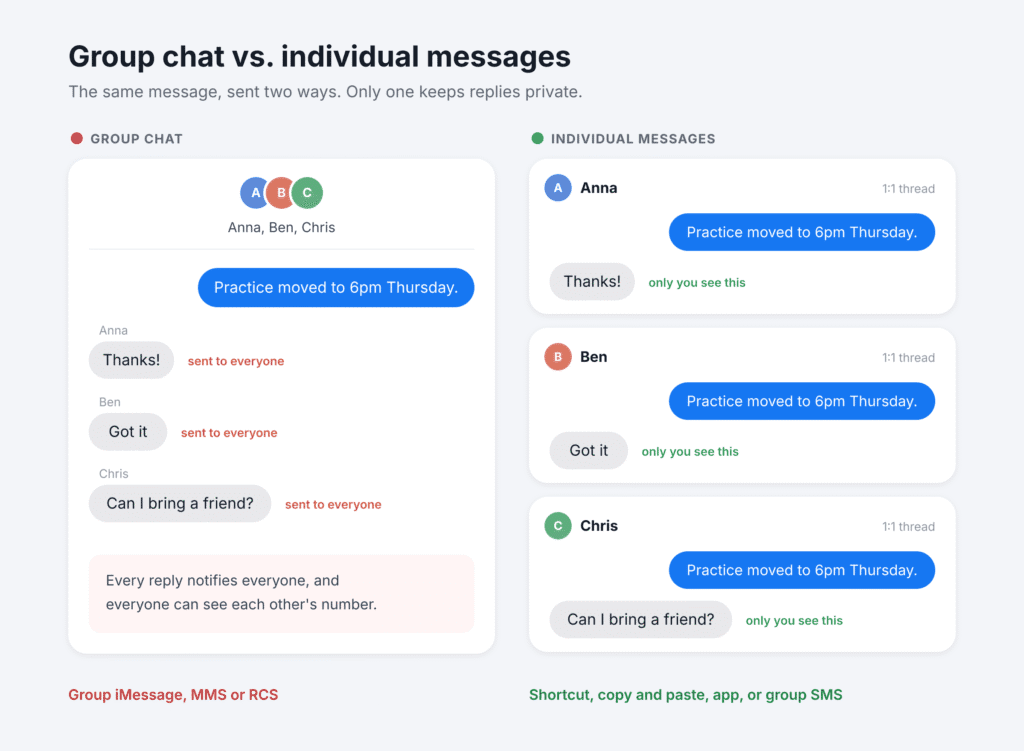
Group SMS is the only built-in type that behaves like individual messages. Apple notes that replies in a group SMS arrive as separate texts, and recipients can’t see each other’s responses. It also can’t carry photos or videos.
That explains the rule behind every method below. For anyone on iMessage, the only way to avoid a group chat is to send one message per person, by hand, with Shortcuts or with an app. Before you tap Send, glance at the text field: it shows whether the message will go as iMessage, RCS or a text message.
Method 1: Send a Mass Text on iPhone Without a Group Chat Using Shortcuts
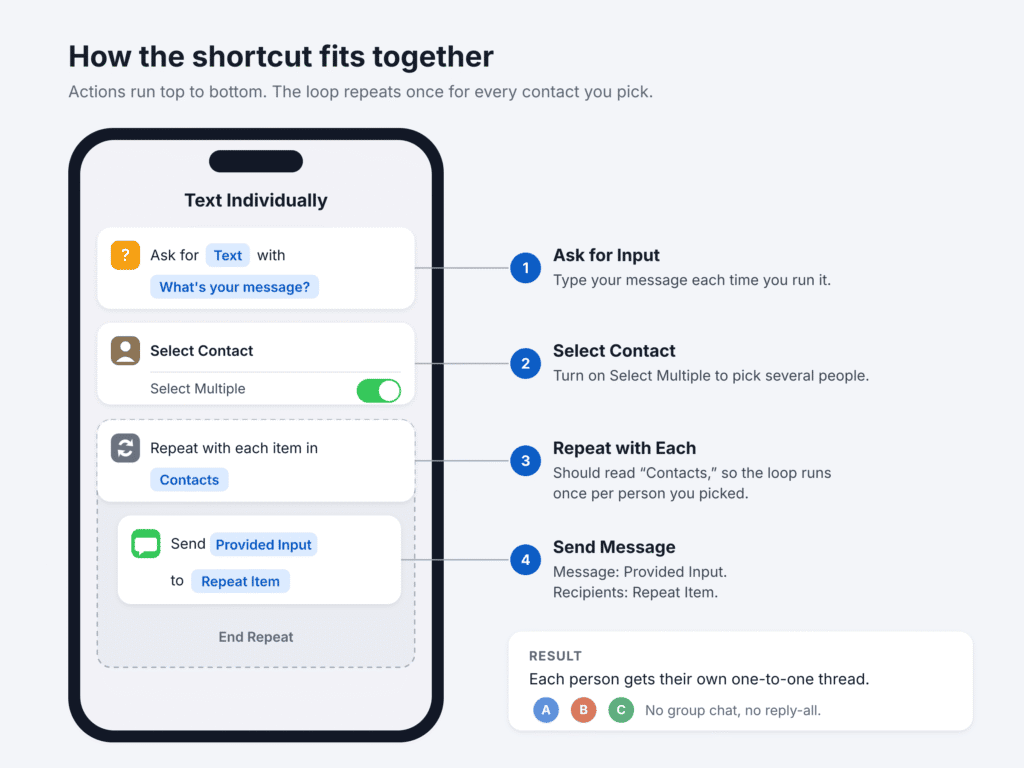
Apple’s free Shortcuts app can loop through a list of contacts and send each person their own message, using its Repeat with Each action (Apple Shortcuts User Guide). You build the shortcut once and run it by hand whenever you need it. It’s the best built-in option when your recipients use iMessage, and it works for SMS contacts too.
Build the shortcut once
- Open the Shortcuts app and tap + to start a new shortcut.
- Add the Ask for Input action and set the prompt to something like “What’s your message?”
- Add Select Contact, tap the arrow to expand it, and turn on Select Multiple. Its result is a list called Contacts.
- Add Repeat with Each directly below it, and check that it reads “Repeat with each item in Contacts.” That links the two, so the loop runs once for each person you pick.
- Inside the repeat block, add Send Message. Tap its message field and choose Provided Input, which holds the text you typed in Ask for Input.
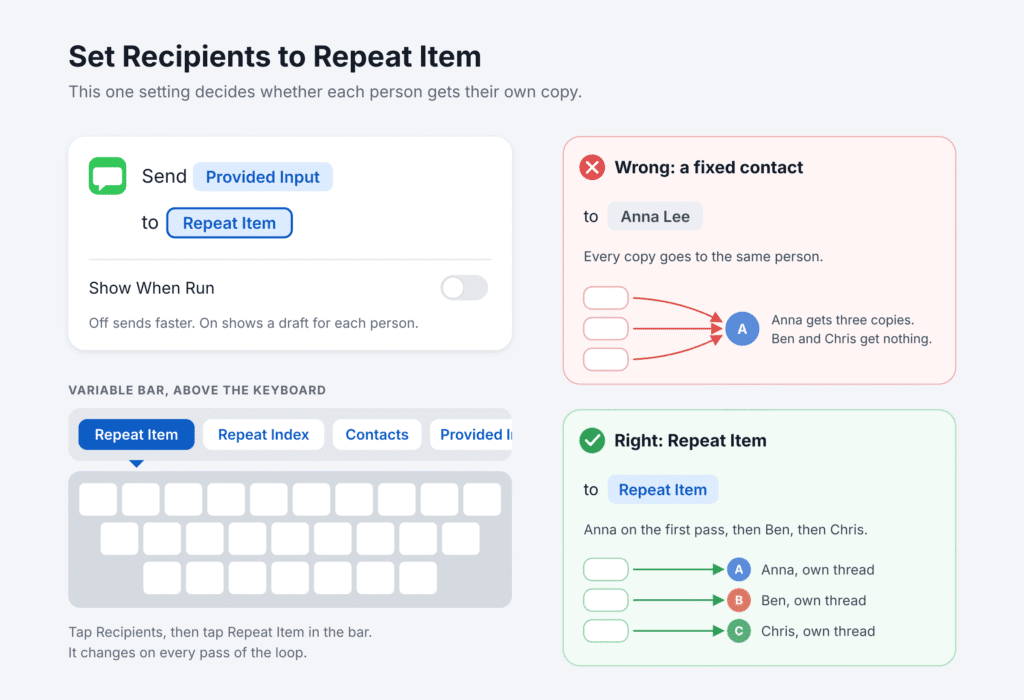
- Tap the Recipients field, then tap Repeat Item in the variable bar above the keyboard.
- Expand Send Message and decide on Show When Run. On shows a draft for each person; off sends faster.
- Name the shortcut, for example “Text Individually”, and tap Done.
Run it
Tap the shortcut, type your message, pick your contacts and tap Done. Each person gets a separate one-to-one message from your number, and their replies land in their own thread.
The first time you run it, Shortcuts asks for permission to use the contacts you picked, and the prompt may say the shortcut wants to share a contact. Approve it. If Always Allow is offered, choose it so you aren’t asked on every run (Apple Shortcuts User Guide). For your first real send, turn Show When Run on so you can check each draft before it goes out.
Tips that save a headache
- All copies went to one person? The Recipients field holds a fixed contact instead of Repeat Item. This is the most common mistake.
- It sent a group message instead? Send Message sits outside the Repeat with Each loop, or the loop is missing. Without the loop, Send Message addresses everyone at once.
- Some people missed it? Run it again with Show When Run on and check that a draft appears for each person. If the shortcut stalls on a long list, turning on Settings > Apps > Shortcuts > Advanced > Allow Sharing Large Amounts of Data may help; Apple notes that some shortcuts need it.
- Everyone gets identical text. This basic shortcut sends the same text to everyone. You can customize it to include contact names, but that takes additional actions.
- Ready-made shortcuts exist online, but building your own takes only a few minutes and you can see exactly what it does.
Method 2: Send the Same Message to Multiple Contacts Separately by Hand
For a few people, the simplest route is one conversation per person. It works with every contact and lets you add a name or a personal line to each message.
- Write your message in the first conversation, or draft it in Notes.
- Touch and hold the text, tap Select All, then tap Copy.
- Tap Send.
- Open the next conversation or tap the Compose button and enter the next name.
- Tap the text field, tap Paste, adjust the greeting and tap Send.
- Repeat for each person.
If you send the same phrase often, save it under Settings > General > Keyboard > Text Replacement. Typing a short code then expands it into the full message.
Schedule each message with Send Later
Since iOS 18, Messages can schedule a message up to 14 days ahead (Apple Support). It’s handy when you want everyone to get the news at the same moment.
- In a conversation, tap + next to the text field, then tap Send Later. You may need to tap More to find it.
- Pick the date and time.
- Type your message and tap Send. A dashed outline marks the bubble as scheduled.
Send Later works with iMessage only, so it won’t schedule texts to Android or SMS contacts. You can edit, reschedule or delete a scheduled message before it goes out, as long as you’re online.
Method 3: Turn Off Group Messaging on iPhone (SMS Contacts, Where Available)
On some iPhones and carriers, a Group Messaging setting controls how texts to non-iMessage contacts go out. When it’s available and turned off, each SMS recipient usually gets a separate text, and replies come back to you one by one. Treat it as a quick option for Android contacts, not a universal fix: it doesn’t affect iMessage, and RCS can override it.
- Open Settings > Apps > Messages. On iOS 17 or earlier, open Settings > Messages.
- Scroll down to the text messaging (SMS/MMS) section.
- Turn off Group Messaging.
- Open Messages, tap the Compose button, add your recipients, type your message and tap Send.
- Check your conversation list. If the setting took effect, each SMS recipient has a separate thread.
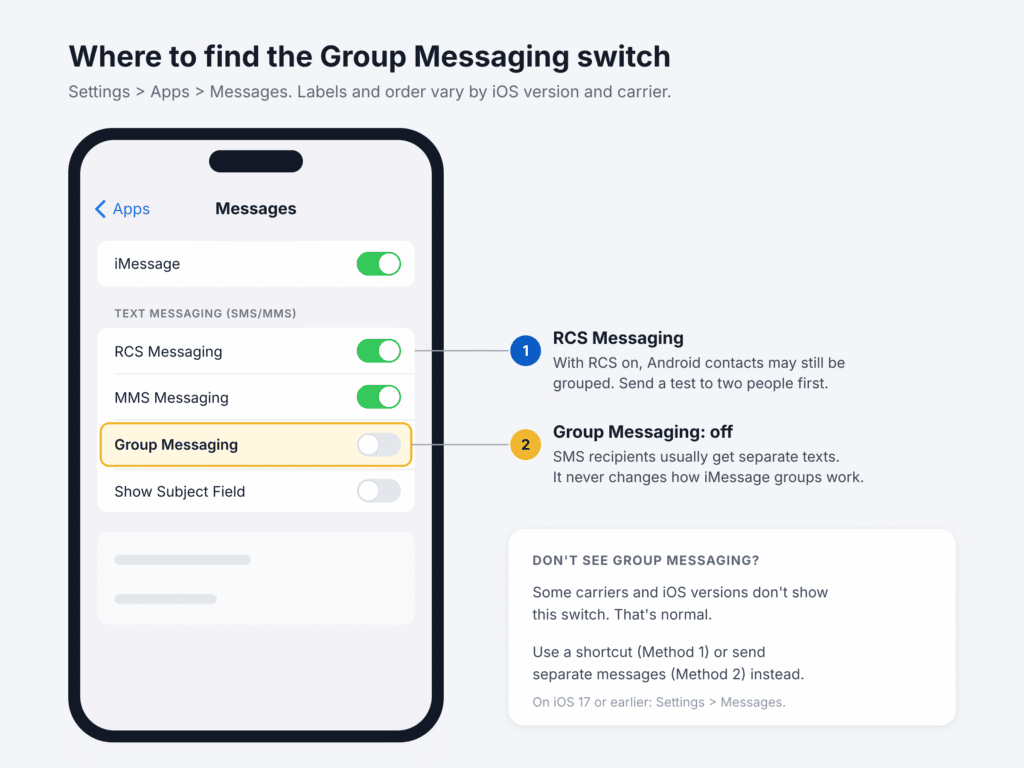
Know these limits before you rely on it:
- It only covers SMS and MMS. Recipients on iMessage still end up in a group iMessage together.
- RCS can change the result. With RCS Messaging on, Android contacts may be grouped in an RCS chat instead. Send a test to two people you know first.
- It’s a global switch. It won’t turn existing group chats into separate conversations, but while it’s off, new messages in your mixed iPhone and Android groups may arrive as individual texts.
- No photos or videos. Plain SMS can’t carry attachments, so send media separately.
- The switch isn’t on every iPhone. Some users on iOS 17 and later report it missing, and Apple’s own guide only mentions MMS Messaging. Availability depends on your carrier and iOS version. If you don’t see it, use Method 1 or 2.
Some older guides also tell you to turn off iMessage. That forces every message out as SMS, but it switches off blue-bubble features in all your chats, so it’s rarely worth it.
Method 4: Use a Mass Texting App for Larger Lists
Mass texting apps let you save contact groups, write a message once and personalize each copy with tags like the recipient’s first name. They suit club organizers, small businesses and anyone who sends the same update every week.
Keep expectations realistic, because there are two kinds of tools. Apps that send from your own iPhone number must go through Apple’s message screen, so they prepare one message per contact and you tap Send for each. Business texting services such as DialMyCalls send from their own numbers through their servers, so nothing needs tapping, but recipients see a business number instead of yours, and US business numbers need carrier registration (A2P 10DLC).
Reach is a long-running example on the App Store. It sends via iMessage, SMS, WhatsApp or email, and recipients don’t see each other. At the time of writing, the free version covers up to 8 contacts and 2 groups, and a subscription removes those limits (App Store listing). Other apps in this category include Hit Em Up and Group SMS.
Before you install one:
- Check the privacy details. These apps ask for access to your contacts. Read the App Privacy section of the listing first.
- Check current pricing. In the US, Reach Unlimited is listed at $6.99 a month or $69.99 a year at the time of writing, and plans change often.
- Mind the rules for business texts. If you’re messaging customers for marketing, get their consent first and honor opt-out requests. In the US, the TCPA governs this.
Other Ways to Send a Group Text Without Showing Recipients
If your contacts don’t all need a text message, two free tools outside Messages do the job well.
WhatsApp broadcast list
A broadcast list sends your message to each person as a private chat. Replies come only to you, and nobody sees who else received it.
- Open WhatsApp and go to the Chats tab.
- Tap the more options menu and choose Broadcast lists.
- Select the contacts you want and tap the check mark to save the list.
- Open the list from the Chats tab, type your message and send it.
Menu names can shift between WhatsApp versions, so look for Broadcast lists if your screen looks different.
WhatsApp’s own rules matter here (WhatsApp Help Center):
- Each list holds up to 256 contacts, and you can create as many lists as you like.
- Only contacts who have saved your number in their phone receive broadcasts. Everyone else gets nothing, with no error.
- People in some countries may see a monthly broadcast limit. WhatsApp says this is rolling out gradually and may not apply everywhere (WhatsApp Help Center).
- Broadcast lists work on phones only, not WhatsApp for Windows, Mac or Web.
Email with Bcc
For longer updates that don’t need to be texts, use the Mail app. In a new email, tap the Cc/Bcc, From field to reveal Bcc, then add every address there. Each recipient sees only their own address, and replies come back only to you.
Troubleshooting: When Individual Messages Don’t Work
Most problems come from the message type your iPhone chose, not from a bug. Match your symptom below.
| Problem | Likely cause | Fix |
|---|---|---|
| A group chat was created even with Group Messaging off | Some recipients use iMessage or RCS | Use the Shortcuts method or send separately |
| No Group Messaging switch in Settings | Your carrier or iOS version doesn’t show it | Use Method 1 or 2 instead |
| The shortcut sent every copy to one person | Recipients is set to a fixed contact | Set Recipients to the Repeat Item variable |
| The shortcut keeps asking for confirmation | Shortcuts asks before it uses your contacts | Approve the prompt, and choose Always Allow if it’s offered |
| Android contacts didn’t receive the text | Wrong number, weak coverage, or no SMS on your plan; photos and group texts also need MMS or RCS | Check the number and signal, then MMS and RCS in Settings > Apps > Messages; ask your carrier if it still fails |
| Send Later is missing | iOS 17 or earlier, or the chat isn’t iMessage | Update iOS and look under More in the + menu |
| Some WhatsApp broadcast recipients got nothing | They haven’t saved your number | Ask them to add you to their contacts |
Before any big send, test it on two people you know. Then check your conversation list: one thread per person means it worked.
Frequently Asked Questions
Can you send a group text individually on iPhone?
Yes, but not in one tap inside Messages. Use a shortcut, separate messages or a mass texting app; these work for iMessage and SMS contacts. For SMS contacts only, turning off Group Messaging may also help if your iPhone shows the setting.
Is there a BCC option for text messages on iPhone?
No. Messages has no BCC feature. A group SMS delivers replies to you separately, but group iMessage, MMS and RCS chats show every reply to everyone. On iPhone, Bcc exists only in the Mail app.
Will recipients see each other’s numbers?
In a group iMessage, RCS or MMS chat, yes. In a group SMS or with any of the individual methods above, each person sees only your message.
How many people can be in a group text on iPhone?
Apple doesn’t publish an official participant limit. Limits differ between iMessage, RCS and MMS groups, and carriers set their own caps for green-bubble groups. Sending individual messages avoids group size limits entirely.
Can I split an existing group chat into individual chats?
No. A group thread stays a group. Start new one-to-one conversations with the people you want to message privately.
Will people know I sent a mass text?
Not from the thread itself, since each person gets a normal one-to-one message. Identical wording can give it away, so add a name when you can.
Should I turn off iMessage to stop group chats?
Only as a last resort. It forces every message to SMS, but you lose blue-bubble features in all your conversations until you turn it back on.
The Bottom Line
Messages has no BCC button, but you aren’t stuck with reply-all. The best way to send group messages individually on iPhone depends on who you’re texting: a shortcut works for everyone, copy and paste suits a few people, and the Group Messaging setting can help with SMS contacts where it’s available. Use Send Later, WhatsApp or a mass texting app when timing or list size matters.
Whatever you choose, send a quick test to two people first. It takes seconds and saves a group-chat apology.

Louis Mugan is a seasoned technology writer with a talent for turning complicated ideas into clear, practical guidance. He focuses on helping everyday readers stay confident in a world where tech moves fast. His style is approachable, steady, and built on real understanding.
He has spent years writing for platforms like EasyTechLife, where he covers gadgets, software, digital trends, and everyday tech solutions. His articles focus on clarity, real-world usefulness, and helping people understand how technology actually fits into their lives.
Outside of his regular columns, Louis explores emerging tools, reviews products, and experiments with new tech so his readers don’t have to. His steady, friendly approach has made him a reliable voice for anyone trying to keep up with modern technology. get in touch at louismugan@gmail.com


