Want to stop your iPhone, iPad or Mac from sharing photos, messages, calls or your location? Apple devices share data in two different ways: between your own devices through iCloud and Continuity, and with other people through features like Find My, shared albums and Family Sharing.
You can turn off each feature on its own, without signing out of your Apple Account. This guide shows which setting controls what, how to stop sharing with specific people, and what happens to your data when you switch something off.

Quick answer: which setting to change
Find what you want to stop, then go to the setting beside it. Paths are for iOS 27 and iPadOS 27; most also work on iOS 18 and later.
| What you want to stop | Where to change it |
|---|---|
| Calls ringing on your iPad or Mac | iPhone: Settings > Apps > Phone > Calls on Other Devices |
| Texts showing up on your iPad or Mac | iPhone: Settings > Apps > Messages > Text Message Forwarding, or sign out of iMessage on that device |
| FaceTime ringing on other devices | Sign out of FaceTime on that device |
| Photos syncing between devices | Settings > [your name] > iCloud > Photos |
| Notes, contacts, calendars or Safari syncing | Settings > [your name] > iCloud > See All |
| Copy and paste between devices | Settings > General > AirPlay & Continuity > Handoff |
| Do Not Disturb turning on everywhere | Settings > Focus > Share Across Devices |
| Nearby people sending you files | Settings > General > AirDrop |
| Someone seeing your location | Find My > People, or Safety Check |
| Sharing personal information with other people, all at once | Settings > Privacy & Security > Safety Check |
| Shared purchases and subscriptions | Settings > [your name] > Family Sharing |
| A device you no longer use | Settings > [your name] > select the device > Remove from Account |
Sharing with people vs. syncing between your devices
Before you change anything, decide which kind of sharing you want to stop. The settings are different, and turning off one does not affect the other.
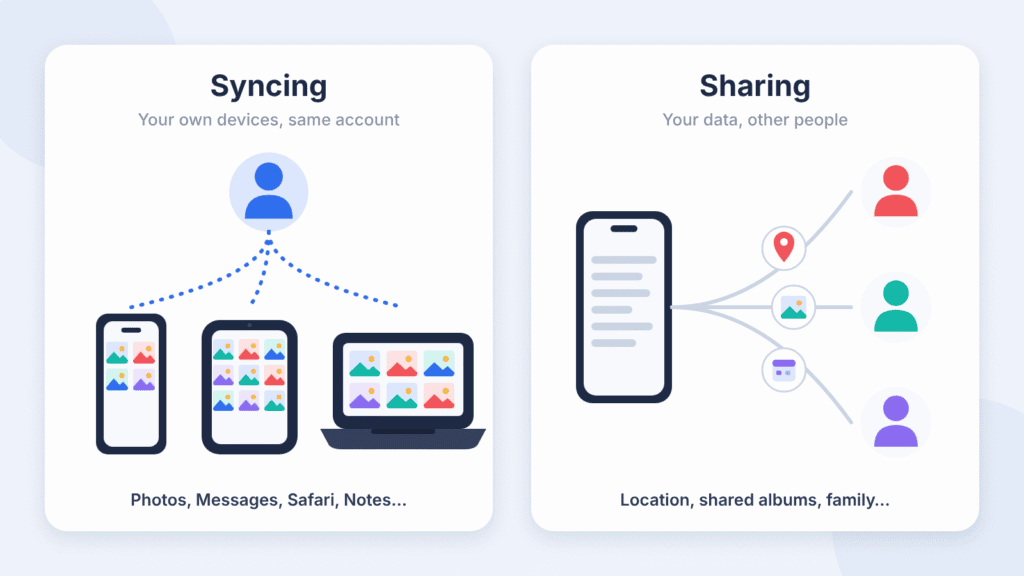
| Type | What it means | Examples | Where you control it |
|---|---|---|---|
| Syncing between your devices | Your own iPhone, iPad and Mac, signed in to the same Apple Account, keep the same data | iCloud Photos, Messages in iCloud, Handoff, calls ringing on your Mac | iCloud settings, Continuity settings, Phone and Messages settings |
| Sharing with other people | Someone else’s device can see your information | Your location in Find My, shared albums, Family Sharing, shared notes | Safety Check, Find My, and each app’s sharing options |
Use Safety Check to review who can see your information
Safety Check is the fastest way to stop sharing personal information with other people. It does not turn off syncing between your own devices; the sections further down cover that.
You need an iPhone with iOS 16 or later and an Apple Account that uses two-factor authentication. Safety Check isn’t available on iPad or Mac; Apple publishes manual checklists for those devices instead.
Go to Settings > Privacy & Security > Safety Check, then pick one of two options:
| Option | What it does | Use it when |
|---|---|---|
| Emergency Reset | Immediately stops all supported sharing with people and apps, then walks you through your devices, trusted phone numbers, emergency contacts and Apple Account password | You need to cut off access quickly |
| Manage Sharing & Access | Lets you review sharing person by person or app by app, then remove devices, update trusted numbers and change your password or passcode | You want to keep some sharing and stop the rest |
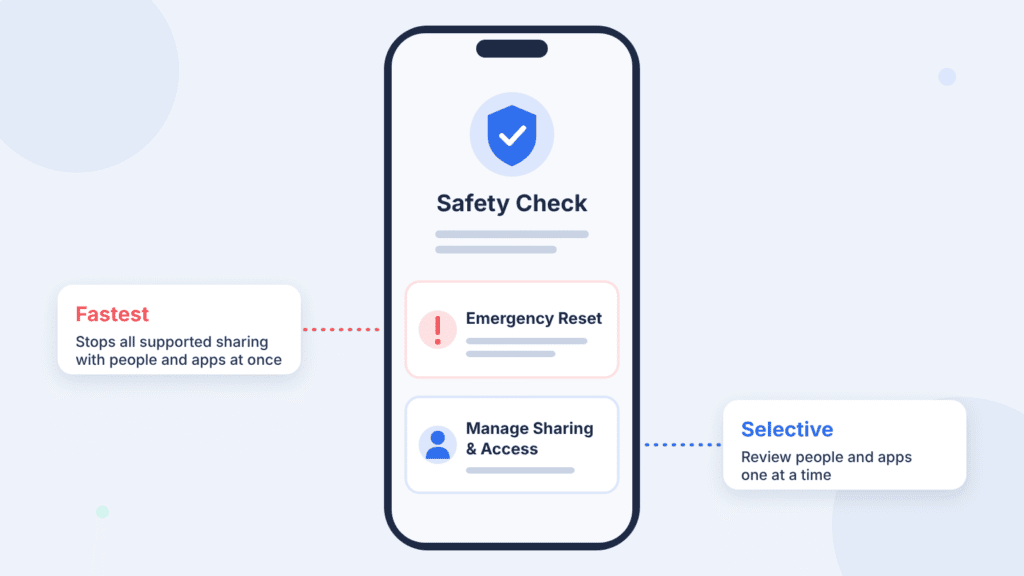
Safety Check covers sharing from Apple apps, including your Find My location, shared photos (Shared Library and Shared Albums), shared notes, shared passwords, shared calendars, Health, Home and Check In. It can’t change non-Apple accounts, social media, or devices signed in to a different Apple Account.
Before you start:
- Other people may notice. For example, your location will disappear from their Find My app. If you’re worried about your safety, plan for that before you make changes.
- Use Quick Exit if you need to. The button in the top-right corner closes Settings instantly. Changes you’ve already made are saved.
Stop calls and texts from showing up on your iPad or Mac
This is the most common reason a call or message appears on the wrong device. Phone calls, text messages and FaceTime each have their own setting. Apple’s guides to calls on other devices and Text Message Forwarding cover both in more detail.
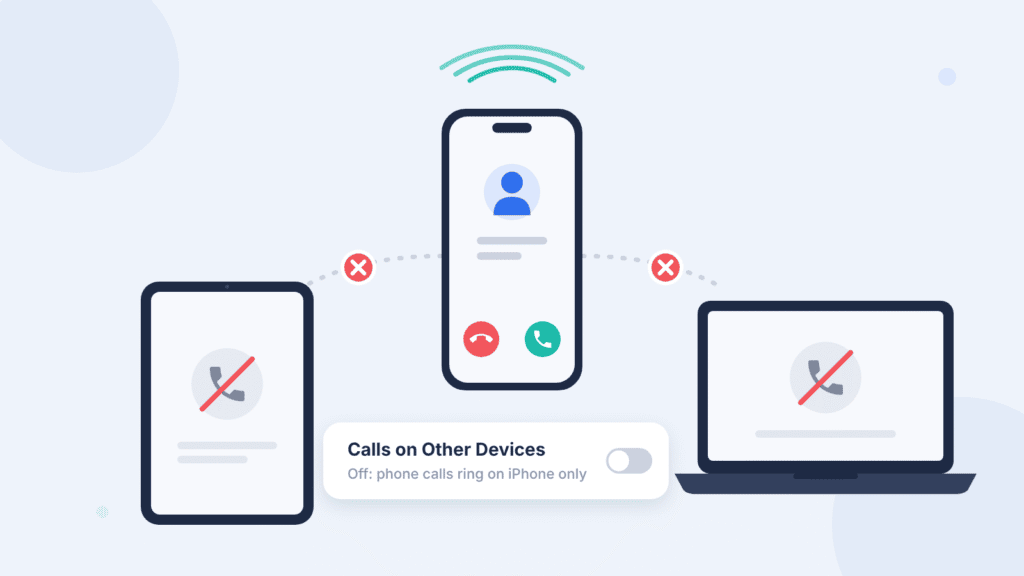
Phone calls
- On your iPhone, go to Settings > Apps > Phone > Calls on Other Devices.
- Turn off Allow Calls on Other Devices, or turn off only the devices that shouldn’t ring.
You can also switch it off from the other device. On iPad, go to Settings > Apps > FaceTime and turn off Calls from iPhone. On Mac, open FaceTime, go to FaceTime > Settings and deselect Calls from iPhone.
Text messages
- On your iPhone, go to Settings > Apps > Messages > Text Message Forwarding.
- Turn off each device that shouldn’t send or receive your SMS, MMS and RCS texts.
If Messages in iCloud is on, forwarding is built into it, so texts can still appear. To stop all messages on a specific iPad or Mac, sign out of iMessage on that device. On iPad, go to Settings > Apps > Messages and turn off iMessage. On Mac, open Messages, go to Messages > Settings > iMessage and click Sign Out.
FaceTime calls
FaceTime rings on every device signed in to FaceTime with your Apple Account. To stop it on one device, turn off FaceTime in Settings > Apps > FaceTime on iPad, or sign out in FaceTime > Settings on Mac.
iPhone Handoff (two iPhones, one number)
In iOS 27, iPhone Handoff lets two iPhones share one phone number. Despite the name, it’s separate from regular Handoff, which moves tasks between devices. Calls, voicemail, messages and your Find My location move to whichever iPhone you unlock. It only works with supporting carriers, currently T-Mobile in the US and Telekom in Germany. To turn it off, you have to contact your carrier; deleting the eSIM alone may not stop the charges.
Stop photos syncing between iPhone, iPad and Mac
Photos sync between your devices through iCloud Photos. Turning it off on one device stops new photos, edits and deletions from syncing to and from that device. Apple’s guide to turning off iCloud Photos covers every device, including Windows PCs and Apple TV.
Download your originals first. If the device stores smaller, optimized copies, you could lose full-size photos.
- On iPhone or iPad, go to Settings > [your name] > iCloud > Photos and select Download and Keep Originals. On Mac, open Photos, go to Photos > Settings > iCloud and select Download Originals to this Mac.
- Wait for the download to finish.
- Turn off Sync this iPhone (or iPad) in the same Photos menu. On Mac, go to System Settings > [your name] > iCloud > Photos and turn off Sync this Mac.
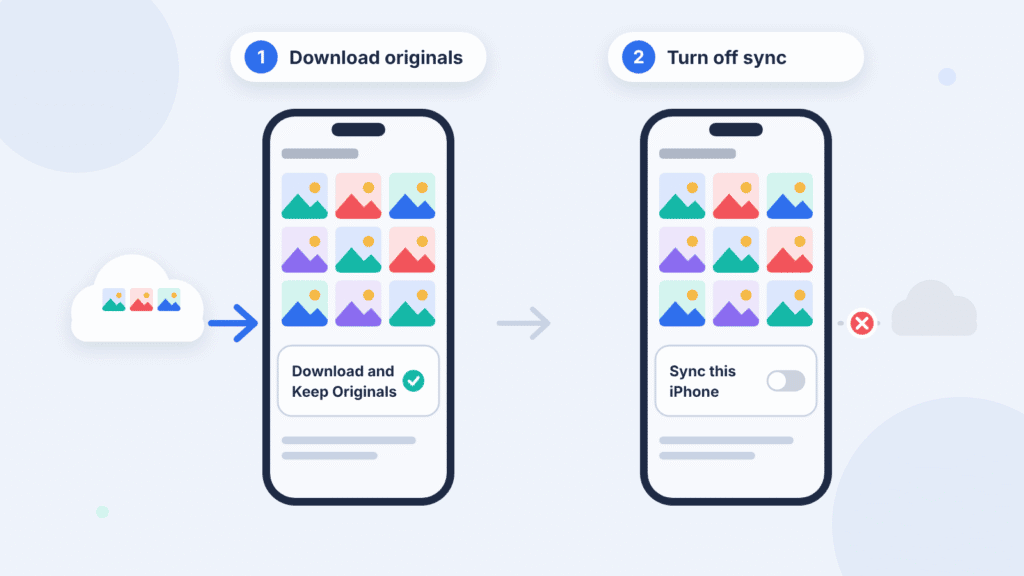
To stop using iCloud Photos on every device, go to Settings > [your name] > iCloud > Storage > iCloud Photos and tap Turn Off and Delete Photos. On Mac, go to System Settings > [your name] > iCloud > Manage, select iCloud Photos and click Turn Off and Delete Photos. If you own a Shared Library, delete it first. Your photos are removed from iCloud after 30 days, so make sure at least one device has a full copy.
Shared Library and Shared Albums
These share photos with other people, not just your own devices.
- iCloud Shared Photo Library: Go to Settings > Apps > Photos > Shared Library. Participants tap Leave Shared Library and choose whether to keep everything or only their own photos. The creator can remove a participant or tap Delete Shared Library.
- Shared Albums: In the Photos app, tap Collections and scroll to Shared Albums. Open an album you created, tap the people icon, select a person and tap Remove Subscriber. If someone else created the album, tap Unsubscribe instead.
Turn off iCloud syncing for other apps
Each app that uses iCloud has its own switch, so you can stop syncing Notes, for example, without touching Photos.
- On iPhone or iPad, go to Settings > [your name] > iCloud.
- Tap See All next to Saved to iCloud.
- Tap an app, such as Notes, Contacts, Calendars, Reminders, Safari, Passwords or Drive, and turn syncing off.
On Mac, go to System Settings > [your name] > iCloud and click See All next to Saved to iCloud.
When you turn off iCloud for an app, your data stays in iCloud and on your other devices but stops syncing with this one. Some apps ask whether to keep a copy on this device; choose to keep it if you still want it there. Turning off Safari stops bookmarks, open tabs and Tab Groups from syncing.
Messages is in this list too. Turning off Messages in iCloud stops your message history from syncing, but new iMessages still arrive on any device signed in to iMessage. To stop that, sign out of iMessage on the device, as described in the calls and texts section above.
Turn off Handoff and Universal Clipboard
Handoff lets you start something on one device and finish it on another. Universal Clipboard, which lets you copy on one device and paste on another, relies on Handoff, so turning off Handoff stops both.
Turn it off on each device you don’t want to take part:
- iPhone or iPad: Go to Settings > General > AirPlay & Continuity (called AirPlay & Handoff on older versions) and turn off Handoff.
- Mac: Go to System Settings > General > AirDrop & Continuity (AirDrop & Handoff on older versions) and turn off Allow Handoff between this Mac and your iCloud devices.
- Apple Watch: Open the Watch app on your iPhone, go to My Watch > General and turn off Enable Handoff.
Control who can AirDrop to you
AirDrop sends files between nearby Apple devices, including other people’s. On iPhone or iPad, go to Settings > General > AirDrop and choose:
- Receiving Off: No one can send you files with AirDrop.
- Contacts Only: Only people saved in your Contacts can send you files.
- Everyone for 10 Minutes: Anyone nearby can send you files, then the setting returns to Contacts Only.
On the same screen, turn off Bringing Devices Together to stop NameDrop and other sharing that starts when you hold two iPhones close. On Mac, the AirDrop setting is in System Settings > General > AirDrop & Continuity.
Stop Focus and Screen Time syncing across devices
If turning on Do Not Disturb on your iPhone also silences your Mac, Focus is set to share across devices.
- Focus: On iPhone or iPad, go to Settings > Focus and turn off Share Across Devices. On Mac, go to System Settings > Focus and turn off Share across devices.
- Screen Time: On iPhone or iPad, go to Settings > Screen Time and turn off Share Across Devices. On Mac, the option is in System Settings > Screen Time. Turn it off on each device you want to keep separate.
Stop sharing with specific people
Safety Check covers all of these at once. If you’d rather change one thing at a time, use the app itself.
Your location in Find My
- One person: Open Find My, tap People, tap their name, then tap Stop Sharing My Location.
- Everyone: Open Find My, tap Me, then turn off Share My Location.
- Just for today: In People, tap their name, tap the More button, then tap Hide Location. Sharing resumes automatically the next day.
Your location disappears from their Find My, Maps, Contacts and Messages apps, so they may notice.
Shared Safari Tab Groups
In Safari, tap the Collaborate button (top-right on iPhone, in the toolbar on Mac), then tap Manage Shared Tab Group. Tap a name and choose Remove Access, or tap Stop Sharing to remove everyone. If you don’t see the Collaborate button, you have no shared Tab Groups.
Shared notes and calendars
- Notes: Open the shared note, tap the Collaborate button, then tap Manage Shared Note. Remove a person or tap Stop Sharing.
- Calendar: Tap Calendars, tap the Info button next to the shared calendar, tap a person, then tap Stop Sharing.
Shared passwords
Open the Passwords app, tap the shared group, then tap the Info button. The group owner can remove members; anyone else can remove themselves. People may still know passwords they saw while in the group, so change any you don’t want them to keep.
Leave Family Sharing
Leaving a family group stops shared purchases, subscriptions, iCloud storage and location sharing with that group in one step. Apple’s Family Sharing safety guide explains who can leave and what changes.
- On iPhone or iPad, go to Settings > [your name] > Family Sharing. On Mac, go to System Settings > Family.
- Tap your name, then tap Stop Using Family Sharing.
Who can leave depends on your role and age:
| Role | Can they leave? |
|---|---|
| Adult (18 or older) | Yes, at any time |
| Teen (13 to 17) | Usually. If Screen Time or parental controls are on, the organizer must turn them off and approve the request first. In some countries and regions, members can’t leave until 18 |
| Child under 13 (age varies by country) | No. The organizer can move them to another family group |
| Organizer | Only by turning off Family Sharing, which removes everyone. Children under 13 must be moved to another group first |
When you leave, you immediately lose access to things other members bought and to shared subscriptions. If you only want to stop sharing your location with your family, you can do that in Find My instead.
Remove a device from your Apple Account
If a device shouldn’t be connected to your account at all, such as an old iPad or one you don’t recognize, remove it. It stops syncing everything at once.
- From the device itself: Go to Settings > [your name], scroll down and tap Sign Out. On Mac, go to System Settings > [your name] and click Sign Out. This is the most reliable method.
- From another device: Go to Settings > [your name] and scroll to your device list. Tap the device, then tap Remove from Account. On a computer without Apple devices, sign in at account.apple.com and select Devices.
A device removed remotely can reappear if it’s still signed in and connects to the internet again. If you can’t reach the device to sign out, change your Apple Account password as well.
Does turning off sharing delete your data?
Usually not, but it depends on the feature. Turning off syncing stops future changes from moving between devices, while stopping sharing with people removes access to shared content. Photos are the main exception: some settings remove copies unless you download them first.
| What you turn off | What happens to your data |
|---|---|
| iCloud for an app on one device | Your data stays in iCloud and on your other devices. Some apps ask whether to keep a copy on this device; choose to keep it if you still want it there |
| iCloud Photos on one device | Photos already downloaded stay; optimized copies can be lost unless you download originals first |
| iCloud Photos everywhere (Turn Off and Delete Photos) | Photos are deleted from iCloud after 30 days |
| Shared Library (leaving) | You choose to keep everything or only the photos you added |
| Someone else’s shared album (unsubscribing) | You lose its photos, except any you saved to your own library |
| Calls on Other Devices or Text Message Forwarding | Nothing is deleted; new calls and texts just stop reaching that device |
| Location sharing in Find My | Nothing is deleted; your location stops updating for that person |
| Family Sharing (leaving) | You lose access to other members’ purchases and shared subscriptions |
| Signing out of iCloud | Syncing and iCloud backup stop; your iCloud data stays in your account |
Frequently asked questions
How do I stop my iPhone and iPad from syncing everything?
The quickest way is to sign out of your Apple Account on the iPad, which stops all syncing at once. To keep the iPad signed in, turn off the specific features instead: iCloud for each app, Handoff, Text Message Forwarding and Calls on Other Devices.
Why are my iPhone texts showing up on my iPad or Mac?
That device is signed in to iMessage with your Apple Account, and Text Message Forwarding or Messages in iCloud sends your SMS texts there too. Signing out of iMessage on that iPad or Mac stops both.
Why does my Mac or iPad ring when my iPhone gets a call?
Calls on Other Devices is turned on. On your iPhone, go to Settings > Apps > Phone > Calls on Other Devices and turn it off, or turn off Calls from iPhone on the iPad or Mac.
Will someone know if I stop sharing my location?
They may notice, because your location disappears from their Find My, Maps, Contacts and Messages apps. On older software, they may also get a notification in Messages.
Does Safety Check work on iPad or Mac?
No. Safety Check is only available on iPhone with iOS 16 or later. On iPad or Mac, follow the manual checklists in Apple’s Personal Safety User Guide, or change each setting in this guide by hand.
Is iPhone Handoff the same as Handoff?
No. Handoff moves a task, such as a web page or an email, from one device to another. iPhone Handoff, new in iOS 27, lets two iPhones share one phone number through a supporting carrier.
Related: how to get the privacy screen on iPhone.
If your TV asks for a code when you AirPlay from your iPhone, see how to find the AirPlay code for your TV.
Which method should you use?
To stop sharing with other people, start with Safety Check; it shows everyone you share with in one place. To stop your own devices from syncing, change the specific setting instead: Calls on Other Devices and Text Message Forwarding for calls and texts, iCloud settings for photos and app data, and Handoff for copy and paste. If a device shouldn’t be connected to your account at all, remove it from your Apple Account.

Louis Mugan writes how-to and troubleshooting guides for EasyTechLife, covering Android phones, iPhones, laptops, Chromebooks, headphones and everyday software.
He aims to base each guide on official manufacturer documentation and support pages, and to link the sources so readers can check the steps for themselves. Questions or corrections? Use the contact page.