In most cases, the app is still on your phone. Its icon was removed from the Home Screen, hidden, moved to a folder or another page, or archived to save space. Less often, the app was deleted, disabled or blocked by a restriction.
The fix depends on which of those happened, and each one leaves a clue. This guide shows you how to read the clue and get the app back on Android phones (including Samsung Galaxy) and on iPhone.
Start with the quick table below, then jump to the steps for your phone. Menu names match Android 15 and later, Samsung One UI, and iOS 18 through iOS 27. Older versions may use slightly different labels.
This guide shows how to restore home screen icons on Android and iPhone, starting with the checks that take a few seconds.
Quick Answer: Why Apps Disappear and How to Get Them Back
Match what you see on your screen to the most likely cause. The fix column tells you where to go next.
| What you see | Likely cause | Fix | Phone |
|---|---|---|---|
| The app opens from search but isn’t on the Home Screen | Icon removed from the Home Screen; app still installed | Drag it back from the app drawer (Android) or App Library (iPhone) | Both |
| A whole page of apps is gone | Home Screen page hidden | Unhide the page in Edit Pages | iPhone |
| The app is missing from the Home Screen, App Library and Search | Hidden with Hide and Require Face ID | Open the Hidden folder at the bottom of the App Library | iPhone (iOS 18+) |
| The app is missing from both Home and Apps screens on a Galaxy | Hidden in One UI Home settings | Unhide it in Hide apps on Home and Apps screens | Samsung |
| The icon is dimmed or shows a small cloud | Archived (Android) or offloaded (iPhone) to save storage | Tap the icon to download the app again; your data is kept | Both |
| A preinstalled app is gone but still listed in Settings | App disabled | Settings > Apps > the app > Enable | Android |
| The app appears only after unlocking, or has a briefcase badge | Installed in Private space or a work profile | Unlock Private space or turn on the work profile | Android |
| Apps vanished after an iOS update or a Screen Time change | Age rating or Allowed Apps restriction | Adjust Content & Privacy Restrictions | iPhone |
| Apps disappear only when a Focus is on | Focus shows selected Home Screen pages only | Change the Focus Home Screen pages | iPhone |
| Every icon is gone, or the layout reset | Launcher reset or switch, Safe mode or Easy mode | Restart, choose the stock Home app, rebuild the layout | Android |
| The app isn’t in Settings, the app drawer or the App Library | Probably uninstalled | Confirm in Google Play or the App Store, then reinstall | Both |
If the whole home screen looks different, not just one missing icon, see how to get your Android home screen back to normal or why your Android home screen changed.
On iPhone: to put an app back without searching for it, swipe left past your last page to App Library, touch and hold the app and drag it onto a Home Screen page. If a whole page of apps is gone, see how to show hidden Home Screen pages. If the entire layout changed, see how to restore your iPhone Home Screen to its original layout.
How to Restore Home Screen Icons on Android
On Android, the Home screen only holds shortcuts. The app drawer (also called All Apps or the Apps screen) shows most installed apps, so check it first. Disabled, hidden or profile-restricted apps may not appear there. If the app isn’t there, work through the steps below in order.
1. Check the app drawer and add the icon back
If an app icon is missing from the Home screen but the app still opens, only the shortcut was removed.
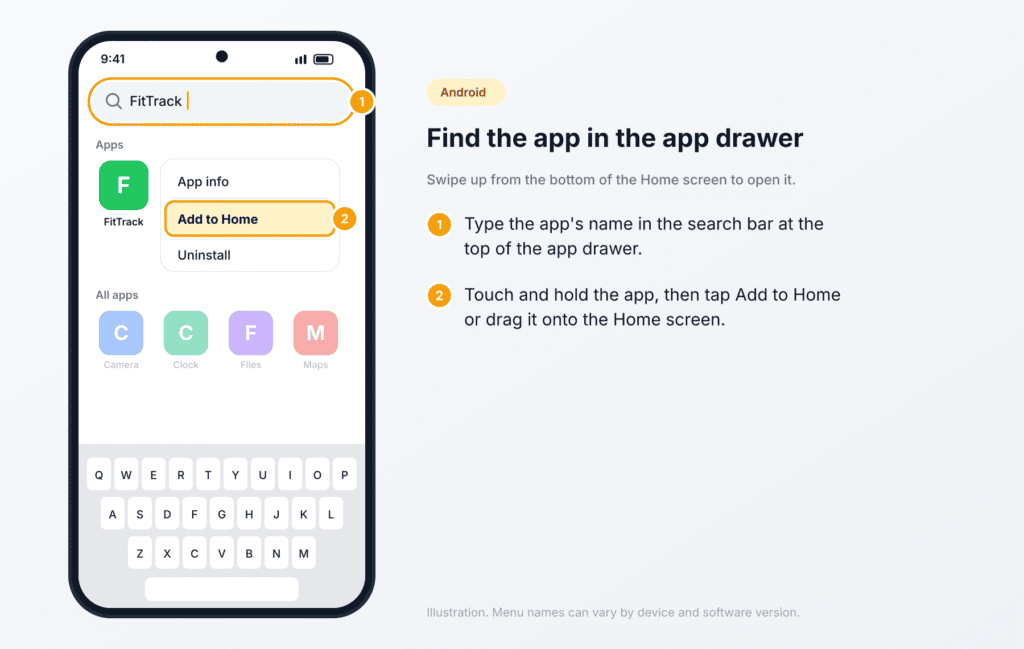
- Swipe up from the bottom of the Home screen to open the app drawer.
- Type the app’s name in the search bar at the top.
- Touch and hold the app, then drag it onto the Home screen. Some phones show an Add to Home option instead.
- Also open any folders on your Home screen. Apps often get dropped into a folder by accident.
2. Confirm whether the app is still installed
Open Settings > Apps > See all apps and look for the app. If it’s listed, it’s still installed for this profile, and something is hiding its icon. If it isn’t, check Private space, the work profile, other user accounts and your launcher’s hidden-apps list before assuming it was deleted.
3. Re-enable a disabled app
You can’t delete some preinstalled system apps, but you can disable them. A disabled app stops running and disappears from your app list, according to Google’s Android Help.
To see which apps came preinstalled on your phone and which are safe to turn off, check our Android pre-installed apps list.
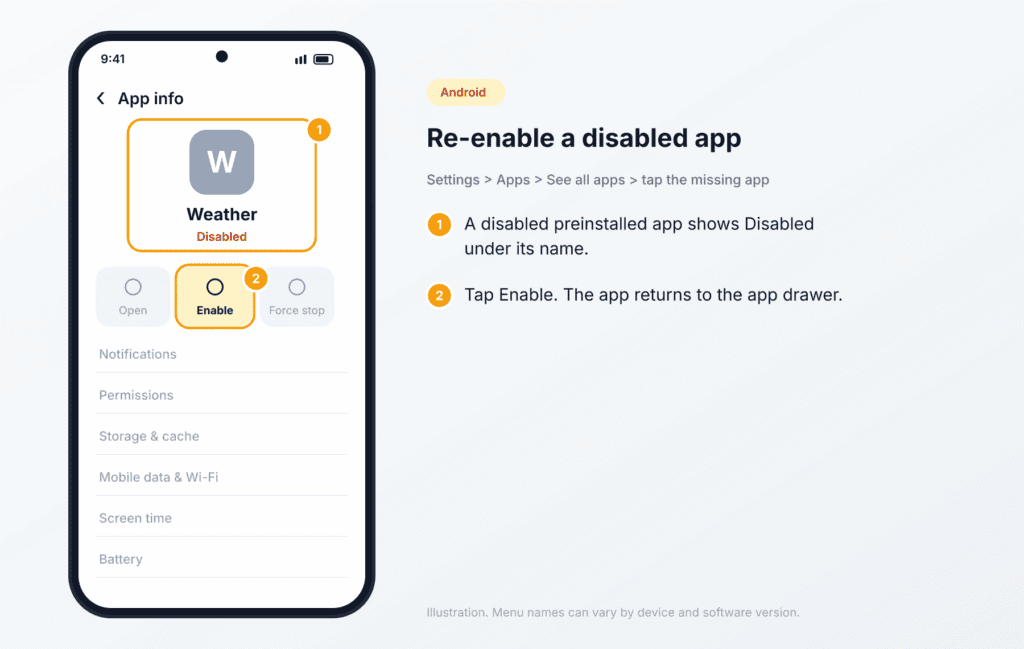
- Open Settings > Apps > See all apps. Some phones have a filter at the top for Disabled apps.
- Tap the missing app.
- Tap Enable.
Disabling is mainly available for certain preinstalled apps. Apps you downloaded yourself usually offer only Uninstall, so a disabled app is a less likely cause for those.
4. Restore an archived app
On Android 15 and later, archiving removes an app’s software to free up space but keeps its icon and your data. An archived icon looks dimmed, with a small archive or cloud symbol on top. Google Play can also archive rarely used apps for you if automatic archiving is turned on.
- To bring it back, tap the dimmed icon and the app reinstalls.
- You can also restore it from the app’s App info page in Settings, or its page in the Play Store.
- The app must still be available in the store to restore it (Google Android Help).
5. Check Private space and the work profile
Private space (Android 15 and later) is a separate, locked area for sensitive apps. Apps installed there only show up after you unlock it, and the whole space can be hidden when it’s locked (Google Pixel Help).
- Open the app drawer and scroll to the bottom for Private space. If you don’t see it, type “Private space” in the app search bar.
- Unlock it with your fingerprint, face or PIN, then look for the app.
- You can also go to Settings > Security & privacy > Private space.
Apps with a small briefcase badge belong to a work profile. Open the Work tab in the app drawer and make sure the work profile is turned on. If an employer or school manages it, they may have blocked the app.
6. Switch back to the stock launcher
Each launcher (Home screen app) keeps its own layout. If icons vanished after you installed a new launcher, theme or icon pack, switch back to compare.
- Open Settings > Apps > Default apps > Home app.
- Choose the phone’s own launcher, such as Pixel Launcher or One UI Home.
- Check the app drawer again.
7. Restart the phone and test Safe mode
A simple restart fixes many launcher glitches. If it doesn’t, start the phone in Safe mode using your manufacturer’s method. Downloaded apps are greyed out or hidden while Safe mode is on, so restart normally to leave it. If you see Safe mode in the corner and didn’t turn it on, our guide to Android Safe Mode explains how to turn it off and why it can keep coming back.
If the Home screen works fine in Safe mode, a recently installed app is likely causing the problem. Remove recent launchers, themes or icon packs one at a time.
8. Reset the launcher as a last resort
Go to Settings > Apps > See all apps, open your launcher, and try these from lightest to heaviest:
- Tap Force stop, then go back to the Home screen.
- Open Storage & cache and tap Clear cache.
- If icons are still missing, tap Clear storage. This resets your Home screen layout, folders and widgets, but it doesn’t uninstall any apps.
Missing more than just your app icons? If your entire Android Home screen layout has changed, follow our updated guide to restoring your original Android Home screen layout [EasyTechLife URL needed] to bring back your familiar app arrangement.
Other Android brands
Many launchers have their own hidden-apps list. Long-press an empty spot on the Home screen, open the launcher or Home settings, and look for an option such as Hide apps. TECNO, Infinix and itel phones also have a Freezer feature; frozen apps don’t show on the Home screen until you unfreeze them.
Samsung Galaxy: Extra Places Your Apps Can Hide
Samsung’s One UI Home can hide an app from both the Home screen and the Apps screen at once, so it looks deleted even though it’s still installed. Check these spots after the general Android steps.
Unhide apps in One UI Home
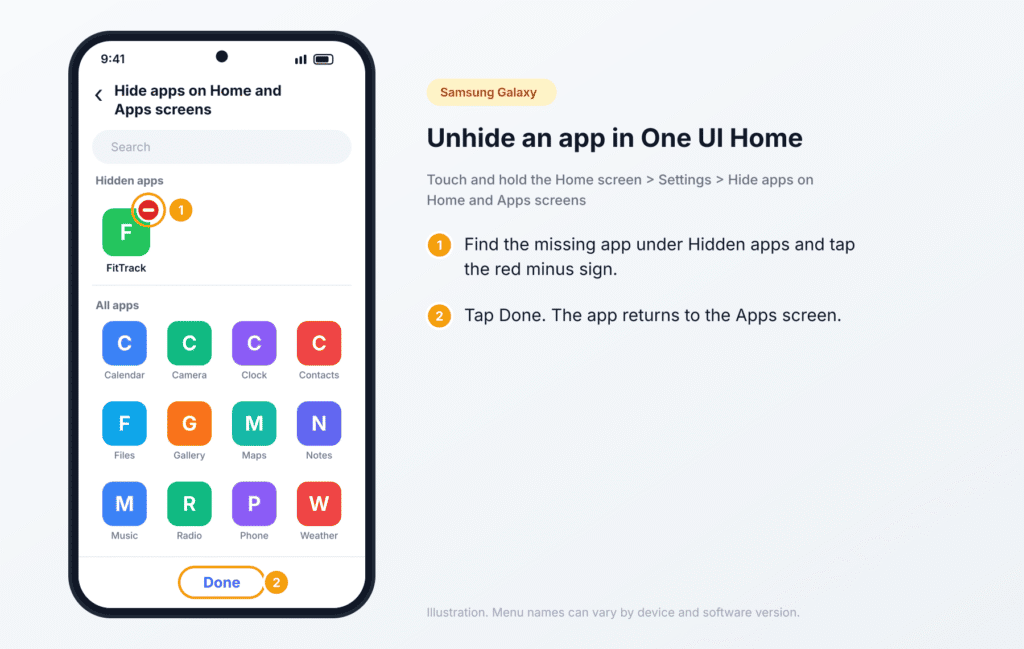
- Touch and hold an empty area of the Home screen, then tap Settings.
- Tap Hide apps on Home and Apps screens (shown as Hide apps on some models).
- Find the missing app under Hidden apps and tap the red minus sign next to it.
- Tap Done. The app returns to the Apps screen, and you can drag it back to the Home screen.
Samsung’s support guide describes the same steps.
Turn the Apps screen button back on
If you can’t open the Apps screen at all, go to Settings > Home screen and turn on Show Apps screen button on Home screen.
Check Gaming Hub for missing games
If only games are missing, Gaming Hub may be holding them. Open Gaming Hub’s settings, find Show game apps, and choose to show them in both Gaming Hub and the Home and Apps screens.
Look inside Secure Folder
Apps installed inside Secure Folder only appear there. Open Secure Folder from the Apps screen, or go to Settings > Security and privacy > Secure Folder, and check for the app.
Turn off Easy mode
Easy mode uses a simplified Home screen with larger icons, which can make your usual layout look like it vanished. Go to Settings > Display > Easy mode and turn it off (Samsung support).
How to Find Missing Apps on iPhone
On iPhone, the App Library helps you find installed apps, including those removed from the Home Screen or sitting on hidden Home Screen pages. Apps hidden with Face ID are the exception: iPhone keeps them separately in a locked Hidden folder (Apple: Lock or hide an app). Apple’s support article covers all three places to look.
1. Search for the app
- Swipe down from the middle of the Home Screen, or tap Search at the bottom of the screen.
- Type the app’s name.
- If the app icon appears, tap it to open the app. If a folder name appears next to it, the app is inside that folder on your Home Screen.
If the app doesn’t appear in Search, check the Hidden folder (step 4) and Screen Time restrictions (step 6) before assuming it was deleted.
2. Add it back from the App Library
- Swipe left past your last Home Screen page to open the App Library.
- Type the app’s name in the search bar at the top.
- Touch and hold the app, then tap Add to Home Screen. You can also drag it onto a Home Screen page.
If you don’t see Add to Home Screen, the app is already on one of your Home Screen pages, possibly inside a folder.
3. Unhide Home Screen pages
If a whole group of apps vanished at once, you may have hidden an entire Home Screen page.
- Touch and hold an empty area of the Home Screen.
- Tap Edit, then Edit Pages. You can also tap the row of dots near the bottom of the screen.
- Tap any unchecked circle under a page to show it again.
- Tap Done.
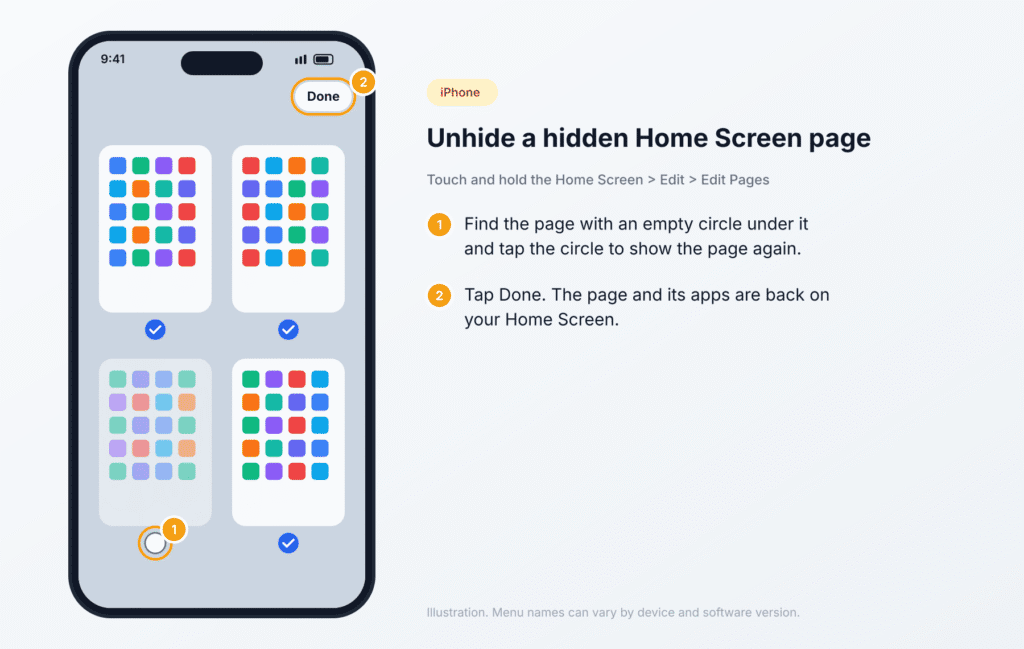
While any page is hidden, newly downloaded apps may go only to the App Library instead of your Home Screen.
4. Check the Hidden folder (iOS 18 and later)
In iOS 18 and later, you can hide an app behind Face ID. A hidden app doesn’t appear on the Home Screen, in the App Library or in Search. It sits in a Hidden folder at the bottom of the App Library.
- Swipe left to the App Library and scroll to the bottom.
- Tap the Hidden folder and unlock it with Face ID, Touch ID or your passcode.
- Touch and hold the app, then tap Don’t Require Face ID.
- The app returns to the App Library. Add it to your Home Screen as in step 2.
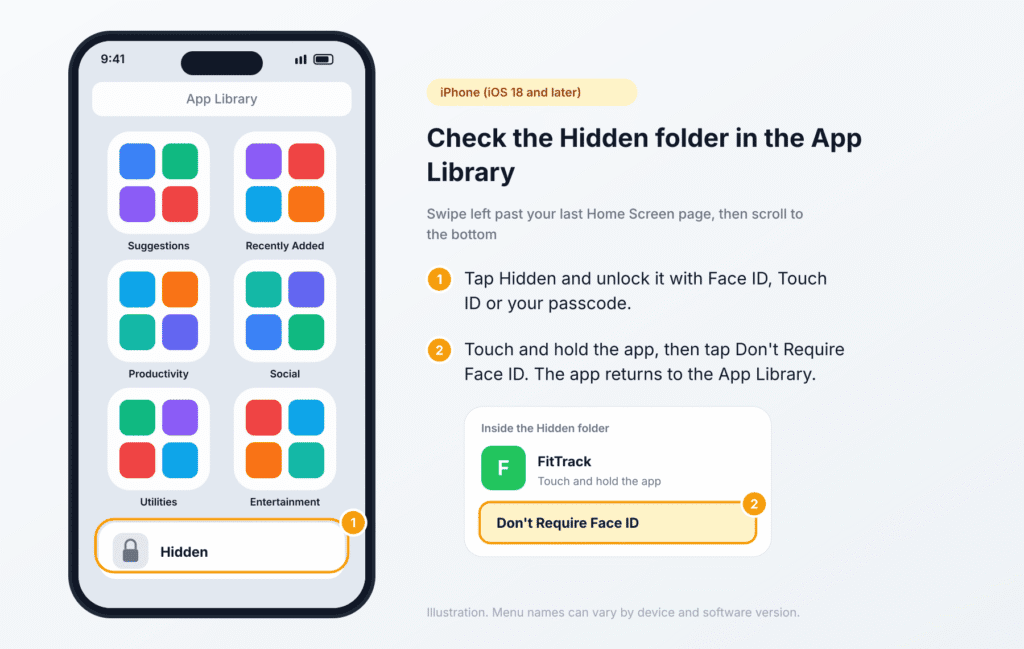
To see a list of every hidden app, go to Settings > Apps > Hidden Apps and authenticate.
5. Look for offloaded apps
If Offload Unused Apps is turned on, iPhone removes apps you rarely use when storage runs low. The icon stays on your Home Screen with a small cloud next to the app’s name, and your documents and data are kept (Apple iPhone User Guide).
- Tap the icon to download the app again.
- To stop automatic offloading, go to Settings > Apps > App Store (iOS 18 and later) and turn off Offload Unused Apps. On older versions, the setting is under Settings > App Store.
6. Check Screen Time restrictions
Screen Time can hide apps in two ways. If you share the phone with a parent or a family organizer, you may need their Screen Time passcode to change these.
- Built-in Apple apps: Go to Settings > Screen Time > Content & Privacy Restrictions > Allowed Apps. Turn on any app that’s switched off, such as Safari, Camera or Mail.
- Downloaded apps: Go to Settings > Screen Time > Content & Privacy Restrictions > App Store, Media, Web & Games > Apps. Apps rated above the selected age are hidden. After iOS 26 updates, some users found this rating set lower than before.
- Missing App Store: In Content & Privacy Restrictions, open iTunes & App Store Purchases and set Installing Apps to Allow, as Apple explains.
7. Check your Focus settings
If apps disappear only when a Focus such as Work or Sleep is on, that Focus may show selected Home Screen pages only.
- Go to Settings > Focus and tap the Focus.
- Under Customize Screens, tap the Home Screen preview.
- Select every page you want to see, then tap Done. Repeat for each Focus you use.
8. Reset the Home Screen layout
If many apps are scattered or missing, you can return everything to the default layout. Go to Settings > General > Transfer or Reset iPhone > Reset > Reset Home Screen Layout.
Apple’s own apps return to their original positions, and the apps you downloaded follow in alphabetical order. You lose your custom folders and arrangement, so try the other steps first.
Why Did All My Apps Suddenly Disappear?
When many apps vanish at once, the apps themselves are rarely gone. Something changed how your Home Screen displays them. These are the usual culprits:
- A launcher glitch after an update (Android). Restart the phone first. If icons are still missing, force stop the launcher as described in Android step 8.
- A new launcher, theme or icon pack (Android). Switch back to the phone’s own Home app to check.
- Safe mode (Android). Downloaded apps are hidden or greyed out while it’s on. Look for “Safe mode” in a corner of the screen and restart to exit.
- Easy mode or a simple layout (Samsung and others). These replace your normal Home screen with a simplified one.
- A hidden Home Screen page or a Focus (iPhone). Hiding one page removes every app on it from view at once.
- A Screen Time age rating (iPhone). Some users saw apps vanish after an iOS update changed this rating.
- A removed memory card (Android). Apps moved to an SD card stop showing when the card is removed or not detected. Reinsert the card and restart.
- A locked profile (Android). Private space, a paused work profile, or a different user account on a shared tablet each keep their own apps.
- A phone reset or new phone. If you restored without your apps, reinstall them from your Google Play or App Store account.
How to Reinstall Deleted Apps (and Keep Your Data)
If you’ve checked the app drawer, the App Library, hidden-app settings, Private space and other profiles without finding the app, it was probably uninstalled. Search for it in Google Play or the App Store to confirm: if the store shows Open, the app is still on your phone. Otherwise, you can usually download it again without paying, even if you bought it, as long as you use the original account and the app is still available and compatible with your device.
On Android
- Open the Google Play Store app.
- Tap your Profile icon at the top right.
- Tap Manage apps & device, then the Manage tab.
- Tap the filter at the top that says Installed and switch it to Not installed.
- Select the app and tap Install. For a disabled system app, the button says Enable.
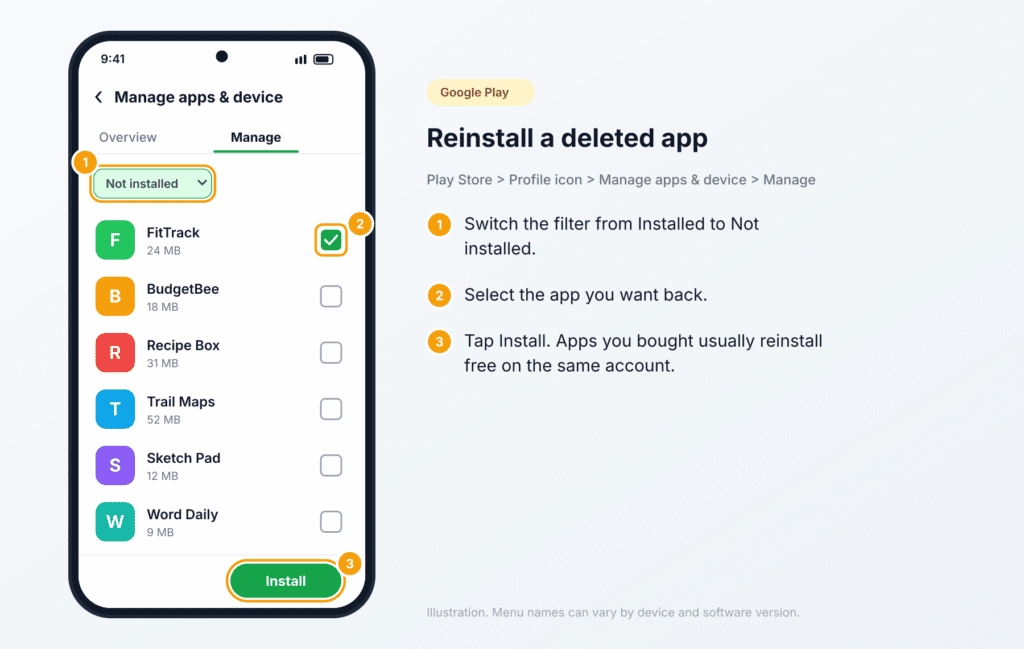
These steps follow Google Play Help. If the app isn’t listed, check that you’re signed in to the right Google account.
On iPhone
- Open the App Store and search for the app.
- Tap the cloud download icon to reinstall it.
- If you see Open instead, the app is still installed. Find it in the App Library or the Hidden folder.
You can also tap your profile picture in the App Store and open your purchased apps to see apps that are no longer on this iPhone.
What happens to your data
- Archived or offloaded apps keep your data, so it returns when you tap the icon.
- Deleted apps lose data that was stored only on the phone, unless you have a backup.
- Data saved to the app’s own account, such as chats, notes or game progress tied to a login, comes back when you sign in again.
- Apps removed from the store can’t be reinstalled, and an archived or offloaded copy can’t be restored either.
How to Stop Apps From Disappearing Again
A few settings keep apps where you expect them.
On iPhone
- Go to Settings > Home Screen & App Library and set newly downloaded apps to Add to Home Screen, so new apps don’t go only to the App Library.
- Turn off Offload Unused Apps if you’d rather keep apps fully installed and have enough storage.
- If you hide an app on purpose, remember it’s in the Hidden folder at the bottom of the App Library.
On Android
- In your launcher’s Home settings, turn on the option to add new app icons to the Home screen.
- If you don’t want apps archived, open the Play Store, go to Profile > Settings > General, and turn off Automatically archive apps.
- To protect one app from automatic archiving, go to Settings > Apps, select it, and turn off Manage app if unused.
- On Samsung, turn on Lock Home screen layout in Settings > Home screen to stop icons from being removed by accident (Samsung support).
On both
- Install updates for your phone and apps, since launcher bugs are often fixed in updates.
- Keep some storage free so your phone has less reason to offload or archive apps.
- Back up your phone regularly, so a reset doesn’t cost you apps or app data.
Frequently Asked Questions
Why did my apps disappear after an update?
On Android, an update can reset or glitch the launcher, so restart the phone and check the app drawer. On iPhone, check hidden Home Screen pages and the Screen Time age rating, which some users found changed after updating.
Why are my apps installed but not showing?
The icon was removed or hidden, but the app is still on the phone. Find it in the app drawer (Android) or App Library (iPhone) and add it back. If it’s missing there too, check Samsung’s Hide apps list, Private space or the iPhone Hidden folder.
Can apps disappear without being deleted?
Yes, and that’s the most common case. Removing an icon, hiding an app or a page, disabling a system app, archiving or offloading all make an app vanish from view while it stays installed.
How do I find hidden apps on iPhone?
Swipe left to the App Library, scroll to the bottom and open the Hidden folder with Face ID, Touch ID or your passcode. You can also see the full list in Settings > Apps > Hidden Apps.
How do I unhide apps on a Samsung phone?
Touch and hold the Home screen, tap Settings, then Hide apps on Home and Apps screens. Tap the red minus next to the app and tap Done.
Will reinstalling an app delete my data?
Reinstalling an app doesn’t automatically bring back everything it held. If the app was deleted, data stored only on your phone may be gone. Data saved to the app’s cloud account returns when you sign in, and data in a compatible backup may be restorable, depending on whether the app supports backup. Archived Android apps and offloaded iPhone apps keep their user data.
What if the Play Store or App Store itself is missing?
On Android, go to Settings > Apps > Google Play Store and tap Enable. On iPhone, set Installing Apps to Allow in Screen Time’s Content & Privacy Restrictions.
Seeing the same app twice instead? See why you have duplicate apps on iPhone.
Conclusion
So, why did my apps disappear? In most cases, the app is still installed and only its icon moved or got hidden. Check the app drawer or App Library first. Then check the places that hide apps from view and from Search: Samsung’s Hide apps list, Private space or a work profile on Android, and the Hidden folder or Screen Time restrictions on iPhone. Only if Google Play or the App Store shows the app as not installed should you reinstall it, usually free with the same account. Then turn on the settings above to keep it from happening again.

Louis Mugan writes how-to and troubleshooting guides for EasyTechLife, covering Android phones, iPhones, laptops, Chromebooks, headphones and everyday software.
He aims to base each guide on official manufacturer documentation and support pages, and to link the sources so readers can check the steps for themselves. Questions or corrections? Use the contact page.