Safe Mode is Android’s built-in troubleshooting tool. It starts your phone with downloaded apps temporarily turned off, so you can tell whether one of them is causing crashes, slowdowns, restarts or pop-ups. It’s also a common source of confusion when people turn it on by accident and can’t figure out how to get out.
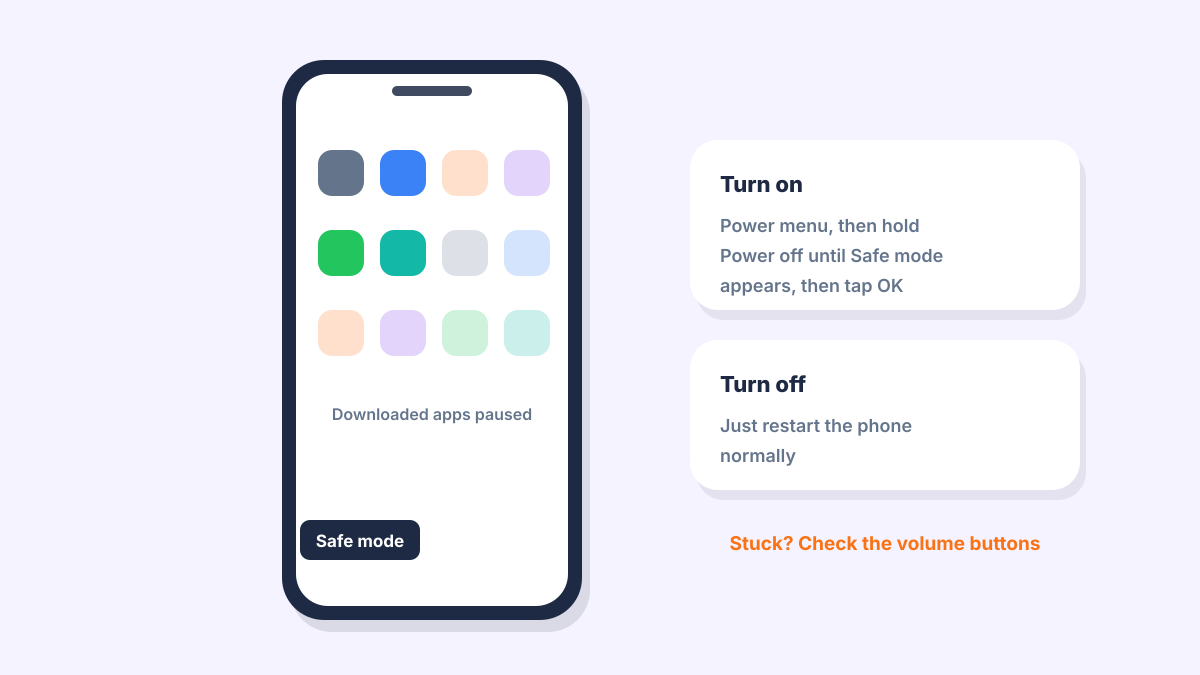
Quick answer: To turn on Safe Mode, open the power menu, then long-press Power off until the Safe Mode prompt appears and tap it to confirm. To turn it off, just restart the phone normally. On Samsung, you can also tap the Safe mode is on notification. If your phone keeps starting in Safe Mode, a stuck volume button is usually to blame.
What happens in Safe Mode
| What changes | Details |
|---|---|
| Downloaded apps are disabled | Their icons may be grayed out or missing until you restart |
| Built-in apps still work | Phone, Messages, Settings, Camera and other preinstalled apps |
| Widgets from downloaded apps disappear | They come back after you exit Safe Mode |
| “Safe mode” label shows | Usually in the bottom corner of the screen |
| Your data stays | Photos, messages and app data aren’t deleted |
How to turn on Safe Mode
Google Pixel
- Bring up the power menu by pressing Power and Volume up at the same time (Pixel 6 and later), or by pulling down the full Quick Settings panel and tapping the power button there.
- Keep your finger on Power off until Reboot to safe mode shows up.
- Tap OK.
Samsung Galaxy
- Open the power menu: press the Side and Volume down buttons together, or swipe down and tap the power icon.
- Press and hold Power off until it changes to Safe mode.
- Tap Safe mode.
If the phone is frozen, you can also turn it off, then turn it on and press and hold Volume down as soon as the Samsung logo appears, until the phone finishes starting.
Other Android phones
Most phones use the same method: open the power menu and press and hold Power off. If that doesn’t work, check your phone maker’s support page, since the button combination varies.
What to do while you’re in Safe Mode
Use the phone normally for a while and watch for the problem.
- The problem goes away: one of your installed apps is causing it. Leave Safe Mode, then remove your newest apps in turn, rechecking the phone after every removal.
- The problem continues: the cause is likely the system itself, an update or hardware. Try updating the phone, and see our guides on a slow Android phone or a phone that keeps restarting.
You can uninstall apps while in Safe Mode from Settings > Apps, which is helpful if a bad app makes the phone hard to use normally.
How to turn off Safe Mode
- Restart the phone. Open the power menu and tap Restart. This is all most phones need.
- On Samsung, you can also swipe down and tap the Safe mode is on notification, then tap Turn off.
- If it doesn’t work, power off completely, wait 30 seconds and turn the phone on again.
- If the screen is frozen, force a restart. On Samsung, hold Volume down and the Side key together for about 7 seconds. On a Pixel, keep the Power button held down for roughly 30 seconds until the phone restarts.
What to fix after you leave Safe Mode
Your apps come back as soon as the phone restarts normally, but a few things may need a quick touch-up:
- Missing widgets: Touch and hold an empty part of the home screen, tap Widgets and add them back.
- Airplane mode on a Pixel: Pixel phones turn on Airplane mode when they enter Safe Mode. If calls or Wi-Fi don’t work afterward, turn it off in Quick Settings.
- Wallpaper or theme on a Samsung: These can switch back to the default. Reapply them in Settings > Wallpaper and style or Themes.
- Icons still missing: If an app’s icon hasn’t returned, see our guide to why apps disappear from your home screen.
Why does my phone keep starting in Safe Mode?
If your phone goes back into Safe Mode every time it starts, the phone thinks you’re holding a button during startup.
- Check the volume buttons. A stuck volume-down button, often caused by a tight case or dirt, can trigger Safe Mode. Remove the case and press each button a few times to make sure it clicks normally.
- Remove the case and restart.
- Update the phone in case a software bug is involved.
- If it still won’t leave Safe Mode, the button may be damaged and need repair.
What problems can Safe Mode help with?
- Apps that crash or freeze, or the phone freezing in general
- Random restarts
- Pop-up ads appearing outside of apps
- Sudden slowdowns or fast battery drain
- A home screen that keeps crashing. Our guide to a launcher that keeps stopping covers that case.
Safe Mode doesn’t fix the problem on its own. It tells you whether a downloaded app is involved, so you can remove the right one.
Frequently asked questions
How do I run my Android phone in Safe Mode?
From the power menu, long-press Power off, then confirm when Android offers to reboot into Safe Mode.
How do I turn off Safe Mode on Android?
Restart the phone. On Samsung, you can also tap the “Safe mode is on” notification and choose Turn off.
What happens when Android is in Safe Mode?
Downloaded apps are temporarily disabled and only built-in apps run. Your data isn’t deleted, and everything returns to normal when you restart.
Does Safe Mode delete anything?
No. Your apps, photos and messages stay on the phone. Widgets from downloaded apps may need to be added back to the home screen afterward.
Why did my phone go into Safe Mode by itself?
Usually because the Volume down button was held during startup, often by a tight case or a stuck button.
How do I get out of Safe Mode without the power button?
On Samsung, swipe down, tap the Safe mode is on notification and tap Turn off. On many phones, you can also open Quick Settings and tap the power icon to reach Restart.
How we researched this guide
We checked the Safe Mode steps on current Pixel and Samsung software on November 21, 2026, and compared them with each maker’s official support instructions. Button combinations can differ on older phones and other brands, so check your phone maker’s help pages if these don’t work.

Louis Mugan writes how-to and troubleshooting guides for EasyTechLife, covering Android phones, iPhones, laptops, Chromebooks, headphones and everyday software.
He aims to base each guide on official manufacturer documentation and support pages, and to link the sources so readers can check the steps for themselves. Questions or corrections? Use the contact page.