SD and microSD cards store photos and videos from cameras, drones, dashcams and game consoles. To see what’s on one, you need a device that can read it. That might be a slot built into your laptop, a cheap USB card reader, or an adapter for your phone. Once it’s connected, the card shows up like any other drive.
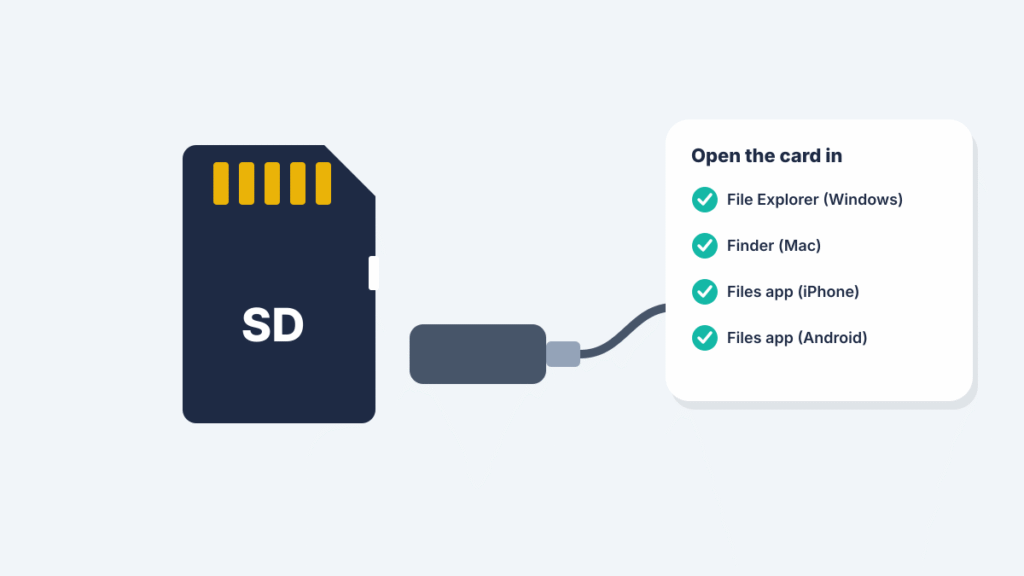
Quick answer: Put the card in an SD card slot or a USB card reader. On Windows, open File Explorer and click the card under This PC. On a Mac, open Finder and click the card under Locations. On an iPhone, connect a USB-C or Lightning SD card reader and open the Files app. On Android, use the phone’s microSD slot or a USB-C card reader and open the Files app.
What you need to read an SD card
| Device | Built-in option | What to buy if there’s no slot |
|---|---|---|
| Windows laptop or desktop | SD slot on some models | A USB-A or USB-C SD card reader |
| Mac | SD slot on MacBook Pro 14 and 16 inch models and Mac Studio | A USB-C SD card reader |
| iPhone with USB-C | None | A USB-C SD card reader |
| iPhone with Lightning | None | Apple’s Lightning to SD Card Camera Reader or a similar reader |
| Android phone | microSD slot on some models | A USB-C card reader that supports your phone |
microSD cards: If you have a microSD card and only a full-size SD slot, use a microSD-to-SD adapter. Many cards come with one. Many USB readers also have a separate microSD slot. Not sure which kind of reader fits your computer? Our guide to USB port types can help.
How to read an SD card on Windows
- Insert the card into your computer’s SD slot or into a USB card reader plugged into the computer.
- If a pop-up appears, choose Open folder to view files.
- Otherwise, open File Explorer (press Windows key + E) and click the card under This PC. It usually shows as SD Card, USB Drive or a drive letter like E:.
- Photos from cameras are usually in a folder named DCIM.
- Copy the files to your computer before you edit or delete anything.
When you’re done, right-click the card in File Explorer and choose Eject before you remove it. This helps prevent damaged files.
How to read an SD card on a Mac
- Insert the card into the SD slot or connect a USB-C card reader.
- Open Finder. The card appears in the sidebar under Locations. It may also show on your desktop.
- Click the card to browse its files.
- To import photos, open the Photos app, select the card in the sidebar and click Import.
To remove the card, click the eject button next to its name in Finder first.
How to read an SD card on an iPhone
- Insert the card into your SD card reader.
- Plug the reader into your iPhone’s USB-C or Lightning port.
- Open the Files app and tap Browse. The card appears under Locations. It needs a supported format, such as exFAT or FAT32, to show up.
- Tap the card to see its files. To save photos to your Photos library, select them, tap Share and choose Save Image. To copy files to another folder, use Copy or Move in Files instead.
If the card has camera photos, the Photos app may also show an Import tab automatically so you can bring pictures straight into your library.
If your iPhone says the accessory uses too much power or isn’t supported, try a different reader, remove any extra adapters in between, or plug the reader into a powered USB-C hub.
How to read an SD card on an Android phone
If your phone has a microSD slot: Put the card in the microSD slot or the combined SIM and microSD tray, following your phone maker’s instructions. Never force a card into a SIM-only slot. Open the Files app (or My Files on Samsung) and look for SD card in the storage list.
If your phone doesn’t have a slot: Plug a USB-C card reader into the phone’s charging port. A notification usually appears for the USB drive. Tap it, or open Files and look for the card under your storage locations.
For more on finding files on your phone, see our guide to accessing internal storage on Android.
Can you read an SD card without a card reader?
Usually, you need some kind of reader, but there are a few workarounds:
- Use the device the card came from. Most cameras, drones and dashcams can connect to a computer or phone with a USB cable, or transfer files through their own app over Wi-Fi.
- Use a printer or TV with a card slot. Some printers and older TVs can show photos straight from an SD card.
- Use a USB hub or dock you already own. Many laptop docks have a built-in SD slot.
Why your SD card isn’t showing up
- The lock switch is on. Full-size SD cards and microSD adapters have a small switch on the side. When it’s slid down to Lock, you can usually open files but can’t copy new ones to the card or delete anything. Slide it up if you need to make changes.
- The card isn’t seated properly. Take it out and push it in again until it clicks or sits firmly.
- The reader or port is the problem. Try a different USB port, reader or cable.
- The card uses a format your device can’t read. Some devices can’t read cards formatted on another system. Formatting can make the card usable again, but it erases everything on it. If the card has important files you can’t reach, try another reader or device before you format.
- On Windows, the card has no drive letter. Right-click Start, choose Disk Management, and see if the card appears without a letter. Right-click it and choose Change Drive Letter and Paths to add one.
If you decide to format the card for a camera, follow our guide on formatting an SD card for your camera.
Frequently asked questions
How do I view what’s on my SD card?
Connect it with a card slot or reader, then open File Explorer on Windows, Finder on a Mac, or the Files app on an iPhone or Android phone.
Can I read an SD card from my phone?
Yes. Android phones with a microSD slot can read a card directly. iPhones and other Android phones need a USB-C or Lightning card reader.
Can you read an SD card on any computer?
Most computers can read SD cards with a built-in slot or a USB card reader. Very large cards use exFAT, which current versions of Windows and macOS read without extra software.
Why does my SD card say it needs to be formatted?
The card may be damaged, may have been removed while files were being written, or may use a format your device doesn’t support. Before formatting, try the card in another device or reader to see if your files are still there.

Louis Mugan writes how-to and troubleshooting guides for EasyTechLife, covering Android phones, iPhones, laptops, Chromebooks, headphones and everyday software.
He aims to base each guide on official manufacturer documentation and support pages, and to link the sources so readers can check the steps for themselves. Questions or corrections? Use the contact page.