Virtually every Android phone comes with a camera app, but it isn’t always where you expect. The icon may have been moved, hidden or tucked into a folder, and on some phones it never sat on the home screen in the first place. The good news is that you can usually open the camera in a couple of seconds, even if you can’t see its icon, and then put the icon back where it belongs.
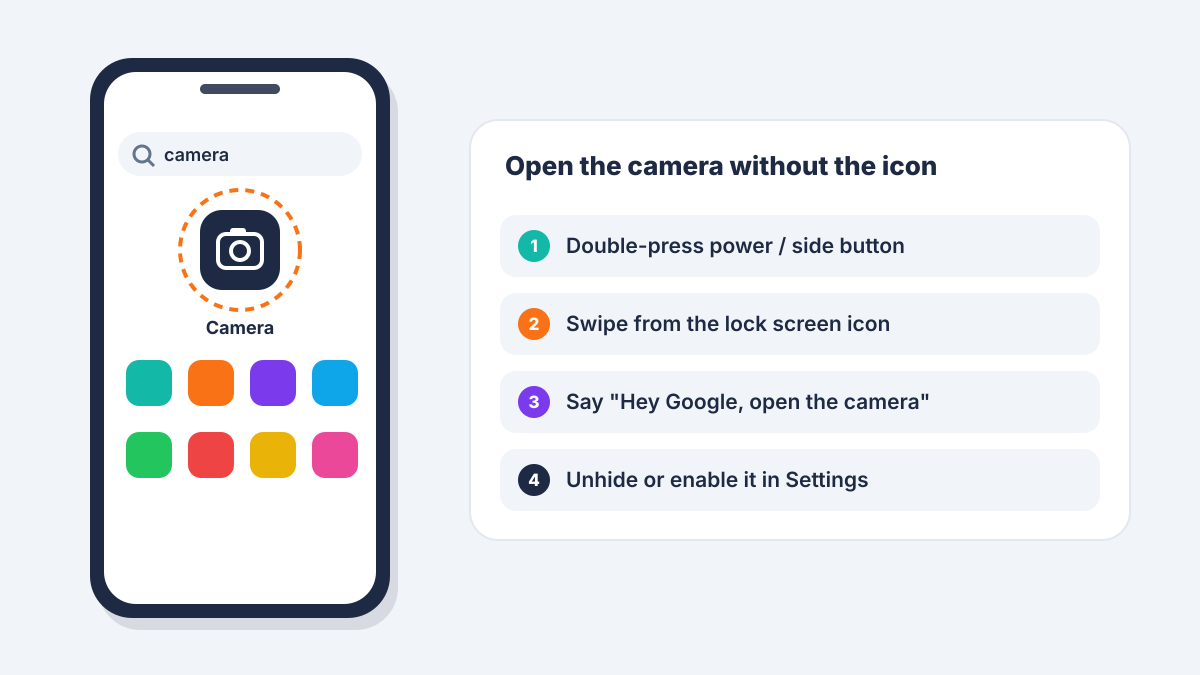
Quick answer: Swipe up from the bottom of the home screen to open the app list and look for Camera, or type “camera” in the search bar at the top. To open it without the icon, press the power button twice quickly (on Samsung, the side button) or swipe up from the camera icon on the lock screen. If the app won’t show up at all, check Settings > Apps to see whether it has been disabled.
Where is the camera app on Android?
The camera app comes preinstalled on virtually every Android phone. Its name and look vary a little by brand:
| Phone | App name | Where it usually is |
|---|---|---|
| Samsung Galaxy | Camera | Home screen favorites bar and the Apps screen |
| Google Pixel | Camera (Pixel Camera) | Home screen and the app list |
| Motorola | Camera | Home screen and the app list |
| OnePlus, Xiaomi and others | Camera | Home screen or the first page of the app list |
If you can’t see it on the home screen, it’s still in the app list, also called the app drawer or Apps screen:
- From the home screen, swipe up from the bottom. On some Samsung phones with the Apps button turned on, tap Apps instead. If your Samsung uses the Home screen only layout, there’s no app list, so swipe through your home screen pages instead.
- Scroll through the list, or type camera in the search box at the top.
- Tap Camera to open it.
Fastest ways to open the camera without the icon
You don’t need the home screen icon to take a photo. The first two shortcuts work even when the phone is locked:
- Double-press the power button. On Pixel and most other Android phones, press the power button twice quickly. On Samsung Galaxy phones, double-press the side button.
- Use the lock screen shortcut. On Samsung, swipe the camera icon in the bottom corner of the lock screen toward the center. On a Pixel, touch and hold the camera shortcut in the bottom corner if you’ve added it in Settings > Display > Lock screen > Shortcuts.
- Use your voice. With Google Assistant or Gemini set up, say “Hey Google, open the camera.” You may need to unlock the phone first.
- Use Quick Settings. Some phones have a camera tile or shortcut in the panel you get when you swipe down from the top.
If double-pressing the button doesn’t open the camera, the shortcut may be off or set to something else:
- Pixel and most other Android phones: Go to Settings > System > Gestures and look for Double press power button or Quickly open camera. Turn it on and choose Camera.
- Samsung Galaxy: Go to Settings > Advanced features > Side button, turn on Double press and choose Quick launch camera (or Camera).
How to put the camera icon back on your home screen
Once you’ve found Camera in the app list, adding it back takes a few seconds:
- Open the app list.
- Touch and hold Camera.
- Drag it onto the home screen and let go, or tap Add to Home if your phone shows that option.
You can drop it into the favorites bar at the bottom of the screen so it stays on every home screen page.
Camera app missing? Try these fixes
If Camera doesn’t appear in the app list or search, one of these is usually the cause.
1. It’s hidden (Samsung)
Samsung lets you hide apps from both the home screen and the Apps screen.
- Touch and hold an empty part of the home screen and tap Settings.
- Tap Hide apps on Home and Apps screens.
- If Camera is listed under hidden apps, tap it to unhide it, then tap Done.
2. It’s in a folder
Swipe through your home screen pages and open any folders. People often drop the camera into a “Tools” or “Photos” folder without noticing. Search in the app list will still find it, even inside a folder.
3. It’s been disabled
A disabled app disappears from the app list.
- Go to Settings > Apps. Tap See all apps if you see it.
- Open the menu at the top right and choose Show system apps if Camera isn’t listed.
- Tap Camera. If you see an Enable button, tap it.
4. A different launcher is hiding it
Third-party home screen apps can hide apps or use their own folders. Switch back to your phone’s own launcher in Settings > Apps > Default apps > Home app (on Samsung, Choose default apps > Home app) and check again.
5. Camera use is restricted
A work profile, school phone or parental controls can block the camera. You may see a message that the camera is disabled by your administrator. Only the person or organization that manages the phone can lift that block.
6. A system glitch
Restart the phone, then check for updates in Settings > System > Software updates (on Samsung, Settings > Software update). Also update the Camera app itself in the Play Store (or the Galaxy Store on Samsung), since camera bugs are often fixed in app updates.
Camera opens but shows a black screen or “camera blocked”
If the app opens but you can’t see a picture, the cause is usually a privacy setting, another app or the lens, not the icon.
- Check the camera access switch. Android has a privacy control that blocks camera access for apps. Swipe down twice from the top of the screen and look for a Camera access tile. If it’s off, tap it to allow the camera again. On a Pixel, you can also find it in Settings > Security & privacy > Privacy controls.
- Close other apps using the camera. A video call, scanner or another camera app can hold on to the camera. Close them and try again.
- Clear the camera’s cache. Go to Settings > Apps > Camera > Storage (or Storage & cache) and tap Clear cache. This doesn’t delete your photos.
- Check the lens. A case, sticker or dirty lens can make the picture look black or blurry.
If the camera still won’t work after a restart, test it in safe mode. If it works there, a downloaded app is getting in the way. If it fails in safe mode too, contact your phone maker or carrier, since the camera hardware may need to be checked. Our Android Safe Mode guide explains how to turn it on and off.
Where do camera photos go?
Photos you take with the camera app are saved in the DCIM > Camera folder on most phones, and you view them in the Gallery or Google Photos app. On most phones, you can also reach them from the thumbnail in the corner of the camera screen. For more detail, see where the Gallery is on your phone and where photos are stored on Android.
Frequently asked questions
Why can’t I find my camera app on Android?
It’s usually been removed from the home screen, hidden, moved into a folder or disabled. Search for “camera” in the app list first. If it doesn’t appear, check hidden apps and Settings > Apps.
How do I get my camera app back on my home screen?
Open the app list, touch and hold Camera, and drag it onto the home screen.
Can I uninstall the camera app by accident?
No. The built-in camera app can’t be fully uninstalled on most phones. It can only be hidden, disabled or have its updates removed, and all of those can be undone.
Is there a way to open the camera from the lock screen?
Yes. Double-press the power or side button, or use the camera shortcut on the lock screen. You can take photos without unlocking, but you’ll need to unlock to see older photos.
Where is the camera app on an iPhone?
On an iPhone, the Camera app is on the home screen or in the App Library. If it’s missing there, Screen Time restrictions may be hiding it. Our guide to enabling the camera on iPhone covers that.

Louis Mugan writes how-to and troubleshooting guides for EasyTechLife, covering Android phones, iPhones, laptops, Chromebooks, headphones and everyday software.
He aims to base each guide on official manufacturer documentation and support pages, and to link the sources so readers can check the steps for themselves. Questions or corrections? Use the contact page.