Can’t find the gallery on your phone? In most cases nothing is lost. The photo app just has a different name depending on who made your phone.
Samsung and Xiaomi phones use an app called Gallery. Google Pixel, Motorola and Nokia phones use Google Photos, which appears as Photos in your app list. OnePlus and OPPO phones also call their gallery app Photos, and on an iPhone your pictures live in the Photos app.
If neither app shows up, it may be hidden or disabled. Find your phone brand below, or skip ahead to the steps for restoring a missing gallery app.
Quick Answer: Where Is the Gallery App on My Phone?
Find your phone brand below to see which app holds your pictures. The app name is the label you’ll see under the icon.
| Phone brand | App to look for | Where it usually is |
|---|---|---|
| Samsung Galaxy | Gallery | Home screen, or swipe up to the Apps screen |
| Google Pixel | Photos (Google Photos) | Home screen or app drawer |
| Motorola | Photos (Google Photos) | App drawer |
| Nokia / HMD | Photos (Google Photos) | App drawer |
| Xiaomi, Redmi, POCO | Gallery | Home screen |
| OnePlus, OPPO | Photos | Home screen or app drawer |
| iPhone | Photos | Home Screen or App Library |
Two shortcuts that work on almost any phone:
- Search your apps. On Android, swipe up to open your app drawer and search for Gallery or Photos. On iPhone, swipe down from the middle of the Home Screen and search for Photos.
- Go through the camera. Open the Camera app and tap the thumbnail of your last photo in the corner. This opens the phone’s default gallery.
Where Is the Gallery on a Samsung Phone?
Samsung Galaxy phones come with Samsung’s own Gallery app, separate from Google Photos. It usually sits on the home screen. If it isn’t there, swipe up to open the Apps screen and look for Gallery, or type its name into the search bar at the top.
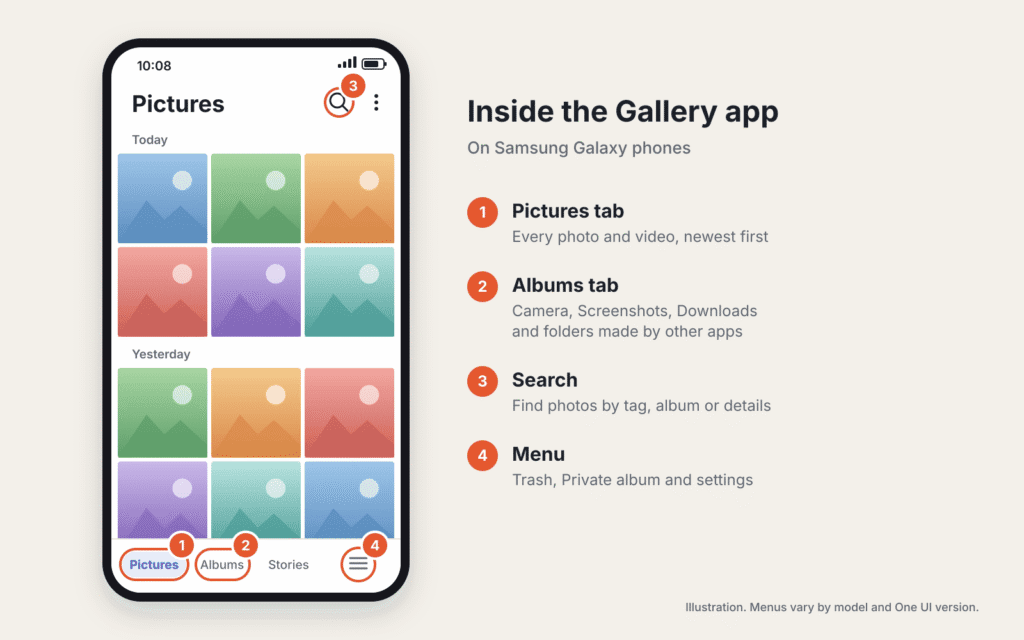
Once you open Samsung Gallery, your photos are organized like this:
- Pictures tab: every photo and video on your phone, newest first. Tap the Search icon at the top right to search by tag, album name or other details.
- Albums tab: separate albums for Camera, Screenshots, Downloads and folders created by apps such as WhatsApp.
- Menu (three horizontal lines): Trash, Private album and Gallery settings.
Two Samsung features can make photos look like they’re missing:
- Grouped similar images. Newer Galaxy phones stack similar-looking shots together and show a small number on the thumbnail. Tap it to see the whole group, or tap More options (three vertical dots) and then Ungroup similar images to show every photo.
- Private album. On supported Galaxy phones with newer versions of One UI, photos moved here are hidden from the main gallery and from other apps. To view them, open Gallery, tap Menu and then Private Album, and unlock with your screen lock. If you don’t see this option, your phone may use an older version of One UI. Samsung’s Secure Folder can also hide photos, so check there too.
Want faster access next time? Touch and hold an empty spot on your home screen, tap Widgets, then Gallery to add a photo widget. These steps come from Samsung’s Gallery guide; exact menus can vary slightly by model and software version.
Where Is the Gallery on Google Pixel and Other Android Phones?
Google Pixel phones typically use Google Photos as their default gallery app rather than a separate app named Gallery. It appears as Photos with a multicolored pinwheel icon. Motorola phones work the same way, and HMD confirms that Nokia phones use Google Photos as the default gallery.
How to find photos saved on your phone in Google Photos
The main Photos tab shows your camera pictures and anything backed up to your Google account. Pictures from other apps, such as WhatsApp images, screenshots and downloads, are kept in device folders. According to Google Photos Help, you can open them like this:
- Open the Google Photos app.
- At the bottom, tap Collections.
- Tap On this device, then open the folder you need.
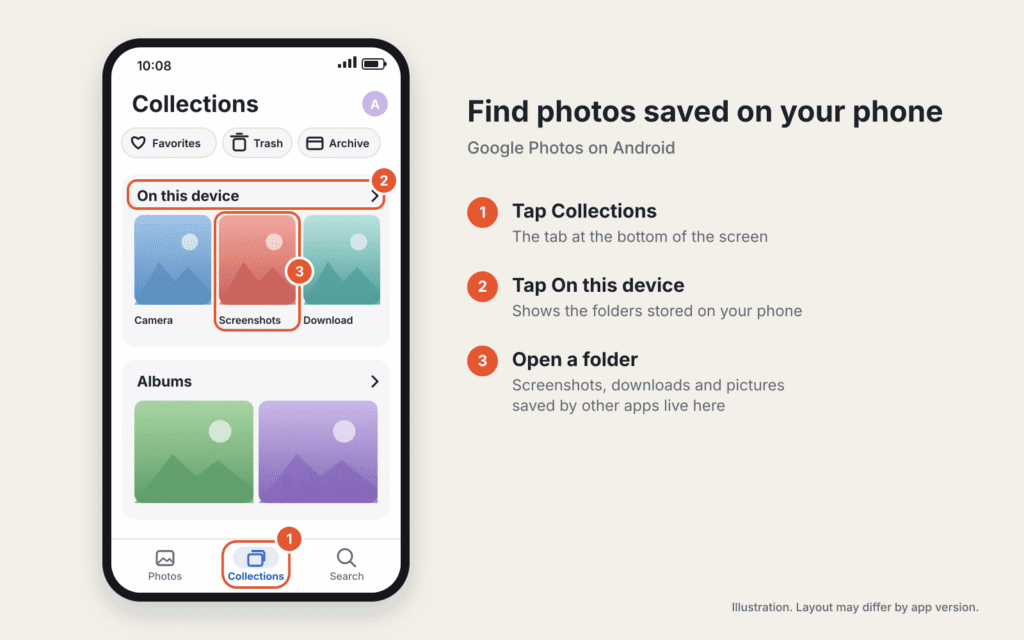
Older guides tell you to tap Library and then Photos on device. Google replaced the Library tab with Collections in August 2024, so those steps no longer match the app.
To see device-folder photos in your main photo grid, you have two options:
- Change the Photos view’s hide setting to Show content from other apps (Google’s guide to organizing your Photos view). This shows the pictures without uploading them.
- Back them up. Tap your profile picture, then Photos settings > Backup > Back up device folders, and turn on the folders you want. Backed-up folders are also saved to your Google account.
Want a simple offline gallery instead?
If you’d rather browse photos without a Google account or cloud backup, Google offers a free app called Gallery. It works offline, supports SD cards, and has two tabs: Photos for everything in one place and Folders for pictures sorted by app or SD card.
Xiaomi, OnePlus and OPPO phones
These brands ship their own photo apps. On Xiaomi, Redmi and POCO phones, look for Gallery. On OnePlus and OPPO phones, the built-in app is called Photos, which is easy to confuse with Google Photos.
On Android 11 and later, these built-in apps can link to Google Photos and show your cloud photos too. Google warns that deleting a photo in a linked gallery app may also delete it from Google Photos, even if it was backed up.
Where Is the Gallery on an iPhone?
iPhones have no app called Gallery. Your pictures and videos are in the Photos app, which has a multicolored flower icon.
If you can’t see Photos on your Home Screen:
- Check the App Library. Swipe left past your last Home Screen page. Photos is usually in the Creativity group, or you can type its name in the search bar at the top.
- Use Search. Swipe down from the middle of the Home Screen and type “Photos.”
- Put it back on the Home Screen. In the App Library, touch and hold the Photos icon, then drag it onto a Home Screen page.
In most countries the Photos app can’t be deleted, only removed from the Home Screen. In the European Union, Apple lets you delete it. If you did, reinstall Photos from the App Store. Apple notes that deleting the app does not delete your photo library, which stays on the iPhone.
Gallery App Missing? How to Restore It on Android
A gallery app that has disappeared is almost always hidden, disabled or just missing its home screen shortcut. Removing a gallery app or its home screen shortcut normally doesn’t delete photos stored on your phone. However, photos kept only in an app’s private storage or in a cloud service may need that app or account to open them. Work through these checks in order:
- Search the full app list. Swipe up from the home screen and type “gallery” or “photos.” If the app appears, touch and hold it and drag it back onto your home screen.
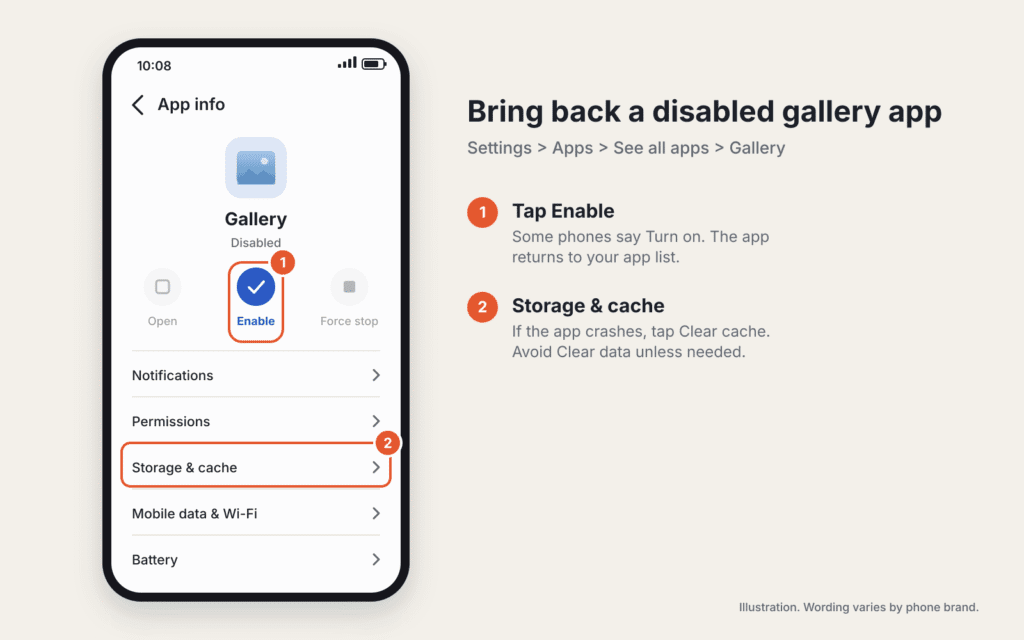
- Check whether the app is disabled. Open Settings > Apps and tap See all apps (or All apps). Find Gallery or Photos in the list. If you see Enable or Turn on, tap it. On some phones you need to tap the three-dot menu and choose Show system apps first.
- Unhide it on Samsung. Touch and hold an empty spot on the home screen, tap Settings, then Hide apps on Home and Apps screens. Deselect Gallery and tap Done. Other brands have a similar “hide apps” option in their home screen settings.
- Check other profiles. Apps inside Samsung’s Secure Folder, Xiaomi’s Second Space or a work profile don’t appear in your main app list. Switch to that space to find the app.
- Update or reinstall. Update Google Photos from the Play Store, or Samsung Gallery from the Galaxy Store. If you uninstalled Google Photos, reinstall it from the Play Store.
- Clear the app’s cache if it crashes. Go to Settings > Apps > Gallery (or Photos) > Storage > Clear cache. Avoid Clear data unless nothing else works, because it resets the app’s settings.
Still no gallery? Install a replacement. Google’s free Gallery app shows every photo on your phone and SD card without needing an account.
Where Are Photos Stored on Android?
A gallery app doesn’t hold your pictures itself. It displays image files saved in your phone’s storage, which is why you can still reach your photos with a file manager when the gallery app won’t open.
Common photo locations on Android:
- DCIM > Camera: photos and videos taken with the camera app. DCIM stands for Digital Camera Images.
- Pictures or DCIM > Screenshots: screenshots, depending on the phone brand.
- Download: images saved from the web or email.
- App folders: pictures saved by messaging and social apps, such as WhatsApp.
To browse these folders:
- Open your file manager: My Files on Samsung, Files by Google on Pixel, or the app called Files or File Manager on other phones.
- Tap Internal storage, then DCIM.
- Open Camera to see your camera photos.
If your camera saves to a memory card, look in the SD card section of the file manager instead. On Samsung phones, folders you create inside DCIM also appear as albums in the Gallery app, and new Gallery albums appear as folders in DCIM.
How to Save Photos From Google Photos to Your Phone’s Gallery
If a photo exists only in your Google Photos backup, you can download a copy to your phone. This often happens after switching phones or using “Free up space.” The copy then shows up in your phone’s gallery app.
- Open the Google Photos app.
- Select the photo or video.
- Tap More (three dots) > Download.
If Download doesn’t appear, the photo is already saved on your phone, according to Google’s download guide. To save your whole library at once, use Google Takeout on a computer.
Be careful when deleting. Google states that deleting a photo in the Google Photos app also deletes it from your phone, and from every device that has backup turned on. To remove only the copy on your phone, open the photo, tap More, then Delete from device.
Photos Missing From Your Gallery? Where to Look
If the gallery app opens but some pictures are gone, they’re usually deleted, hidden or grouped rather than lost for good. Check these places in your app:
| What may have happened | Samsung Gallery | Google Photos | iPhone Photos |
|---|---|---|---|
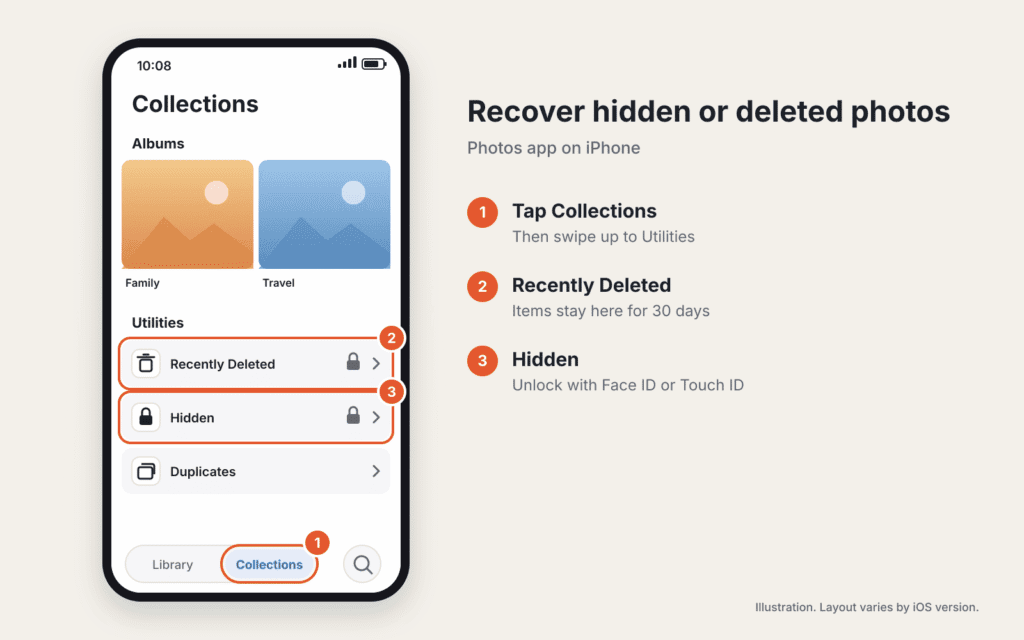
| Deleted in the last 30 days | Menu > Trash | Collections > Trash | Collections > Recently Deleted (under Utilities) |
| Hidden for privacy | Menu > Private Album (newer models) | Collections > Locked Folder | Collections > Hidden (under Utilities) |
| Grouped with similar shots | Tap the numbered thumbnail | Tap the photo stack | Not applicable |
| Archived | Not applicable | Collections > Archive | Not applicable |
Samsung and Google both keep deleted items for 30 days before removing them permanently, according to Samsung’s trash guide and Google’s restore guide. To restore, open the trash, touch and hold the item, and tap Restore.
On iPhone, Apple’s missing-photos guide confirms that Recently Deleted keeps items for 30 days. The Hidden album opens with Face ID or Touch ID, and it can itself be hidden, so make sure it’s turned on in your Photos settings. On older iOS versions, both albums are under Albums > Utilities instead of Collections.
If the photo isn’t in any of those places, check these common causes from Google’s lost-photos guide:
- Wrong account. If you have more than one Google account, make sure you’re signed in to the one that backed up the photo.
- Wrong date. Google Photos sorts photos taken before 4 AM into the previous day. Downloaded or scanned photos can also carry a wrong date. Search for Recently added to see items in the order they arrived.
- Photos from other apps hidden from view. Check Collections > On this device, as explained in the Google Photos section above.
- Moved to the cloud. If you used Samsung’s OneDrive sync or Google’s “Free up space,” the originals may now live only in the cloud. Open OneDrive or Google Photos to find them.
Frequently Asked Questions
Why is there no Gallery app on my phone?
Google Pixel, Motorola and Nokia phones use Google Photos as their gallery, so they don’t come with a separate app called Gallery. Look for Photos in your app list instead. If you prefer a classic gallery, install Google’s free Gallery app from the Play Store.
Is Google Photos the same as a gallery app?
Not quite. A gallery app shows pictures stored on your phone. Google Photos shows those too, plus anything backed up to your Google account, so it can display photos that aren’t saved on the phone at all.
Where is the gallery on my phone if it’s not on the home screen?
On Android, swipe up from the bottom of the home screen to open the full app list, then type “gallery” or “photos” in the search bar. On iPhone, swipe down from the middle of the Home Screen and search for Photos. If it still doesn’t appear, follow the restore steps above to check whether the app is hidden or disabled.
Will deleting or disabling the gallery app delete my photos?
Usually not. Photos saved in your phone’s storage are separate from the app that displays them, so removing the app normally leaves them in place. Photos kept only in a cloud service, such as Google Photos or OneDrive, still need that app or account to view them. Deleting a photo inside the app is different: that moves it to the trash.
Why don’t my WhatsApp photos show up in the gallery?
WhatsApp has a setting that controls this. Open WhatsApp, go to Settings > Chats and turn on Media visibility. In Google Photos, WhatsApp images appear under Collections > On this device; in Samsung Gallery, check the Albums tab.
Can I use a different gallery app?
Yes. Any gallery app from the Play Store can read the photos on your phone. When you open a picture from a file manager, Android asks which app to use, and you can pick your new one as the default.
Conclusion
The gallery on your phone is almost never gone. It usually just has a different name. Samsung and Xiaomi phones call it Gallery. Pixel, Motorola and Nokia phones use Google Photos. OnePlus and OPPO phones use an app called Photos, and so do iPhones.
If you can’t find it, start with the simplest fix and work down:
- Can’t find the app? Search your app list for “gallery” or “photos,” or open it from the Camera app’s thumbnail.
- App really gone? Check whether it’s hidden or disabled, then update or reinstall it.
- Photos missing? Check the trash, hidden albums and Google Photos device folders before assuming they’re lost.
Deleted photos usually stay in the trash for 30 days, so act quickly if something important has disappeared. To protect your pictures in the future, turn on a backup such as Google Photos, OneDrive or iCloud Photos.

Louis Mugan is a seasoned technology writer with a talent for turning complicated ideas into clear, practical guidance. He focuses on helping everyday readers stay confident in a world where tech moves fast. His style is approachable, steady, and built on real understanding.
He has spent years writing for platforms like EasyTechLife, where he covers gadgets, software, digital trends, and everyday tech solutions. His articles focus on clarity, real-world usefulness, and helping people understand how technology actually fits into their lives.
Outside of his regular columns, Louis explores emerging tools, reviews products, and experiments with new tech so his readers don’t have to. His steady, friendly approach has made him a reliable voice for anyone trying to keep up with modern technology. get in touch at louismugan@gmail.com