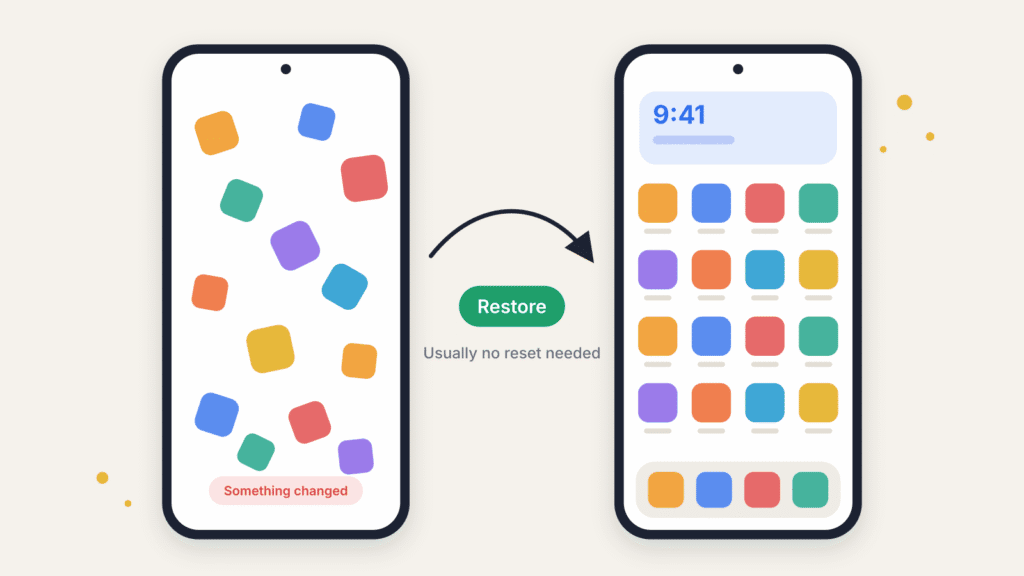
Your home screen can look “wrong” for many different reasons — and that’s good news, because you almost never need to reset your whole phone to fix it. Maybe one app icon disappeared. Maybe a widget vanished. Maybe the entire layout suddenly looks unfamiliar. Maybe nothing will move at all.
Each of those is a different problem with a different fix. This guide starts with the smallest, lowest-risk fix for each situation, which also protects any customization you actually wanted to keep.
How to Restore Your Original Home Screen (Quick Answer)
On most phones you can get your original home screen back in a few minutes without resetting anything. Try these steps in order, and stop as soon as your layout looks right.
Android:
- Check your default Home app. Go to Settings > Apps > Default apps > Home app and switch back to the launcher your phone came with.
- Restore missing icons from the app drawer. Swipe up to open All Apps, touch and hold the missing app, and drag it back onto your home screen.
- Review your home screen settings. Touch and hold an empty spot on the home screen and check the grid size, any hidden apps, and whether Lock Home screen layout is on.
iPhone:
- Check the App Library. Swipe left past your last Home Screen page, find the missing app, and drag it back.
- Check for hidden pages. Touch and hold the Home Screen, tap Edit > Edit Pages, and tick any page that’s unchecked.
- Reset only if necessary. Go to Settings > General > Transfer or Reset iPhone > Reset > Reset Home Screen Layout. This removes your folders, so try steps 1 and 2 first.
None of these steps deletes your apps or data. If they don’t solve it, find your exact symptom in the sections below.
Which phone do you have?
- Android (Samsung Galaxy, Google Pixel, OnePlus, Motorola and others): start with Android, Step 1 below.
- iPhone: skip ahead to iPhone, Step 1. The ideas are similar, but the menus and features are different enough that iPhone gets its own section.
Part 1: Android
Android Step 1: Figure out what actually changed
Before touching any settings, match what you see to one of these rows. The right fix depends entirely on the answer.
| What you’re seeing | Likely cause | Jump to |
|---|---|---|
| The entire home screen looks unfamiliar | A different app is set as your Home app (launcher) | Android Fix 1 |
| Home, Back and Recents buttons are gone | Navigation switched to gestures | Android Fix 1 (navigation buttons) |
| One app icon (or the Phone icon) disappeared | It was removed from the home screen, not necessarily uninstalled | Android Fix 2 |
| A widget disappeared or won’t resize | It was removed, or it just needs resizing | Android Fix 3 |
| Icons and widgets won’t move at all | Your home screen layout is locked | Android Fix 4 |
| An app seems totally gone | It may be hidden, not deleted | Android Fix 5 |
| Icons look bigger, smaller or more spread out | Your grid, icon-size or display-size setting changed | Android Fix 6 |
| Only the background looks different | The wallpaper changed | Android Fix 7 |
| Icons are scattered or on the wrong page | Items were moved, not removed | Android Fix 8 |
| Several things are wrong at once | The launcher’s saved layout needs restoring or resetting | Backup restore, then last resort |
Android Fix 1: How to Restore Your Original Android Home Screen Launcher
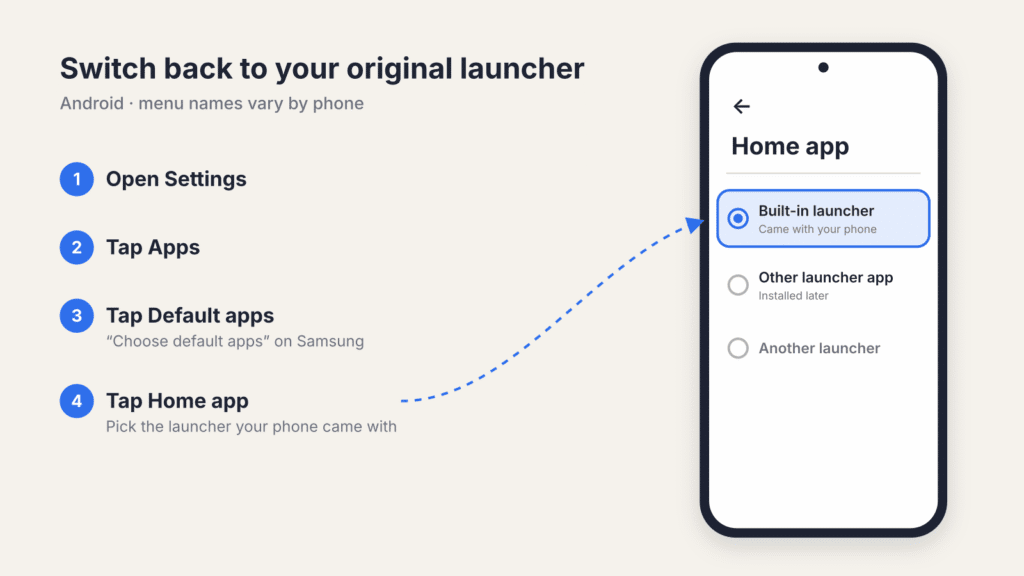
If the icons, gestures and app drawer all feel different, check which app is set as your Home app.
- Open Settings, then Apps, then Default apps.
- Tap Home app (or a similarly named option).
- If a different launcher is selected, switch back to the one that came with your phone.
Menu wording varies by phone and Android version. If you don’t see Default apps, search Settings for “Home app,” “default apps” or “launcher.” This is the flow Google documents for changing default apps (Google Pixel Help).
For reference, Pixel phones call their built-in launcher Pixel Launcher, and Samsung phones call theirs One UI Home. Switching back restores the interface, but it won’t always put every icon back exactly where it was, because each launcher keeps its own saved layout.
Restore the Home, Back and Recents buttons
If your navigation buttons disappeared, your phone probably switched from three-button navigation to gesture navigation. This changes how you move around Android, but it doesn’t remove apps or rearrange your home screen.
- Any Android phone: search Settings for “navigation mode” or “system navigation.”
- Pixel: go to Settings > System > Navigation mode (or Gestures > System navigation on older Android versions), then choose 3-button navigation.
- Samsung Galaxy: go to Settings > Display > Navigation bar, then select Buttons.
Prefer swiping? Choose gesture navigation instead. Labels vary by model and Android version.
Android Fix 2: How to Restore Missing App Icons on Android
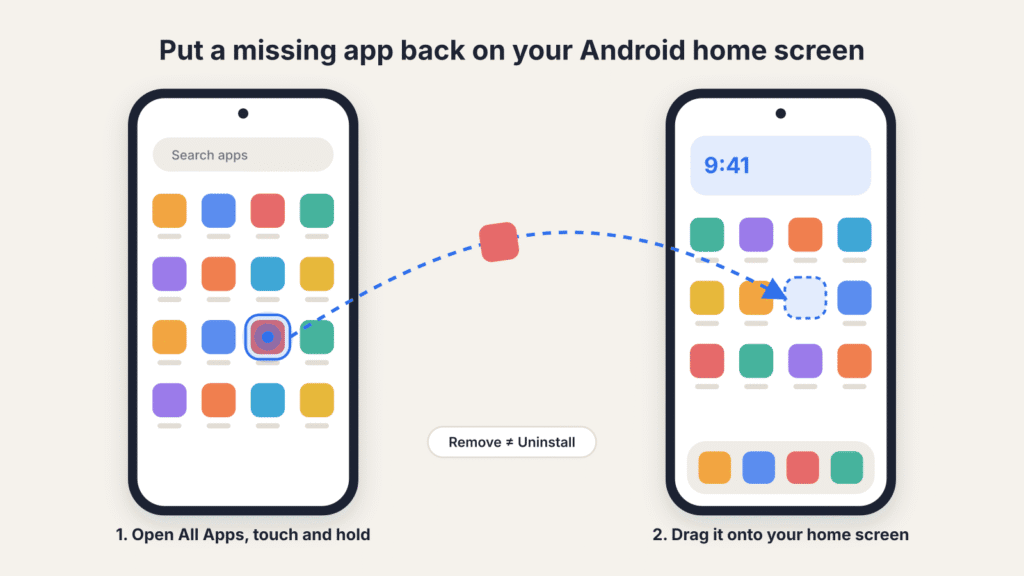
A missing icon doesn’t necessarily mean the app was uninstalled. Android distinguishes Remove, which takes an app off the home screen only, from Uninstall, which removes it from the phone (Google Android Help). Check All Apps first; if the app is there, you only need to put its shortcut back.
- Swipe up from your home screen (or tap the app drawer icon) to open All Apps.
- Find the missing app, searching by name if needed.
- Touch and hold the icon.
- Drag it onto your home screen and release it where you want it.
The steps are identical for the Phone icon. If you normally keep it in the bottom favorites row, drag it into an open spot there if your launcher allows it.
An icon can also vanish because the app is simply on another home screen page (see Android Fix 8). If the app doesn’t appear in All Apps, it isn’t necessarily uninstalled. Check whether it’s:
- Hidden by your launcher (see Android Fix 5).
- Disabled. Go to Settings > Apps, open the full app list, find the app and tap Enable.
- Installed under another profile, such as a work profile (look for a Work tab in All Apps), Android’s private space (at the bottom of All Apps), or Samsung’s Secure Folder.
If it was uninstalled, you can download it again from the Google Play Store.
Android Fix 3: How to Restore a Missing Widget on Android
Widgets (clock, weather, calendar or search-bar blocks) come back the same way icons do:
- Touch and hold an empty area of your home screen.
- Tap Widgets.
- Find the app the widget belongs to and tap it to see its widgets.
- Touch and hold the one you want, then drag it onto your home screen.
To resize a widget, touch and hold it until a resizable outline appears, then drag the handles (Google Android Help). Not every widget can be resized.
Android Fix 4: How to Unlock a Locked Android Home Screen Layout
If an icon or widget won’t budge, your home screen is probably locked rather than broken. Some launchers have a setting that prevents accidental changes, and it’s easy to switch on by mistake.
On Samsung Galaxy (Samsung Support):
- Touch and hold an empty area of the home screen, then tap Settings (or go to Settings > Home screen).
- Find Lock Home screen layout.
- Turn it off.
On other phones, check the same long-press menu for a similar “Lock layout” option. Not every launcher has one, so not finding it is normal.
Android Fix 5: How to Unhide Hidden Apps on Android
Some manufacturer launchers can hide apps from both the home screen and the app drawer, so a hidden app looks exactly like a deleted one. On supported Samsung Galaxy phones (Samsung Support):
- Touch and hold an empty spot on the home screen, then tap Settings.
- Tap Hide apps on Home and Apps screens.
- Find the app and tap the minus icon to unhide it, then tap Done.
On other phones, look in your launcher’s settings for a “Hidden apps” option before concluding the app was uninstalled.
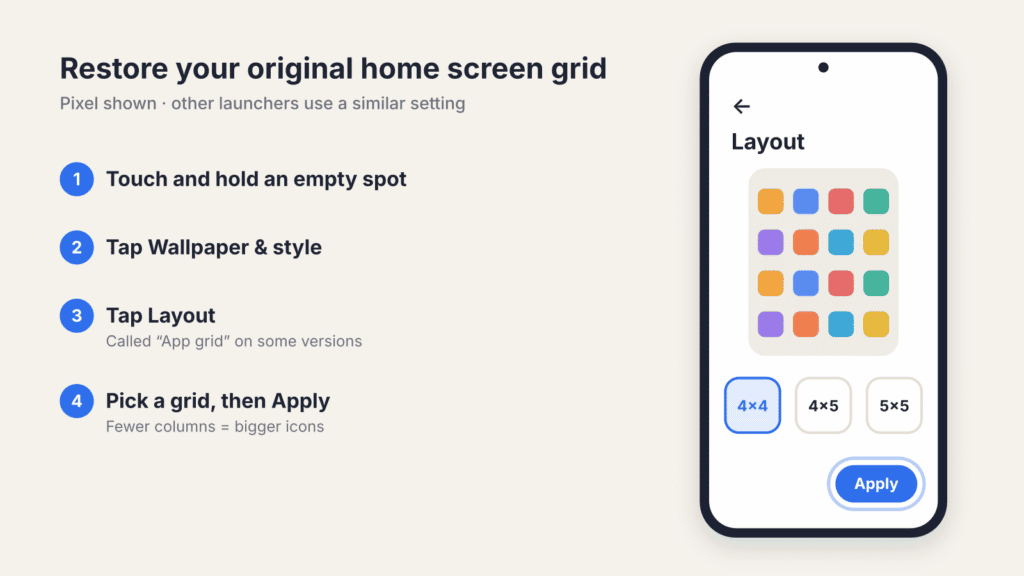
Android Fix 6: How to Restore the Original Android Home Screen Grid
If nothing is missing but spacing or icon size changed, your home screen grid setting probably changed. This can happen after a system or launcher update.
On Pixel phones (Google Pixel Help):
- Touch and hold an empty space on the home screen.
- Tap Wallpaper & style.
- At the bottom, tap Layout (called App grid on some Android versions).
- Choose a grid size, then tap Apply.
A smaller grid (for example 4×4) makes icons bigger; a larger grid makes them smaller. Other launchers keep a similar “Home screen grid” or “icon size” control in their long-press settings. If you remember roughly how many icons used to fit in a row, use that as your guide.
If the whole interface looks too big or too small
If text, menus and buttons look different everywhere, not just on the home screen, check Android’s display and font size settings instead.
- Search Settings for “Display size and text” or “Font size.” On some phones it’s under Display or Accessibility.
- Adjust Display size and Font size a little at a time.
- Return to the home screen after each change to check whether it looks familiar again.
Android Fix 7: How to Restore Your Original Android Wallpaper
If every icon and widget is where it should be and only the background changed:
- Touch and hold an empty area of the home screen.
- Tap Wallpaper & style (the exact label varies by phone).
- Choose your previous image and apply it.
Many phones set separate images for the home screen and the lock screen. If the wallpaper doesn’t seem to “take,” check that you applied it to the home screen.
Android Fix 8: How to Move Rearranged Icons Back on Android
Sometimes nothing was removed; it just moved. Swipe left and right through every home screen page first. When you find the item, touch and hold it and drag it back; this works for shortcuts, widgets and folders (Google Android Help).
To rebuild a folder, drag one app icon onto another, keep adding apps to the group, then rename it. For most people, moving a handful of icons back by hand is faster and safer than resetting the whole launcher.
How to Restore Your Android Home Screen Layout From a Backup
If you backed up your launcher settings earlier, restoring that backup can save you from rebuilding every folder, shortcut and page by hand. A launcher reset, by contrast, gives you a fresh default layout, not your old one.
- Open your launcher’s settings and look for Backup & restore, Backup or Import settings.
- Choose the restore option and select a backup you made earlier.
- Follow the prompts, then check the restored pages, folders, icons and widgets.
This is launcher-dependent. Some third-party launchers support it; many built-in launchers don’t. Backups usually don’t work across different launcher apps, widgets and shortcuts sometimes need re-adding, and Android’s device backup doesn’t guarantee an exact home screen restore. If your launcher allows it, save your current arrangement before importing an old one.
How to Reset Your Android Launcher (Last Resort)
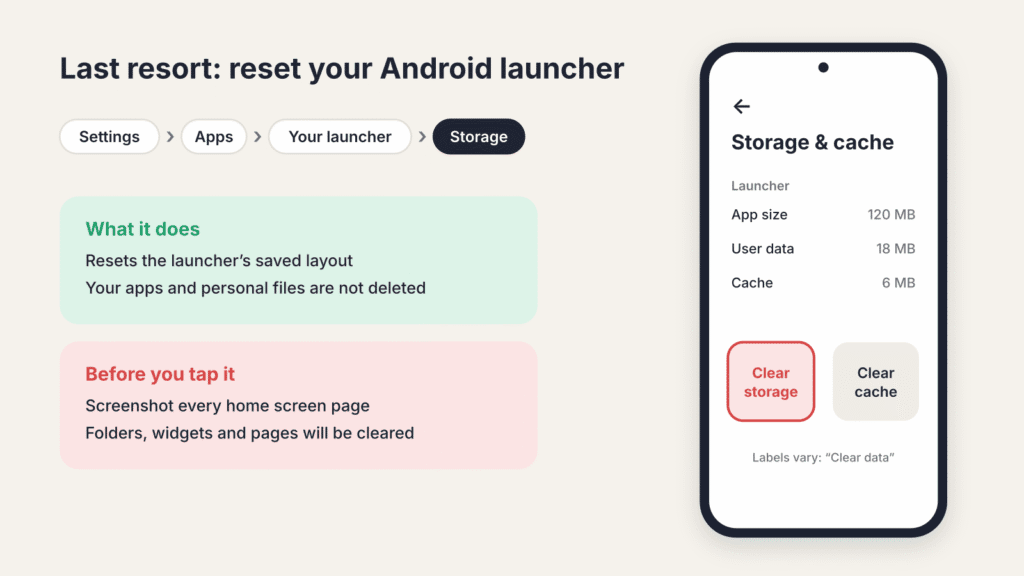
If several things are wrong at once (folders gone, widgets scattered, icons in no order you recognize), starting fresh may be quicker than repairing by hand. First, screenshot every home screen page so you have something to rebuild from.
Warning: this erases your current home screen layout. Clearing the launcher’s storage removes your icon positions, folders, widgets and extra pages, plus launcher-specific settings such as the grid size. There’s no undo, and you’ll have to rebuild everything by hand. Your apps and personal files are not deleted, and this is not a factory reset. If your launcher has a saved backup, restore that instead (see the section above).
- Go to Settings > Apps.
- Find your launcher by name, the one you identified in Android Fix 1 (on Samsung, One UI Home).
- Tap Storage (sometimes Storage & cache).
- Tap Clear data (or Clear storage).
Don’t factory-reset your phone to fix a home screen problem. A missing icon, a locked layout, a changed launcher or a rearranged layout all have far more targeted fixes above.
Why you might not be able to change the home screen on a work phone
If an option is greyed out or missing on a work-issued Android phone, your employer may manage the device. Management policies can restrict apps, settings and default-app choices, especially on fully managed company phones.
- Search Settings for “Work profile,” “Device management” or “Device admin apps.”
- Look for a notice that the phone or a setting is managed by an organization.
- Ask your IT administrator whether that home screen setting is restricted.
A work profile on a personal phone doesn’t automatically lock your whole home screen; it depends on how the device is managed. Don’t remove management apps or the work profile just to change your layout, or you could lose access to work services and data.
Part 2: iPhone
The iPhone works differently from Android in one big way: you can’t swap the Home Screen app for another launcher. So when an iPhone Home Screen suddenly looks wrong, the cause is almost always a hidden page, a Focus, a customization setting, or an app that was removed from view. The steps below are based on Apple’s current iPhone User Guide for iOS 27; older versions may label a few options differently.
iPhone Step 1: Figure out what actually changed
| What you’re seeing | Likely cause | Jump to |
|---|---|---|
| One app icon disappeared | Removed from the Home Screen but still in the App Library | iPhone Fix 1 |
| New apps never show up on the Home Screen | New downloads are set to go to the App Library only | iPhone Fix 1 |
| A whole page of apps is gone | That Home Screen page is hidden | iPhone Fix 2 |
| Pages or folders come and go at certain times or places | A Focus is showing only certain pages | iPhone Fix 3 |
| An app is missing even from Search and the App Library | It’s in the locked Hidden folder | iPhone Fix 4 |
| Safari, Camera or another built-in app vanished | It’s switched off in Screen Time | iPhone Fix 5 |
| A widget disappeared | It was removed or sits on a hidden page | iPhone Fix 6 |
| Icons look dark, tinted, see-through, or big with no names | Icon appearance or size changed | iPhone Fix 7 |
| Everything on screen looks bigger or smaller | Display Zoom or Text Size changed | iPhone Fix 7 |
| Only the background looks different | The wallpaper changed | iPhone Fix 8 |
| Icons are scattered, or won’t move | Items were moved, or edit mode didn’t start | iPhone Fix 9 |
| Several things are wrong at once | The layout needs a full reset | iPhone last resort |
iPhone Fix 1: How to Restore Missing App Icons on iPhone
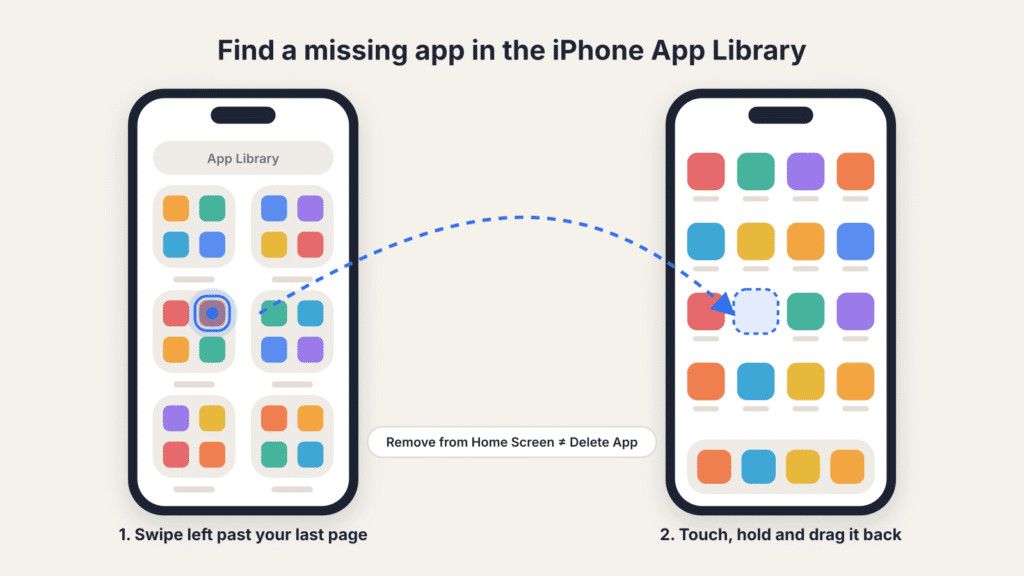
On iPhone, Remove from Home Screen only takes the icon away; Delete App uninstalls it (Apple Support). A removed app still lives in the App Library, which is the last page to the right of your Home Screen (Apple Support).
- Swipe left past all your Home Screen pages to reach the App Library, or swipe down on the Home Screen to use Search.
- Find the app (the App Library has its own search bar at the top).
- Touch and hold the app, drag it to the Home Screen page where you want it, then tap Done.
To put Phone back in the Dock at the bottom of the screen, drag it into an open Dock slot the same way. If an app shows a small cloud next to its name, it was offloaded to save space; tap it to download it again with your data intact. If the app doesn’t appear anywhere, reinstall it from the App Store.
New apps not appearing on your Home Screen? Go to Settings > Home Screen & App Library and, under Newly Downloaded Apps, choose Add to Home Screen. When it’s set to App Library Only, new downloads skip the Home Screen entirely.
iPhone Fix 2: How to Restore Hidden Home Screen Pages on iPhone
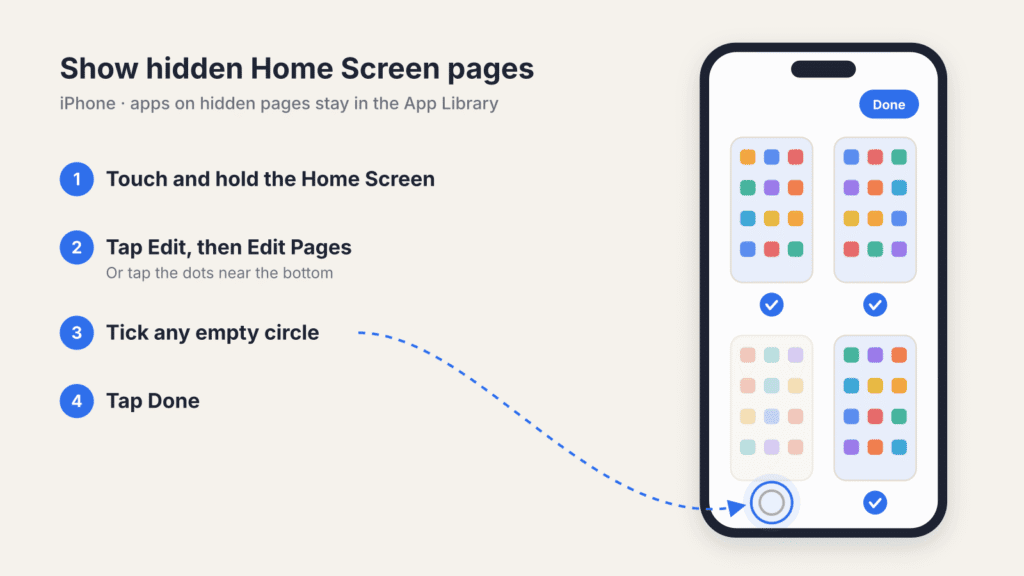
Home Screen pages can be hidden. Their apps stay in the App Library and Search, so this is easy to miss (Apple Support).
- Touch and hold an empty area of the Home Screen.
- Tap Edit, then Edit Pages. (Or tap the row of dots near the bottom of the screen.)
- Tap any unchecked circle under a page thumbnail to show that page again.
- Tap Done.
iPhone Fix 3: How to Stop a Focus From Hiding Home Screen Pages
If pages appear and disappear on a schedule, at work, or at bedtime, a Focus is probably limiting which pages you see. Each Focus can show only selected Home Screen pages while it’s on (Apple Support).
- Open Control Center and check whether a Focus (such as Work, Sleep or Do Not Disturb) is active. Turning it off should bring your normal pages back.
- To stop it happening again, go to Settings > Focus and tap each Focus.
- Under Customize Screens, tap the Home Screen preview and either select all the pages you want or turn off the custom pages option.
A Focus can switch on automatically by schedule or location, so also check its Set a Schedule options if the change keeps returning.
iPhone Fix 4: How to Unhide Hidden Apps on iPhone
Since iOS 18, you can hide an app behind Face ID. A hidden app disappears from the Home Screen, the App Library and Search, and moves to a locked Hidden folder (Apple Support).
- Swipe left to the App Library and scroll to the bottom.
- Tap the Hidden folder and unlock it with Face ID, Touch ID or your passcode.
- To unhide an app, touch and hold it, then tap Don’t Require Face ID (or Touch ID or Passcode). It returns to the App Library.
- Drag it back to your Home Screen as in iPhone Fix 1.
To see every hidden app in one list, go to Settings > Apps > Hidden Apps. Only App Store apps can be hidden this way; if a built-in Apple app is missing, check iPhone Fix 5.
iPhone Fix 5: How to Restore Built-In Apps Turned Off by Screen Time
Screen Time can switch off built-in apps such as Safari, Camera and FaceTime (Apple Support). When it does, they disappear from the Home Screen as if they were deleted.
- Go to Settings > Screen Time > Content & Privacy Restrictions.
- Tap Allowed Apps & Features (called Allowed Apps on some versions). You may need the Screen Time passcode.
- Turn the missing app back on.
If a parent or guardian manages the phone through Family Sharing, they need to change this from their device. If you deleted a built-in app yourself, reinstall it free from the App Store.
iPhone Fix 6: How to Restore a Missing Widget on iPhone
Widgets live on Home Screen pages, so a widget can vanish along with a hidden page (see iPhone Fix 2). It may also be tucked inside a Smart Stack; swipe up or down on the stack to check. To add one back (Apple Support):
- Touch and hold an empty area of the Home Screen.
- Tap Edit, then Add Widget.
- Find the widget, choose a size, and tap Add Widget.
- Drag it where you want it, then tap Done.
To change a widget’s size, touch and hold it and pick a different size from the menu.
iPhone Fix 7: How to Restore Default App Icons on iPhone
Recent iOS versions let you restyle all icons at once, and it’s easy to change this by accident (Apple Support).
- Touch and hold an empty area of the Home Screen until the icons jiggle.
- Tap Edit, then Customize.
- Pick the look you want: Default, Dark, Clear or Tinted. Choose Default for the standard colorful icons.
- Tap the small-icon option to bring back app names; large icons hide the names under each app.
- Tap the Home Screen background to finish.
If text, buttons and icons all look bigger or smaller, the cause is a display setting, not the Home Screen (Apple Support):
- Display Zoom: go to Settings > Display & Brightness > Display Zoom and choose Default (or Larger Text if you prefer it bigger). Your iPhone may restart to apply it.
- Text size only: go to Settings > Display & Brightness > Text Size and drag the slider. For extra-large text, use Settings > Accessibility > Display & Text Size > Larger Text.
A major iOS update can also restyle the whole interface. You can’t roll back to the old design, but Reduce Transparency under Accessibility > Display & Text Size makes see-through effects more solid.
iPhone Fix 8: How to Restore Your Original iPhone Wallpaper
On iPhone, each Lock Screen is paired with a Home Screen wallpaper (Apple Support). Switching Lock Screens (by touching and holding the Lock Screen and swiping) or turning on a Focus linked to a different Lock Screen also changes your Home Screen background.
- Touch and hold the Lock Screen, swipe to your previous Lock Screen, and tap it to switch back.
- Or go to Settings > Wallpaper and tap Customize under the Home Screen preview to choose a different image.
iPhone Fix 9: How to Move Icons Back on iPhone (and Fix Icons That Won’t Move)
Since iOS 18, apps can sit anywhere on the grid, so gaps and scattered icons are normal after accidental drags. Swipe through every page first; the item is often just on another one.
To move items back (Apple Support):
- Touch and hold the Home Screen background until the items jiggle.
- Drag the app or widget to its spot. To move it to another page, drag it to the right edge of the screen and wait.
- Tap the background (Face ID iPhones) or press the Home button (iPhone SE) when you’re done.
To rebuild a folder, drag one app onto another, then add more apps and rename the folder.
If nothing will jiggle or move: unlike some Android launchers, iPhone has no “lock layout” switch. Make sure you’re holding an empty spot rather than an icon, then restart your iPhone and install any pending update under Settings > General > Software Update. On a work or school iPhone, your organization may block layout changes (see the managed-device note below).
Want an on-screen Home button?
iPhones without a Home button can’t switch to three-button navigation like Android. If you miss a button, turn on AssistiveTouch in Settings > Accessibility > Touch > AssistiveTouch. It adds a floating button that can act as Home (Apple Support).
How to Reset Your iPhone Home Screen Layout (Last Resort)
If several things are wrong at once, iPhone has a built-in reset that puts the Home Screen back to Apple’s default arrangement. Screenshot every page first so you can rebuild the parts you liked.
- Open Settings and tap General.
- Tap Transfer or Reset iPhone, then Reset.
- Tap Reset Home Screen Layout, then Reset Home Screen to confirm.
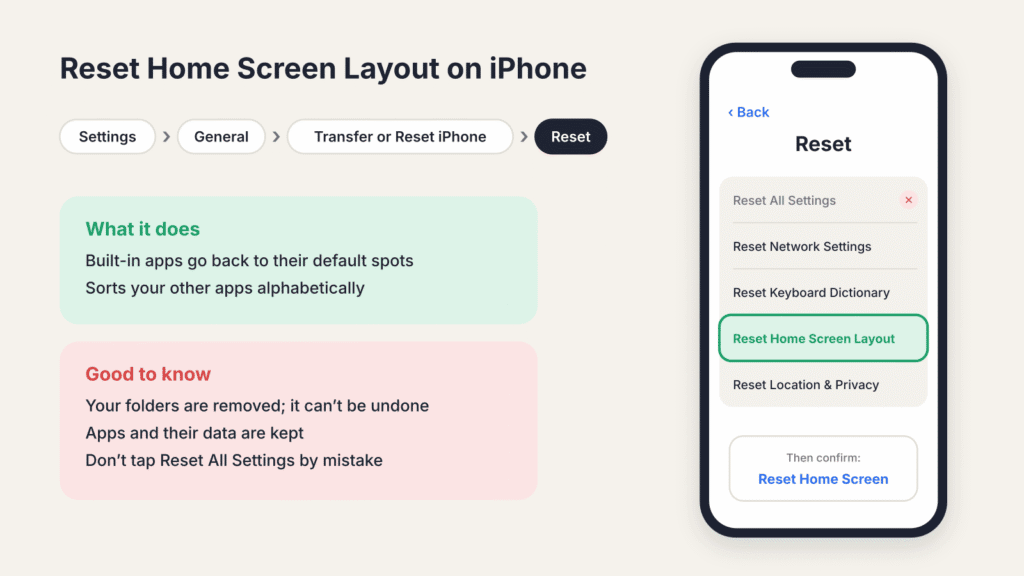
According to Apple, any folders you created are removed, and the apps you downloaded are arranged alphabetically after the apps that came with your iPhone. You’ll need to re-add any widgets you want. It doesn’t delete apps or their data, and you can’t undo it.
Be careful in that Reset menu: Reset All Settings and Erase All Content and Settings sit right next to it and do far more than reset your layout.
An iCloud backup does include your Home Screen layout and app organization (Apple Support), but restoring one means erasing the iPhone first. That’s far too drastic for a layout problem.
Why you might not be able to change the Home Screen on a work or school iPhone
If an iPhone is managed by an employer or school, its management profile can restrict apps, settings and Home Screen changes.
- Go to Settings > General > VPN & Device Management to see whether a management profile is installed.
- Ask your IT administrator whether the setting you need is restricted.
Don’t remove a management profile just to change your layout; you could lose access to work email, apps and data.
Prevent this from happening again
Once your layout looks right, a few minutes of protection saves you from rebuilding it later. On both platforms, the simplest safeguard is to screenshot every finished page.
On Android:
- If your launcher has Backup & restore, save a backup after you finish arranging things.
- Turn on Lock Home screen layout if your launcher supports it.
- Confirm your preferred launcher under Settings > Apps > Default apps > Home app. Having several launchers installed isn’t harmful, but picking the wrong default makes your layout look unfamiliar again.
- Review any third-party launchers you no longer use in Settings > Apps. Back up any layout you want before uninstalling one, because uninstalling erases that launcher’s saved layout. Don’t try to remove the phone’s built-in launcher.
On iPhone:
- Keep iCloud Backup turned on; it saves your Home Screen layout in case you ever move to a new iPhone.
- Check which Focus modes have custom Home Screen pages under Settings > Focus, so pages don’t seem to vanish unexpectedly.
- If you hide apps with Face ID, remember they live in the Hidden folder at the bottom of the App Library.
- Set Newly Downloaded Apps to the option you actually want under Settings > Home Screen & App Library.
The bottom line
Resetting your whole home screen can feel like the obvious fix, but it’s rarely the right first move on either platform. Start with what you can actually see.
On Android, drag a missing icon back from All Apps, re-add a widget from the Widgets menu, unlock a locked layout with one toggle, and check your default launcher if everything looks unfamiliar. On iPhone, check the App Library, hidden pages, your Focus settings and the Hidden folder before anything else.
Save a full launcher reset or Reset Home Screen Layout for the rare case where several things need rebuilding at once. Even then, a few screenshots beforehand mean you’re never starting from zero.
FAQ
How do I get my original home screen back on Android?
Check your default Home app under Settings > Apps > Default apps. If a different launcher was selected, switching back usually restores the interface right away. If only one item is missing (an icon, a widget, the wallpaper), fix that one thing instead of resetting anything.
How do I get my original Home Screen back on iPhone?
First check the App Library, hidden pages and any active Focus. If you truly want Apple’s default arrangement, use Settings > General > Transfer or Reset iPhone > Reset > Reset Home Screen Layout. It removes your folders and sorts downloaded apps alphabetically after the built-in ones.
Will restoring my home screen delete my apps or data?
In almost every case, no. Moving or re-adding icons and widgets, switching your Android launcher, unhiding pages or apps, and unlocking a layout don’t touch your apps or personal data. Both platforms separate removing an icon from the home screen from uninstalling the app. The steps that need more care are clearing an Android launcher’s data and iPhone’s Reset Home Screen Layout: both reset your arrangement without deleting apps, but you’ll need to rebuild folders and re-add widgets.
Why did my home screen change without me doing anything?
On Android, common causes are a different default launcher, a software update that changed grid options, restoring data from another phone, or an accidental long-press-and-drag. On iPhone, the usual suspects are a scheduled Focus showing different pages, an iOS update that changed the icon style, an accidental Lock Screen swipe that changed the wallpaper, or a stray drag in edit mode. The tables in Android Step 1 and iPhone Step 1 help you narrow it down.
Why can’t I move my icons at all?
On Android, your layout may be locked; look for Lock Home screen layout under Settings > Home screen (or long-press the home screen and tap Settings) and turn it off. iPhone has no lock switch, so touch and hold an empty spot until the icons jiggle, restart if they don’t, and check whether your organization manages the phone.
What’s the difference between the home screen and the lock screen?
The home screen holds your apps, folders and widgets after you unlock the phone; the lock screen is what you see before that. Many Android phones set the two wallpapers separately. On iPhone, each Lock Screen is paired with a Home Screen wallpaper, so switching Lock Screens can change your Home Screen background too.

Louis Mugan is a seasoned technology writer with a talent for turning complicated ideas into clear, practical guidance. He focuses on helping everyday readers stay confident in a world where tech moves fast. His style is approachable, steady, and built on real understanding.
He has spent years writing for platforms like EasyTechLife, where he covers gadgets, software, digital trends, and everyday tech solutions. His articles focus on clarity, real-world usefulness, and helping people understand how technology actually fits into their lives.
Outside of his regular columns, Louis explores emerging tools, reviews products, and experiments with new tech so his readers don’t have to. His steady, friendly approach has made him a reliable voice for anyone trying to keep up with modern technology. get in touch at louismugan@gmail.com