EasyTechLife Team – Updated September 2026
If you’ve forgotten your Android PIN, pattern, or password, don’t factory-reset the phone right away. Depending on your device and what you set up beforehand, you may still have a way in without erasing anything. If those options don’t apply to you, Google’s official recovery route is generally a factory reset — and before you do that, it’s worth knowing what to check first so you don’t turn a forgotten PIN into a bigger problem.
First, figure out what kind of lock you’re dealing with
“My phone is locked” can mean a few different things, and the fix depends entirely on which one you’re facing:
| What you see | What it means | What to do |
| A PIN, pattern, or password screen you can’t get past | Screen lock — the most common issue | See the sections below |
| “This device was reset. To continue, sign in with a Google Account that was previously synced” | Factory Reset Protection (FRP), sometimes called Android’s “activation lock” | See the Factory Reset Protection section further down |
| “SIM network unlock PIN” | Carrier lock — unrelated to your screen or Google account | Contact your carrier directly |
| A message saying the device is managed by an organization | Work profile / MDM lock | Contact your IT admin — a personal reset won’t remove this |
This guide focuses mainly on the first two.
Can you unlock an Android phone without losing data?
Sometimes — but there’s no universal method that works on every modern phone. Your realistic chances come down to whether one of these already applies to you:
- A fingerprint or face unlock that’s still available on the lock screen
- Samsung specifically: a screen lock you changed within the last 72 hours (details below)
- An already-active Extend Unlock session that’s currently keeping the phone open
If none of those apply and the password is genuinely forgotten, Google’s documented recovery path is to erase the device and set it up again. That’s the honest answer, even though it’s not the one anyone wants.
How to unlock an Android phone if you forgot your PIN, pattern, or password
Try fingerprint or face unlock, if it’s still available
If fingerprint or face unlock is still showing on your lock screen, try it before anything that could erase your data. Don’t assume this will always be an option — Android periodically requires the primary PIN, pattern, or password on its own (for example, after a restart, or after a set number of hours), so biometrics aren’t a guaranteed fallback in every situation.
Samsung Galaxy: try your previous PIN, password, or pattern (within 72 hours)
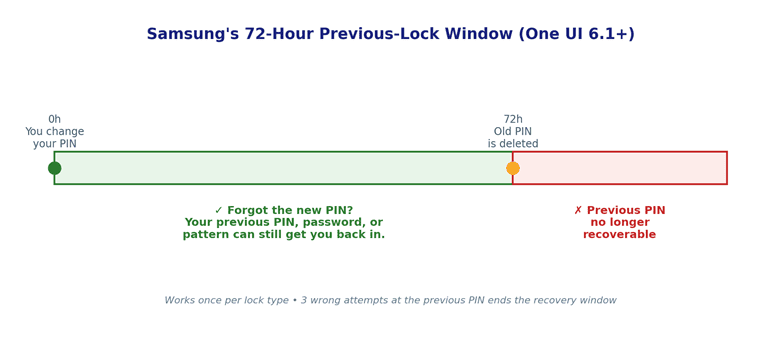
This is genuinely one of the most useful things a Samsung owner can know. On Galaxy devices running One UI 6.1 or later, if you changed your screen lock within the last 72 hours, Samsung temporarily keeps the previous credential on file:
- Enter the wrong PIN, password, or pattern five or more times.
- A Forgot PIN?, Forgot password?, or Forgot pattern? link will appear — tap it.
- Enter your previous screen lock (the one you had before you last changed it).
- If accepted, you’ll be prompted to set a new screen lock.
A few limits worth knowing: this only works within 72 hours of the change (Samsung deletes the old credential after that), it can be used once per lock type, and three incorrect attempts at the previous credential lock you out of trying again. Full details are on Samsung’s official support page.
If you’re not on a compatible Galaxy model, or it’s been longer than 72 hours since you changed your lock, this won’t apply — move on to the next option.
Check whether Extend Unlock is already keeping your phone open
Extend Unlock (the current name for what used to be called Smart Lock) can keep a phone unlocked for up to four hours at a time under specific conditions — near a trusted Bluetooth device, at a trusted location, or while it detects it’s on your body.
Here’s the important caveat: Extend Unlock is not a forgotten-password recovery method. Android requires you to unlock the device with your PIN, pattern, or password at least once before Extend Unlock can keep it open. So if your phone is currently unlocked because of an active trusted condition, use that window to back up your data and change your screen lock — but don’t expect walking into a trusted location to get you past a lock screen you’re already locked out of.
Use Google Find Hub
Google renamed Find My Device to Find Hub in 2025 — same service, expanded features. Here’s what it can and can’t do for a locked phone:
- On another device, go to android.com/find and sign in with the Google Account that’s on your locked phone.
- Select your device.
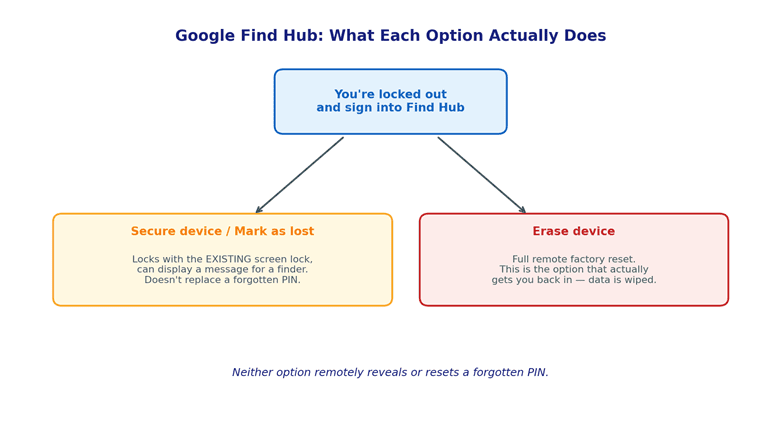
- You’ll see two relevant options: Secure device / Mark as lost secures the phone using its existing screen lock and can display information for someone who finds it — it doesn’t let you replace a PIN you’ve forgotten. Erase device performs a remote factory reset.
To be direct about a common misconception: Find Hub does not reveal or remotely replace a forgotten PIN. If you’re genuinely locked out, the only Find Hub action that gets you back into the phone is erasing it.
Factory reset through recovery mode — last resort
If you can’t sign into Find Hub (no Wi-Fi/data, or you don’t remember the Google password either), you can reset directly on the device using its hardware buttons. We’re not going to give you a universal button combination here, because it genuinely varies by brand and even by model within the same brand — following the wrong combo for your specific phone can send you down the wrong menu entirely. Look up your exact model:
- Google Pixel: Official Pixel recovery/reset instructions
- Samsung, Motorola, OnePlus, and others: search “[your exact model] recovery mode” on the manufacturer’s own support site, since the combination (Power+Volume Up, Power+Volume Down, or a Bixby/Home button on older models) depends on the hardware.
Once you’re in recovery mode, look for an option similar to Wipe data/factory reset, confirm it, then Reboot system now.
One important thing this doesn’t guarantee: a factory reset removes your local data and the current screen lock, but it doesn’t automatically get you into a usable phone. Because of Factory Reset Protection, you may still be asked for the Google Account that was previously on the device during setup — see the Factory Reset Protection section below.
Before you factory reset, check these 3 things
A factory reset is the point of no return for anything not backed up, so pause here first:
- Do you know the Google Account that’s signed into the phone? You’ll likely need its email and password again during setup because of Factory Reset Protection.
- Do you know that account’s password? If not, start Google Account Recovery before you reset the phone, not after.
- Is your important data actually backed up? If you still have access through biometrics or an active Extend Unlock session, check Settings > Google > Backup (or your manufacturer’s cloud service, like Samsung Cloud) before doing anything else. If you’re completely locked out, use a different device to check whether your photos and files already show up in Google Photos or another cloud account you use.
Getting these three sorted first is the difference between “annoying but fine” and “reset the phone, then got stuck on the setup screen too.”
What happens to your data after a factory reset?
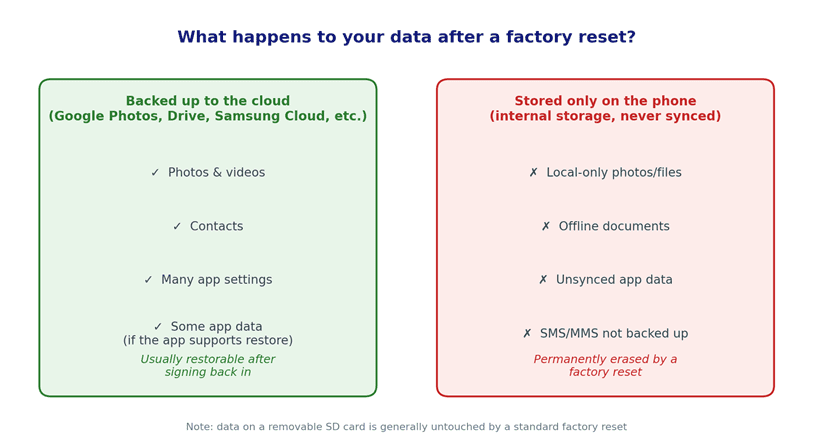
A reset erases apps, accounts, settings, and personal data stored in the phone’s internal storage. It does not remove anything that was already backed up elsewhere. On Samsung phones specifically, Samsung’s own support documentation confirms that a standard factory reset doesn’t erase data on a removable SD card. Other manufacturers may treat external or “adopted” storage differently, so check your phone’s own manufacturer instructions before assuming the same applies.
Just reset your Google Account password? Google’s own guidance recommends waiting 24 hours before you factory reset the phone. If you’ve just changed the password, wait before proceeding so you don’t run into account-verification problems during setup.
If Google Backup, Google Photos, or another cloud service (like Samsung Cloud) was turned on beforehand, some of your photos, contacts, apps, and settings may be restored automatically once you sign back in during setup. Exactly what comes back depends on what was actually backed up and what each individual app supports for restore — it’s not an all-or-nothing guarantee, so don’t assume everything will reappear exactly as it was.
Why your phone may still be locked after resetting it (Factory Reset Protection)
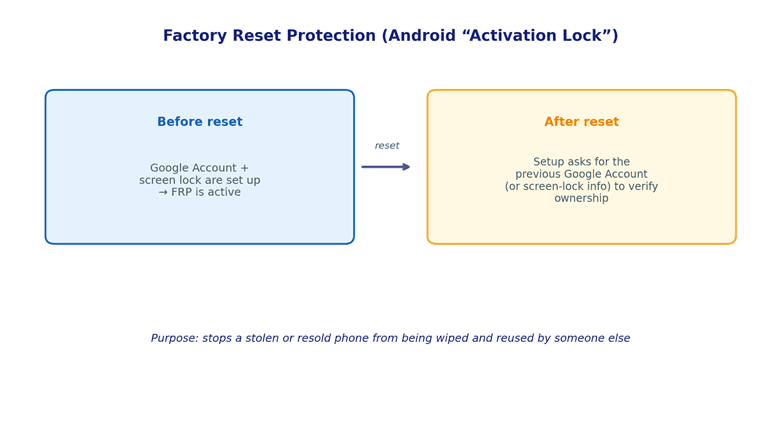
Factory Reset Protection (FRP) — sometimes called Android’s “activation lock,” borrowing the term from Apple’s similar iPhone feature — is a security layer that Google introduced starting with Android 5.1. Android’s device protection is enabled when you add a Google Account and use a screen lock. After certain types of factory reset, the phone may require ownership verification before it can be set up again — typically the device’s previous screen-lock information or the Google Account that was previously added and synced to it, with a remote reset through Find Hub commonly asking specifically for that Google Account’s credentials.
It exists specifically so a stolen or resold phone can’t just be wiped and reused by someone who isn’t the original owner.
If it’s genuinely your phone
Just sign in with the same Google Account that was on it before the reset. That’s it — there’s no separate “unlock FRP” step beyond your normal Google sign-in.
If you don’t remember that Google account
Try Google Account Recovery from another device. If the account itself is unrecoverable, contact the phone’s manufacturer with proof of purchase and ask what ownership-verification or service options are available for your specific model.
If you bought a used phone that’s locked to someone else’s account
This is worth being direct about: if you don’t have the previous owner’s Google credentials, don’t look for an “FRP bypass” tool. Instead:
- Go back to the seller and have them sign in themselves, remove their Google Account from the device, and complete a proper reset. Don’t ask the seller to share their Google Account password with you — even between two people acting in good faith, handing over a password is bad security practice.
- If bought through a marketplace with buyer protection, open a claim — an unremovable activation lock is generally grounds for a refund.
- Contact the manufacturer with your proof of purchase.
We’re intentionally not walking through bypass steps here. The same exploit that helps a legitimate owner recover their own device is also what’s used to reactivate stolen phones, and doing this on a device you don’t own may be illegal depending on where you are.
Does the old “Forgot Pattern?” trick still work?
You’ll still find tutorials telling you to enter the wrong pattern repeatedly until a “Forgot Pattern?” button appears, then sign in with your Google account directly. This genuinely worked — but Google documents it only for Android 4.4 (KitKat) and earlier, which by 2026 is a device well over a decade old. On modern Android, this prompt doesn’t appear at all; if none of the supported methods above get you back in, Google’s guidance is simply to erase the device and set it up again.
What about ADB commands and third-party “unlocker” tools?
Older articles sometimes recommend ADB commands that modify Android’s lock files directly. Don’t treat these as a general recovery method for a modern phone — whether an old ADB trick works at all depends on things like whether USB debugging was already enabled, the device’s Android version, and its security configuration, and current Android security architecture makes these old techniques unreliable or irrelevant for most typical users.
You’ll also find paid software (Dr.Fone, Tenorshare 4uKey, Aiseesoft, and similar) claiming to remove a screen lock “without losing data.” Compatibility varies widely by device, Android version, and security configuration, and some advertised recovery methods can still result in data loss despite the marketing — so treat “without losing data” and “universal unlock” claims with some skepticism, and be especially cautious with anything promising an FRP bypass, since that’s the same capability used to resell stolen phones.
For a personal device, prioritize the supported recovery methods from Google or the manufacturer described above before reaching for third-party software.
Does unlocking the screen restore everything on the phone?
Not always. Getting past the lock screen doesn’t automatically clear a few separate restrictions if they exist on your device:
- Work profile / MDM restrictions — set by an employer or school; only their admin can release these.
- App-level locks — some apps (banking, gallery private folders) have their own separate PIN.
- SIM PIN — unrelated to your screen lock; your carrier can help if you’ve forgotten it.
If your phone still feels restricted after you’re back in, check these individually rather than assuming one unlock covers everything.
How to avoid getting locked out again
- Turn on fingerprint or face unlock as a backup to your PIN.
- Keep your Google Account password somewhere safe (a password manager, not a note stuck to the monitor).
- Keep automatic cloud backup on (Settings > Google > Backup) so a worst-case reset costs you the least.
- If you’re on Samsung and just changed your PIN, remember you have a 72-hour safety net if you immediately forget the new one.
- While you’re in there, check Settings > Google > All services > Theft protection. Supported Android phones offer Theft Detection Lock, Offline Device Lock, and Remote Lock — a newer, separate layer of protection from your everyday screen lock.
Frequently asked questions
How do I unlock my Android phone if I forgot the PIN?
Try biometrics first if available. On a Samsung Galaxy running One UI 6.1+, try your previous PIN within 72 hours of changing it. If neither applies, Google’s official path is to erase the device via Find Hub or recovery mode and set it up again.
Can I unlock an Android phone without losing data?
Only if biometrics, Samsung’s 72-hour previous-lock recovery, or an already-active Extend Unlock session applies. Once the password is truly forgotten and none of those apply, there’s no official method that avoids a factory reset.
Does Google Find Hub let me set a new PIN remotely?
No. Find Hub can secure a lost device, but it doesn’t let you remotely reveal or replace a forgotten PIN. If you can’t regain access through another supported method, its factory-reset option erases the phone so you can set it up again.
Is Samsung’s remote unlock feature still available?
The old “Unlock” button in SmartThings Find (formerly Find My Mobile) was discontinued by Samsung in December 2023 for security reasons. What Samsung does still offer is the separate 72-hour previous-screen-lock recovery feature described above, which works locally on the device rather than remotely.
What’s the difference between a screen lock and activation lock (FRP)?
A screen lock is the everyday PIN/pattern/password. Activation lock (FRP) only appears after a factory reset and checks that you know the Google Account that was previously on the device — it’s an anti-theft check, not your regular lock screen.
Note: This guide covers device software and account recovery steps and isn’t legal advice. If you’re dealing with a phone you didn’t personally set up — a used purchase, an inherited device, or an employer-owned device — the ownership-verification and manufacturer-support routes above are the right next step rather than any bypass tool.

Louis Mugan is a seasoned technology writer with a talent for turning complicated ideas into clear, practical guidance. He focuses on helping everyday readers stay confident in a world where tech moves fast. His style is approachable, steady, and built on real understanding.
He has spent years writing for platforms like EasyTechLife, where he covers gadgets, software, digital trends, and everyday tech solutions. His articles focus on clarity, real-world usefulness, and helping people understand how technology actually fits into their lives.
Outside of his regular columns, Louis explores emerging tools, reviews products, and experiments with new tech so his readers don’t have to. His steady, friendly approach has made him a reliable voice for anyone trying to keep up with modern technology. get in touch at louismugan@gmail.com