
Updated September 2026
Your iPad once used to make it through the day without saving you a spot in the charger queue. Now, it barely gets away with lunchtime and you are starting to wonder if it’s time to say goodbye. Well, it could be, but it could also not be. It’s often caused by iPadOS background apps. To dispel the wondering, the battery health stats can actually do the talking. Here is how to find those stats and how to decode them.
Short answers
- iPad Pro (M4/M5), iPad Air (M2/M3/M4), iPad mini (A17 Pro), or iPad (A16)? Those are the only models that have battery health directly in Settings > Battery > Battery Health.
- Every other iPad misses out. Apple added this feature to the 2024 iPad Pro (M4) and iPad Air (M2), in iPadOS 17.4, years after they added it to iPhone and have since added it to the models listed above. Older iPads will have to resort to coconutBattery (Mac) or iMazing (Mac/Windows).
- Apple doesn’t have a battery health grading system, but in general, if there are no irregularities in the system and the health is above 90 percent, just relax. Anything below 80 percent and with a case of unexplained fast draining or random shutdowns, that means something actually has to be done.
Diminishing Returns on Maximum Capacity
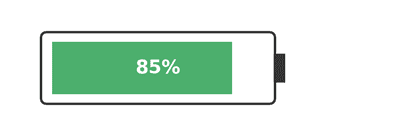
Battery health is really just about capacity. Apple calls that Maximum Capacity. A battery health score of 85% is probably fine for most people. Why? Use dim mode, not full brightness, and check Settings → Battery for any app using unusually high power in the background. An 85% battery health score can probably get you throughout the day with normal use, but remember that battery health doesn’t account for battery life.
Battery life covers how long your device actually lasts during typical use. How you use your device day to day can affect your real-world battery life more than the health percentage alone does. Battery health doesn’t regulate how you charge, and that can affect how quickly you lose battery health.
Poor battery life doesn’t necessarily mean poor battery health. Check the battery usage breakdown provided in Settings. Lots apps are using battery in the background without the user’s knowledge. Again, that’s a software issue. Software can easily be updated. Replacing a battery is a hardware issue. A much more costly concern.
Understanding why battery health matters
What does this even add to my life?
When buying a used iPad, cosmetic condition is easy to check with a glance, but battery wear isn’t something you can see from the outside. Battery health is one of the only specs you can verify on the spot, and that gap can be the difference between a fair price and a bad one.
If you’re deciding between a battery replacement and buying something new, knowing the real capacity turns that into an actual cost comparison — one that depends on your iPad’s age, warranty or AppleCare status, and what a replacement battery or device actually costs where you live.
And if you work or go to school on your iPad or even if you travel with it, having the real capacity is important in the sense that you can plan trips needing charging instead of being surprised, in a bad way, during a really important meeting.
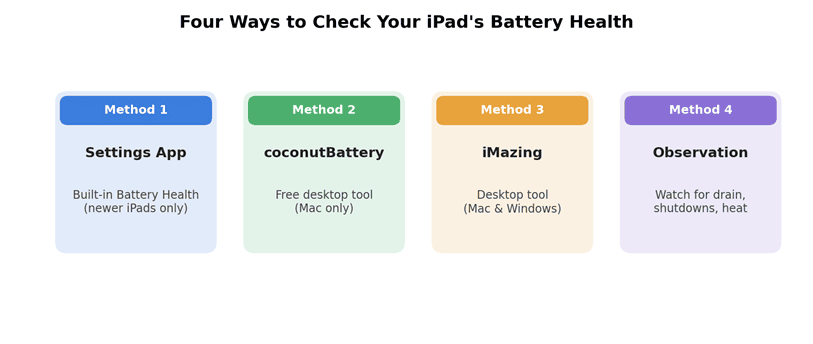
Method 1: Check Battery Health (newer iPad models only)
The Battery Health screen was introduced with the 2024 iPad Pro (M4) and iPad Air (M2) and was made available with iPadOS 17.4 a few years after the iPhone had the same capability. Apple’s current documentation shows that the feature is now available on:
- iPad Pro (M4 and M5)
- iPad Air (M2, M3 and M4)
- iPad mini (A17 Pro)
- iPad (A16)
If your iPad is on this list, the path is:
- Settings
- Battery
- Battery Health
What you will find in this screen is:
- The status of the battery as it relates to its health. If it says Normal, then it’s working as expected, but if it says that the battery needs service, this is determined by Apple’s diagnostics and you should call Apple or an Apple Authorized Service Provider.
- The percentage of original capacity that the battery currently has
- The cycle count — a cycle represents cumulative use equal to 100% of the battery’s capacity, which can happen across multiple partial charges rather than one full discharge — as well as the battery’s manufacturing date and date of first use
- An 80% Charge Limit toggle (available only on iPad Pro M4/M5, iPad Air M2/M3/M4, iPad mini A17 Pro, and iPad A16). This charge limit will serve to minimize the constant cycling of the battery. Note: while battery capacity is essentially managed by the charge limit, the system will still occasionally charge the battery to 100% in order to maintain accurate battery state-of-charge estimates.
If you don’t notice the Battery Health row in your settings then it’s likely that your iPad doesn’t have access to that functionality. Move to Method 2 or 3.
Method 2: coconutBattery (Mac)
Yet another free option, only for Mac, and does exactly what we need it to do. It pulls the figures from your iPad for charge/capacity/count.
- Go to the internet and click the link to download coconutBattery.
- Plug in your iPad
- Click on the tab that says iPhone + iPad
All you need to do is divide full charge capacity by design capacity and you have the health percentage. Apple states within their specifications that iPad batteries are designed to retain 80% of their original capacity at 1,000 complete charge cycles, depending on how they’re regularly used and charged. This is roughly the benchmark that this tool is checking you against.
Method 3: iMazing (Mac or Windows)
If you’re using Windows, iMazing is one option for checking the figures. It is a paid software, but the free trial is at least enough to check your figures.
- Download iMazing, connect your iPad, confirm the pairing, and launch the program.
- Select your iPad from the left menu
- Select the battery icon
In this report you will get the design capacity, effective capacity, cycle count, health percentage, and temperature all in one report. iMazing’s own documentation will also give you a health percentage report and recommend on battery health, i.e. average, poor, good, and excellent.
Method 4: No software, just observation
- Fast battery drain for no apparent reason suggests either a worn battery or a power-draining background process. If reading with dimmed screen and battery percentage dropping quickly, it’s either of these.
- It shuts off unexpectedly. This is usually a fairly reliable sign that the battery can’t sustain power under load anymore, even if the number on screen looked fine a moment before.
- It’s normal for devices to generate heat while charging. If the iPad gets too hot, it is worth evaluating.
An unofficial support rating system (not an Apple rating system)
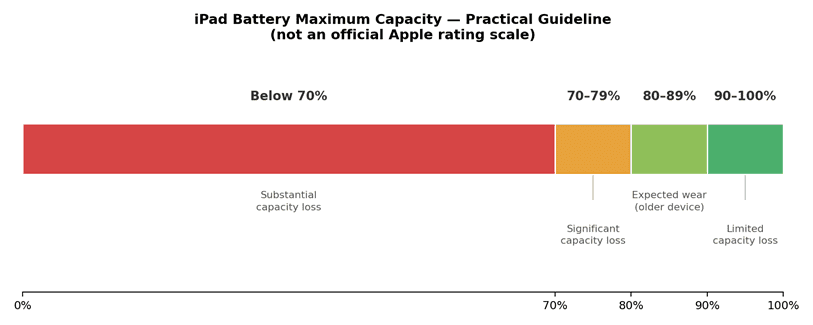
It’s important to set expectations correctly: these ranges were devised by us, and are based around Apple’s guidance that iPad batteries are designed to retain 80% of their original capacity at 1,000 complete charge cycles, depending on how they’re regularly used and charged. Apple doesn’t publish its support tiers in this way.
There are good and bad things to take from every number we see. Here’s how you should think about some percentages for the iPad.
| Capacity range | What it commonly suggests |
| 90–100% | That’s a decent number. The device is likely in good health. |
| 80–89% | That number may seem low, but it’s probably just how things are because of age. |
| 70–79% | You’ll start to notice a big difference. I’d encourage you to get it serviced if prolonging battery life means distraction. |
| Below 70% | Compare the cost of a battery service with the cost and benefits of upgrading. |
Be careful about how you interpret your iPad’s battery health, because there’s more to it than just the battery. Background apps and a weak connection mainly increase battery drain rather than changing the Battery Health percentage itself. Don’t think about replacements unless you see significant battery degradation across multiple, diverse apps.
Beware of any battery repair applications. No app can restore capacity a battery has already lost — be cautious of anything claiming to “repair” battery health, especially one that asks for a long list of permissions to do it. You should only replace your battery in person for safety reasons, e.g., a bulging battery.
Losing numbers in battery health is a natural phenomenon, but rapid capacity loss isn’t typical and is worth getting checked.
Battery health deterioration is a natural process, but don’t push it too far the other way. If you’re experiencing swelling and overheating, you should definitely replace it.
Ways you can slow down battery degradation
- Try to keep the iPad at a temperature between 16-22°C/62-72°F whenever possible (Apple guidance). Apple is clear that temperatures above 35°C (95°F) can permanently damage the battery.
- Enable ‘80% charge limit’ if you own an iPad model that supports this feature.
- Stay away from bad quality chargers. Use a reputable, standards-compliant charger and cable — poor-quality or noncompliant accessories can introduce charging, heat, reliability, or electrical-safety problems.
- If you’re going to store the iPad, charge it to about 50% and then turn it off.
How do I decide if I need to repair or buy a new iPad?
The battery health percentage is not the only factor in determining if you need to buy a new iPad. The following things need to be evaluated:
- The actual lifespan of the battery
- How long the iPad will continue to receive software updates.
- The cost of replacing the battery vs selling it or buying a new iPad.
If your daily use of the iPad feels fast, replacing the battery becomes the better option. However, if you’re experiencing slow day to day use of the iPad or if it’s close to the end of its supported software version, you would be better off spending that money on a new device.
Frequently Ask Question
How frequently should I check my battery health?
Every few months is usually ok. However, if you are traveling, thinking of selling it or something doesn’t feel right, you should consider checking it sooner.
Is it okay to use an iPad with low battery health?
As long as decreased runtime is the only issue, it is okay to use. Swelling, heat, smell or visible case distortion are bigger issues. Stop using and take it to Apple Support or a certified repair shop.
Will updating to the latest iPadOS impact battery health?
An update doesn’t physically reduce the battery capacity, so it will not lessen it. It can impact battery capacity management. Reported maximum capacity can change slightly, as the system recalculates its estimate.
Can a low quality charging cable and a charger damage the battery?
A cable and adapter that are both rated and certified are your best option. The risk of low quality accessories is charging with increased heat, which will result in battery degradation, but there can also be a number of unseen issues with low quality electronics.
Conclusion
Health is expressed as a number and battery health is no exception. If your iPad doesn’t show battery health in Settings, you can also use a 3rd party app to check. Battery health is clearly indicated when it is above 90% with no symptoms. Below 80% is potentially a greater risk, especially if your iPad is exhibiting symptoms such as very fast drain or random shut downs. When deciding if it is worth it to replace the battery or to upgrade your iPad, consider the cost of the service and how long you plan to use it.
Sources
- Apple Support — How to check battery health and history on your iPad
- Apple Support — About charging and maintaining your iPad battery
- Apple — Batteries: Maximizing Performance
- Apple — Battery Service and Recycling

Louis Mugan is a seasoned technology writer with a talent for turning complicated ideas into clear, practical guidance. He focuses on helping everyday readers stay confident in a world where tech moves fast. His style is approachable, steady, and built on real understanding.
He has spent years writing for platforms like EasyTechLife, where he covers gadgets, software, digital trends, and everyday tech solutions. His articles focus on clarity, real-world usefulness, and helping people understand how technology actually fits into their lives.
Outside of his regular columns, Louis explores emerging tools, reviews products, and experiments with new tech so his readers don’t have to. His steady, friendly approach has made him a reliable voice for anyone trying to keep up with modern technology. get in touch at louismugan@gmail.com


