Most Android apps come from the Google Play Store, but sometimes you need an app that isn’t there. Maybe it’s a beta from a developer, an app from another trusted store, or an older version of something you use. In those cases, you can install it from an APK file. This is called sideloading, and Android allows it as long as you give permission first.
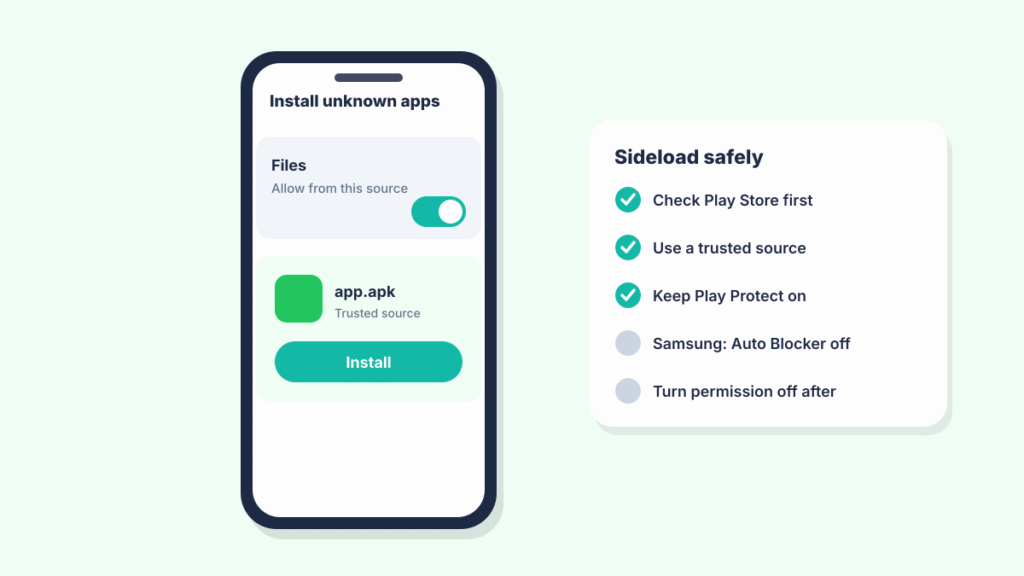
Quick answer: Download the APK from a source you trust, then tap the file to open it. When Android warns that your phone isn’t allowed to install unknown apps from this source, tap Settings, turn on Allow from this source, go back and tap Install. On newer Samsung phones, you may also need to turn off Auto Blocker first under Settings > Security and privacy.
What is an APK file?
APK stands for Android Package Kit. It’s the file format Android uses to install apps. When you download an app from the Play Store, your phone installs an app package behind the scenes. Sideloading just means you install the package yourself.
Some apps come as split packages with extensions like .apks, .xapk or .apkm instead of a single .apk. Your phone can’t open those on its own. They need the installer app from whoever published them.
Before you install an APK
APK files can do anything a regular app can, including stealing data if they’re malicious. A few checks go a long way:
- Check the Play Store first. If the app is there, install it from Play instead.
- Use the developer’s own website or a well-known app store. Avoid random download sites, links in texts and “free premium” versions of paid apps.
- Don’t install an APK because someone told you to on the phone. Scammers often ask victims to install an app so they can take over the phone or bank account.
- Keep Google Play Protect on. It scans apps, including sideloaded ones. Open the Play Store, tap your profile picture and choose Play Protect to check it.
How to install an APK on Android
These steps work on Pixel phones and most other Android phones. Menu names can vary a little by brand.
- Download the APK file in your browser, such as Chrome.
- Open the download from the browser’s notification, or open the Files app and go to Downloads.
- Tap the APK file.
- If you see a message that your phone isn’t allowed to install unknown apps from this source, tap Settings.
- Turn on Allow from this source.
- Tap the back arrow, then tap Install.
- Wait for the install to finish and tap Open, or find the app in your app drawer.
Android gives this permission to the app you used to open the file, such as Chrome or Files, not to your whole phone. After you’re done, you can turn it back off.
How to install an APK on a Samsung Galaxy phone
Newer Galaxy phones have a security feature called Auto Blocker that blocks apps from outside the Play Store and Galaxy Store. It’s on by default on many recent models. If an APK refuses to install even after you allow the source, Auto Blocker is the likely cause.
- Open Settings > Security and privacy > Auto Blocker.
- Turn Auto Blocker off.
- Install the APK using the steps above. Samsung may ask you to allow the source in the same way.
- Go back and turn Auto Blocker on again when you’re finished.
How to turn off unknown app installs afterward
Leaving the permission on means that app can ask to install more apps later. Android still asks you to confirm each install, but it’s safer to switch it off when you don’t need it. To turn it off:
- Pixel and most Android phones: Go to Settings > Apps > Special app access > Install unknown apps, pick the app (for example, Chrome) and turn off Allow from this source.
- Samsung: Go to Settings > Security and privacy > More security settings > Install unknown apps, pick the app you used to open the APK and turn off Allow from this source.
New in 2026: developer verification for sideloaded apps
Google is adding a new security check for apps installed outside the Play Store. Developers now have to verify their identity and register their apps with Google. Here’s the timeline Google has shared:
- September 30, 2026: Certified Android phones in Brazil, Indonesia, Singapore and Thailand started requiring apps to be registered to a verified developer before they can be installed.
- January 2027: Google plans to start the global rollout, beginning with installs from seven app stores, including Google Play and the Galaxy Store, and expanding to more devices over time.
For most people, nothing changes. Apps from well-known developers will keep installing normally. If you want to install an app from an unverified developer, Google is adding an advanced flow. It involves turning on developer options, going through a one-time setup and accepting clear warnings. Developers and power users can also still install apps with ADB from a computer.
Why an APK won’t install
| Message or problem | Likely cause | What to try |
|---|---|---|
| App not installed | The APK is damaged, or it conflicts with a version already on your phone | Download it again. If an older copy came from a different source, you may need to uninstall it first, but that can erase the app’s data, so back up anything important. |
| Blocked by Play Protect | Play Protect detected a possible security threat | Don’t bypass the warning. Get the app from the developer’s official site or the Play Store instead. |
| App not installed as package appears to be invalid | The file is a split package or isn’t for your phone | Use the developer’s own installer, or find a version for your Android version. |
| Nothing happens on Samsung | Auto Blocker is on | Turn off Auto Blocker for the install. |
| Not enough storage | Your phone is full | Free up space and try again. |
If the Play Store itself is giving you trouble, see our guide on fixing Play Store download problems.
Frequently asked questions
Is downloading an APK illegal?
Installing APK files is legal, and Android supports it. What can be illegal is downloading pirated copies of paid apps or games. Stick to free apps and official sources.
Is it safe to install APK files?
It can be, if the file comes from the developer or a trusted store and Play Protect is on. APKs from unknown sites are one of the most common ways Android malware spreads.
What’s the difference between an APK and an app?
An app is the program you use. An APK is the file that installs it. Every Android app starts as some form of app package.
Can I install an APK from my computer?
Yes. Copy the APK to your phone with a USB cable (see how to turn on USB file transfer) and open it in the Files app. Our guide to accessing internal storage on Android shows where downloaded files end up. Advanced users can also install it with ADB, which needs USB debugging turned on.
Will sideloaded apps update automatically?
Not always. If the app also exists on the Play Store and the files come from the same developer, Play may update it. Otherwise, you’ll need to get new versions from the developer’s site or the store you used.

Louis Mugan writes how-to and troubleshooting guides for EasyTechLife, covering Android phones, iPhones, laptops, Chromebooks, headphones and everyday software.
He aims to base each guide on official manufacturer documentation and support pages, and to link the sources so readers can check the steps for themselves. Questions or corrections? Use the contact page.