
Broken your phone’s screen and need to get to your apps, photos or files? The right method depends on three things: whether the display still shows an image, whether touch still works, and whether you can unlock the phone.
If you can see the screen but can’t tap it, a USB mouse is usually the fastest fix. If the display is black, your options depend on settings you turned on before the damage. If the phone stays locked, no cable, app or remote service will unlock it for you.
This guide covers Android phones. It explains which methods work, what each one needs, and how to protect your data before you book a repair.
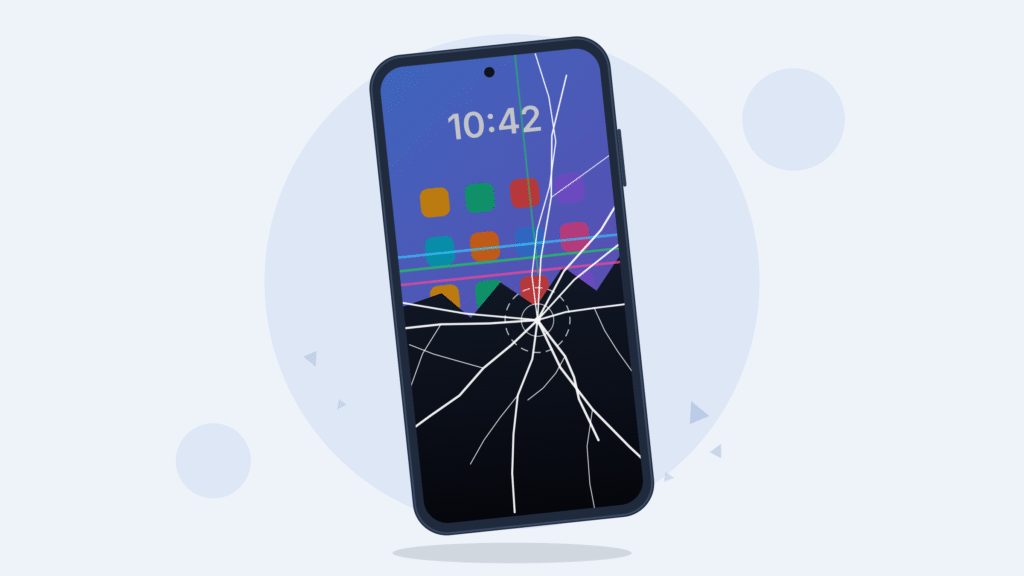
Check what still works first
Spend two minutes finding out what still works before you buy anything or install anything. Your answers decide which section of this guide applies.
- Is the phone on? Press the power button and listen for a sound or vibration. Plug it into a charger and check for a charging vibration.
- Does the display show anything? Look in a dim room. A faint image or glowing backlight means the display partly works.
- Does touch respond? If you can see the screen, try a swipe. Ghost taps, dead zones or no response mean the touch layer is damaged.
- Can you unlock it? A rear or side fingerprint sensor may still work. An under-display sensor often fails when the screen is cracked.
- What did you set up before the damage? USB debugging, an authorized computer and cloud backups open up most of the options below.
| Your situation | Best first step | Where to look |
|---|---|---|
| Display works, touch doesn’t | Plug in a USB mouse through an OTG adapter | Use a USB mouse or keyboard |
| Display partly works (lines, dark patches) | USB mouse, or mirror to a TV or monitor | Use a USB mouse; Connect to a TV or monitor |
| Display is black, phone is on | External display if supported; otherwise TalkBack with a keyboard | Black screen; Connect to a TV or monitor |
| USB debugging was already on | Mirror and control the phone from a computer | Control your phone from a PC with scrcpy |
| Phone is locked and you can’t enter the PIN | Enter it with a mouse or keyboard, or book a repair | Use a USB mouse; What to do when nothing works |
| You only need photos and files | Check your cloud backups first | Recover data from existing backups |
| Phone got wet, or won’t turn on after charging | Don’t charge a wet phone; take it to a repair shop | What to do when nothing works |
Use a USB mouse or keyboard when touch doesn’t work
If the display still shows an image but touch is dead, a USB mouse is the quickest and cheapest fix. Most Android phones with a USB-C port accept one through an OTG (On-The-Go) adapter, and a pointer appears as soon as it connects.
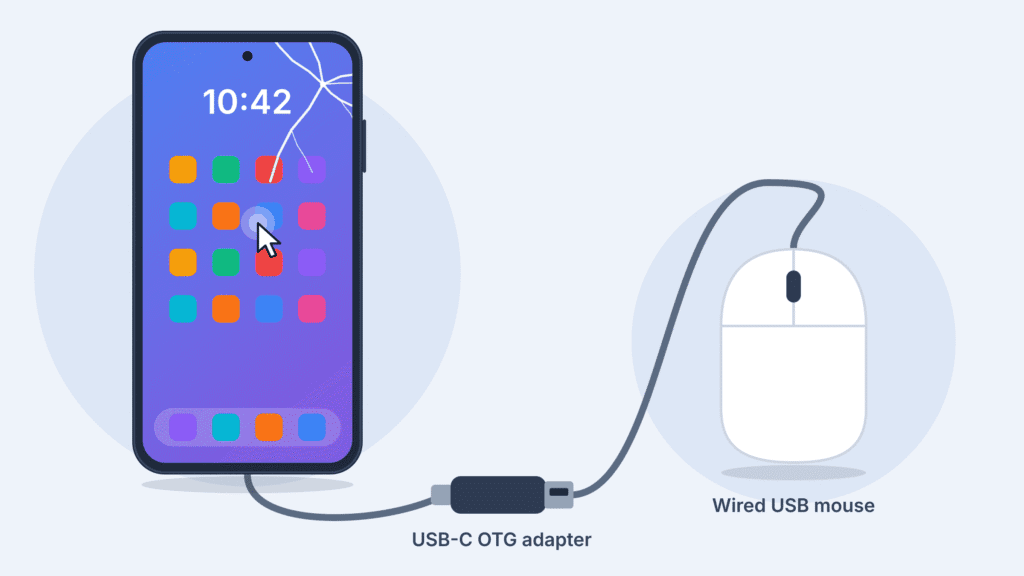
What you need
- A USB-C OTG adapter (USB-C plug to USB-A socket), or a mouse with a USB-C plug.
- A wired mouse, or a wireless mouse that uses its own USB receiver. Skip Bluetooth mice: pairing one needs the screen.
- Optional: a small USB-C hub, so a mouse and keyboard can be plugged in at the same time.
How to use it
- Plug the adapter into the phone, then plug the mouse into the adapter.
- Click to tap. Click and drag to swipe, scroll or draw an unlock pattern.
- Right-click usually acts as the Back button.
- To enter a PIN or password, click the on-screen keypad or type it on a USB keyboard.
If no pointer appears
- Some brands switch OTG off by default. On many OPPO, realme and OnePlus phones you have to turn on “OTG connection” in Settings, and it turns itself off after about 10 minutes unused (realme support). If part of the screen still responds, use it to flip that switch.
- Try another adapter. A cheap or damaged adapter fails more often than the phone does.
- If the display shows lines or dark patches that hide what you need, mirror the phone to a bigger screen instead (see the TV and monitor section below).
Black screen but the phone is on: navigate by sound
If the display is completely dark but the phone still rings or vibrates, you can sometimes work it blind. TalkBack, Android’s built-in screen reader, reads out what’s on screen, and a USB keyboard lets you move around without touching anything. It’s slow, so use it for one or two jobs, not everyday use.
Turn on TalkBack
- Hold both volume keys for a few seconds. This only works if the volume-key shortcut was turned on before the damage, or if your phone turns it on by default. On some, the first hold asks for confirmation, and holding the keys again confirms it.
- With a USB keyboard plugged in, Ctrl + Alt + Z triggers the same volume-key shortcut. On phones running the latest Android 16, Action + Alt + T toggles TalkBack directly (Google: Turn on TalkBack).
- If “Hey Google” is set up, you can say “Turn on TalkBack.”
If TalkBack doesn’t start, try the keyboard shortcut or the voice command. If none of them work, TalkBack isn’t an option on this phone, so skip to the TV and monitor section or the repair options.
Get around with a keyboard
- Wake the phone with the power button, then type your PIN or password on the keyboard and press Enter. On many phones the lock screen accepts keyboard input even without TalkBack.
- Move between items with the TalkBack key plus the arrow keys, and activate an item with the TalkBack key plus Enter. The TalkBack key is Alt in the default keymap, and the Windows or Command key in the enhanced one (Google: TalkBack keyboard shortcuts).
- Listen to what TalkBack announces before you press anything.
What to use it for
- Approve a USB file transfer when the phone is plugged into a computer.
- Start a manual backup, or open Samsung Smart Switch to move data to a new phone.
- Turn on USB debugging, connect the computer, and accept the “Allow USB debugging?” prompt. Once the computer is authorized, scrcpy (below) can show the phone on the computer screen. This is the most useful move if you have the patience.
Connect your phone to a TV or monitor
If your phone can send video out through its USB-C port, a TV or monitor becomes its new screen. It’s often the best option for a black or badly cracked display, but many phones can’t send video this way.
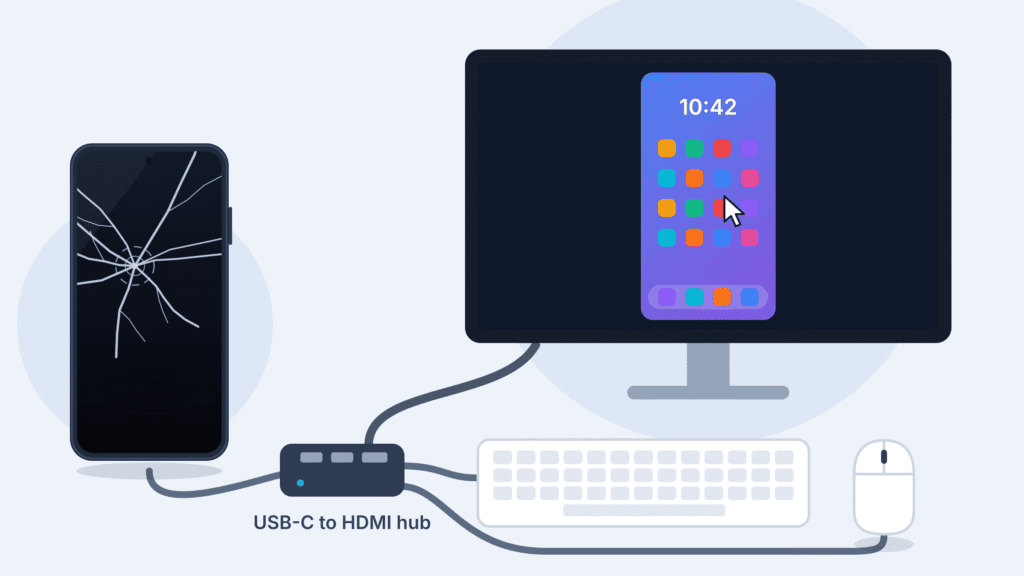
Check whether your phone supports video output
- Samsung Galaxy: Samsung has an official method for broken screens. It needs Android 12 or later and a model that supports DisplayPort output (Samsung UK). Samsung’s adapter guide lists the Galaxy S8 to S24, Note8 to Note20 and Z Fold to Z Fold5 (Samsung Gulf). The oldest of those never got Android 12, and Galaxy A models aren’t listed. The list isn’t complete, and support also depends on your software version and adapter, so check your model’s specs before you buy an HDMI hub.
- Google Pixel: Pixel 8 and later can mirror over USB-C, but the phone asks you to confirm on its own screen first (Android Authority). That only helps if part of the screen still responds.
- Other brands: Search your model’s specs for “DisplayPort Alt Mode” or “video output.” Many mid-range and budget phones charge and transfer data over USB-C but can’t send video.
What you need
- A USB-C to HDMI hub that also has at least one USB-A port.
- An HDMI cable and a TV or monitor.
- A wired USB mouse and keyboard.
Samsung’s broken-screen steps
- Plug the monitor, mouse and keyboard into the hub.
- Hold both volume buttons on the phone, then connect the phone to the hub. Let go once it’s connected.
- If the phone’s screen appears on the monitor, unlock it with the mouse or keyboard.
- If the Samsung DeX desktop appears instead, click Apps in the bottom-left corner, then Exit DeX to switch to the mirrored screen. Press Esc to close the DeX setup screen if it shows up.
- Open Smart Switch to copy your data to a new phone, or back it up.
Wireless options like Smart View, Chromecast or Miracast won’t help here. You have to start them from the phone’s own screen.
Copy files to a computer over USB
A USB cable can copy your photos and files to a computer, but only after you unlock the phone and approve the connection on it. A locked phone shows up as charging only, and your files stay hidden.
Steps (Google Help)
- Unlock the phone.
- Connect it to the computer with a USB cable. Use one that carries data: some cables only charge.
- On the phone, tap the “Charging this device via USB” notification.
- Under “Use USB for,” choose File Transfer.
- On the computer, open the phone and copy the folders you need. Camera photos are in DCIM; also check Pictures, Download and Documents.
Steps 1, 3 and 4 happen on the phone, so you need one of the other methods in this guide to do them: a USB mouse, an external display, TalkBack or scrcpy.
Good to know
- Messages and most app data aren’t copied this way. Restore them from each app’s own backup instead.
- On a Samsung Galaxy, Smart Switch for PC can back up more of the phone, but it also needs the phone unlocked and the connection approved on it.
- If the phone doesn’t appear on the computer, try another cable and another USB port before assuming the phone’s port is damaged.
Control your phone from a PC with scrcpy
scrcpy is a free, open-source tool that shows your phone’s screen in a window on your computer and lets you control it with the computer’s mouse and keyboard. It runs on Windows, macOS and Linux, needs no account, and installs nothing on the phone.
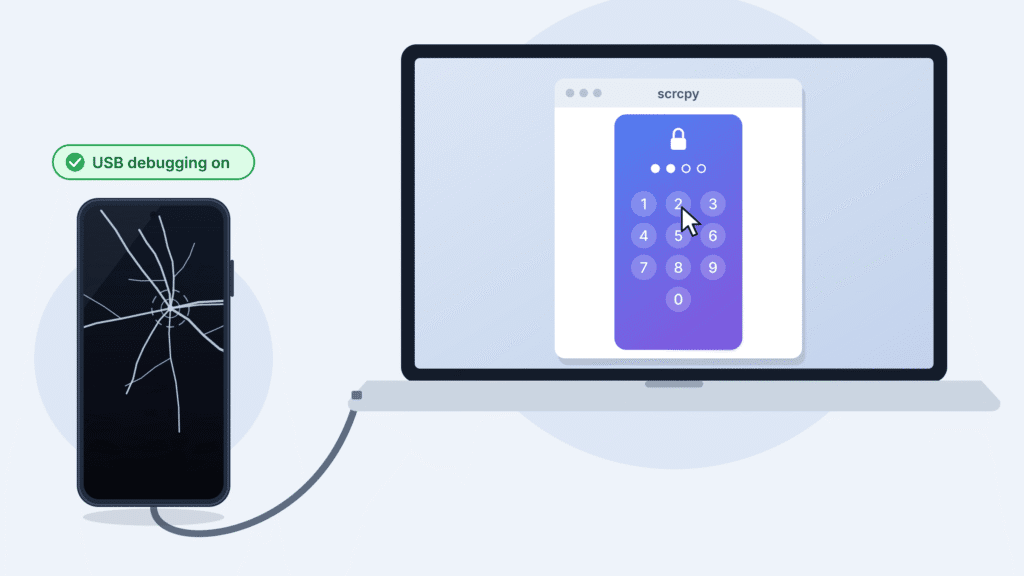
The catch: it needs setup from before the damage
- The phone must run Android 5.0 or later.
- USB debugging must already be turned on.
- The phone must already trust your computer. The first time a computer connects, Android shows an “Allow USB debugging?” prompt that you have to accept on the phone’s screen.
If you never turned on USB debugging, this method won’t work on its own. You can sometimes turn it on blind with TalkBack and a keyboard, or with a mouse if the display works, then accept the computer’s prompt the same way.
How to use it
- Download scrcpy only from its official GitHub page. Copies on other sites may be unsafe.
- Connect the phone to the computer with a USB cable.
- Run scrcpy. The phone’s screen appears in a window within a few seconds.
- Click to tap, right-click for Back, and type on your keyboard. Then unlock the phone and copy your files, or open a backup app.
On some Xiaomi phones, you also need a second setting called “USB debugging (Security settings)” to control the phone with a mouse.
Display works but touch doesn’t? scrcpy’s OTG mode turns your computer’s mouse and keyboard into a plugged-in mouse and keyboard for the phone. It doesn’t need USB debugging, but it doesn’t mirror the screen, so you still look at the phone. It only works over a USB cable. Start it with:
scrcpy --otgIf OTG mode doesn’t work on Windows, the scrcpy FAQ covers known Windows issues.
Can ADB help without a working screen?
Yes, but only with the same setup scrcpy needs: USB debugging already on, and your computer already trusted. ADB (Android Debug Bridge) is the command-line tool scrcpy is built on. It can’t bypass a lock screen, and it can’t turn on USB debugging for you.
To check, install Android’s platform tools, connect the phone and run adb devices. If the phone is listed as “device,” you’re in. If it says “unauthorized,” the computer was never approved, and ADB won’t work until you accept the prompt on the phone.
If it works, unlock the phone the normal way first: in scrcpy’s window, or with a keyboard plugged into the phone. ADB doesn’t bypass the lock screen, and typing your PIN into a command can leave it in your computer’s command history.
adb pull /sdcard/DCIM/Camera ./phone-photosOnce the phone is unlocked, this command copies your camera photos into a folder on the computer. Change the path to copy other folders, such as /sdcard/Pictures or /sdcard/Download. For most people, scrcpy is the easier route because you can see what you’re doing.
Can Google Find Hub or Samsung Find unlock your phone?
No. Neither service can unlock your phone, show you its screen or let you browse its files. They’re built for lost and stolen phones, not broken ones.
| What you want to do | Google Find Hub | Samsung Find (SmartThings Find) |
|---|---|---|
| See where the phone is | Yes | Yes |
| Make it ring | Yes | Yes |
| Lock it and show a message | Yes | Yes |
| Erase everything on it | Yes | Yes |
| Unlock it remotely | No | No, removed in December 2023 |
| See the screen or copy files | No | No |
Google’s Find Hub, called Find My Device until 2025, can find, secure or erase a lost phone (Google Help). Samsung used to offer remote unlock, but it shut the feature down on December 4, 2023, for security reasons. A Galaxy you can’t unlock now needs a factory reset at a Samsung service center, which deletes all your data (Samsung).
Don’t press the erase or factory reset button unless you’ve already recovered your data or accepted losing it.
Recover photos and data from existing backups
Check what’s already safe before you try anything risky. If your phone was signed in to a Google account, much of your data may already be in the cloud, and you can check from any computer.
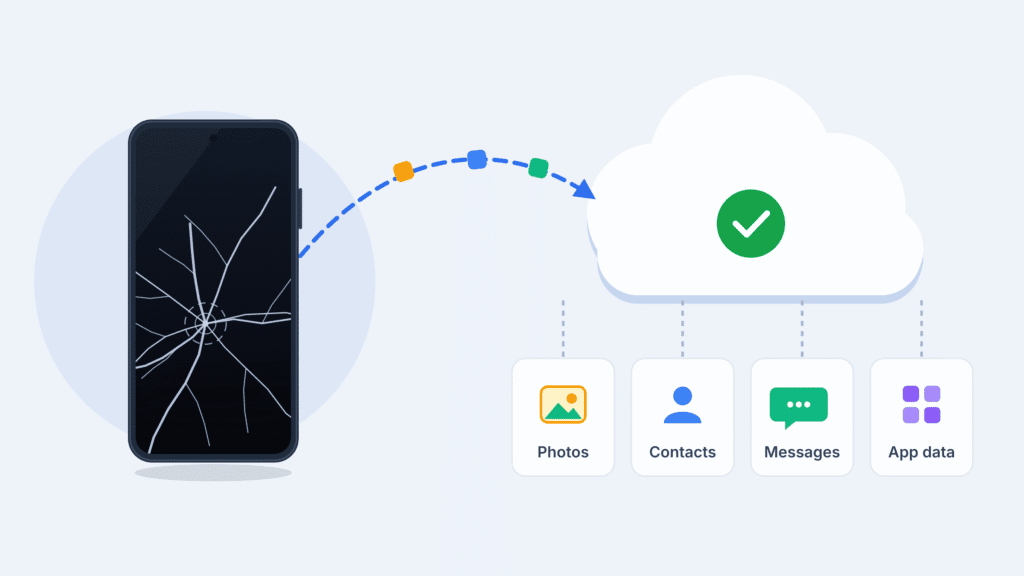
| What you’re looking for | Where to check |
|---|---|
| Photos and videos | photos.google.com, if Google Photos backup was on. On a Galaxy, also check OneDrive if you linked your Gallery to it. |
| Contacts | contacts.google.com |
| Text messages, app data and settings | Your Android backup. You can’t browse it, but it restores when you sign in to a new or repaired phone (Google Help). |
| WhatsApp and other chats | The app’s own backup, usually on Google Drive. It restores when you reinstall the app and sign in with the same number or account. |
| Galaxy-specific data | Samsung Cloud backup, which restores to another Galaxy phone. |
If everything you need is already backed up, you may not need to rescue the broken phone at all. Sign in on a new phone, or on this one after the screen is replaced, and restore during setup.
What not to do, and what to do when nothing works
The biggest risk with a broken phone isn’t the screen. It’s losing data that could have been saved.
Avoid these
- Factory resets and remote erase. They delete everything that isn’t backed up, permanently.
- “Unlock” or “recovery” software that promises to bypass the lock screen. Modern Android phones encrypt your data with your lock-screen credentials, so legitimate tools can’t read it without your PIN. Many of these programs are scams or malware.
- Guessing your PIN over and over. Each wrong attempt adds a delay, and some phones have a setting that erases everything after too many failures.
- Charging a wet phone, or pressing on a bulging one. Water and a swollen battery are both fire and damage risks. Take it straight to a repair shop.
When nothing works
- Replace the screen. This is often the fastest way to get everything back. A screen repair usually keeps your data, but tell the shop it matters and ask them not to reset the phone.
- Visit the manufacturer’s service center. For a phone you can’t unlock, they can factory reset it after checking your ID, but your data will be deleted.
- Try a data recovery specialist if the phone won’t turn on at all. Board-level repair is expensive, and because of encryption it still needs the phone running and your PIN.
Frequently asked questions
Can I unlock an Android phone with a broken screen?
Only by entering your PIN, pattern or password another way: a USB mouse or keyboard, an external display, or scrcpy or ADB if USB debugging was already on. No remote service can unlock it for you.
Can I get my files off a locked phone with a USB cable?
No. Android hides your files over USB until the phone is unlocked and you approve the connection on it. Check your cloud backups instead.
Will a screen replacement erase my data?
Usually not. A screen swap doesn’t touch storage, but tell the repair shop your data matters and ask them not to reset the phone.
Will a stylus work on a cracked screen?
Only if the touch layer still responds. A stylus still touches the screen, so it can’t help when touch is dead.
Does the Accessibility Menu help?
Not much. It’s an on-screen menu of shortcuts, so you need a working display and touch to use it. TalkBack with a keyboard is the accessibility feature that helps.
What if I have an iPhone?
This guide covers Android only. iPhones work differently: Siri can turn on VoiceOver, Apple’s screen reader, and your photos may already be in iCloud. Check Apple Support for the full options.

Louis Mugan is a seasoned technology writer with a talent for turning complicated ideas into clear, practical guidance. He focuses on helping everyday readers stay confident in a world where tech moves fast. His style is approachable, steady, and built on real understanding.
He has spent years writing for platforms like EasyTechLife, where he covers gadgets, software, digital trends, and everyday tech solutions. His articles focus on clarity, real-world usefulness, and helping people understand how technology actually fits into their lives.
Outside of his regular columns, Louis explores emerging tools, reviews products, and experiments with new tech so his readers don’t have to. His steady, friendly approach has made him a reliable voice for anyone trying to keep up with modern technology. get in touch at louismugan@gmail.com


