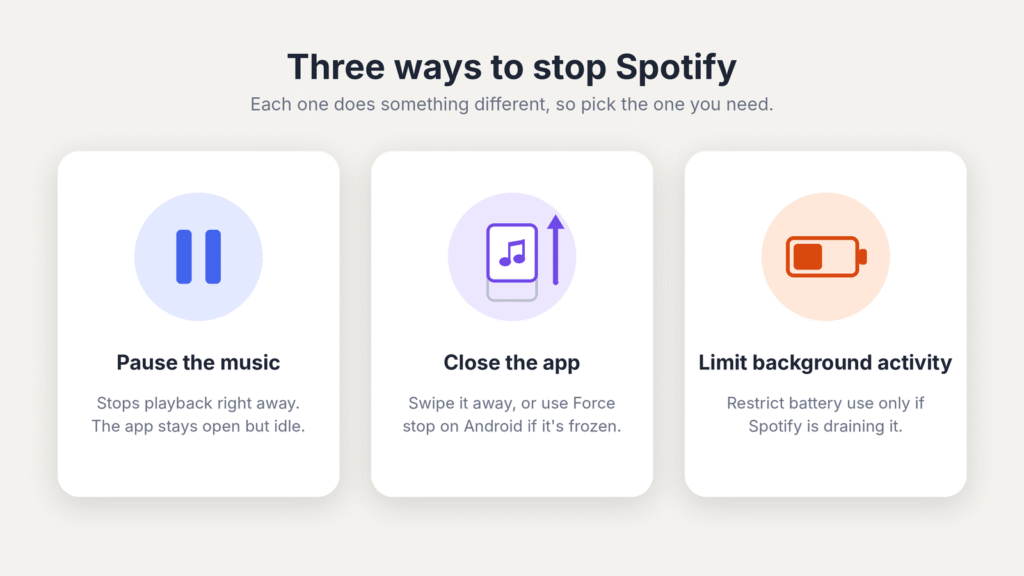
Is Spotify still playing after you’re done listening, or do you just want to close the app? It only takes a few seconds on Android or iPhone. But closing Spotify, pausing the music and limiting background activity are different things, and the right fix depends on what you’re trying to stop.
Quick Answer
- Android: Open Recent Apps (swipe up from the bottom and hold, or tap the Recents button) and swipe Spotify away. If it won’t close, go to Settings > Apps > Spotify > Force stop.
- iPhone: Swipe up from the bottom and pause in the middle of the screen (or double-click the Home button). Then swipe Spotify up and off the screen.
- Just want the music to stop? Tap Pause. You don’t need to close the app at all.
How to Close Spotify on Android
There are two ways to close Spotify on Android: from Recent Apps, or with Force stop in Settings when the app is frozen.
Close Spotify Using Recent Apps
- Open Recent Apps. With gesture navigation (the default on most phones), swipe up from the bottom of the screen, hold for a moment, then let go. With button navigation, tap the Recents button instead. It’s a square on Pixel phones and three vertical lines on Samsung phones.
- Swipe left or right until you find Spotify.
- Swipe Spotify up and off the screen.
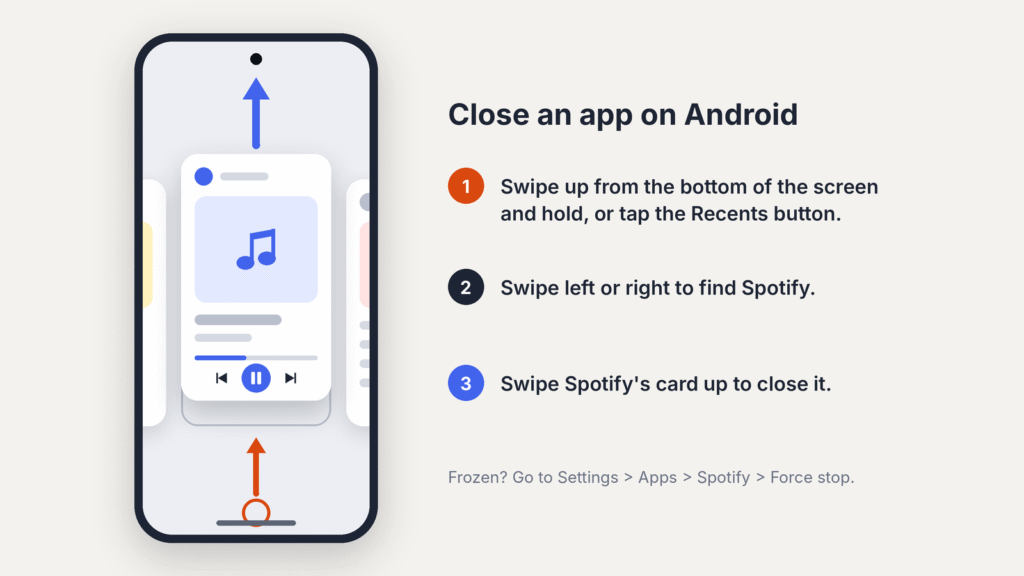
On some phones, music can keep playing from the notification after you swipe Spotify away. If that happens, pause it there or use Force stop.
Force Stop Spotify From Android Settings
Use Force stop when Spotify is frozen or won’t close from Recent Apps.
- Open Settings and tap Apps. On some phones you’ll need to tap See all apps next.
- Find and tap Spotify.
- Tap Force stop, then tap OK to confirm.
Force stop shuts Spotify down completely, including any music that’s playing. It opens normally the next time you tap its icon.
You don’t need to do this regularly. Google notes that Android manages memory and battery on its own, even if you never close your apps.
How to Close Spotify on iPhone
On iPhone, you close Spotify from the App Switcher. Unlike Android, iOS has no Force stop button in Settings.
- Open the App Switcher. On an iPhone with Face ID, swipe up from the bottom of the screen and pause in the middle. On an iPhone with a Home button, double-click the Home button.
- Swipe left or right until you find Spotify.
- Swipe up on Spotify’s preview to close it.
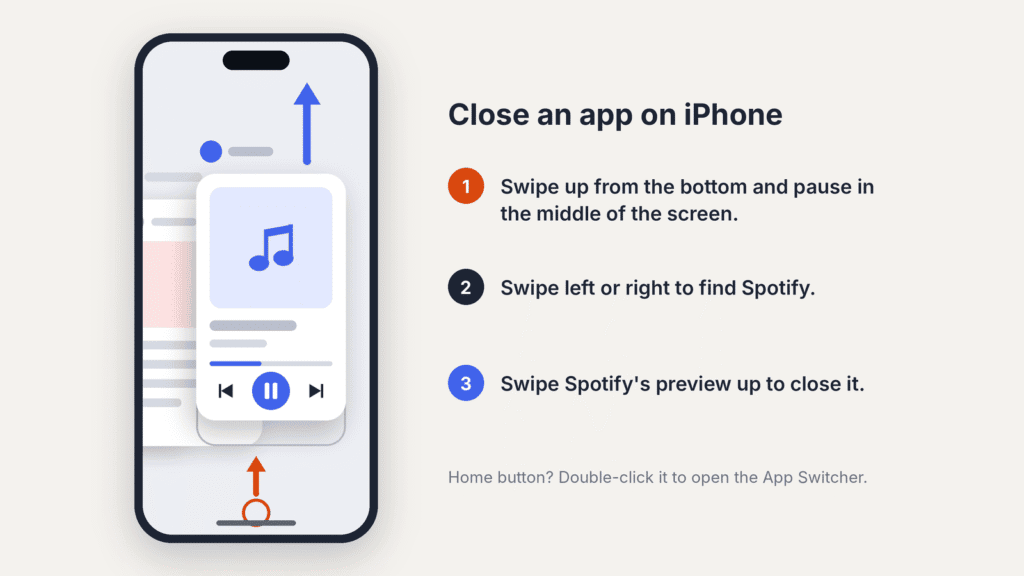
Closing Spotify this way also stops music playing on your iPhone. Music playing on another device through Spotify Connect may keep going.
Apple recommends closing an app only when it’s unresponsive. Apps in the App Switcher use power only while they’re active or running specific background tasks, so closing them doesn’t improve battery life.
How to Stop Spotify Music Without Closing the App
If you just want silence, pausing is faster than closing the app. A paused Spotify app uses very little battery. You can pause from several places:
- In the app: Tap the pause button on the Now Playing bar at the bottom of the screen.
- From the lock screen: Tap pause on the media controls.
- On Android: Swipe down from the top of the screen and tap pause in the media player.
- On iPhone: Open Control Center and tap pause.
- On headphones: Press the play/pause control on your earbuds or headset.
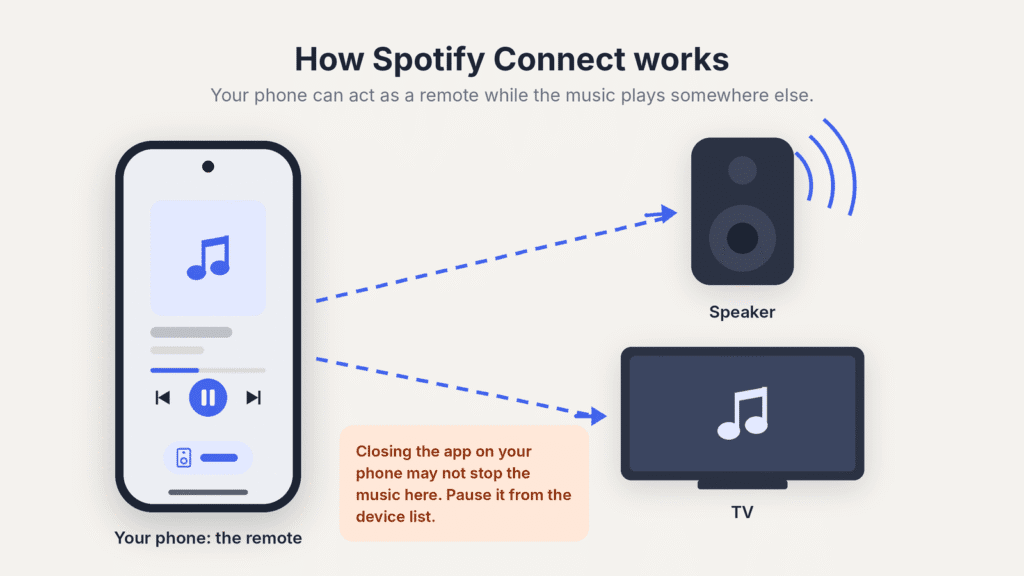
Playing on a speaker or TV? Your phone may only be acting as a remote through Spotify Connect. Closing the app on your phone won’t stop the music. Tap the device icon at the bottom of the Now Playing screen to see where Spotify is playing, then pause it there.
How to Limit Spotify’s Background Activity and Battery Use
Check whether Spotify is actually using much battery before you restrict it. Open Settings > Battery on either phone to see how much power each app has used, including in the background.
On Android
- Go to Settings > Apps > Spotify, then tap App battery usage (or Battery on Samsung phones).
- Check which options your phone shows. Some phones, including Pixels, have an Allow background usage switch with Optimized and Unrestricted under it. Others, including Samsung, list Unrestricted, Optimized and Restricted.
- To limit Spotify, turn off Allow background usage or choose Restricted.
Only do this if your Battery settings show Spotify using a lot of power in the background. Restricting it can stop music a few minutes after you lock the screen or switch apps. For most people, Optimized is the better choice.
On iPhone
On iPhone, the most reliable fix is to pause the music, then close Spotify from the App Switcher if needed.
You can also turn off Background App Refresh for Spotify under Settings > General > Background App Refresh. This stops Spotify updating content while you’re not using it. It does not stop music that’s already playing, because audio playback is a separate background activity.
The same goes for Low Power Mode on iPhone and Battery Saver on Android. Both cut background activity, but neither is designed to stop a song that’s playing.
How to Make Spotify Stop Playing Automatically
Two settings control when Spotify stops playing: Autoplay decides what happens after your music ends, and the Sleep Timer stops playback at a set time.
Turn Off Autoplay
With Autoplay on, Spotify keeps playing similar songs after your album, playlist or queue finishes. To turn it off:
- Tap your profile picture at the top of the Spotify app.
- Tap Settings and privacy.
- Under Playback, switch Autoplay off.
Spotify should now stop once your selection and any queued songs have finished. It won’t cut a long playlist short, though. For that, use the Sleep Timer.
Use Spotify’s Sleep Timer
The Sleep Timer is the best option if you fall asleep listening.
- Open the Now Playing screen by tapping the bar at the bottom of the app.
- For music, tap the three dots in the top-right corner and scroll down to Sleep timer. For podcasts, tap the moon icon next to the play button.
- Choose a duration from 5 minutes to 1 hour, or End of track.
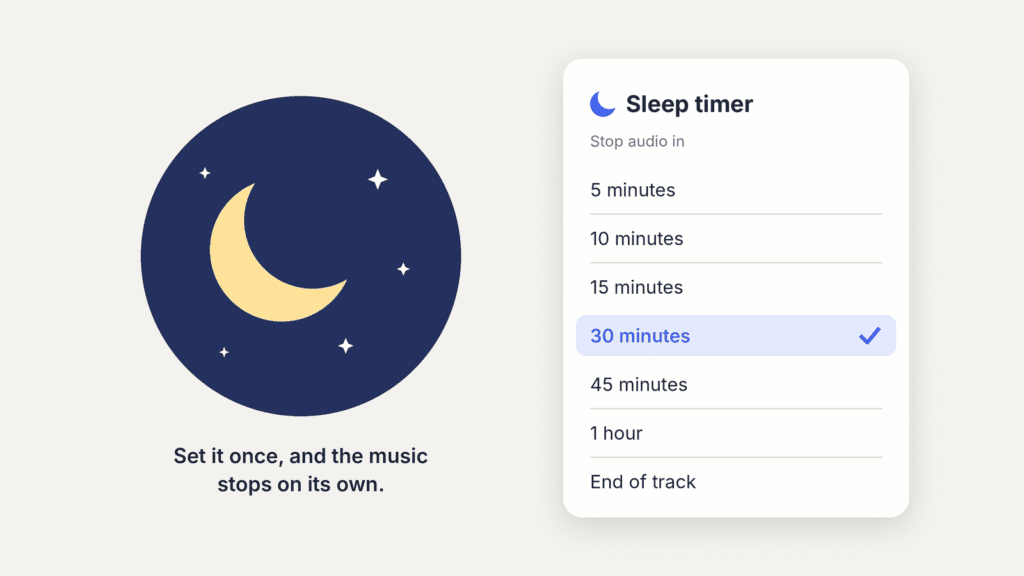
To cancel it, go back to the same menu and tap Turn off timer.
iPhone tip: The Clock app can also stop Spotify, or any other audio app. Open Clock > Timers, set a time, tap When Timer Ends, choose Stop Playing, then tap Start.
What to Do If Spotify Won’t Close or Keeps Playing
Match the problem to the fix below. If nothing works, restart your phone, which shuts down every app.
| Problem | Fix |
|---|---|
| Spotify is frozen and won’t swipe away | On Android, use Force stop in Settings. On iPhone, try the App Switcher again, then restart the phone. |
| Music keeps playing after you close the app | It’s probably on another device through Spotify Connect. Tap the device icon on the Now Playing screen and pause it there. |
| Spotify plays on a device you don’t recognize | If the option is available, tap the three dots next to it in the device list and choose Log out of this device. If someone else may be using your account, sign out everywhere from your Spotify account page and change your password. |
| Spotify starts playing when your car or headphones connect | The car or headphones send a play command when they connect. Check their settings for an auto-play option. |
| Spotify freezes or crashes repeatedly | Update Spotify from the App Store or Google Play. If that fails, uninstall and reinstall it. You’ll need to download offline music again. |
Frequently Asked Questions
Does Spotify drain battery when it’s closed?
Very little. Spotify uses minimal battery while it’s closed or paused, though notifications and occasional background tasks can still cause some activity. If your battery drains faster than expected, check Spotify’s usage in Settings > Battery before restricting it.
Why does Spotify keep playing after I lock my phone?
That’s by design. Both Android and iPhone let music apps keep playing with the screen locked. Pause it from the lock screen, or set a Sleep Timer before bed.
Does swiping Spotify away stop all background activity?
On iPhone, swiping it away stops the app and any music playing on your phone. Music on a speaker or TV through Spotify Connect keeps going. On Android, swiping usually stops the music too, but some phones keep the music going through the notification. Force stop is the most complete option. Closing Spotify also doesn’t stop its notifications, which can still arrive while the app is closed. To turn them off, change Spotify’s notification settings on your phone.
Related: how to turn off the music player on Android and how to turn off music on an iPhone.
Conclusion
Most of the time, you don’t need to close Spotify at all. Pause it when you’re done listening, turn off Autoplay if Spotify keeps adding similar songs, and use the Sleep Timer when you want the music to stop at a set time.
If Spotify freezes or won’t close, use Force stop on Android or the App Switcher on iPhone. If your battery drains faster than expected, check Spotify’s battery usage before changing background settings.

Louis Mugan writes how-to and troubleshooting guides for EasyTechLife, covering Android phones, iPhones, laptops, Chromebooks, headphones and everyday software.
He aims to base each guide on official manufacturer documentation and support pages, and to link the sources so readers can check the steps for themselves. Questions or corrections? Use the contact page.