Quick answer: vClock is the best free online alarm clock for most people. It needs no download and no account, has 21 built-in sounds, lets you use your own audio file, and has a Test button so you can check the volume before you rely on it. If you need several alarms in one tab, use AlarmAndClock.com or TimeMe. For harsh, hard-to-ignore alarm tones, pick Online Alarm Kur.
An online alarm clock is handy when you want an alarm on your computer for a nap, a meeting or a study session. One rule applies to every tool on this list, though: a browser alarm only rings while its tab is open and the computer is awake. Close the laptop lid and the computer usually goes to sleep, so the alarm never rings. The setup steps further down show how to avoid that.

The best free online alarm clocks at a glance
| Online alarm clock | Best for | Alarms in one tab | Built-in sounds | Stand-out feature |
|---|---|---|---|---|
| vClock | Most people | 1 | 21, or your own audio file | Test button and bookmarkable alarm links |
| Kuku Klok | The fastest setup | 1 | 6 | 10-minute snooze, rings even if the internet drops |
| Online Alarm Kur | A loud alarm | 1 | 11 | Volume slider, looped sound and a dark screen mode |
| AlarmAndClock.com | Multiple alarms | Several | 4, plus a silent option | Quick presets and a world clock |
| TimeMe | A full-day schedule | Up to 25 | 31, plus 3 custom slots | Color-coded alarms |
| SetAlarmClock.net | A gentler wake-up | 1 | Sound picker | Wake-up light and sleep sounds |
| Onlive Clock | A good-looking desk clock | 1 | Sound picker, plus radio | Eight clock styles and two snooze buttons |
How we tested these online alarm clocks
We opened every tool below in Chrome 150 on a Windows computer on November 10, 2026. For each one we opened the alarm settings, counted the options that are really there, and read what the site itself says about closed tabs, sleep mode and offline use. All seven are free, and none required an account to set an alarm.
We also ran a short live test. We set vClock, Kuku Klok and Online Alarm Kur to ring about ten minutes later and kept working in other tabs. All three started playing at 11:50:00, exactly on the minute, and Kuku Klok and Online Alarm Kur did it from background tabs. That is a ten-minute test on one computer, and we did not ring-test the other four tools. It does not prove any of them will last a whole night, which is why the setup steps further down matter.
We picked the winners on three things: how quickly you can set an alarm, whether you can test the sound first, and how clearly the site explains its limits. We did not rank the tools by loudness, because how loud a browser alarm gets depends on your speakers and your system volume as much as on the website.
Checking the live sites matters. At least one top-ranking roundup describes Kuku Klok as an animated cuckoo clock that chimes on the hour. The page we opened is a plain red digital display with six alarm sounds.
The 7 best free online alarm clocks
1. vClock: best online alarm clock overall
vClock gets the basics right. You pick the hour and minute, choose one of 21 sounds (bells, birds, rooster, piano, harp, school bell and more), add a title, and press Start. A Repeat sound box keeps the alarm playing until you stop it, and the Test button shows you exactly what the alert will look and sound like.
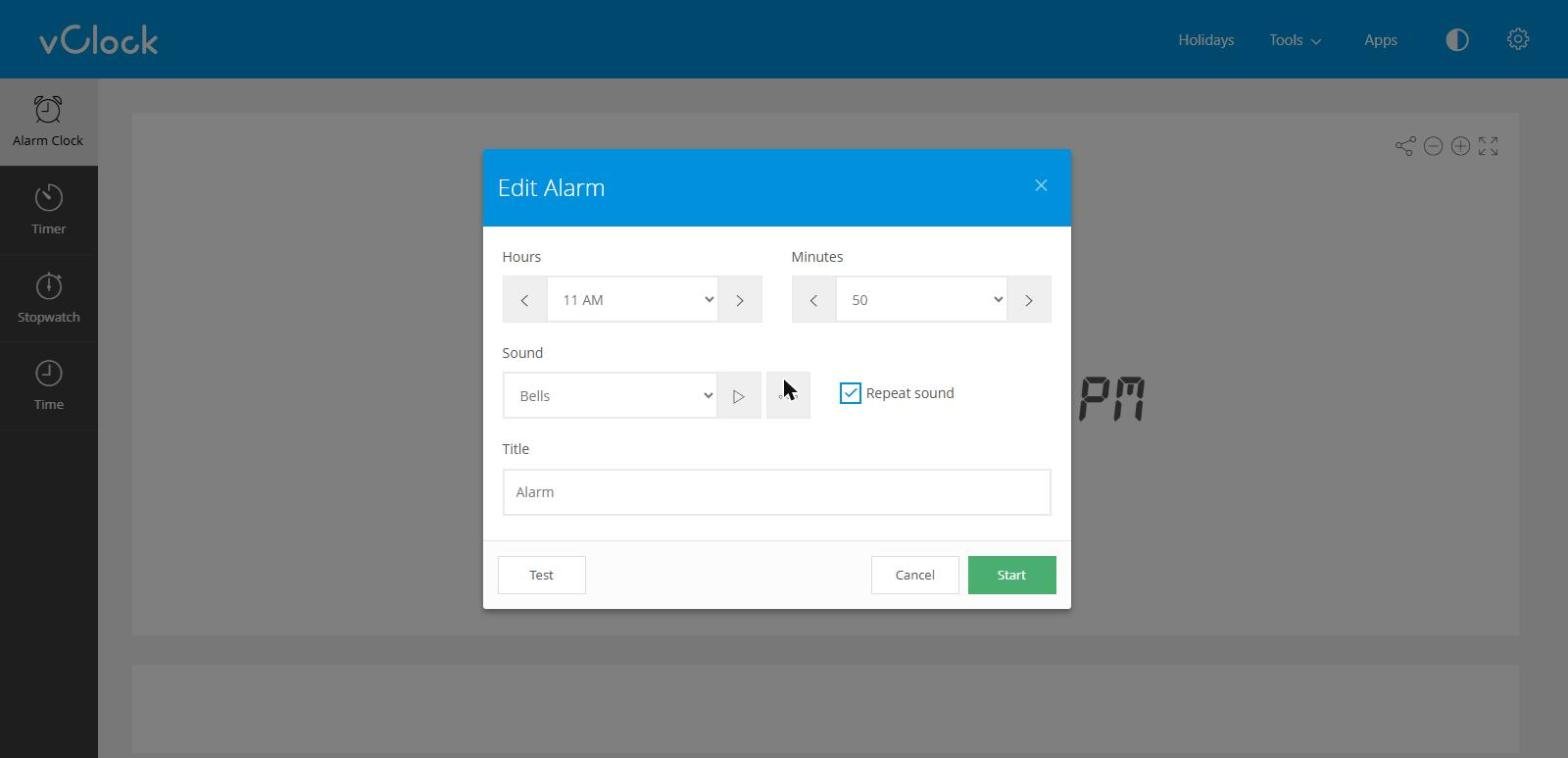
- What we like: the large clock, night mode, and adjustable text color and size. vClock saves these display settings for your next visit.
- Custom sound: the button next to the sound list lets you choose an audio file from your computer, so you can wake up to your own music.
- Handy extra: every alarm gets its own web address, so you can bookmark a 7:00 AM alarm and set it again with one click. You can also add it as a shortcut on your Chrome homepage.
- In our test: the alarm started at 11:50:00, exactly on time, with an on-screen alert.
- Limits: one alarm at a time, and the page shows ads. There is no snooze, only an OK button. vClock says the alarm will not work if you close the browser or shut down the computer, but it can work without an internet connection.
2. Kuku Klok: the fastest alarm to set
Kuku Klok has almost nothing on the page: a red digital display, plus and minus buttons for the hours and minutes, a sound picker and a big Set Alarm button. The six sounds are cockerel, classic clock, electronic, guitar, military and alien, and you can preview each one. Press Set Alarm and the page switches to a dark night-sky background with an “Alarm is set!” message.
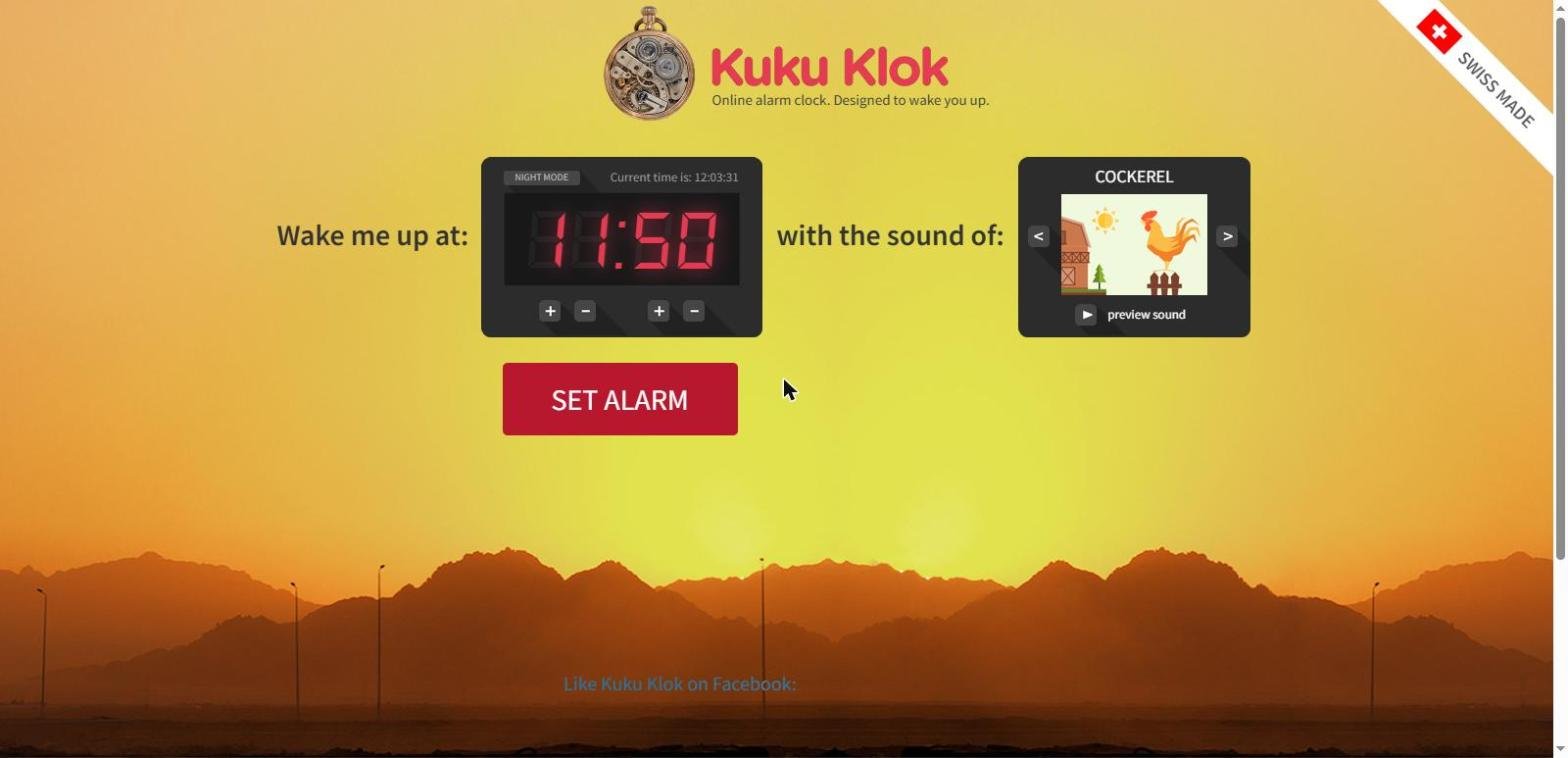
- What we like: nothing to learn, a snooze button that gives you 10 more minutes, and a clear promise from the site that once the page has loaded, the alarm works even if your internet connection goes down.
- In our test: the cockerel started at 11:50:00 in a background tab and kept going until we pressed Stop.
- Limits: one alarm, no label, no list of saved alarms, and the time is set on a 24-hour clock.
3. Online Alarm Kur: best for a very loud alarm clock online
If gentle chimes do not wake you, try Online Alarm Kur. Its 11 sounds include Buzzer, Sirens, Nuke, Bomb and Rooster, next to calmer choices such as Rain and White noise. In the settings you can loop the sound until you dismiss it and set the alarm volume from 0 to 100.
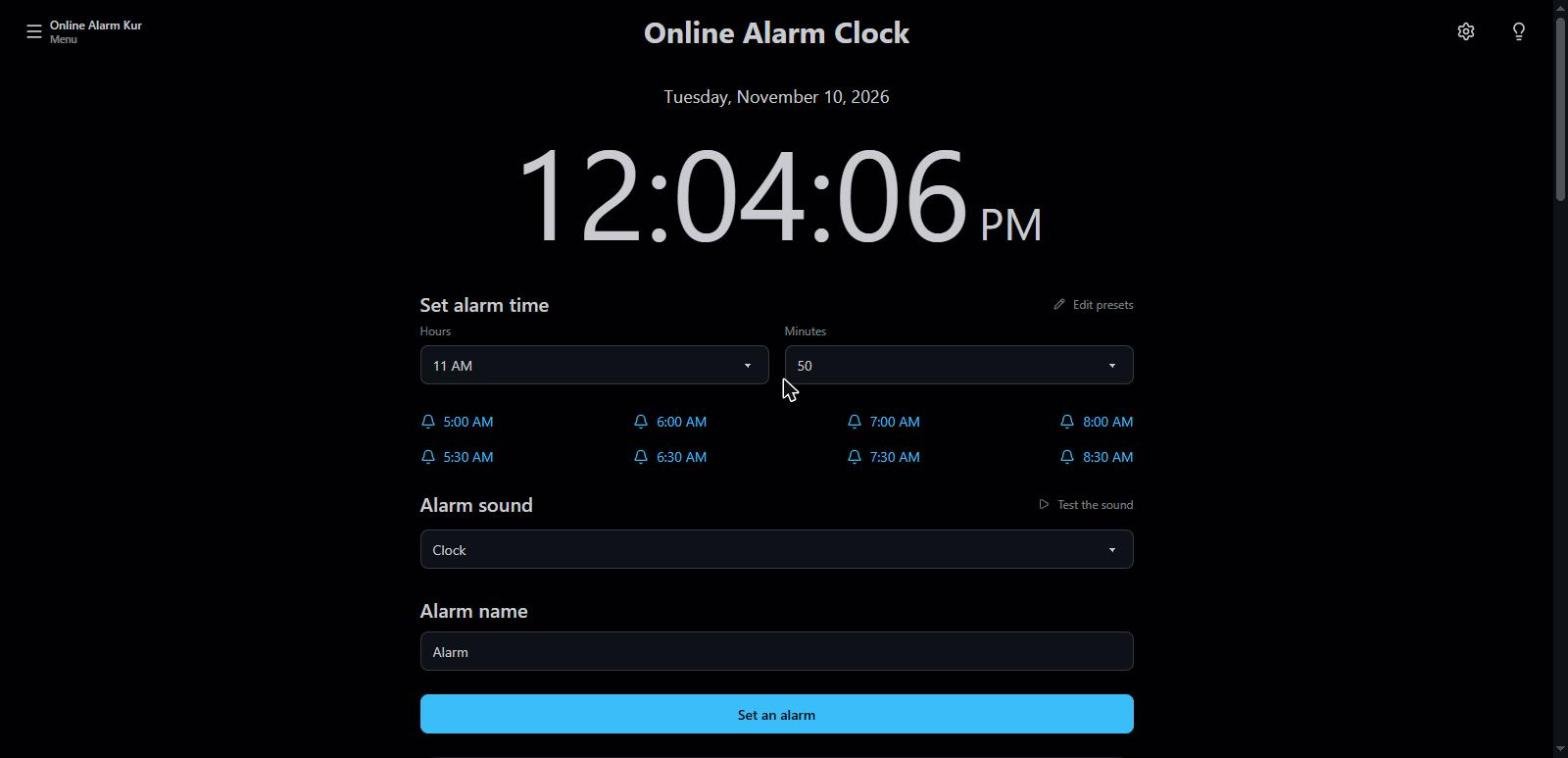
- What we like: a snooze button (10 minutes by default, adjustable up to 60), editable time presets, and a dark full-screen mode that keeps the display black while the alarm counts down.
- Handy extra: an optional alarm history that you can export as a CSV file.
- In our test: the alarm started at 11:50:00 in a background tab, and the alarm history logged when it was set and when we stopped it.
- Limits: to set multiple alarms you open another tab. The site is clear that the tab must stay open, though it does not have to be the active tab, and that the alarm will not ring if the computer sleeps.
4. AlarmAndClock.com: best online alarm clock for multiple alarms
AlarmAndClock.com lets you add several alarms on one page, which most browser alarms do not. Pick a time or tap a quick preset (6:00, 7:00, 8:00 and so on), choose a sound and press Add Alarm. Each alarm then appears in a list with its own repeat and delete buttons.
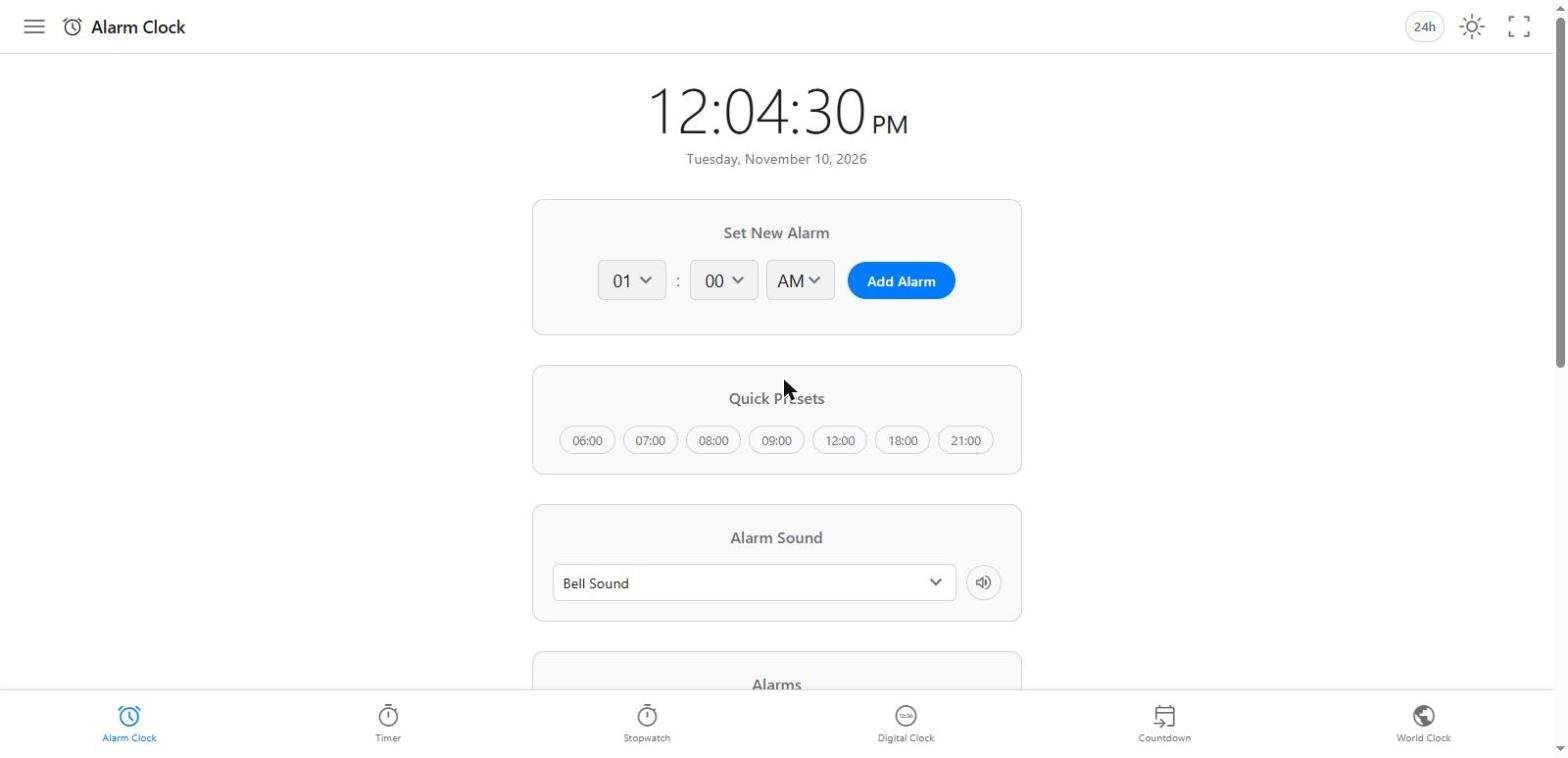
- What we like: a clean layout, a 24-hour toggle, light and dark themes, full-screen mode, and a “No Sound” option for a silent on-screen alert.
- Handy extra: the same site has a timer, stopwatch, countdown and world clock.
- Limits: only four sounds (Bell Sound, Gentle Chime, Digital Beep and Short Melody), and a full-page ad covered the screen when we opened it, so close that before you set anything. The site says it checks in the background so the alarm rings when you switch tabs, but closing the tab or browser stops every alarm.
5. TimeMe: best for a full day of alarms
TimeMe looks dated, but it is the most capable scheduler here. Its Alarms panel has 25 rows. Each row takes a time, a color, a sound and a number of cycles, and has its own Try button. There are 31 built-in sounds, from Beep and Gong to School Bell, plus three custom slots. That makes it a good fit for class periods, medication reminders or a workday broken into blocks.
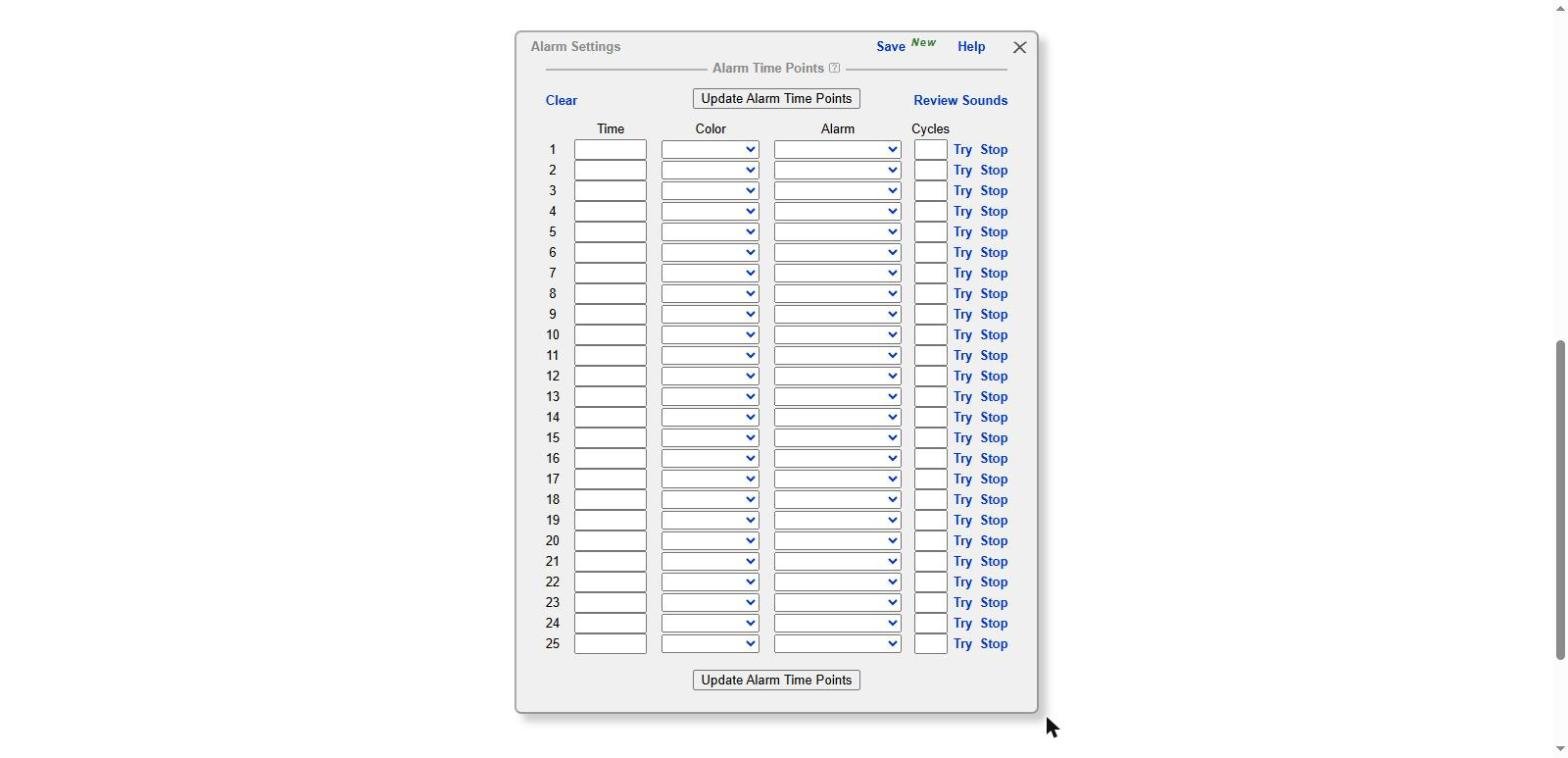
- What we like: huge digits you can read from across the room, and color-coded alarms so you know which one is ringing.
- Limits: no snooze that we could find, and the settings take longer to learn than the other tools on this list.
6. SetAlarmClock.net: best for a gentler wake-up
SetAlarmClock.net adds two features the others lack: a wake-up light option and a set of sleep sounds for falling asleep. You set the time, add a label, choose a sound and press Set alarm.
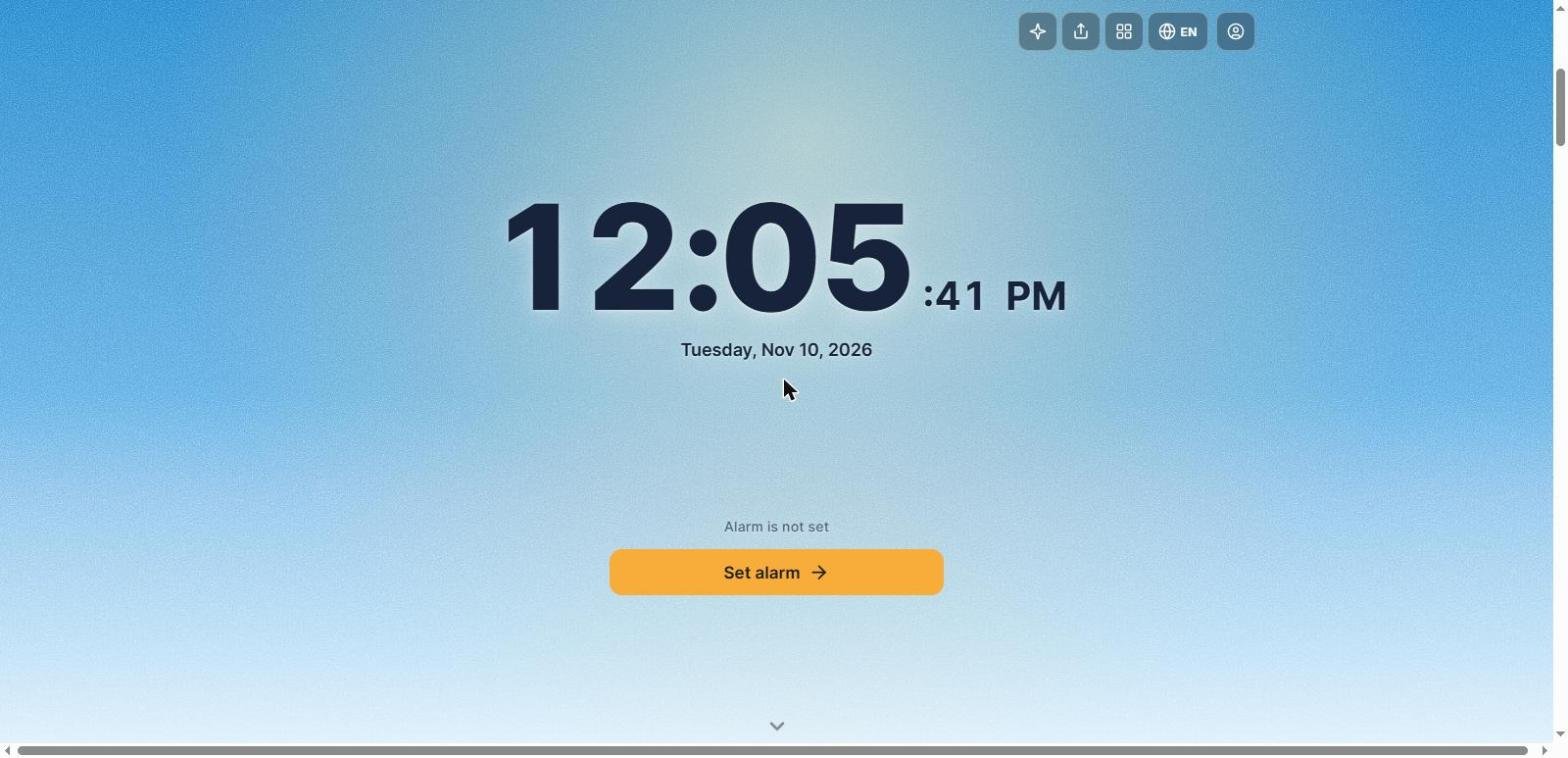
- What we like: a modern design with themes, and recent alarms that are saved automatically so you can reload yesterday’s settings with one click.
- Handy extra: a timer, a Pomodoro timer and a stopwatch.
- Good to know: there is no account, so saved alarms are kept by your browser. If they keep disappearing, check that DOM storage is enabled in your browser.
7. Onlive Clock: best-looking online clock with an alarm
Onlive Clock is the one to leave on a second monitor. It fills the screen with a clock over a photo background, and you can switch between eight clock styles, including digital, flip, LED and mechanical. The alarm is two small drop-downs under the clock.
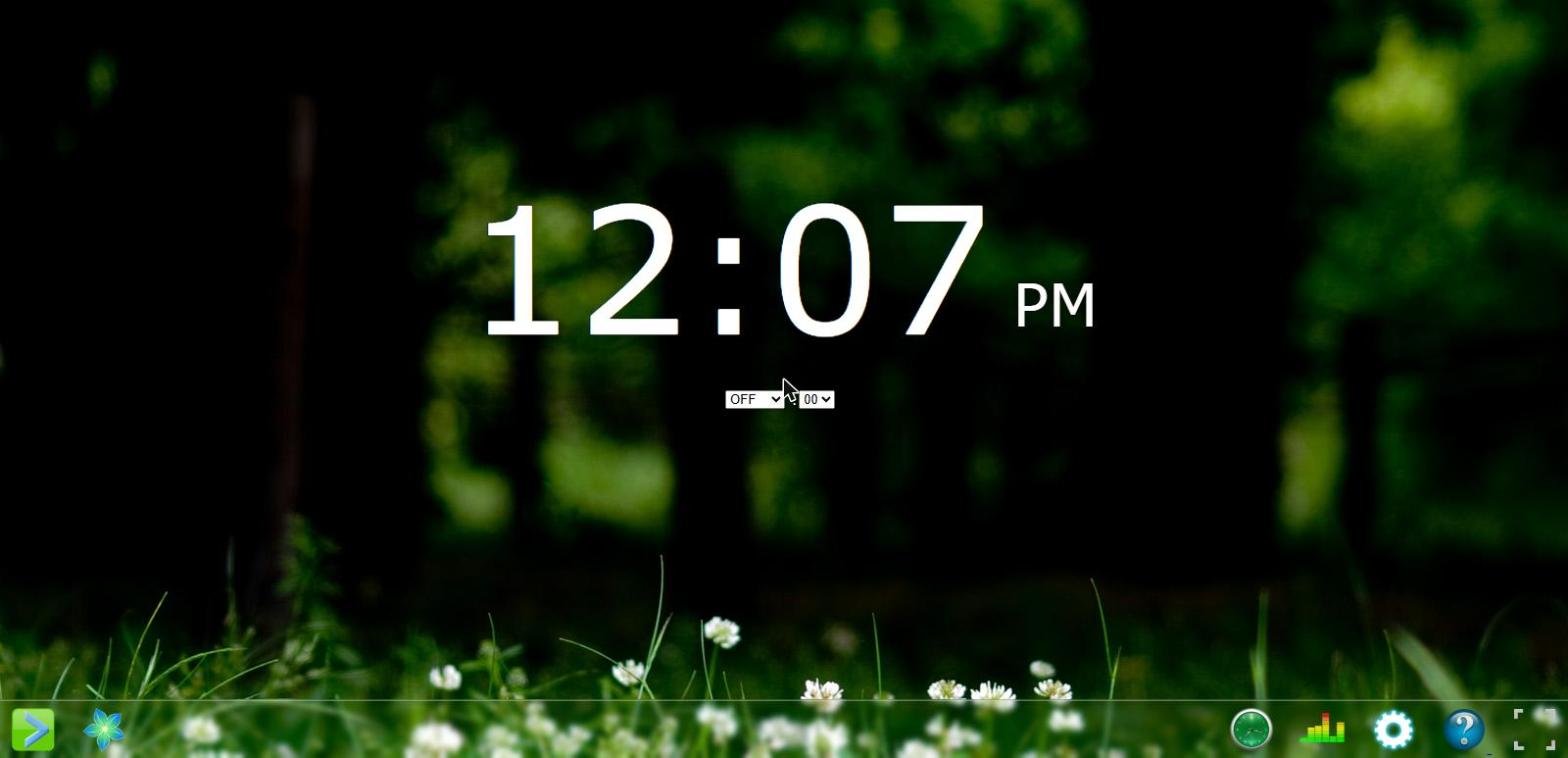
- What we like: two snooze buttons with lengths you choose, an alarm note that the clock can read aloud, and a built-in internet radio sorted by genre if you want an online alarm clock with music.
- Good to know: the page opens with a Start button. Click it. Your browser needs that click before it will let the page play sound.
- Limits: one alarm at a time, and the settings are spread across several small panels.
Will an online alarm clock work when your computer is asleep?
No. An online alarm clock is a web page, and a web page cannot wake a sleeping computer. If the computer sleeps, hibernates or shuts down, or if you close the tab or the browser, the alarm does not ring. Online Alarm Kur, vClock and AlarmAndClock.com all say this on their own pages.
A background tab usually works, with two caveats. Chrome slows down the timers in tabs you are not looking at, in some cases to one check per minute, as Google explains in its notes on timer throttling, so an alarm can ring late. And if Chrome unloads the tab to save memory, the alarm will not ring at all. For anything important, keep the alarm tab visible in its own window.
Sleep is the bigger problem, so stop the computer from sleeping on the nights you use a browser alarm:
- Windows 11: go to Start > Settings > System > Power & battery > Screen, sleep, & hibernate timeouts and set the sleep timer to Never while plugged in. Microsoft lists the steps for Windows 10 and 11 in its power and sleep settings guide.
- Mac desktop: go to Apple menu > System Settings > Energy and turn on “Prevent automatic sleeping when the display is off.”
- Mac laptop: go to System Settings > Battery > Options and turn on “Prevent automatic sleeping on power adapter when the display is off.” Apple covers both in its sleep and wake settings guide.
- Any laptop: keep the lid open and the charger plugged in.
How to set an online alarm so it actually rings
These steps lower the risk of a missed alarm. They do not make a browser alarm as dependable as a phone or a bedside clock.
- Plug in the charger and turn off sleep using the steps above.
- Open the alarm in its own tab and leave it open. If you are not sure of the difference between closing a tab and closing the whole window, see how to close a page on your browser.
- Click the Test or preview button. Browsers block sound on a page until you have clicked or tapped on it. Google describes the rule in its Chrome autoplay policy. Testing once also tells you how loud the alarm will be.
- Check where the sound is going. Turn the system volume up, unmute the tab, and disconnect Bluetooth headphones so the alarm plays through the speakers.
- Stop Chrome from unloading the tab. Chrome’s Memory Saver can deactivate tabs you are not using, and a deactivated alarm tab will not ring. Go to Settings > Performance and add the alarm site next to “Always keep these sites active,” or pin the tab. Google lists both options in its Chrome performance guide.
- Set a backup. For a flight, an exam or a job interview, set your phone alarm as well.
What about OnlineClock.net?
OnlineClock.net appears in many other lists, so we checked it too. On November 10, 2026 the page offered a single basic alarm, and its contact form still showed developer placeholder text. It did not match the features those lists describe, so we left it out.
Frequently asked questions
What is the best free online alarm clock?
vClock is the best choice for most people because of its sound selection, Test button and simple setup. Choose AlarmAndClock.com or TimeMe if you need more than one alarm in the same tab.
Does an online alarm clock work if I close the tab or browser?
No. The alarm runs inside the page, so closing the tab or the browser cancels it. You can switch to other tabs and keep working.
Can I use an online alarm clock without internet?
You need a connection to load the page. After that, vClock, Kuku Klok and Online Alarm Kur all say the alarm will still ring if the connection drops.
Which online alarm clock is the loudest?
Loudness depends mostly on your speakers and system volume, and we did not measure it. For the harshest sounds, use Online Alarm Kur with Sirens or Buzzer, set its volume to 100 and turn on the loop setting.
Can I set multiple alarms online?
Yes. AlarmAndClock.com lets you add several alarms on one page, and TimeMe supports up to 25. Online Alarm Kur’s own instructions say to open another tab for each extra alarm.
Which online alarm clocks have a snooze button?
Kuku Klok snoozes for 10 minutes, Online Alarm Kur lets you set the snooze length, and Onlive Clock gives you two snooze buttons with lengths you choose. AlarmAndClock.com and SetAlarmClock.net also list snooze in their own descriptions, but we did not try it on those two. vClock and TimeMe have no snooze.
Can I use my own music as the alarm sound?
On vClock, yes. The button next to the sound list lets you choose an audio file from your computer. TimeMe has three custom sound slots, and Onlive Clock takes a different approach with a built-in internet radio. The other tools here use their own built-in sounds.
Why is my online alarm clock not making sound?
The usual causes are a muted tab, low system volume, sound going to headphones, or a page you have not clicked on yet. Press the Test button, and check that the speaker icon on the tab is not crossed out.
Do online alarm clocks work on iPhone and Android phones?
The pages load on a phone, but phones usually pause browser tabs once the screen locks, so do not rely on one to wake you. Use the Clock app that came with your phone, and if you cannot find it, see how to get a missing Clock app back. If you only want a large bedside clock on Android, you can make Chrome full screen and keep the display on.
The bottom line
For a simple, free online alarm clock with no download, start with vClock. Use AlarmAndClock.com or TimeMe for multiple alarms and Online Alarm Kur when you need volume. Whichever you pick, keep the tab open, keep the computer awake, press Test once, and set a phone alarm as a backup for anything you cannot miss.

Louis Mugan is a seasoned technology writer with a talent for turning complicated ideas into clear, practical guidance. He focuses on helping everyday readers stay confident in a world where tech moves fast. His style is approachable, steady, and built on real understanding.
He has spent years writing for platforms like EasyTechLife, where he covers gadgets, software, digital trends, and everyday tech solutions. His articles focus on clarity, real-world usefulness, and helping people understand how technology actually fits into their lives.
Outside of his regular columns, Louis explores emerging tools, reviews products, and experiments with new tech so his readers don’t have to. His steady, friendly approach has made him a reliable voice for anyone trying to keep up with modern technology. get in touch at louismugan@gmail.com