

Does Yahoo Search keep showing up on your Mac? In this guide, I will show you how to get rid of Yahoo Search on your Mac, whether it’s an accidental setting change that caused it or a pervasive virus. Read on to learn how to get rid of it for good.
Update Your Browser’s Preferred Search Engine
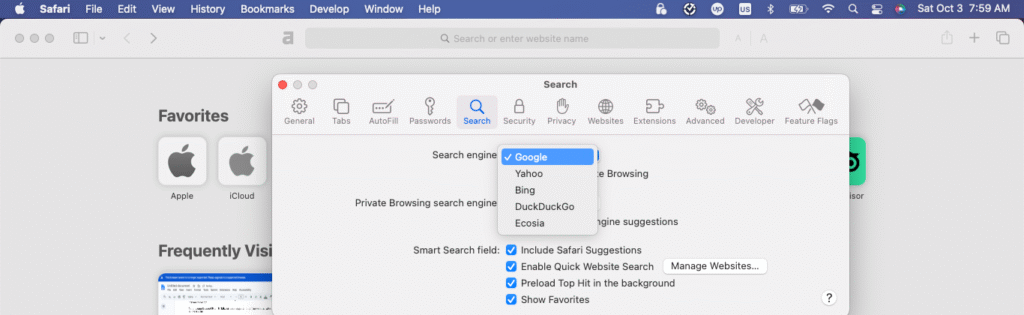
Most of the time, if your internet searches default to Yahoo Search on a Mac, it’s because your browser settings have Yahoo selected as the default search engine.
If you are using Safari, go to Safari > Settings (or Preferences) from the main menu. Navigate to the Search tab, where you can select your default search engine from the drop-down menu.
On Chrome, type chrome://settings/search into your browser bar, where you can change your default search engine.
Similarly, in other browsers, you can usually choose your default search engine in the settings. The available search engines vary by browser. For example, you can choose from Google, Yahoo, Bing, DuckDuckGo, and Ecosia on Safari. On Chrome, you can choose from Google, Yahoo, Bing, DuckDuckGo, and Yandex.
Triage Extensions and Content Blockers

If your default search engine is not set to Yahoo, but it is still defaulting to Yahoo when you search, the likely culprit is a browser extension, such as a content blocker, that is forcing Yahoo as the default search engine.
For example, McAfee WebAdvisor is a common culprit. When Safe Search is enabled in its settings, it defaults to Yahoo as its preferred search engine. This isn’t done for security purposes, but rather because McAfee has a business partnership with Yahoo and gets paid for driving traffic and advertising revenue.
If you installed McAfee WebAdvisor, you probably left Safe Search on by default, resulting in Yahoo becoming your default search engine.
And, when you install the McAfee antivirus software, the web extension often comes bundled with it by default, so you may not have even realized that you installed the browser extension.
McAfee is not the only culprit, though. Other browser extensions, especially cookie blockers, antivirus solutions, and even random extensions, may force Yahoo as the default search engine.
Start by checking all of your installed extensions, starting with the least familiar. Do any of them stand out? You can start by uninstalling extensions that you don’t use and don’t recognize. If that doesn’t fix the problem, try isolating the extension that is causing it.
If you are using Safari, first start up your Mac in Safe Mode by following the instructions here (make sure to follow the correct instructions for your Mac model). Next, open Safari and enable each extension, one by one. After enabling each extension, perform an internet search to see if it defaults to Yahoo.
IIf you are using Chrome, go to chrome://extensions in your browser bar. Next to each extension, click on Details and then toggle on the option to enable it in incognito mode.
Next, open Chrome in incognito mode and start an internet search. Do this for each extension, one by one, until you find out which extension is causing the Yahoo issue. In Chrome, you have to do it this way, since there is no way to enable specific extensions in Safe Mode.
On other browsers, you might not have either of these options, so you might have to do things in the reverse. For example, on Firefox, disable each extension one by one until you no longer see Yahoo showing up. That way, you can easily find out which extension was forcing you to use Yahoo.
Check for Configuration Profiles or Managed Policies
Go to your Mac’s settings (navigate to Apple menu > System Settings) and search for or navigate to Profiles. Check if there are any profiles installed on your computer. Some viruses may install a profile that can force Yahoo as a search engine. Delete the profile from your computer (you may need to enter your administrator password).
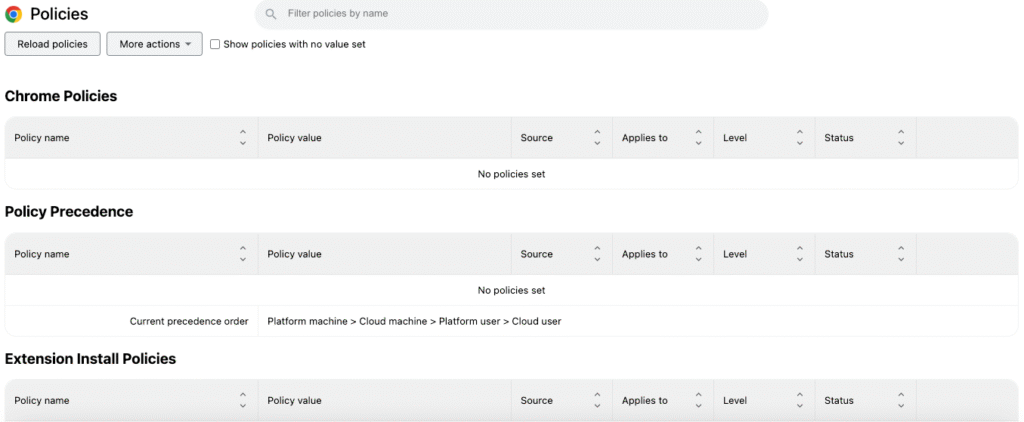
In Chrome, go to chrome://management to check if it says that your device is managed by an organization. If it does, go to chrome://policy/ and check which policies are installed on your device.
Then, open the Terminal on your Mac and type “defaults delete com.google.Chrome” followed by the policy name to delete it from your computer. Do this for each policy, one policy on each line, that you find on the policy page.
If your computer is a work computer and has device management installed by your company that is forcing Yahoo, you probably can’t remove it, but ask your company’s IT team if they can allow you to use a different search engine.
Final Steps: If All Else Fails
If all else fails, the first step is to try to reset your browser to its factory settings. This will remove all of your extensions, bookmarks, and custom settings. However, you may be able to restore them. For example, if you have a saved Google profile on Chrome, your bookmarks, extensions, and other customizations will return when you sign back in with your Google account.
If that doesn’t help, download an antivirus, such as Avast or Malwarebytes, and run a deep scan to see if there are any viruses or malware hiding on your computer.
If resetting your browser and running an antivirus scan don’t help, you have two options. One is to simply use another browser. That may fix the issue if it is localized to one specific browser.
The other option is to completely reset your Mac. However, you should back up your Mac to iCloud before doing so. That way, you won’t lose important data, such as files or pictures, when you reset it.
Conclusion: Sustain the Fix With Habits, Not Just One Change
Practicing good digital hygiene can prevent this problem from recurring. For example, avoid downloading extensions, software, and files from websites you don’t trust. Avoid visiting suspicious websites or clicking on suspicious links or ads, and run an antivirus scan regularly to stop viruses in their tracks before they spread.

Louis Mugan is a seasoned technology writer with a talent for turning complicated ideas into clear, practical guidance. He focuses on helping everyday readers stay confident in a world where tech moves fast. His style is approachable, steady, and built on real understanding.
He has spent years writing for platforms like EasyTechLife, where he covers gadgets, software, digital trends, and everyday tech solutions. His articles focus on clarity, real-world usefulness, and helping people understand how technology actually fits into their lives.
Outside of his regular columns, Louis explores emerging tools, reviews products, and experiments with new tech so his readers don’t have to. His steady, friendly approach has made him a reliable voice for anyone trying to keep up with modern technology. get in touch at louismugan@gmail.com