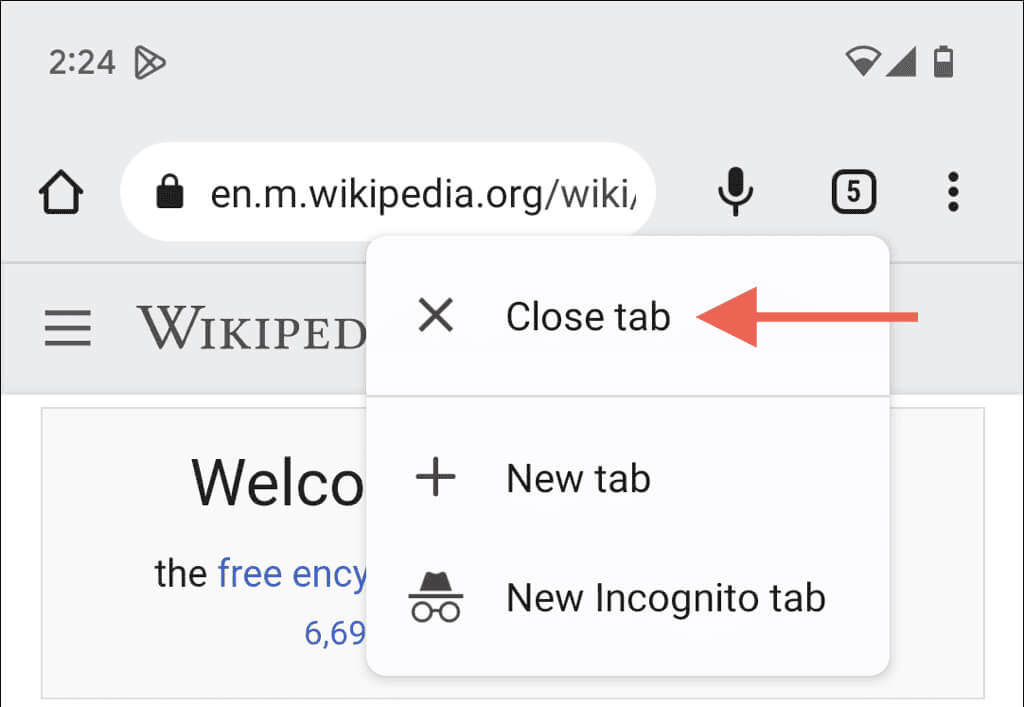
Closing a page can mean a number of things. It could mean that you want to close a single tab, an entire window, or multiple tabs. Before you go ahead to close any browser tab, always make sure that you’re done with anything you’ve typed on that page.
On a computer, you can use the tab’s close button or a keyboard shortcut to close a tab. The shortcut depends on your operating system.
If you want to close all tabs on mobile, look for that option among your browser’s tab controls. The steps usually vary between phones, tablets, and browsers. In this guide, we’ll tell you what controls to use to close pages and what to try when a page freezes.
Identify your platform and browser before starting
It’s much easier to close a page when you know what operating system your device uses and the name of the browser that you have open. If you’re not sure, just look in your device settings and look for the browser’s app name.
Next, find browser controls by looking around the edges of the browser for its menu and tab buttons.
Your tab bar location can vary with the layout. Desktop tabs can either sit across the top or down the side. However, phone browsers often use a separate tabs view. Once those controls look familiar, just follow the specific steps for that platform that match your device and browser.
Close the current tab with the fastest method
If you’re using Windows/Linux, the shortcut is Ctrl+W to close the page you’re viewing. But if you’re using a Mac, then the shortcut is Command+W.
Before you press the shortcut, make sure that the page on your screen is the one that you actually intend to close. With the shortcut, you’ll be able to close the active tab without accidentally losing your place on another page.
For the mouse method, simply click on the tab’s close button. You should see it as an X beside its title.

On a touchscreen, tap that tab’s X or Close control where available. Always check that you’re choosing the tab’s control and not the window’s close button.
Close a whole window or many tabs at once
Just because you have a crowded tab doesn’t mean you have to waste time closing each of them separately. Save any unfinished work first, especially text you’ve entered into forms.
When you want to close a browser window, simply select it and use Alt+F4 or Command+Shift+W, depending on your system. You can also click the window’s close button, including the red button where shown. That closes the tabs inside that window.
You can also close all tabs through a menu, but you’ll need to look for that option in your browser’s tabs view. Some browsers also let you close a tab group. If you’re still working on a page, you can right-click its tab and then choose ‘Close Other Tabs’ to keep it open.
Manage tabs on phones and tablets
To find old pages that have piled up, tap the tabs overview button, which may look like a square with a number inside.
From there, you can close the tabs on your phone by tapping X or swiping a tab sideways. If you don’t waste any time, you can decide to use the “Close all tabs” option to clear all of them together.
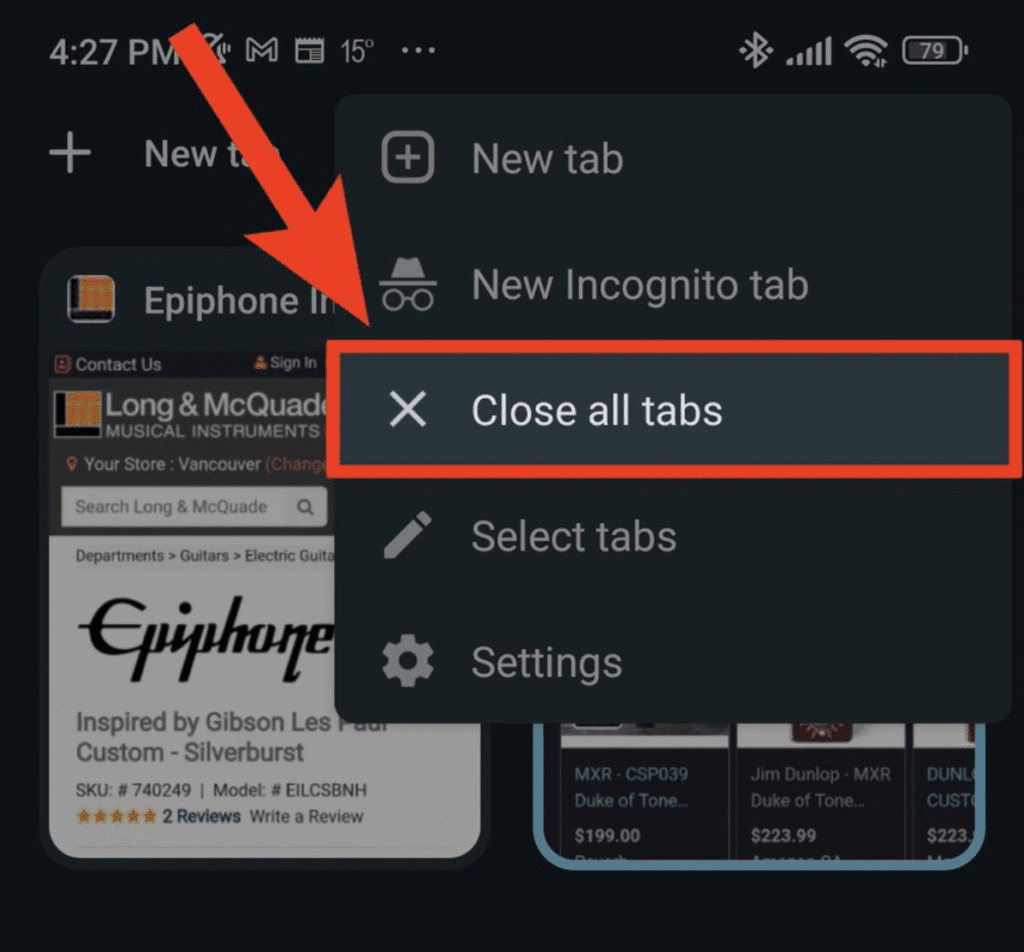
If you notice that your browser is showing overlapping squares instead, you can tap that icon and use X to close individual pages. You can close all the tabs in the current group by pressing and holding Done, then selecting “Close All Tabs.”
Handle pages that won’t close or are frozen
When you notice that a page is no longer responding, first try its tab’s close button before trying to close the whole window. If neither responds, you may need to force quit the browser. You should save any work in those tabs that are still responding before you take that step.
You can open your Task Manager by pressing Ctrl+Shift+Esc. Then choose your browser, and select End task. Using End task closes the browser, and this can affect your other open tabs.
On a keyboard with Command, make use of Option+Command+Esc, select the browser, and then click Force Quit instead. As soon as it closes, try to reopen it and restore your previous session. However, you should not count on that bringing back unsaved work.
Prevent mistakes and recover accidentally closed pages
You can turn on ‘Ask before closing’ if you’re using a browser that supports it. That gives you a chance to cancel an accidental close.
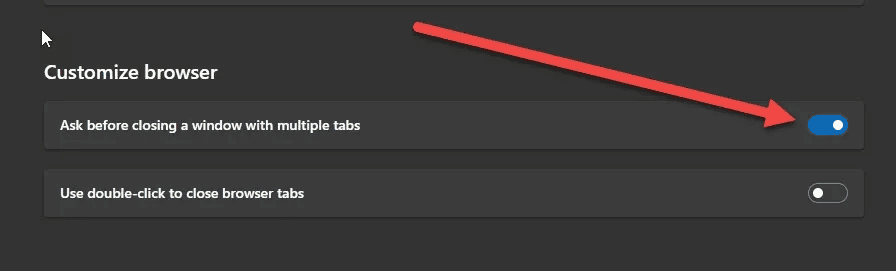
If you want to reopen a tab that was closed, try Ctrl+Shift+T or Command+Shift+T, depending on your computer. You can also check out the History menu for those tabs and windows that were closed recently.
For those pages that you’ll need later, bookmark them and save any unfinished work separately. A bookmark saves the address, not your edits. Also, you can turn on your browser’s session restore setting. This will help to bring back open pages at startup.
Conclusion
Closing a page should take a moment, and it’s always best to choose the best close method for the device that you’re using.
You can take advantage of a keyboard shortcut when you’re typing, and you can use a tab’s X to close a specific page that you want. On your phone, you can always open the tabs view so that you can check which page you’re removing.
Before you close anything, ensure that you save any unfinished work so that you don’t lose any data. If your browser is not responding or closing normally, then you can try to force-quit.

Louis Mugan is a seasoned technology writer with a talent for turning complicated ideas into clear, practical guidance. He focuses on helping everyday readers stay confident in a world where tech moves fast. His style is approachable, steady, and built on real understanding.
He has spent years writing for platforms like EasyTechLife, where he covers gadgets, software, digital trends, and everyday tech solutions. His articles focus on clarity, real-world usefulness, and helping people understand how technology actually fits into their lives.
Outside of his regular columns, Louis explores emerging tools, reviews products, and experiments with new tech so his readers don’t have to. His steady, friendly approach has made him a reliable voice for anyone trying to keep up with modern technology. get in touch at louismugan@gmail.com