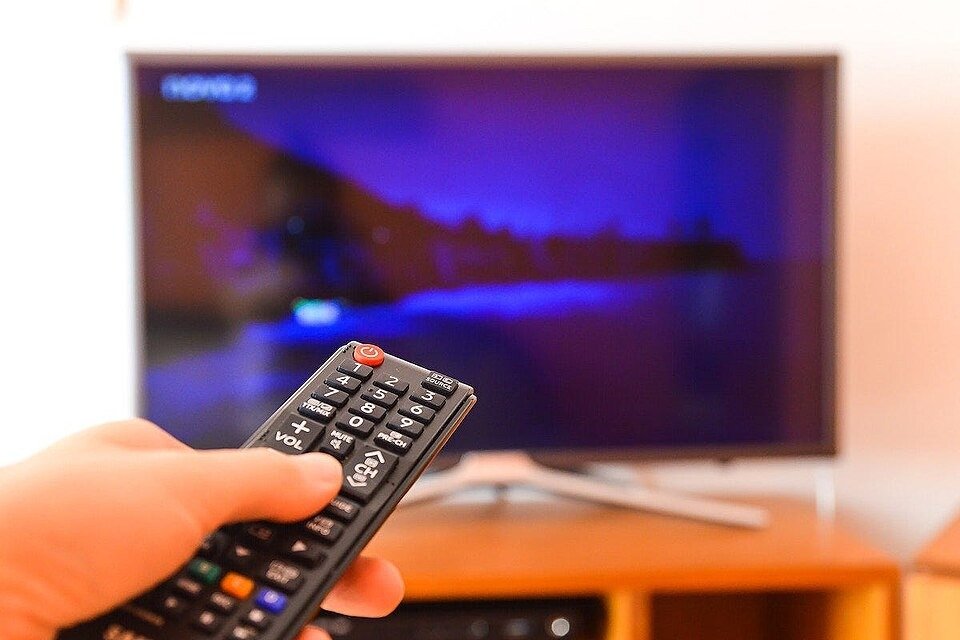
If you can’t find the remote for your TV and you don’t see a power button on the front of your TV, don’t panic. There are ways you can turn on a TV even without the remote. In this guide, I will show you how to turn on a TV even when it is missing a power button at the front, and you don’t have the remote.
Confirm Power and Plan a Safe Soft Reset
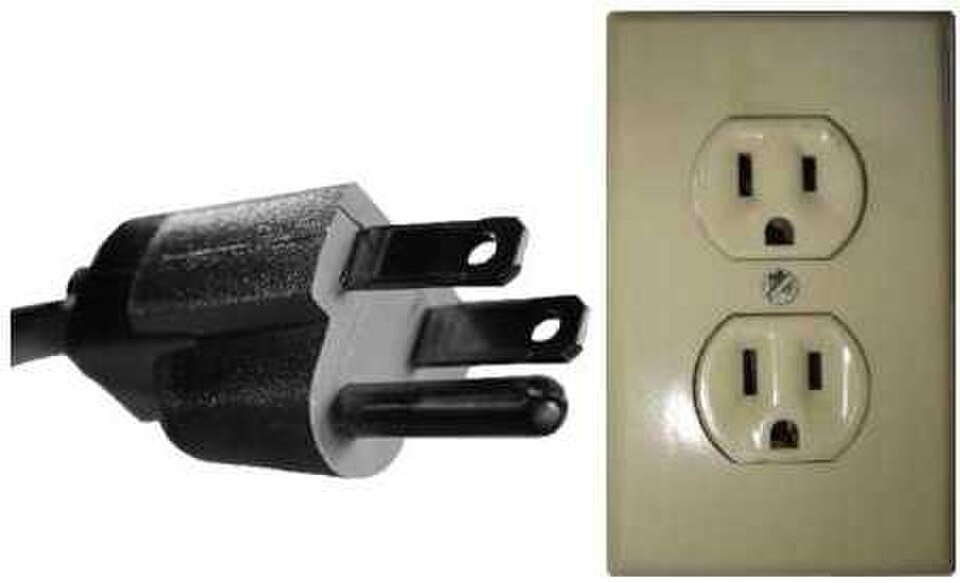
The first step is to make sure the TV is actually receiving power. Some TVs have a standby light that lights up, confirming it is connected to a working power source. If you can’t find the standby light, test the socket with another electronic device to ensure the socket is working and supplying electricity.
The next step is to perform a soft reset. To do that, simply unplug the TV, leave it unplugged for a minute, and then plug it back in. This performs a soft reset that can sometimes fix minor issues.
Locate Alternate On-Set Controls
Even if the TV does not have a power button on the front, it probably has a power button somewhere. Inspect the rear of the TV, the sides, and the bezel undersides for either a raised button, an indented button, or simply a circle that you can tap. Usually, the power button is located alongside other buttons and controls in a cluster, rather than a standalone button.
I recommend using a flashlight and visually inspecting all sides of the TV, as you may not always feel the button by simply running your fingers over the sides and edges of the TV.
If you still have the owner’s manual, or if you can locate it online, which you can often do by Googling “[TV model name] + user manual,” check the manual. The manual will indicate where the power button is located.
Use HDMI-CEC to Wake From a Connected Device
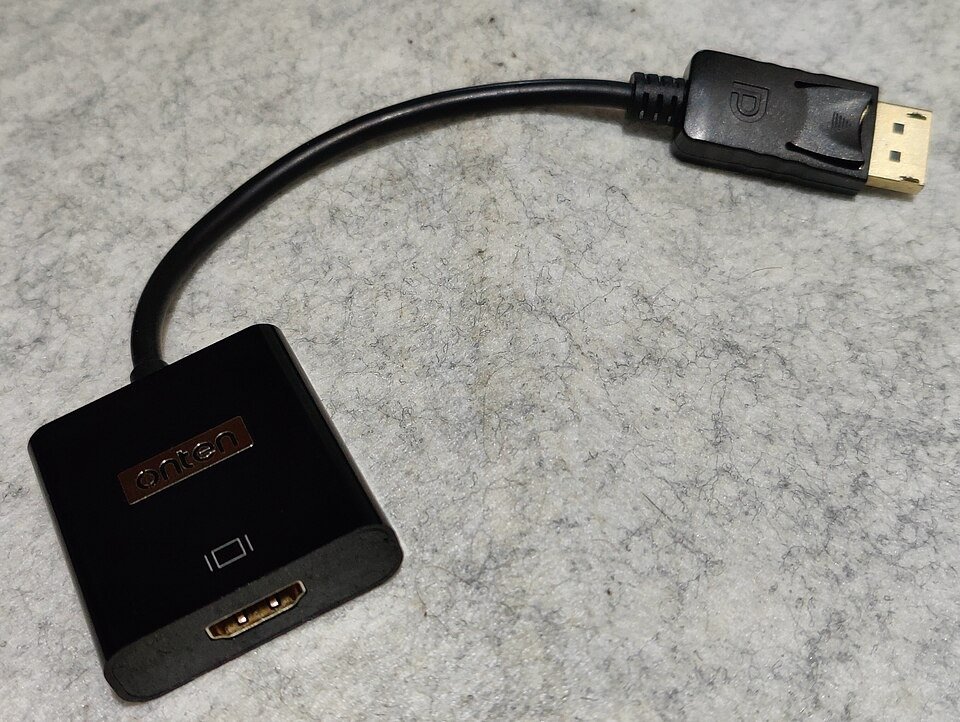
One option you may have is to use HDMI-CEC to wake up your TV. However, to use this, you have to first enable it in your TV settings, so if your TV can’t turn on and you haven’t enabled it in your TV settings already, this won’t be of much use to you.
CEC stands for Consumer Electronics Control, and it allows you to use a single remote to control several connected devices over HDMI cables. It has to be enabled on both devices: your TV and the one you are connecting it to.
Then, once you turn on the other device, your connected TV will automatically wake as well.
Control Over the Network With the Official Mobile App
If you previously set up your TV with the manufacturer’s mobile remote app, such as Samsung SmartThings or LG ThingQ, then you may be able to turn on the TV using this app. That depends on the app and its available functions.
Many of these apps allow you to turn your TV on and off over the network. However, if you haven’t set up your TV with the app, this also isn’t very useful if you currently cannot turn on your TV.
Enable Hands-Free Power With a Smart Assistant
Even if your TV doesn’t come with a compatible mobile app, you may be able to use voice control or a smart assistant to turn on your TV. For example, if you have a Google TV and you connected it to Google Home, you may be able to turn it on using the Google Home app or voice assistant.
Keep a Universal or OEM Remote as a Reliable Fallback
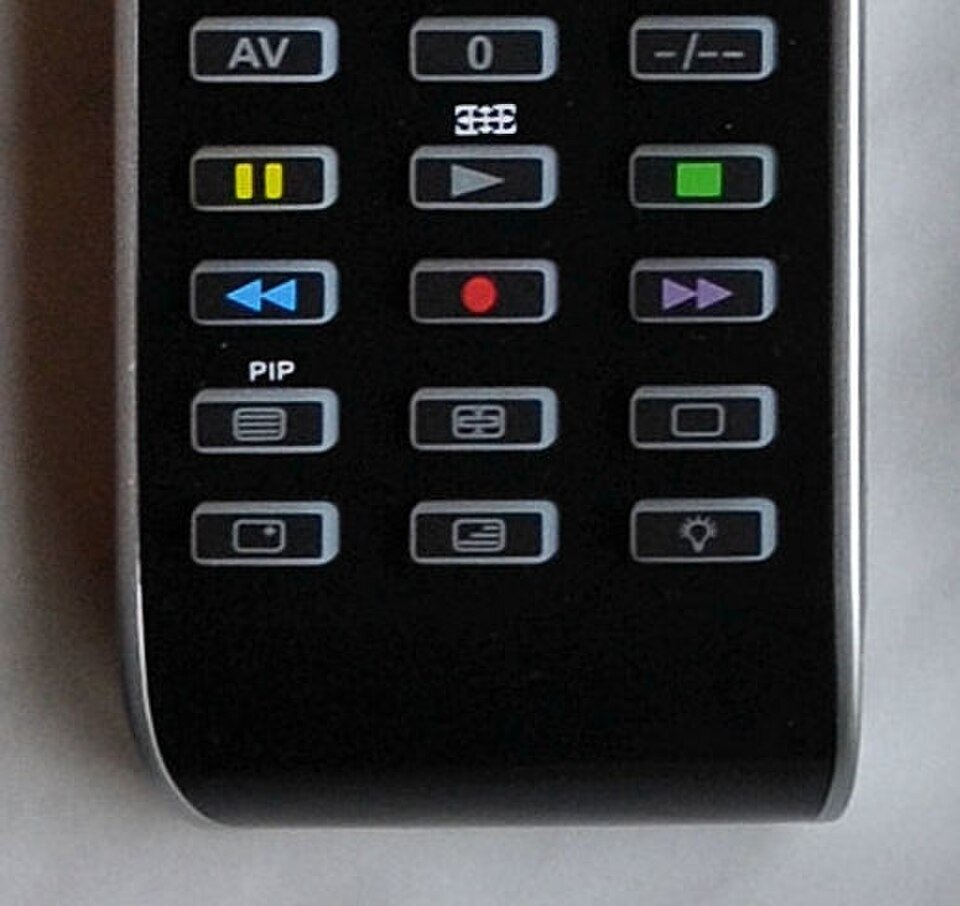
If nothing else works, I would recommend using a universal remote as a reliable fallback option when you lose your remote.
Universal remotes are designed to work with pretty much any TV model. You can find them on Amazon by searching for “universal remote.”
There are two main kinds of universal remotes: those that pair via infrared (IR) and those that pair over radio frequency (RF). RF doesn’t require a direct line of sight and can be used from a distance of around 30 yards, while IR requires a direct line of sight to the TV, without any obstacles such as walls in the way, and has a working distance of only around 10 yards.
I do not recommend getting a Bluetooth remote, as these aren’t usually universal and only work with modern TVs. In fact, I also don’t recommend RF remotes if you want a universal remote, as IR remotes are compatible with a broader range of devices.
Before you buy a universal remote, make sure to check the list of supported TVs, as even universal remotes may not be compatible with certain TVs.
In either case, as soon as you get the universal remote, pair it and program it with your TV immediately using the instructions in the universal remote’s user manual, so you can use it immediately if you lose your main remote.
Conclusion
I hope this guide was helpful! You don’t need to panic if you lost your remote. There should be a button somewhere on the TV that you can use to turn it on. In addition, there are always fallback methods you can use, such as a universal remote or a dedicated smartphone app.

Louis Mugan is a seasoned technology writer with a talent for turning complicated ideas into clear, practical guidance. He focuses on helping everyday readers stay confident in a world where tech moves fast. His style is approachable, steady, and built on real understanding.
He has spent years writing for platforms like EasyTechLife, where he covers gadgets, software, digital trends, and everyday tech solutions. His articles focus on clarity, real-world usefulness, and helping people understand how technology actually fits into their lives.
Outside of his regular columns, Louis explores emerging tools, reviews products, and experiments with new tech so his readers don’t have to. His steady, friendly approach has made him a reliable voice for anyone trying to keep up with modern technology. get in touch at louismugan@gmail.com