To add a shortcut to the Google Chrome homepage on a computer, open a new tab, click Add shortcut below the search box, enter the site’s name and URL, and click Done. On Android, iPhone, or iPad, open a new tab, tap Add new, enter the name and URL, and tap Save. If you don’t see the option, switch your shortcuts to My shortcuts (steps below).
Shortcuts are the website icons under the search box on Chrome’s New Tab page. They open sites like Gmail, YouTube, or your bank in one click, without typing an address.
Below, you’ll also learn how to edit, pin, and remove shortcuts, add websites to your phone’s home screen, set your Chrome homepage, and fix Chrome shortcuts not showing.
| Device | How to add a shortcut |
|---|---|
| Windows, Mac, ChromeOS, Linux | New tab → Add shortcut → name + URL → Done |
| Android | New tab → Add new → Add shortcut → name + URL → Save |
| iPhone and iPad | New tab → Add new → name + URL → Save |
Before you start: Google says you must be signed in to your Google Account and use Google as your default search engine to customize the New Tab page (Google’s New Tab page guide). If either is missing, the shortcut options may not appear.
Chrome Homepage vs. New Tab Page vs. Startup Page
When most people say “Chrome homepage,” they mean the New Tab page, which is where shortcuts live. Chrome actually has three separate pages, and each has its own setting.
| Page | What it is | Where to change it |
|---|---|---|
| New Tab page | Opens with every new tab. Shows the search box and your shortcuts. | Customize Chrome (bottom right of a new tab) |
| Homepage | Opens when you click the Home button next to the address bar. | Settings → Appearance → Show Home button |
| Startup page | Opens when you first launch Chrome. | Settings → On startup |
Google notes that the homepage and startup page aren’t the same unless you set them to be (Google’s homepage and startup page guide). If you want your shortcuts everywhere, set both to the New Tab page. The steps are in the homepage section below.
How to Add a Shortcut to Chrome Homepage on Desktop
These steps work the same on Windows, Mac, ChromeOS, and Linux.
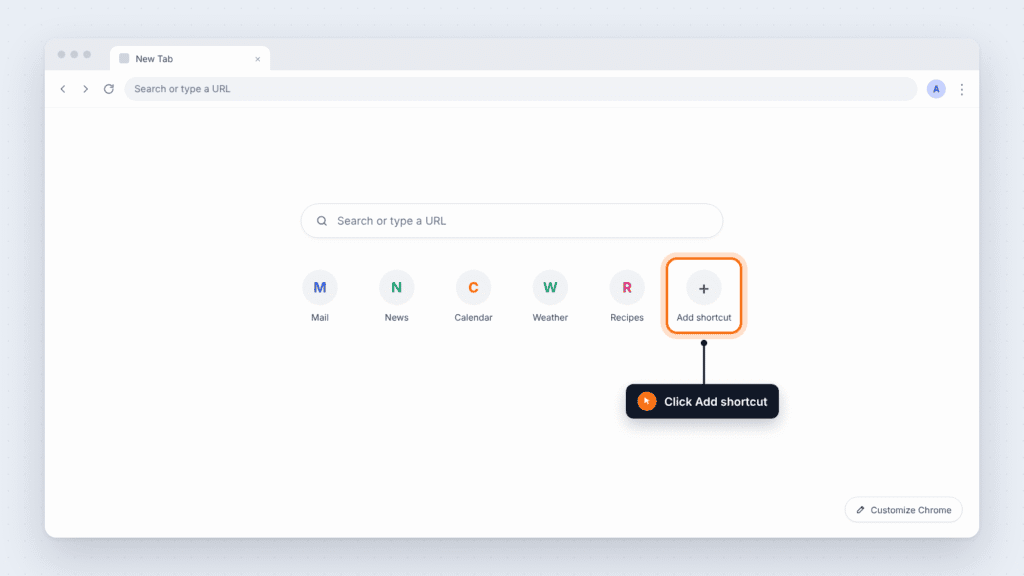
- Open Chrome and open a new tab. Press Ctrl + T on Windows, ChromeOS, or Linux, or Cmd + T on Mac.
- Below the search box, click Add shortcut (the circle with a + sign).
- In Name, type a short label, such as Gmail.
- In URL, type or paste the full web address, such as https://mail.google.com.
- Click Done. The new shortcut appears in the row below the search box.
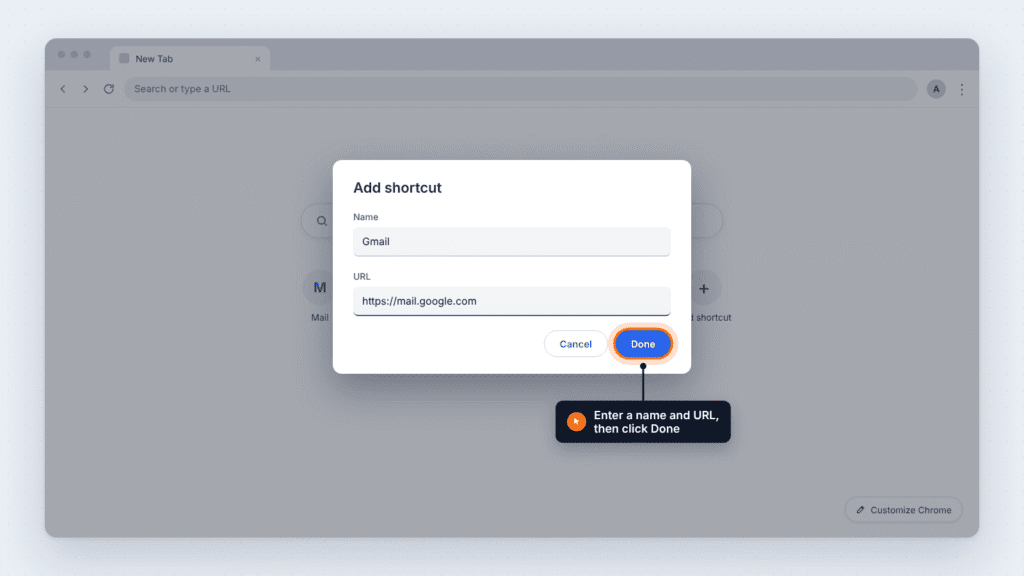
Tip: Open the website first and copy the address from the address bar. Pasting it avoids typos that send the shortcut to the wrong page.
Don’t see Add shortcut? Chrome is either showing your most visited sites instead of your own shortcuts, or you’ve hit the 10-shortcut limit. The next two sections fix both.
How to Show Shortcuts and Switch to My Shortcuts
Chrome’s New Tab page has two shortcut modes, and only My shortcuts lets you add your own sites. If the Add shortcut button is missing, or no shortcuts appear at all, check this setting first.
- Open a new tab in Chrome.
- At the bottom right, click Customize Chrome (the pencil icon).
- Under Shortcuts, select My shortcuts.
- Make sure Show shortcuts is turned on.
- Close the panel. The Add shortcut button now appears below the search box.
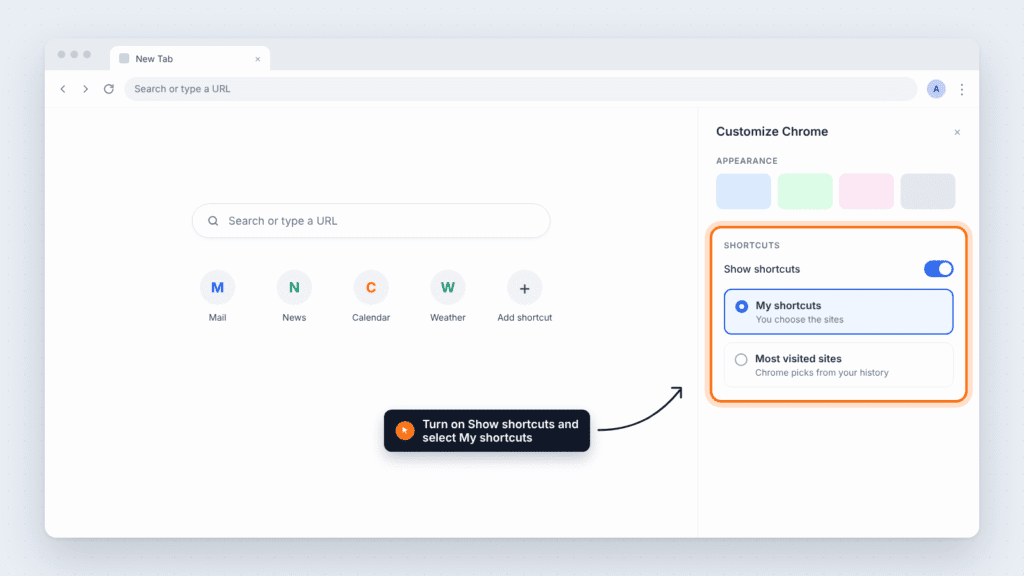
These steps follow Google’s own instructions for the desktop New Tab page (Google’s desktop New Tab page guide).
| My shortcuts | Most visited sites | |
|---|---|---|
| Who picks the sites | You | Chrome, based on your browsing history |
| Can you add your own sites | Yes | No |
| How often tiles change | Only when you change them | Whenever your browsing habits change |
| Best for | A fixed set of favorite sites | People who don’t want to manage shortcuts |
To hide shortcuts completely, turn off Show shortcuts in the same panel.
How to Edit, Remove, or Rearrange Chrome Shortcuts on Desktop
Every shortcut has a small menu that appears when you hover over it.
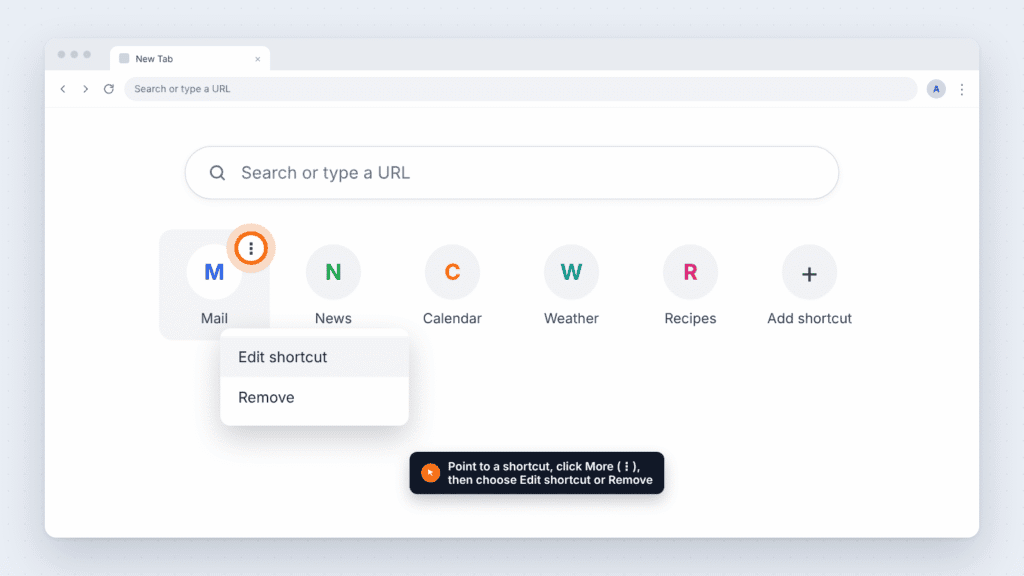
| Action | Steps |
|---|---|
| Edit a shortcut | Hover over the shortcut → click More (three dots, top right of the icon) → Edit shortcut → change the name or URL → Done |
| Remove a shortcut | Hover over the shortcut → More → Remove. Chrome then shows an Undo button for about 10 seconds. Click it, or press Ctrl + Z (Cmd + Z on Mac), to bring the shortcut back. |
| Rearrange shortcuts | In My shortcuts mode, click and drag a shortcut to a new spot, then let go. On a touchscreen, press and drag. Dragging doesn’t work in Most visited sites mode. |
How many shortcuts can you add? Chrome’s desktop New Tab page holds up to 10 shortcuts. Once you reach 10, the Add shortcut button disappears. Remove one to make room. Google is developing a shortcuts redesign that raises the limit to 20, so this number may change.
Need more than 10? Use the bookmarks bar instead. Press Ctrl + Shift + B (Windows, ChromeOS, Linux) or Cmd + Shift + B (Mac) to show it, then press Ctrl + D or Cmd + D on any site to bookmark it. Bookmarks folders can hold as many sites as you like.
How to Add Shortcuts to Chrome on Android
Chrome on Android lets you add your own shortcuts to the New Tab page, not just the sites it picks for you. Google lists these steps in its Android help page (Google’s Android New Tab page guide).
- Open the Chrome app.
- Open a new tab.
- In the shortcuts row, tap Add new, then tap Add shortcut.
- Enter the website’s name and URL.
- Tap Save.
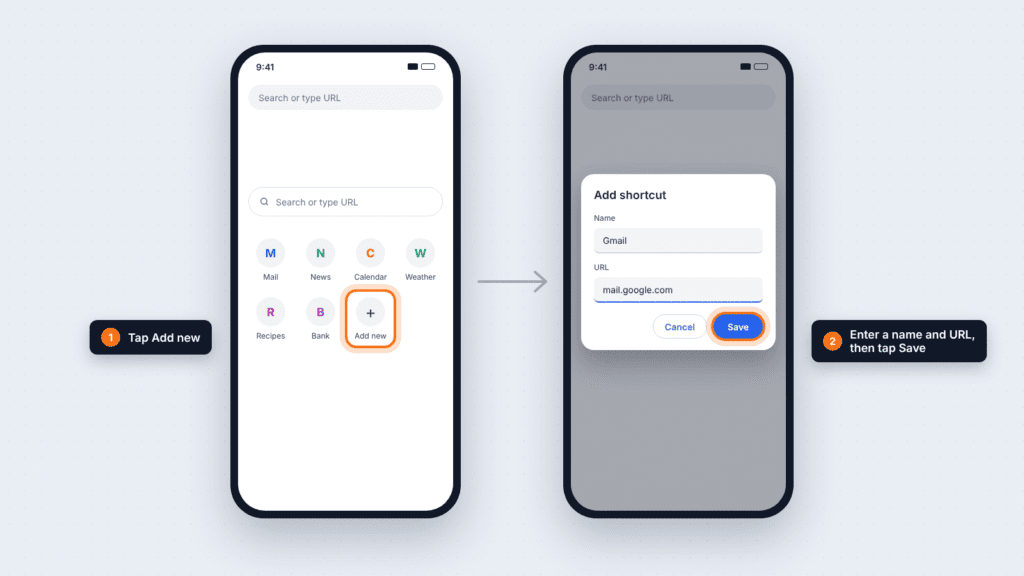
Manage shortcuts on Android
Touch and hold any shortcut to see its options.
| Action | Steps |
|---|---|
| Pin a shortcut | Touch and hold a suggested shortcut → Pin shortcut. Pinned shortcuts move to the left. |
| Edit a shortcut | Touch and hold → Edit shortcut → change the name or URL |
| Rearrange shortcuts | Touch and hold a pinned shortcut, drag it, then release. Only pinned shortcuts can be moved. |
| Unpin a shortcut | Touch and hold → Unpin |
| Remove a shortcut | Touch and hold → Remove |
| Show or hide all shortcuts | Tap More (three dots, top right) → Customize new tab page → turn My shortcuts on or off |
Good to know:
- Custom shortcuts on Android don’t sync to your other devices.
- If you can’t add more, you’ve reached the limit. Remove a shortcut first.
- If a shortcut won’t save, check that the URL is correct and the site isn’t already a shortcut.
How to Add Shortcuts to Chrome on iPhone and iPad
Chrome on iPhone and iPad also supports custom shortcuts on the New Tab page. The menu labels differ slightly from Android (Google’s iPhone and iPad New Tab page guide).
- Open the Chrome app.
- Open a new tab.
- At the right end of the shortcuts row, tap Add new. You may need to swipe the row to reach it.
- Enter the website’s name and URL.
- Tap Save.
Manage shortcuts on iPhone and iPad
Touch and hold any shortcut to see its options.
| Action | Steps |
|---|---|
| Pin or unpin a shortcut | Touch and hold → Pin site or Unpin site |
| Edit a shortcut | Touch and hold a pinned shortcut → Edit Site → change the name or URL |
| Remove a shortcut permanently | Touch and hold → Never Show This Site |
| Share a shortcut | Touch and hold → Copy Link or Share |
| Open in a new tab or Incognito | Touch and hold → choose how to open it |
| Show or hide all shortcuts | On a new tab, tap Edit (top left) → turn Site Shortcuts on or off |
Good to know: Custom shortcuts on iPhone and iPad don’t sync to other devices. Your on/off choice for Site Shortcuts does sync across iOS devices when you’re signed in.
How to Add a Website Shortcut to Your Home Screen or Desktop
A home screen or desktop shortcut opens a website straight from your phone or computer, without opening Chrome and a new tab first. It’s a different feature from New Tab page shortcuts, and you can use both. Google documents all three methods below (Google’s website shortcuts guide).
Android home screen
- Open Chrome and go to the website.
- To the right of the address bar, tap More (three dots).
- Tap Install and create shortcut, then Create shortcut.
- Rename the shortcut if you like.
- Tap Add.
Shortcuts that show a small Chrome logo open in Chrome. Some sites offer an Install option instead, which adds the site as an app.
iPhone and iPad home screen
- Open Chrome and go to the website.
- To the right of the address bar, tap Share (the square with an upward arrow).
- Tap Add to Home Screen.
- Edit the name if you like.
- Tap Add.
Computer desktop (Windows, Mac, ChromeOS, Linux)
- Open Chrome and go to the website.
- At the top right, click More (three dots).
- Click Cast, save, and share, then Create shortcut…
- Keep the suggested name or type a new one.
- Click Create.
How to Set Your Chrome Homepage and Startup Page
Set both to the New Tab page if you want to see your shortcuts every time you open Chrome or click Home. Google’s steps are below (Google’s homepage and startup settings guide).
Set your homepage on a computer
- In Chrome, click More (three dots) → Settings.
- Under Appearance, turn on Show Home button.
- Choose New Tab page, or enter a custom web address.
Set your homepage on Android
- In Chrome, tap More → Settings.
- Under Advanced, tap Homepage.
- Choose Chrome’s homepage or a custom page.
Chrome on iPhone and iPad doesn’t have a homepage setting. Google says you can only set one on a computer or Android device.
Set your startup page on a computer
- In Chrome, click More → Settings.
- On the left, click On startup.
- Select Open the New Tab page to see your shortcuts every time Chrome opens. To reopen your last tabs instead, choose Continue where you left off. To open specific sites, choose Open a specific page or set of pages.
Homepage changed on its own? Google warns this can be a sign of unwanted software. Reset Chrome under Settings → Reset settings → Restore settings to their original defaults.
How to Fix Chrome Shortcuts Not Showing
Most cases of Chrome shortcuts not showing come down to one setting: the shortcut mode. Find your problem in the table and try the fix.
| Problem | Likely cause | Fix |
|---|---|---|
| Add shortcut button is missing (desktop) | Chrome is set to Most visited sites | Customize Chrome → Shortcuts → select My shortcuts |
| Add shortcut disappeared after adding several | You’ve reached the 10-shortcut limit | Remove a shortcut you no longer need |
| No shortcuts appear at all | Shortcuts are hidden | Desktop: turn on Show shortcuts. Android: More → Customize new tab page → turn on My shortcuts. iPhone: Edit → turn on Site Shortcuts |
| Customization options are missing | You’re signed out, or your default search engine isn’t Google | Sign in to your Google Account. Then go to Settings → Search engine and choose Google |
| New Tab page looks completely different | An extension has replaced it | Check the footer at the bottom of the New Tab page, which names the controlling extension. Turn that extension off to restore Chrome’s page |
| Your shortcuts changed or vanished | Mode switched to Most visited sites, or you’re in a different Chrome profile | Switch back to My shortcuts. Click your profile picture (top right) and pick your usual profile |
| Shortcuts are missing on another device | Custom shortcuts on Android and iPhone don’t sync | Add them on each device, or use bookmarks, which do sync when Chrome sync is on |
| Shortcut opens the wrong page | The URL has a typo | Hover or touch and hold → Edit shortcut → fix the URL |
| Android shortcut won’t save | Wrong URL, a duplicate, or the limit is reached | Check the URL, remove the duplicate, or delete an old shortcut |
Still stuck? Update Chrome: click More → Help → About Google Chrome, then click Relaunch. A restart fixes many display glitches on the New Tab page.
Frequently Asked Questions
Why can’t I add a shortcut to my Chrome homepage?
The most common reason is that Chrome is set to Most visited sites. Open Customize Chrome, go to Shortcuts, and select My shortcuts. Other causes are the 10-shortcut limit, being signed out, or using a search engine other than Google.
How many shortcuts can I add to Chrome’s New Tab page?
Up to 10 on a computer. Android and iPhone also have a limit, though Google doesn’t publish the number. For more sites, use bookmarks.
Can I rearrange shortcuts on the Chrome homepage?
Yes. On a computer, drag a shortcut to a new position while in My shortcuts mode. On Android, pin the shortcuts first, then touch, hold, and drag them.
Do Chrome shortcuts sync across devices?
Custom shortcuts on Android, iPhone, and iPad don’t sync, so add them on each device. Bookmarks sync across all your devices when Chrome sync is on.
Conclusion
Adding a shortcut to the Google Chrome homepage takes a few seconds on any device: open a new tab, choose Add shortcut or Add new, and enter the site’s name and URL. If the option is missing, switch to My shortcuts and turn on Show shortcuts. For one-tap access outside Chrome, add the site to your phone’s home screen or your computer desktop.

Louis Mugan is a seasoned technology writer with a talent for turning complicated ideas into clear, practical guidance. He focuses on helping everyday readers stay confident in a world where tech moves fast. His style is approachable, steady, and built on real understanding.
He has spent years writing for platforms like EasyTechLife, where he covers gadgets, software, digital trends, and everyday tech solutions. His articles focus on clarity, real-world usefulness, and helping people understand how technology actually fits into their lives.
Outside of his regular columns, Louis explores emerging tools, reviews products, and experiments with new tech so his readers don’t have to. His steady, friendly approach has made him a reliable voice for anyone trying to keep up with modern technology. get in touch at louismugan@gmail.com