
Your new iPhone is set up, your data has moved over, and the home screen looks familiar. Before you put it in your pocket, a few minutes on the right settings will keep it secure, backed up and working the way you like.
Quick answer: Install any software update, check that iCloud Backup and Find My are on, and turn on Stolen Device Protection. Set up Face ID and Apple Pay, then fill in your Medical ID and emergency contacts. Review notifications and Screen Time, sign back in to important apps, and protect the phone with a case and screen protector. Finally, wipe the old iPhone before passing it on.
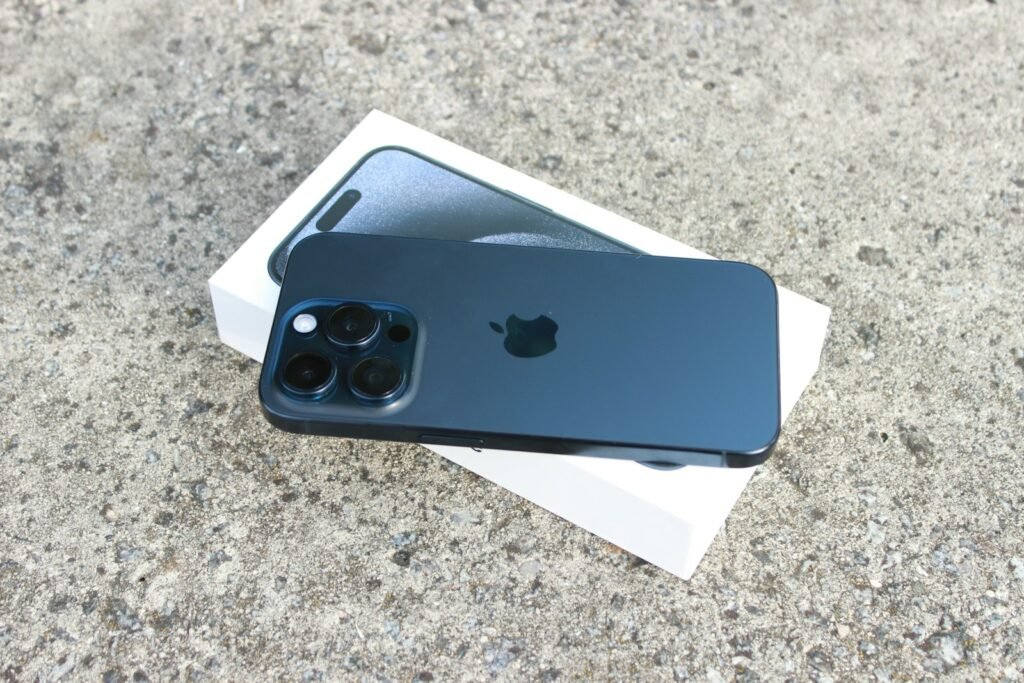
Haven’t moved your data yet? Start with how to set up a new iPhone from your old iPhone.
Your first-day checklist
| Task | Where to find it | Why it matters |
|---|---|---|
| Install updates | Settings > General > Software Update | Security fixes and bug fixes |
| Turn on iCloud Backup | Settings > [your name] > iCloud > iCloud Backup | Protects your data if the phone is lost |
| Check Find My | Settings > [your name] > Find My | Locate, lock or erase a lost phone |
| Stolen Device Protection | Settings > Face ID & Passcode | Extra protection if a thief knows your passcode |
| Medical ID | Health app > your profile > Medical ID | Helps responders in an emergency |
| Apple Pay | Wallet app > Add (+) | Cards don’t always move automatically |
1. Install the latest update
New phones often have an update waiting, even on day one. Go to Settings > General > Software Update and install it. While you’re there, tap Automatic Updates and turn on both download and install, so security fixes arrive without you remembering.
2. Make sure your new iPhone is backed up
A transfer doesn’t always switch backups on for the new phone. Go to Settings > [your name] > iCloud > iCloud Backup, make sure it’s on, and tap Back Up Now. If your iCloud storage is full, you’ll see a warning. You can upgrade your storage or back up to a computer instead.
3. Check Find My and turn on Stolen Device Protection
Go to Settings > [your name] > Find My > Find My iPhone and make sure it’s on, along with Find My network and Send Last Location.
Then open Settings > Face ID & Passcode and turn on Stolen Device Protection. Away from familiar places, it requires Face ID or Touch ID for sensitive actions, and changing your Apple Account password also requires an hour-long security delay. You can choose to require these protections everywhere. That stops a thief who has seen your passcode from taking over your account.
4. Set up Face ID and a strong passcode
If you skipped it during setup, go to Settings > Face ID & Passcode and set up Face ID. Consider a six-digit or longer passcode instead of four digits. You can also set up an alternate appearance, or add glasses if you wear them, to help Face ID recognize you more reliably.
5. Add your cards to Apple Pay
Cards in Wallet usually need to be added again on a new phone for security. Open Wallet, tap the add button, and follow the steps. Your bank may send a verification code. Then remove the cards from your old phone.
6. Fill in your Medical ID and emergency contacts
Open the Health app, tap your profile picture, then Medical ID, and add allergies, medications and emergency contacts. Turn on Show When Locked so first responders can see it. Also check Settings > Emergency SOS so you know how the button shortcut works on your model.
7. Tame notifications and set up Focus
A new phone with all your apps can be noisy. Go to Settings > Notifications and turn off alerts you don’t need. Use Scheduled Summary to bundle less important ones, and set up a Focus for sleep or work in Settings > Focus.
8. Sign back in to important apps
Open banking, email, work, messaging and authenticator apps one by one. Many ask you to sign in again or confirm your identity on a new device. Do this now rather than when you urgently need a code. Check that your authenticator codes work. See how to transfer Google Authenticator on iPhone if they’re missing.
9. Personalize your home screen
If your layout moved over, you’re set. If not, or you want a fresh look, try our iPhone home screen layout ideas. If something looks wrong, see how to restore your iPhone home screen to its original layout.
10. Protect it and check your warranty
Put on a case and a screen protector before the first drop, not after. Check your coverage in Settings > General > AppleCare & Warranty, where you can see your warranty and any AppleCare plan.
11. Set up Screen Time for kids
If the iPhone is for a child, set it up through Family Sharing as a child account, then use Screen Time in Settings to set app limits, downtime and content restrictions.
12. Wipe your old iPhone
Once everything works on the new phone, prepare the old one for its next owner. Follow our guide to wipe your old iPhone after moving to a new one. It covers signing out first so Activation Lock doesn’t block the next person.
Frequently asked questions
What is the first thing to do when you get a new iPhone?
Install the latest software update and make sure iCloud Backup and Find My are turned on. Those three steps protect the phone and your data from day one.
Should I update my new iPhone right away?
Yes. New phones often ship with an older version of iOS, and updates include security fixes. Connect to Wi-Fi and a charger, then install it from Settings > General > Software Update.
What is Stolen Device Protection?
It’s an iPhone security setting that requires Face ID for sensitive changes when you’re away from familiar places, sometimes with a one-hour delay. It makes it much harder for a thief who knows your passcode to take over your account.
Do I need to add my credit cards to Apple Pay again?
Usually, yes. For security, cards in Wallet often need to be added and verified again on a new device.
How we researched this guide
These recommendations are based on the iPhone settings available as of November 19, 2026. We haven’t tested each setting on every model. If you can’t find an option, search for it with the search bar at the top of the Settings app.

Louis Mugan writes how-to and troubleshooting guides for EasyTechLife, covering Android phones, iPhones, laptops, Chromebooks, headphones and everyday software.
He aims to base each guide on official manufacturer documentation and support pages, and to link the sources so readers can check the steps for themselves. Questions or corrections? Use the contact page.


