
Missed an emergency alert, or swiped it away before you finished reading? On most Android phones you can reopen it from a built-in alert history. iPhone has no alert history, so your options there are narrower.
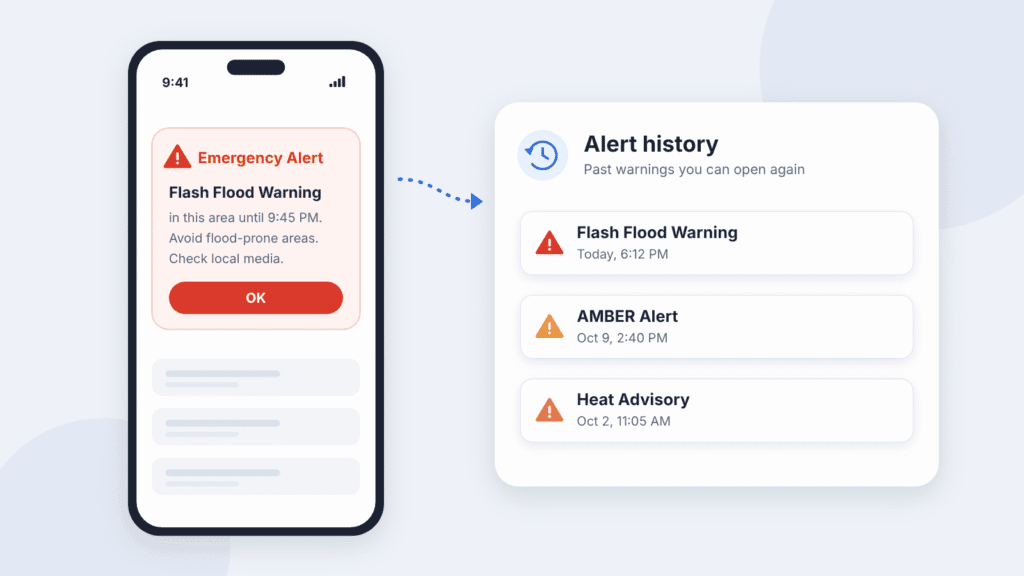
The short answer:
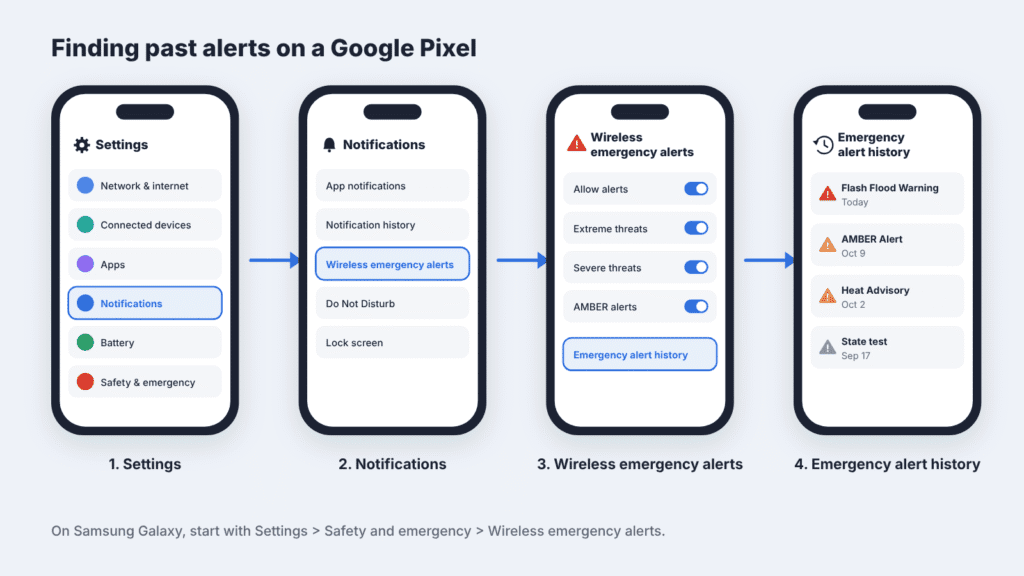
- Google Pixel: Settings > Notifications > Wireless emergency alerts > Emergency alert history
- Samsung Galaxy: Settings > Safety and emergency > Wireless emergency alerts > Emergency alert history
- iPhone: Swipe down from the top-left of the screen to open Notification Center. If you’ve already cleared it, iPhone has no built-in history to retrieve it.
If an alert is gone from your phone, the agency that sent it usually posts the same warning online. The sections below cover each phone, where to look when an alert has disappeared, and why some alerts never arrive.
Can You See Old Emergency Alerts on Your Phone?
On most Android phones, yes. Android keeps a dedicated emergency alert history that survives after you dismiss an alert. iPhone has no such list, so an alert stays visible only until you clear it from Notification Center.
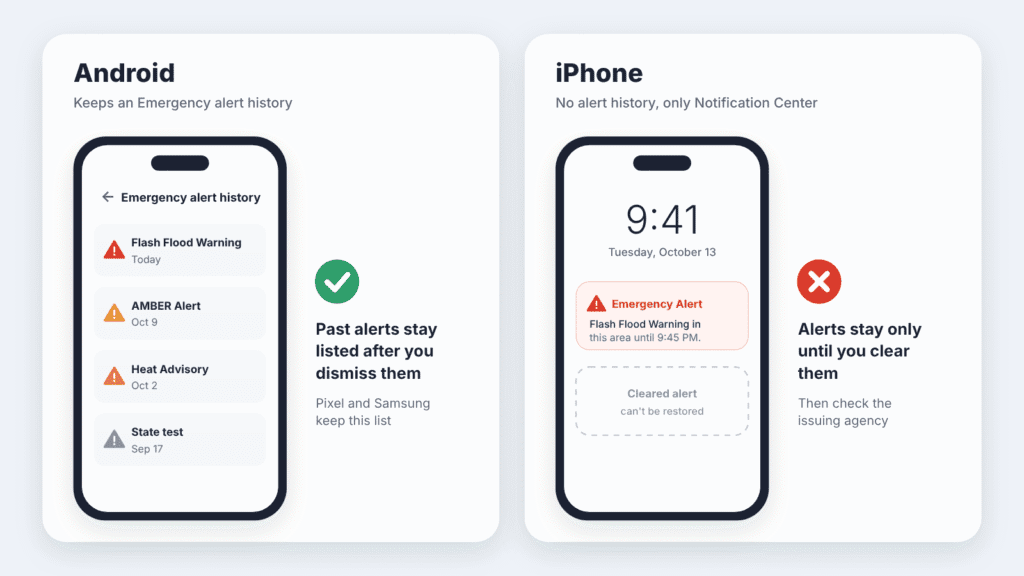
| Phone | Keeps an alert history? | After you dismiss an alert |
|---|---|---|
| Google Pixel | Yes | Can remain in Emergency alert history |
| Samsung Galaxy | Yes | Can remain in Emergency alert history |
| iPhone | No | In Notification Center until you clear it |
Don’t confuse alert history with notification history. Samsung’s optional Notification history covers dismissed notifications from roughly the last 24 hours. The emergency alert history is a separate list inside the alert settings.
How to Find Past Emergency Alerts on Android
Most Android phones keep an Emergency alert history, but manufacturers put it in different menus. Use the steps for your brand below. If the menu names don’t match, try the Settings search tip at the end of this section.
Find emergency alert history on Google Pixel
- Open the Settings app.
- Tap Notifications, then Wireless emergency alerts.
- Scroll down and tap Emergency alert history to see the alerts your phone has received.
Google’s Pixel Phone Help guide says this is also where you turn alert types on or off and adjust sound and vibration. On some Pixel software versions, you’ll find it under Settings > Safety & emergency > Wireless emergency alerts instead.
Find previous emergency alerts on Samsung Galaxy
- Open the Settings app.
- Tap Safety and emergency, then Wireless emergency alerts.
- Tap Emergency alert history to view previous alerts.
Samsung’s support guide lists this path for current Galaxy phones. On some software versions, the same menu is under Settings > Notifications > Advanced settings > Wireless emergency alerts.
On older Galaxy phones and some carrier versions, the history lives in the Samsung Messages app instead: open Messages, tap the menu, then Settings > Emergency alert history.
Other Android phones
Open Settings, tap the search bar at the top and type emergency alert. Pick Wireless emergency alerts, then look for Emergency alert history. If nothing comes up on an older phone, check the settings inside your default Messages app.
How to Check Previous Emergency Alerts on iPhone
iPhone doesn’t keep an emergency alert history. The Government Alerts section in Settings only turns alert types on and off. The one place a recent alert can still be is Notification Center.
Check Notification Center for recent alerts
- On the Lock Screen, swipe up from the middle of the screen. On any other screen, swipe down from the top-left corner. On iPhones with Face ID, the top-right corner opens Control Center instead.
- Scroll through your notifications and look for the alert.
- If you find it, take a screenshot so you keep a copy.
Once you clear an alert from Notification Center, iOS has no built-in way to retrieve it.
What to do if you already cleared the alert
- Look it up at the source. The agency that sent the alert usually publishes the same warning online. The next section lists where.
- Ask someone nearby who got the same alert. If they use an Android phone with an Emergency alert history, they may be able to find it there and share it.
- Check your alert settings for next time. Go to Settings > Notifications, scroll to the bottom and make sure the types you want under Government Alerts are on. Apple notes that some government alerts can’t be turned off and that alerts need a SIM or eSIM from a supported carrier.
How to Find a Missed or Deleted Emergency Alert
If an alert is gone from your phone, go to the agency that issued it. Phone alerts are short by design, and the agency usually posts the full warning online.
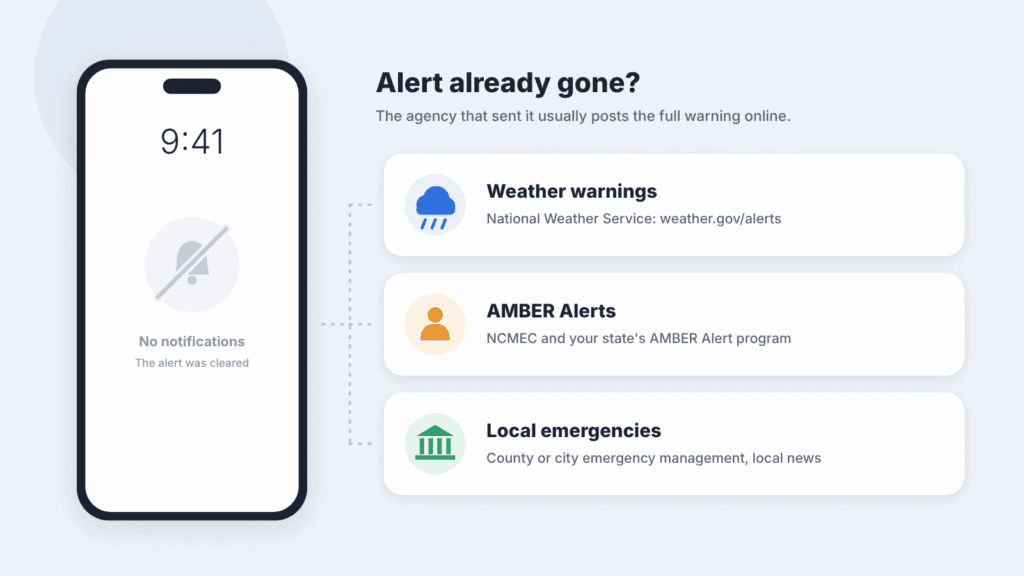
| Alert type | Where to find it again |
|---|---|
| Weather (tornado, flood, hurricane, extreme heat) | weather.gov/alerts shows active watches and warnings; click your area on the map. The free FEMA app can also send National Weather Service alerts for places you choose. |
| AMBER Alerts | The National Center for Missing & Exploited Children lists active AMBER Alerts and links to every state’s AMBER Alert program. |
| Local emergencies (evacuations, shelter-in-place orders, wildfires, boil-water notices) | Your county or city emergency management website and social media accounts, plus local TV and radio. |
| Statewide emergencies | Your state’s emergency management agency website. |
Check soon after you miss an alert. Warnings can expire, change or be canceled, so an old alert may not reflect the current situation. For AMBER Alerts, check the National Center for Missing & Exploited Children or your state’s AMBER Alert program for the latest information.
Why Can’t You Find Your Emergency Alert History?
Usually your phone doesn’t keep an alert history, the menu is somewhere else, or the alert never reached your phone. An alert your phone didn’t receive can’t appear in any history.
| Cause | What to do |
|---|---|
| You use an iPhone | iPhone has no alert history. Check Notification Center, or find the alert on the issuing agency’s website. |
| The menu has a different name | Search Settings for “emergency alert”. On older Android phones, check the Messages app settings. |
| That alert type is turned off | Turn it back on under Wireless emergency alerts (Android) or Government Alerts (iPhone). |
| Your phone was off, in airplane mode or out of signal | A phone in any of these states when the alert goes out doesn’t receive it. |
| You were outside the alert area | Alerts go only to phones connected to a participating cell tower that’s broadcasting the alert. |
| Your phone, SIM or carrier doesn’t support alerts | Alerts need a compatible phone and a SIM or eSIM from a participating carrier. Ask your carrier if alerts never arrive. |
| Your software is out of date | Install the latest system update; phones need current software to receive alerts reliably. |
Does Airplane Mode Block Emergency Alerts?
Yes, for standard US alerts. Airplane mode turns off your phone’s cellular radio, and Wireless Emergency Alerts arrive over that radio. A phone in airplane mode, switched off or set to Wi-Fi only won’t receive them.
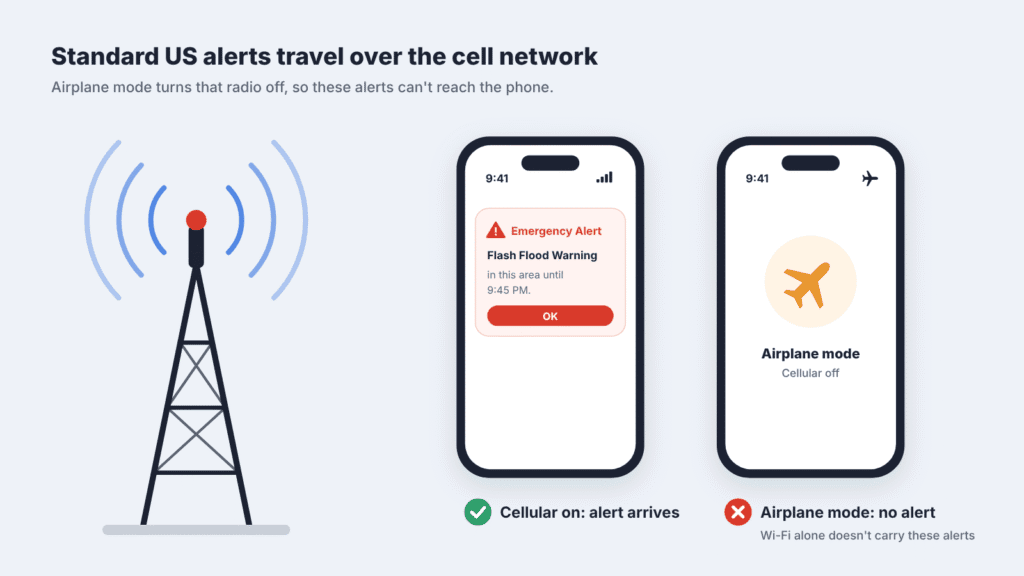
Wireless Emergency Alerts use cell broadcast. That’s a special channel that sends one message to every compatible phone connected to the cell towers broadcasting the alert. It doesn’t need your phone number, and busy voice or text networks don’t slow it down. Your phone just has to be on and connected to a tower when the alert goes out.
Turning on Wi-Fi in airplane mode doesn’t let these alerts through. And don’t count on receiving an alert later that went out while you were offline. Check the issuing agency’s website instead.
A few newer alerts do use the internet:
- iPhone: Enhanced Safety Alerts can add warnings for emergencies such as earthquakes and floods, sent by Apple over Wi-Fi or cellular data. They need iOS 26.2 or later and are available only in the US and Taiwan.
- Android: Earthquake alerts need Wi-Fi or mobile data turned on.
These may still reach you over Wi-Fi, but they add to official government alerts rather than replace them.
Silent mode and Do Not Disturb don’t stop alerts from arriving. Whether an alert makes a sound depends on the phone and the alert type. On a phone set to vibrate only, you may feel the alert but not hear it.
During severe weather, a wildfire or any other emergency, keep your phone on with cellular service enabled. Outside the US, alert systems can work differently, so check your national alert service’s guidance.
Frequently Asked Questions
Does the iPhone Government Alerts menu have an alert history?
No. It only holds on/off switches for alert types such as AMBER Alerts and Public Safety Alerts. Any guide that sends you to an “Alert History” option there is mistaken.
Can I turn off emergency alerts?
You can turn off most types, including AMBER Alerts and test alerts. National alerts (called Presidential alerts on older phones) can’t be turned off.
Do emergency alerts cost anything?
No. Carriers don’t charge you to receive Wireless Emergency Alerts.
Do I get alerts when I’m traveling?
Yes. Alerts go to compatible phones in the affected area, based on where the phone is, not your home address.
How do I see past alerts outside the US?
Check your national alert service’s website. The UK lists past alerts on GOV.UK, and Norway publishes every alert at emergencyalert.no. Android’s Emergency alert history works outside the US too, though menu names may differ.

Louis Mugan is a seasoned technology writer with a talent for turning complicated ideas into clear, practical guidance. He focuses on helping everyday readers stay confident in a world where tech moves fast. His style is approachable, steady, and built on real understanding.
He has spent years writing for platforms like EasyTechLife, where he covers gadgets, software, digital trends, and everyday tech solutions. His articles focus on clarity, real-world usefulness, and helping people understand how technology actually fits into their lives.
Outside of his regular columns, Louis explores emerging tools, reviews products, and experiments with new tech so his readers don’t have to. His steady, friendly approach has made him a reliable voice for anyone trying to keep up with modern technology. get in touch at louismugan@gmail.com


