
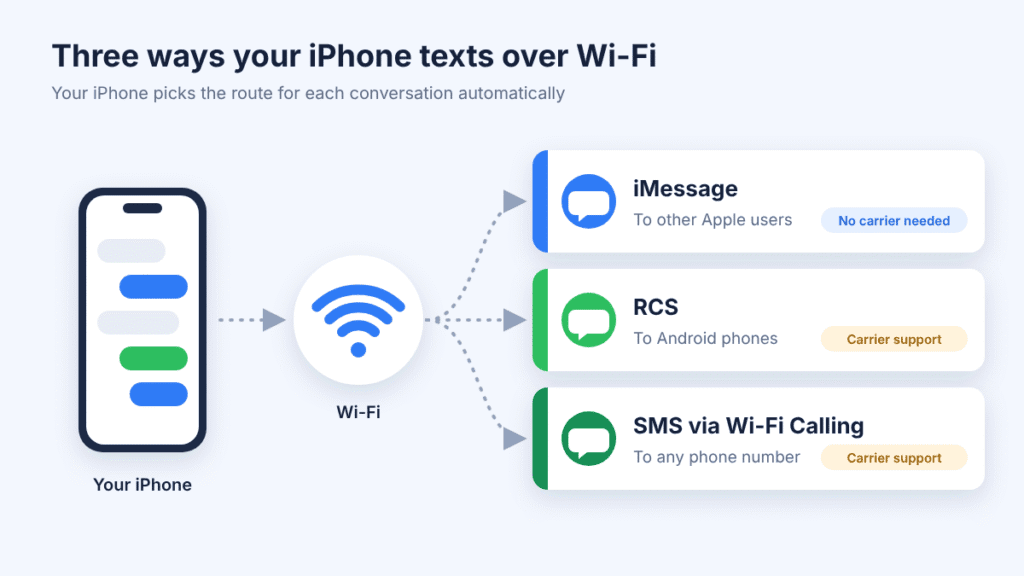
Your iPhone may already be texting over Wi-Fi without you noticing. Messages travel over Wi-Fi in three ways: iMessage for other Apple users, RCS for compatible Android conversations, and Wi-Fi Calling for regular SMS. RCS and Wi-Fi Calling both depend on your carrier.
The quickest start is to open Settings > Apps > Messages and check that iMessage is on. Below are the steps for each method, what still works with no cell signal, and what to check when Wi-Fi texting fails. The steps apply to iOS 18 and later.
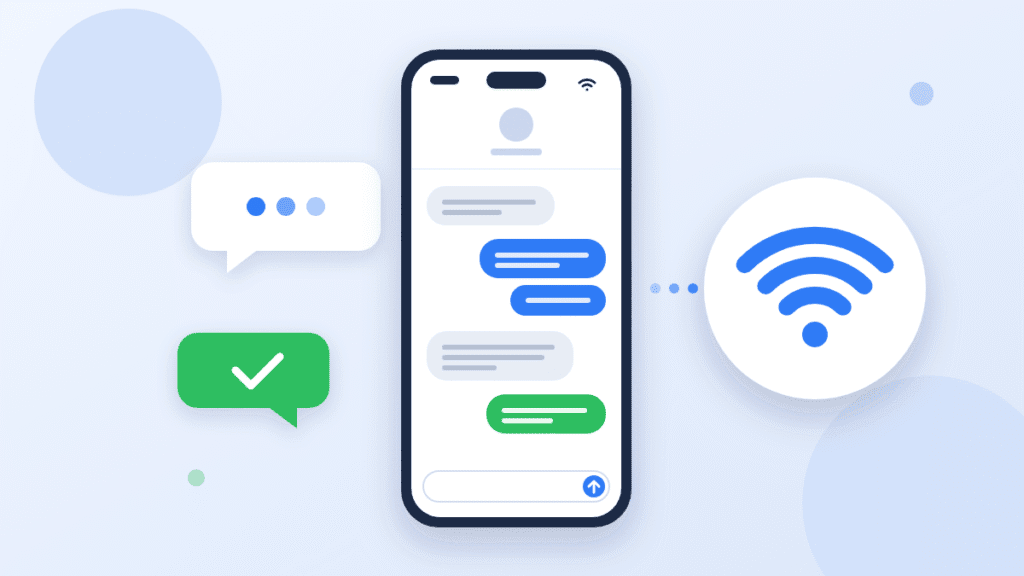
Can You Text Over Wi-Fi on an iPhone?
Yes. Whether Wi-Fi can carry a message depends on which kind of message it is:
- iMessage (blue bubbles) goes to other Apple users over Wi-Fi or cellular data. It works with no cell signal as long as you’re on Wi-Fi.
- RCS (green bubbles) goes to Android users over Wi-Fi or cellular data, if your carrier supports it.
- SMS (green bubbles) needs the cellular network. With Wi-Fi Calling turned on, your iPhone can send SMS over Wi-Fi instead.
Your iPhone picks the method for each conversation automatically. It uses iMessage when it can, then RCS, then SMS/MMS.
How to Enable Wi-Fi Texting on iPhone
Start with iMessage, which lets you message other people who have iMessage enabled. Add RCS for Android users, and Wi-Fi Calling for regular SMS.
Method 1: Turn on iMessage (texting other Apple users)
- Connect your iPhone to Wi-Fi.
- Open Settings, tap Apps, then tap Messages.
- Turn on iMessage. Activation can take a few moments.
- Tap Send & Receive and check that your phone number is selected, so people can reach you at your number.
- Send a test message to another Apple user. A blue bubble means it went as iMessage.
iMessages don’t count against your carrier’s text allowance, and over Wi-Fi they use no cellular data. Apple’s guide: Set up Messages on iPhone.
Method 2: Turn on Wi-Fi Calling (regular SMS over Wi-Fi)
Wi-Fi Calling isn’t only for calls. With a supported carrier, Wi-Fi Calling can also allow your iPhone to send standard SMS texts over Wi-Fi.
- Open Settings and tap Cellular (called Mobile Data or Mobile Service in some regions).
- If you use more than one SIM, choose the line you want.
- Tap Wi-Fi Calling and turn on Wi-Fi Calling on This iPhone.
- Tap Enable. You may need to enter or confirm an address for emergency services.
- Check the status bar or Control Center for your carrier name followed by “Wi-Fi.” This indicates Wi-Fi Calling is active. If it doesn’t appear, confirm that Wi-Fi Calling is enabled and supported by your carrier, then try another Wi-Fi network.
If the Wi-Fi Calling option is missing, your carrier may not offer it. Apple’s guide: Make a call with Wi-Fi Calling.
Method 3: Turn on RCS (texting Android users)
RCS sends texts, high-resolution photos, and read receipts to Android users over Wi-Fi or cellular data. It needs iOS 18 or later and a carrier that supports RCS on iPhone.
- Open Settings, tap Apps, then tap Messages.
- Tap RCS Messaging.
- Turn on RCS Messaging. It can take a little while to activate.
- Text an Android contact. “Text Message • RCS” in the conversation means it’s working.
If RCS Messaging doesn’t appear, your carrier likely doesn’t support it yet. Your iPhone will use SMS/MMS for those contacts instead. Apple’s guide: Turn on RCS messaging on your iPhone.
Can You Text Without Cellular Service?
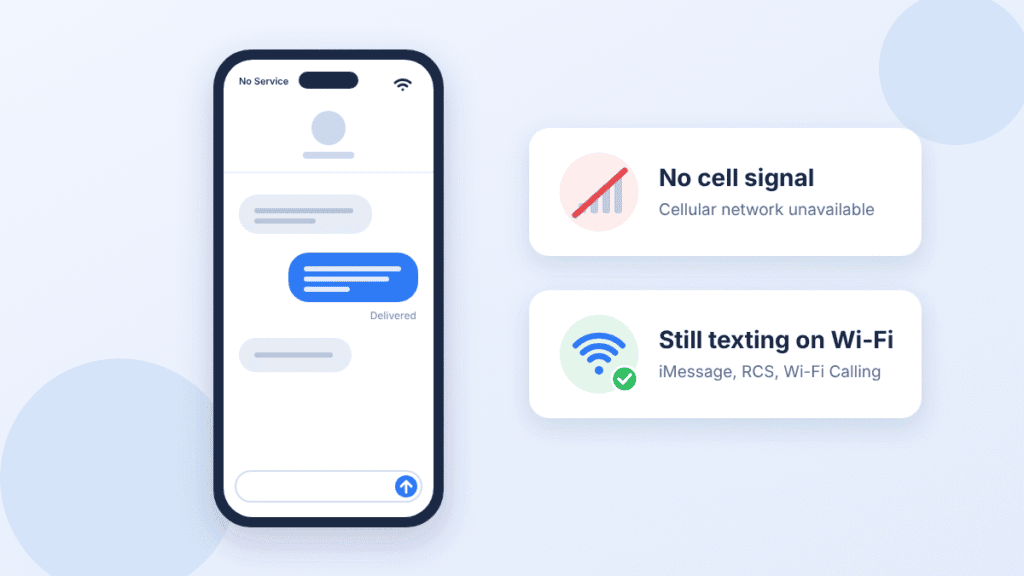
Yes, as long as you’re connected to Wi-Fi. With zero bars:
- iMessage works normally over Wi-Fi.
- RCS works over Wi-Fi, as long as your carrier supports RCS on iPhone.
- SMS works over Wi-Fi only if Wi-Fi Calling is on and your carrier supports it.
The “Send as Text Message” setting doesn’t turn on Wi-Fi texting. It only resends failed iMessages as SMS, which needs a cell signal unless Wi-Fi Calling is on.
No Wi-Fi and no cell signal: Messages via satellite
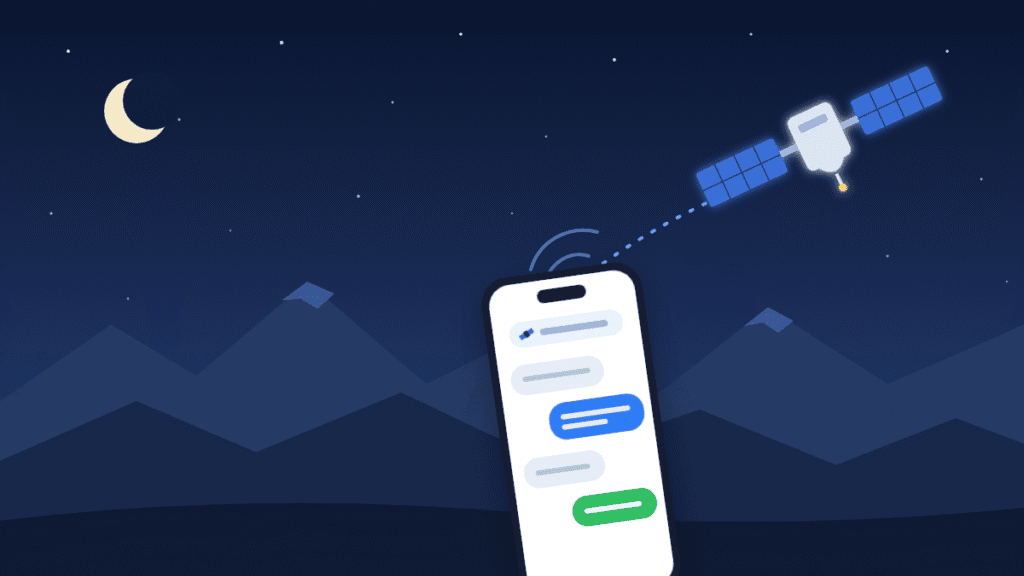
In supported countries, an iPhone 14 or later can send iMessages and SMS via satellite when cellular and Wi-Fi coverage are unavailable. You need to be outdoors with a clear view of the sky. It works in the United States, Canada, and Japan on iOS 18 or later, and in Mexico on iOS 18.4 or later. You need an active SIM, and SMS via satellite depends on your carrier.
Turn on iMessage before you leave coverage. Messages can take 30 seconds or more to send, and photos and group chats don’t work. In an emergency, use Emergency SOS via satellite instead. Apple’s guide: About Messages via satellite.
iMessage vs. RCS vs. SMS Over Wi-Fi
iMessage is the only method that works over Wi-Fi without any carrier support. Here’s how all four options compare:
| Method | Who you can text | Works with no cell signal | Needs carrier support | Bubble color | End-to-end encrypted |
|---|---|---|---|---|---|
| iMessage | Apple users | Yes, on Wi-Fi | No | Blue | Yes |
| RCS | Android and other non-Apple phones | Yes, on Wi-Fi | Yes | Green | Beta in iOS 26.5 and later, rolling out by carrier, and only when every participant’s carrier supports it |
| SMS via Wi-Fi Calling | Any phone number | Yes, on Wi-Fi | Yes | Green | No |
| Messages via satellite | Apple and non-Apple phones (no group chats) | Yes, no Wi-Fi needed | For SMS only | Blue or green | iMessages only |
Why Is Wi-Fi Texting Not Working on My iPhone?
Most failures come down to a Wi-Fi network without real internet access, or a feature your carrier doesn’t support. Work through these in order:
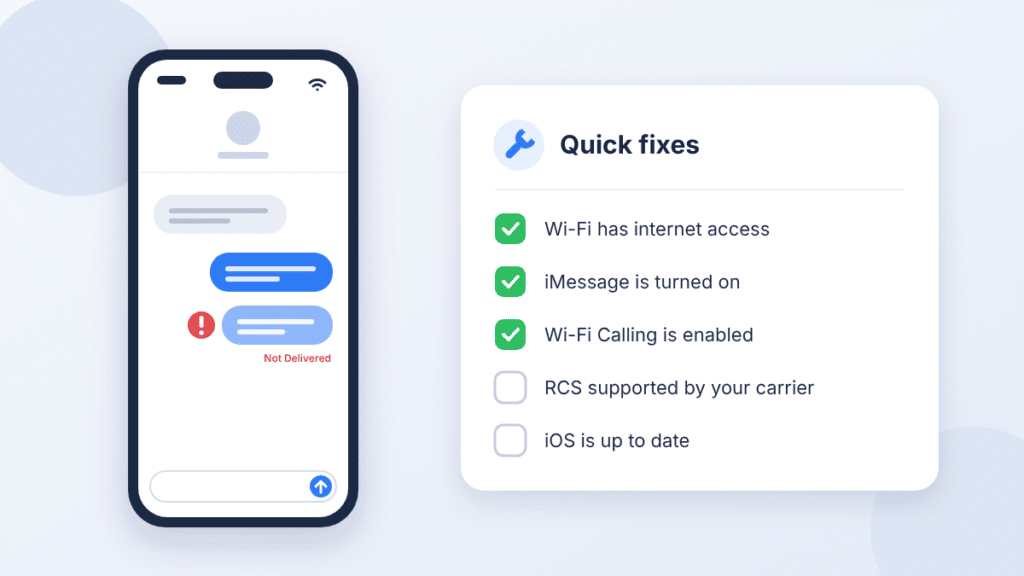
- Check that the Wi-Fi actually works. Open a web page. Hotel and airport networks often block traffic until you finish their sign-in page.
- Retry the failed message. If you see a red exclamation point and “Not Delivered,” tap it, then tap Try Again.
- Restart iMessage. Go to Settings > Apps > Messages, turn iMessage off, then on again.
- Check your number. In Settings > Apps > Messages > Send & Receive, make sure your phone number is selected.
- Update iOS. Go to Settings > General > Software Update.
- Restart your iPhone.
- Reset network settings as a last step. Go to Settings > General > Transfer or Reset iPhone > Reset > Reset Network Settings. This erases saved Wi-Fi passwords, so have them handy.
If one method is the problem:
- Wi-Fi Calling won’t turn on or texts don’t send over it: confirm your carrier offers Wi-Fi Calling, turn it off and on again, and try a different Wi-Fi network. Not every network works with Wi-Fi Calling.
- No RCS Messaging option: your carrier probably doesn’t support RCS on iPhone yet. Check Apple’s carrier list.
- RCS texts to one Android contact fail: ask them to turn on RCS chats in their messaging app.
Still stuck? Contact Apple Support for iMessage problems, and your carrier for SMS, MMS, Wi-Fi Calling, or RCS problems. Apple’s full checklist: If you can’t send or receive messages on your iPhone or iPad.
Frequently Asked Questions
Does “Send as Text Message” turn on Wi-Fi texting?
No. This setting, called “Send as SMS” on older iOS versions, only resends a failed iMessage as a regular text. Regular texts need a cell signal unless Wi-Fi Calling is on.
Does texting over Wi-Fi cost anything?
iMessage and RCS over Wi-Fi don’t use your cellular data. SMS sent through Wi-Fi Calling is usually treated like any other text on your plan. Carrier fees can still apply to RCS and SMS, even over Wi-Fi, so check your plan.
Can I text over Wi-Fi in Airplane Mode?
Yes. Turn on Airplane Mode, then turn Wi-Fi back on in Control Center. iMessage works right away. RCS and Wi-Fi Calling texts depend on your carrier.
Can I use Wi-Fi texting when traveling abroad?
Yes. On hotel or café Wi-Fi, iMessage works just as it does at home, with no roaming data charges. Whether Wi-Fi Calling and RCS work abroad depends on your carrier, and some charge for it.
Why are my messages green even on Wi-Fi?
Green means the message went as RCS or SMS/MMS instead of iMessage. That happens when the other person isn’t using iMessage, or iMessage is off on either phone. It isn’t an error.
Can I send texts from my iPad or Mac?
Yes, with Text Message Forwarding. On your iPhone, go to Settings > Apps > Messages > Text Message Forwarding and turn on each device. All devices need the same Apple Account, and your iPhone must be on and connected. If you use Messages in iCloud, it’s already on. Apple’s guide: Forward text messages from your iPhone to other devices.
Conclusion
For most people, Wi-Fi texting takes one switch: turn on iMessage in Settings > Apps > Messages. If you text Android users, turn on RCS as well. If you need regular SMS where your signal is weak, add Wi-Fi Calling. Both depend on your carrier, so a missing setting usually means your carrier doesn’t offer it yet.
Check these settings while you still have a signal, before you head somewhere with poor coverage. If you have an iPhone 14 or later, try the satellite demo too, so you know how it works before you need it.

Louis Mugan is a seasoned technology writer with a talent for turning complicated ideas into clear, practical guidance. He focuses on helping everyday readers stay confident in a world where tech moves fast. His style is approachable, steady, and built on real understanding.
He has spent years writing for platforms like EasyTechLife, where he covers gadgets, software, digital trends, and everyday tech solutions. His articles focus on clarity, real-world usefulness, and helping people understand how technology actually fits into their lives.
Outside of his regular columns, Louis explores emerging tools, reviews products, and experiments with new tech so his readers don’t have to. His steady, friendly approach has made him a reliable voice for anyone trying to keep up with modern technology. get in touch at louismugan@gmail.com


