
You can log into Cash App on a computer without downloading anything. Go to the official website at cash.app, enter the phone number or email on your account, and confirm with a one-time code, or with a passkey if you’ve set one up.
Once you’re in, you can check your balance, review your transactions and download monthly statements from your browser. Some features still need the phone app. Below are the exact sign-in steps, what works on the web, and fixes for common login problems.
Can You Use Cash App on a Computer?
Yes. Cash App doesn’t make a Windows or Mac app, so the website at cash.app is the official way to use your account on a computer, with nothing to install.
How to Log Into Cash App on Your Computer
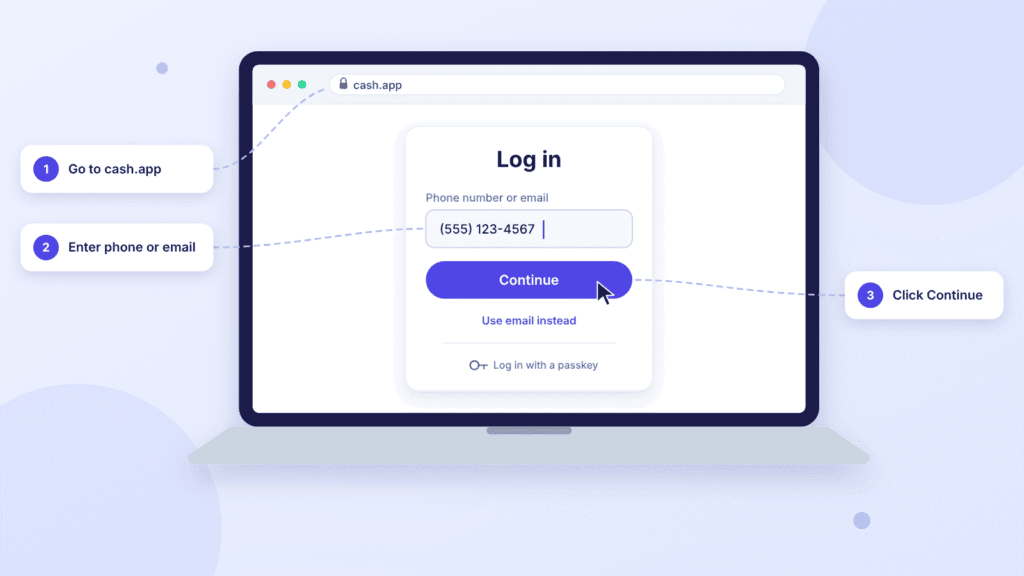
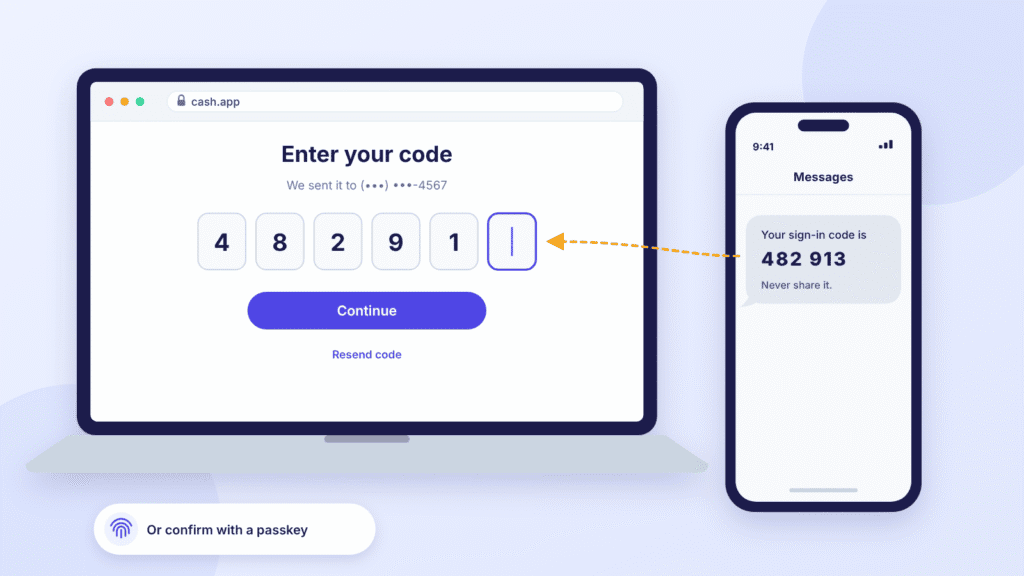
You sign in with your phone number or email plus a one-time confirmation code, or with a passkey if you’ve set one up. Cash App doesn’t use a password. The steps below follow Cash App’s web login guide.
Sign in with a confirmation code
- Go to cash.app in your browser and click Log in at the top right. [Screenshot: cash.app home page with the Log in button]
- Enter the phone number linked to your account and click Continue. To use your email address instead, select Use email.
- Enter the confirmation code Cash App sends you by text or email, then click Continue. [Screenshot: code entry screen]
- If you’re asked, confirm your Cash PIN.
Use the phone number or email on your account, not your $Cashtag. Cash App sends a new one-time code every time you sign in, so an old code won’t work.
Sometimes Cash App asks you to open a sign-in link instead. Open it on the same computer you’re signing in on.
Sign in with a passkey
If you’ve set up a passkey, the first two steps are the same. Instead of typing a code, you confirm with your passkey.
Where you confirm depends on how the passkey was set up. It might be saved on your computer (fingerprint, face scan or device PIN), in a password manager, or on your phone, in which case you’ll need the phone nearby.
What Can You Do on the Cash App Website?
The website covers the basics of your account. Cash App says it’s still bringing more app features to the web.
| Feature | On a computer |
|---|---|
| Check your balance | Supported |
| View transactions | Supported |
| Download monthly statements | Supported |
If you don’t see an option for sending money, linked banks, your Cash App Card, investing, bitcoin or Borrow in your web account, use the phone app. To pay an online store with Cash App Pay from a computer, you scan the store’s QR code with your phone (more on that below).
How to Check Your Cash App Balance and Transaction History on a Computer
Your full transaction history is on the website. These steps follow Cash App’s guide to viewing account activity:
- Sign in at cash.app/account with your phone number or email.
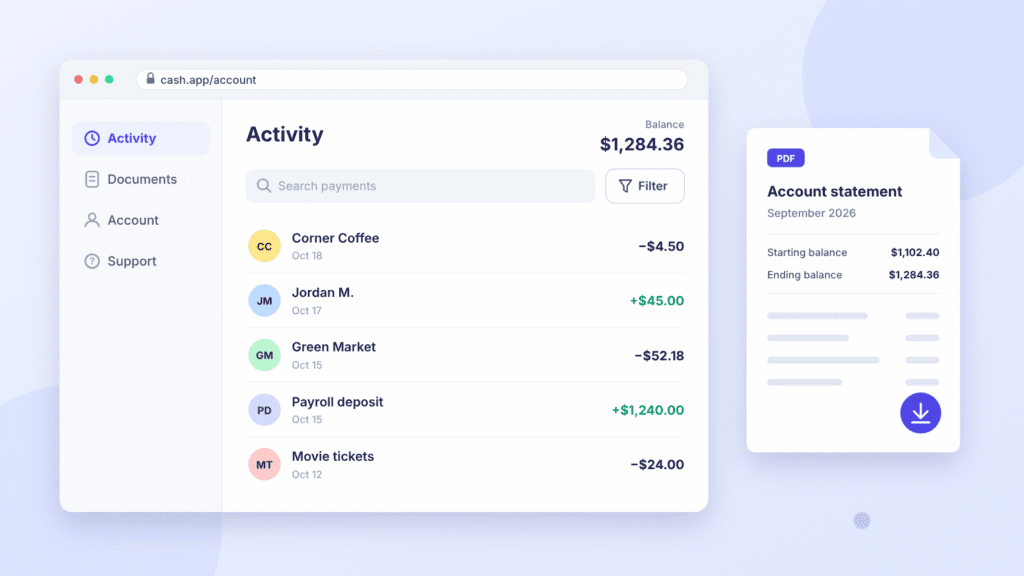
- Scroll through the Activity page to see your transaction history.
- Click any payment to see its details.
To find a specific payment, type a name or payment type into the search bar at the top of Activity, or click Filter to narrow by date or amount. [Screenshot: Activity page with balance, personal details blurred]
For a complete record of a month, including your starting and ending balance and any fees, download that month’s statement.
How to Download Cash App Statements on a Computer
Monthly statements show up on the website within 5 business days after the month ends. These steps follow Cash App’s statements guide.
- Log into your account at cash.app/account.
- On the left, click Documents, then Account statements. [Screenshot: Documents menu]
- Click the dropdown arrow next to the year.
- Click View next to the month you need.
Each statement lists your starting and ending balance, fees, transaction history, direct deposit details, and your account and routing numbers. Treat the file like a bank statement and don’t share it carelessly.
Looking for a Cash App Pay purchase? Open your Activity and select the transaction to see its details.
Can You Log Into Cash App Without Your Phone?
Yes, if you can get into the email address on your account. On the login screen, select Use email and Cash App sends the code to your inbox. A passkey also works if it’s saved on your computer or in a password manager you can open there.
If you’ve lost access to both your phone number and your email, contact Cash App Support at cash.app/help or call (800) 969-1940, daily from 8 AM to 9:30 PM ET. Skip paid “account recovery” services; recovery goes through Cash App only.
Once you’re back in, add a backup contact in the app. An account can have more than one phone number and email address.
- Tap the profile icon on your Cash App home screen.
- Select Personal.
- Tap your email or phone number, then Add Phone or Email.
Cash App Pay vs. Logging Into Your Account
These are two different things. Logging in opens your own account; Cash App Pay is a way to pay an online store at checkout.
| Logging into your account | Cash App Pay | |
|---|---|---|
| What it’s for | Viewing and managing your account | Paying a store at checkout |
| Where it starts | cash.app | The store’s checkout page |
| How you confirm | Confirmation code or passkey | Scan the QR code on screen with your phone, then follow the prompts in Cash App |
| Phone needed on a computer? | No, the code can go to your email | Yes, to scan the code |
| Where it shows up | Activity and monthly statements | View purchase details in Cash App activity |
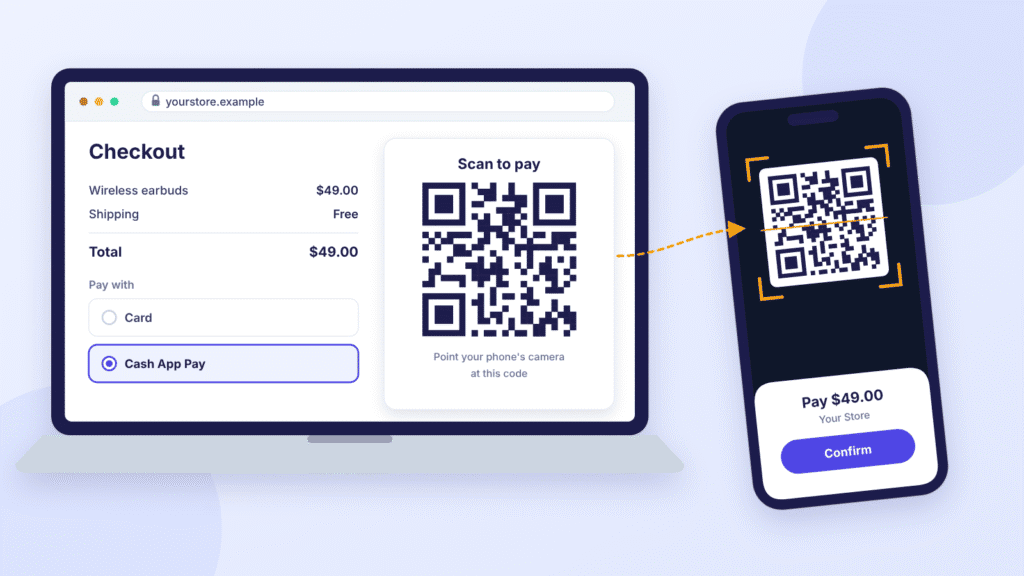
Cash App Pay takes money from your Cash App balance first. If that’s not enough, your linked debit card pays for the whole purchase. It’s only available in the United States.
For a refund, ask the store directly. Once the store refunds you, Cash App can take up to 10 business days to receive the money and return it to your original payment source.
How to Fix Cash App Login Problems on a Computer
Most login problems come down to the code, the contact details you entered, or the browser. Start with the one that matches what you see.
The confirmation code doesn’t arrive
- Check that you typed the phone number or email that’s on your account.
- For email codes, look in your spam or junk folder.
- Wait a minute, then request a new code. Each code works only once.
- If texts aren’t coming through, select Use email instead, or the other way round.
You entered the wrong phone number or email
A number or email that isn’t linked to your account won’t open it. Go back and use one you’ve added to the account.
The sign-in link doesn’t work
If Cash App sent you a sign-in link, open it on the same computer you started signing in on.
The Cash App website won’t load
- Check that the address bar says cash.app.
- Refresh the page, then try a different, up-to-date browser.
- Turn off browser extensions such as ad blockers and clear your cache.
- Check Cash App’s status page, linked at the bottom of cash.app, to see whether the service is down.
You changed phones or phone numbers
Sign in with your email code, then add your new number in the app under Personal.
You got a sign-in code you didn’t request
Someone may be trying to get into your account. Don’t share the code with anyone. Cash App recommends securing the email account tied to Cash App by changing its password and turning on two-factor authentication.
Your account is locked
Contact Cash App Support through the app or at cash.app/help. Support can review the lock and help you get back in.
Is It Safe to Log Into Cash App on a Computer?
Yes, as long as you’re on the real site and a computer you trust. The bigger risks are fake login pages and fake support numbers. Cash App’s security page covers most of the points below.
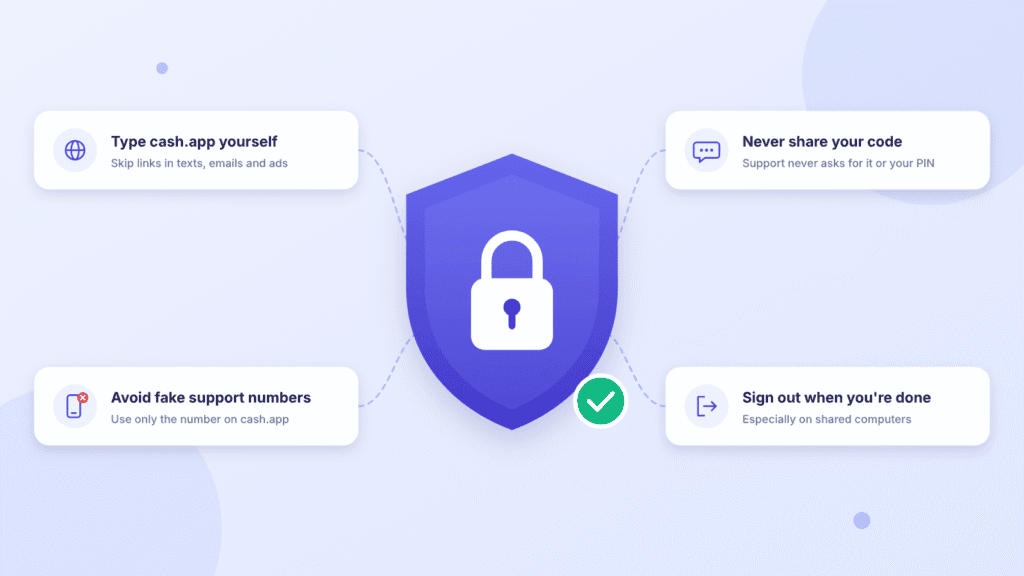
- Type cash.app into the address bar yourself rather than clicking links in texts, ads or search results.
- Real Cash App emails come only from @square.com, @squareup.com or @cash.app, and link only to square.com, squareup.com, cash.app or cash.me.
- Cash App Support never asks for your sign-in code, PIN or Social Security number. It also never asks you to send a payment, buy something, install a remote-access app or make a “test” transaction.
- Search results are full of fake “Cash App support” phone numbers. The number listed on Cash App’s own help pages is (800) 969-1940.
- On a shared or public computer, sign out when you’re done.
- Turn on Security Lock in the app so every payment needs your PIN, Touch ID or Face ID.
Frequently Asked Questions
Can I use Cash App on Windows 11 or a Mac?
Yes. Open cash.app in an up-to-date browser. There’s no separate Cash App program for Windows or macOS.
Do I need to download Cash App on my computer?
No. You sign in on the website, so there’s nothing to install.
Can I log into Cash App without a verification code?
Only with a passkey. Otherwise, Cash App sends a new one-time code each time you sign in.
Does Cash App have a password?
No. You sign in with a one-time code or a passkey, and you may be asked to confirm your Cash PIN.
Can I send money using the Cash App website?
Use the phone app to send or request money. Cash App says not every app feature is online yet, so if you don’t see a send option after logging in on the web, switch to the app.
Can I download Cash App statements on a computer?
Yes. Log in at cash.app/account, then go to Documents and Account statements.
Bottom Line
You can use Cash App on a Windows PC, Mac or Chromebook through the official website at cash.app. Sign in with a one-time confirmation code or a passkey you’ve already set up, then check your balance, review transactions and download statements. For anything the website doesn’t offer, use the Cash App phone app.

Louis Mugan is a seasoned technology writer with a talent for turning complicated ideas into clear, practical guidance. He focuses on helping everyday readers stay confident in a world where tech moves fast. His style is approachable, steady, and built on real understanding.
He has spent years writing for platforms like EasyTechLife, where he covers gadgets, software, digital trends, and everyday tech solutions. His articles focus on clarity, real-world usefulness, and helping people understand how technology actually fits into their lives.
Outside of his regular columns, Louis explores emerging tools, reviews products, and experiments with new tech so his readers don’t have to. His steady, friendly approach has made him a reliable voice for anyone trying to keep up with modern technology. get in touch at louismugan@gmail.com


