
To change your Yahoo email password on iPhone, open Safari, sign in to the Yahoo Account Security page, tap Password under “Ways of signing in,” enter a new password, and tap Continue. You can also change it in the Yahoo Mail app.
You can’t change your Yahoo password in iPhone Settings. Settings only controls how Apple’s Mail app signs in to your Yahoo account. If you read Yahoo Mail in Apple Mail, change your password with Yahoo first, then sign in again in Mail if it asks you to.
This guide covers both ways to change your password, how to reset one you’ve forgotten, and what to do if Apple Mail stops working afterward.
How to Change Your Yahoo Password Using Safari
The Yahoo Account Security page is the most reliable way to change your password, and you don’t need any app to use it.
- Open Safari and go to the Yahoo Account Security page.
- Sign in with your Yahoo email and current password if prompted.
- Under Ways of signing in, tap Password.
- Enter your new password.
- Tap Continue.
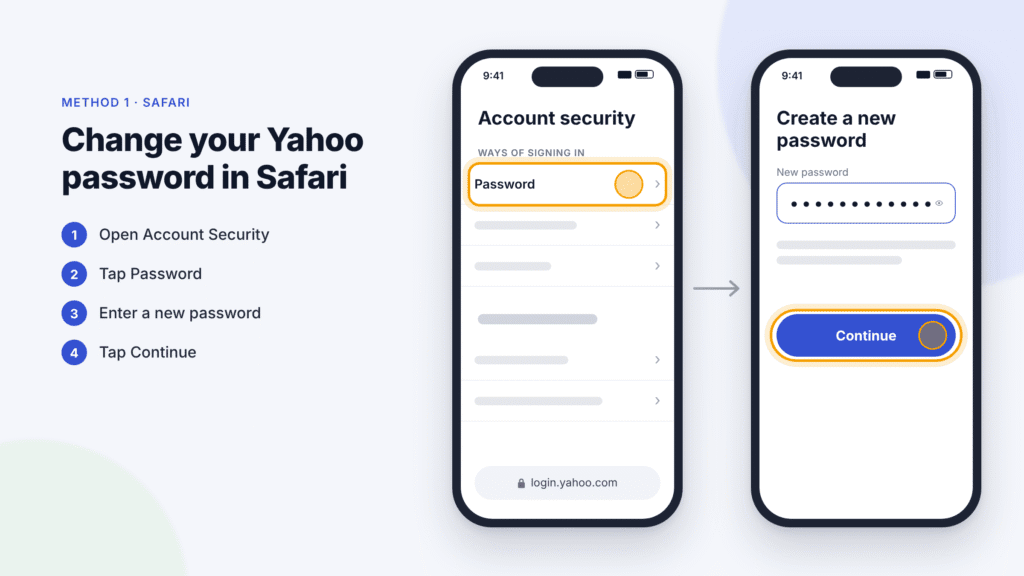
Your new password now works for every Yahoo service, including Yahoo Mail. If you also read your Yahoo email in Apple’s Mail app, follow the steps in the Apple Mail section below to sign in again.
How to Change Your Password in the Yahoo Mail App
If you already use the Yahoo Mail app, you can change your password without leaving it.
- Open the Yahoo Mail app and tap your profile icon.
- Tap Manage Accounts.
- Tap Account.
- Tap Security.
- Scroll to the bottom and tap Change password.
- Enter your new password.
- Tap Continue.
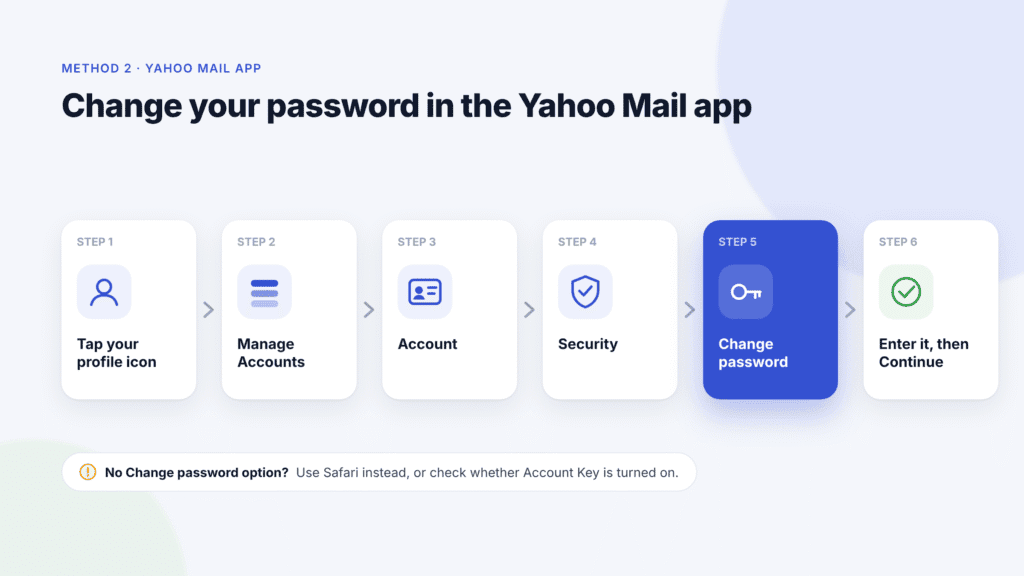
Menu labels can shift slightly between app versions. If you can’t find the option, use the Safari method above; Yahoo recommends a mobile browser when the app steps don’t work. If Change password is missing altogether, see the troubleshooting section below.
How to Reset a Forgotten Yahoo Password
Yahoo can’t show you your current password, but you can reset it. How you do that depends on whether you’re still signed in anywhere.
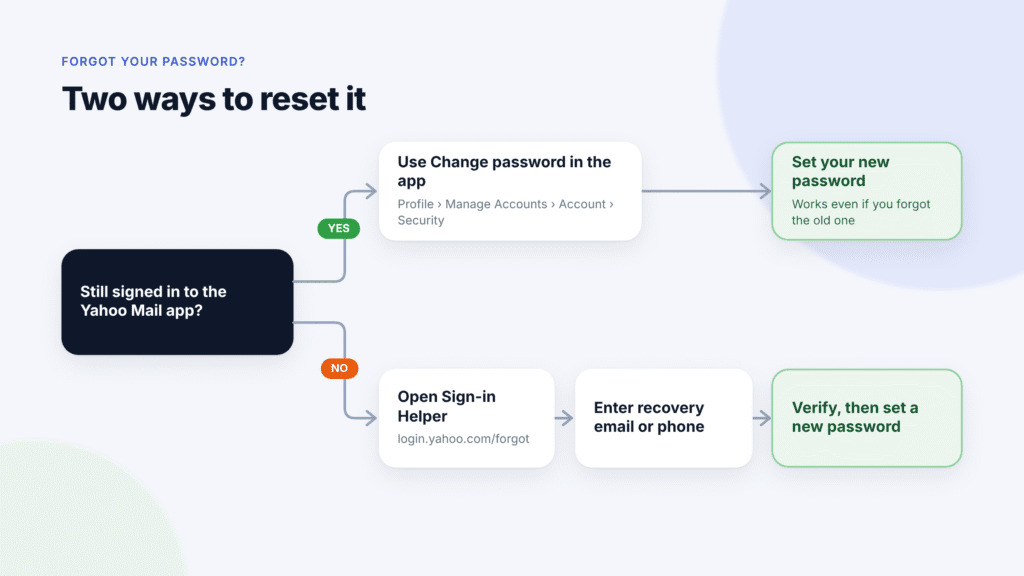
If you’re still signed in to the Yahoo Mail app, use the app’s Change password steps above. Yahoo says this option works even if you’ve forgotten your old password.
If you’re signed out, use Yahoo’s Sign-in Helper:
- In Safari, go to the Yahoo Sign-in Helper.
- Enter your recovery email, or tap Use recovery phone number and enter that number.
- Tap Next.
- Follow the on-screen instructions to verify your identity and set a new password.
If you can’t access your recovery phone or email, try every option the Sign-in Helper offers. You can also check Yahoo’s support resources, though recovery isn’t guaranteed.
How to Update Yahoo Mail on Your iPhone After Changing Your Password
If Apple’s Mail app shows a sign-in error after you change your Yahoo password, sign in to the account again. On iOS 18 and later:
- Open Settings, scroll to the bottom and tap Apps.
- Tap Mail, then tap Mail Accounts.
- Tap your Yahoo account.
- If you see Re-enter Password, tap it.
- Follow Yahoo’s on-screen sign-in steps, using your new password when asked.
- Complete any extra verification Yahoo asks for, such as entering a code, then tap Next.
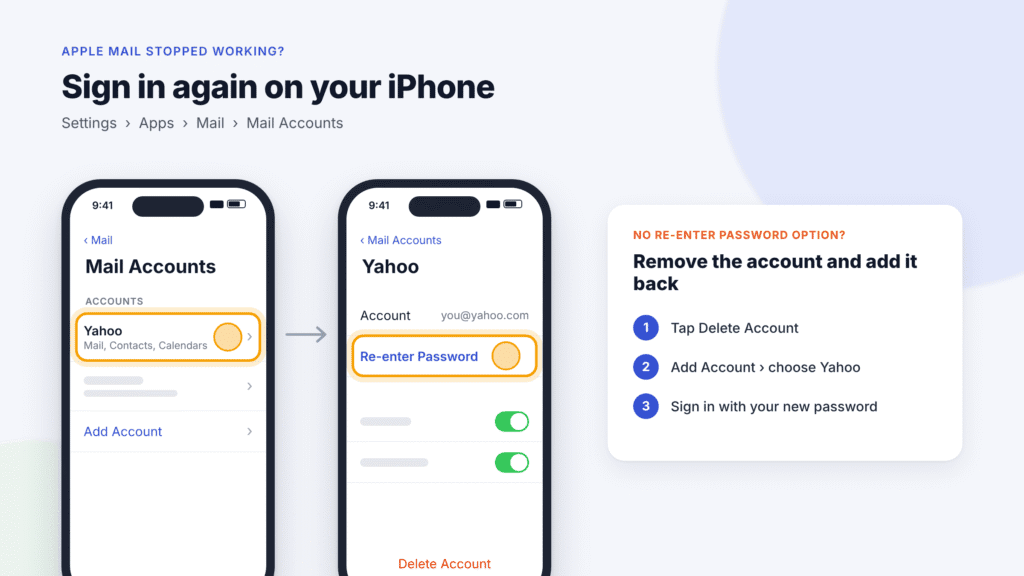
On iOS 17 and earlier, the path is Settings → Mail → Accounts instead.
If Re-enter Password is missing or doesn’t work
Remove the account and add it back. This doesn’t delete your Yahoo account or the email stored on Yahoo’s servers. Before you start, save anything that exists only on your iPhone, such as drafts that haven’t synced.
- Go to Settings → Apps → Mail → Mail Accounts and tap your Yahoo account.
- Tap Delete Account, then confirm with Delete from [your iPhone’s name].
- Tap Add Account, then tap Yahoo.
- Follow Yahoo’s sign-in steps using your new password, and complete any verification it asks for.
- Tap Save.
Choose Yahoo from the list rather than Add Other Account. The Yahoo option signs in through Yahoo’s own page, so your regular password works.
If you set up Yahoo with an app password
If you added Yahoo manually through Add Other Account, you’ll usually need a Yahoo app password instead of your regular password. Yahoo requires app passwords for mail apps that don’t use its own sign-in page.
Changing your main Yahoo password doesn’t revoke existing app passwords; they stay active until you delete them. If Mail stops working for another reason, delete the old app password under External connections on the Account Security page, create a new one, and enter it in Mail.
Why Can’t I Change My Yahoo Password?
If you can’t find a Change password option, check whether Yahoo Account Key is turned on. Account Key lets you sign in by approving a notification instead of typing a password. If it’s on, you must turn it off before you can set a new password.
To turn off Account Key in Safari:
- Go to the Yahoo Account Security page.
- Tap Turn off Account Key.
- Tap Turn off, then tap Turn off again to confirm.
To turn it off in the Yahoo Mail app, tap your profile icon, tap Account Key under your email address, tap Manage Account Key, then tap Disable Account Key.
Other common problems:
- The option is missing in the Yahoo Mail app. Use the Safari method instead.
- You can’t receive the verification code. Check that your recovery phone number and email on the Account Security page are current.
- Apple Mail still shows a password error. Mail signs in to Yahoo separately, so you may need to sign in again there. See the Apple Mail section above.
How to Keep Your Yahoo Account Secure
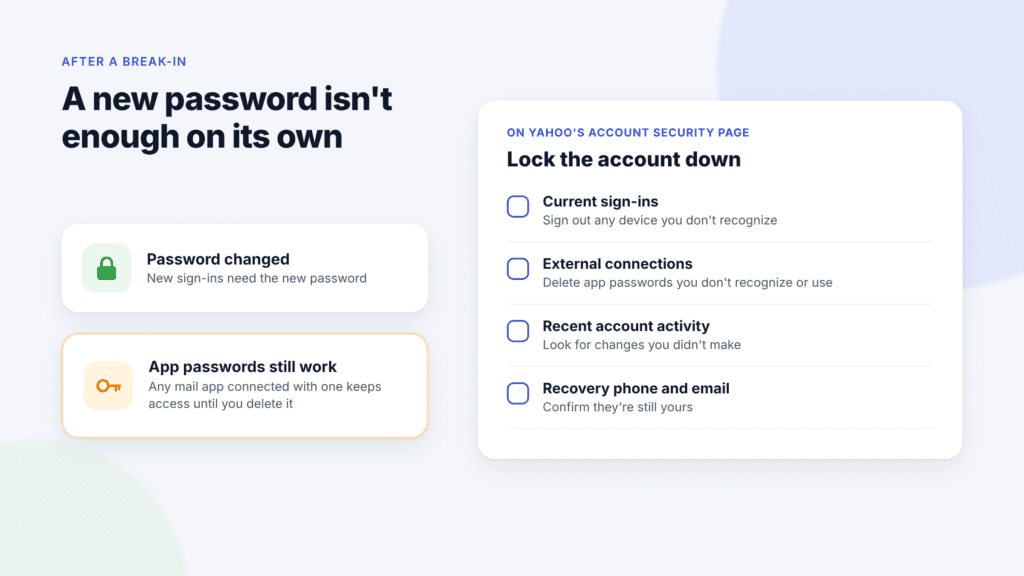
If you’re changing your password because you think someone got into your account, a new password alone won’t lock them out. App passwords stay active after a password change, so anyone who connected a mail app with one keeps access until you delete it.
After a suspected break-in, also do the following on the Account Security page:
- Under Current sign-ins, sign out any device you don’t recognize.
- Under External connections, delete any app passwords you don’t recognize or no longer use.
- Under Recent account activity, look for changes you didn’t make, such as a new phone number.
- Check that your recovery phone number and email address are yours.
For everyday protection:
- Turn on two-step verification so a stolen password isn’t enough to sign in.
- Use a password you don’t use anywhere else. A password manager, such as the Passwords app on iPhone, can create and remember one for you.
- Change your password when there’s a reason, such as a breach notice or an unfamiliar sign-in. NIST’s digital identity guidelines no longer recommend changing passwords on a fixed schedule, because forced changes tend to produce weaker passwords.
Frequently Asked Questions
Does changing the password in iPhone Settings change my Yahoo password?
No. Settings only controls how Apple Mail signs in to Yahoo. Change your password with Yahoo first, then sign in again in Mail if it asks.
Can I see my current Yahoo password?
No. Yahoo can’t show you your password; you can only reset it. If you saved it in the Passwords app on your iPhone, you may be able to look it up there.
Do I need the Yahoo Mail app to change my password?
No. You can change it from the Yahoo Account Security page in Safari or any other browser.
Can I change my Yahoo password without knowing the old one?
Yes. If you’re still signed in to the Yahoo Mail app, use its Change password option. If you’re signed out, use the Yahoo Sign-in Helper.
Will my app passwords stop working after I change my password?
No. App passwords stay active until you delete them on the Account Security page.
Why don’t I see a Change password option?
Yahoo Account Key may be turned on. If it is, turn it off first, then change your password.
Final Thoughts
Change your Yahoo password in Safari or the Yahoo Mail app, not in iPhone Settings. If you use Apple Mail, sign in again there if it asks. If the password option is missing, check whether Account Key is turned on, and after a suspected break-in, delete old app passwords too.

Louis Mugan is a seasoned technology writer with a talent for turning complicated ideas into clear, practical guidance. He focuses on helping everyday readers stay confident in a world where tech moves fast. His style is approachable, steady, and built on real understanding.
He has spent years writing for platforms like EasyTechLife, where he covers gadgets, software, digital trends, and everyday tech solutions. His articles focus on clarity, real-world usefulness, and helping people understand how technology actually fits into their lives.
Outside of his regular columns, Louis explores emerging tools, reviews products, and experiments with new tech so his readers don’t have to. His steady, friendly approach has made him a reliable voice for anyone trying to keep up with modern technology. get in touch at louismugan@gmail.com


