
To clear Safari history on an iPhone or iPad, open Settings > Apps > Safari, tap Clear History and Website Data, choose a timeframe, and tap Clear History. On a Mac, open Safari, choose History > Clear History, pick a timeframe, and click Clear History.
Both methods remove the websites you visited, your recent Safari searches, and the cookies and website data from that period. They don’t delete your saved passwords or AutoFill details, and they don’t touch search history stored in your Google or Microsoft account.
Below are the full steps for each device, plus how to delete a single website, keep cookies on a Mac, fix a greyed-out Clear History button, and browse without saving history. The steps are written for iOS 27, iPadOS 27 and macOS 27; earlier versions differ slightly.

How to clear Safari history on iPhone
You can clear your history from the Settings app or from inside Safari. According to Apple’s iPhone guide to clearing Safari data, both remove the same things: visited pages, recent searches, cookies, and permissions you gave sites to use your location or send notifications. Your saved AutoFill information isn’t affected.
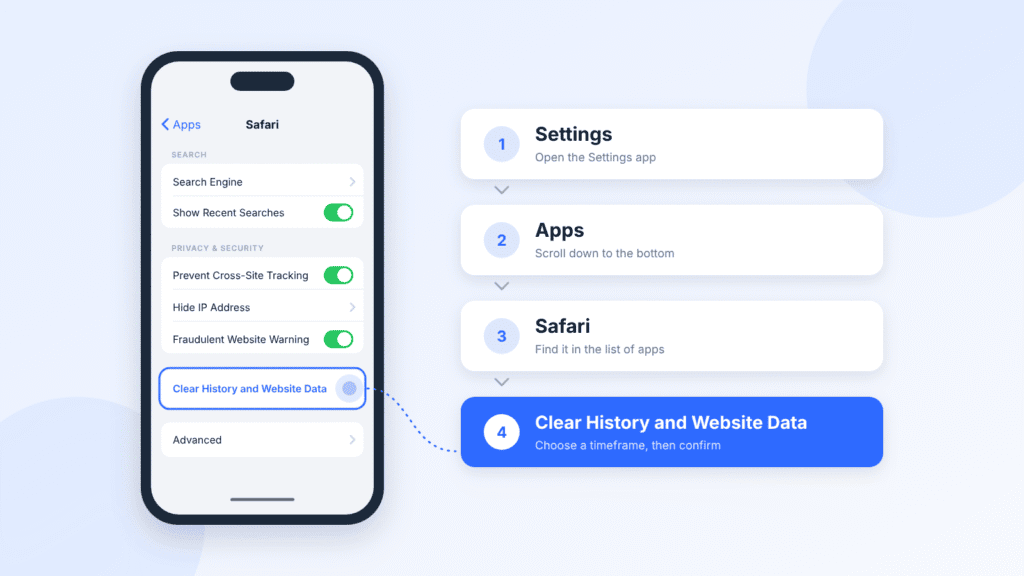
Method 1: From Settings
- Open Settings and tap Apps.
- Tap Safari.
- Scroll down and tap Clear History and Website Data.
- Choose a timeframe: Last Hour, Today, Today and Yesterday, or All History.
- Tap Clear History.
Method 2: From inside Safari
- Open Safari and go to a Start Page. If you don’t see one, tap the Tabs button, then +.
- Tap History (the clock icon) at the top of the Start Page. If you use the Top or Bottom tab layout, tap the Bookmarks button first, then History.
- Tap the More button (three dots), then tap Clear History.
- Choose a timeframe.
- If you use Safari profiles, pick one profile or All Profiles.
- Tap Clear History.
How to clear Safari history on iPad
The Settings method is identical to iPhone: Settings > Apps > Safari > Clear History and Website Data, choose a timeframe, then tap Clear History.
Inside Safari, the iPad uses a sidebar instead of the Start Page, as shown in Apple’s iPad guide to clearing Safari data:
- Open Safari and tap the Show Sidebar button in the top-left corner.
- Tap History.
- Tap the More button (three dots), then tap Clear.
- Choose a timeframe and, if you use profiles, a profile or All Profiles.
- Tap Clear History.
How to clear Safari history on Mac
- Open Safari.
- In the menu bar, choose History > Clear History. The same command also appears in the Safari menu.
- Click the pop-up menu and choose how far back to clear: the last hour, today, today and yesterday, or all history.
- Click Clear History.
According to Apple’s Safari guide for Mac, this removes visited pages, the back and forward list, frequently visited sites, recent searches, your download list (not the downloaded files), and site permissions for location and notifications. It also removes cookies, so you may need to sign in again to some websites. To keep your logins, use the method in the cookies section below.
Clear history automatically on Mac
Safari can delete old history on a schedule. Go to Safari > Settings > General, find Remove history items, and choose a period such as after one day, one week, or one month.
How to delete individual websites from Safari history
You don’t have to wipe everything. Deleting an individual entry removes only that page from your browsing history. It doesn’t clear the rest of your history or sign you out of every website.
iPhone (steps from Apple Support):
- In Safari, go to a Start Page and tap History.
- Tap the More button, then tap Select Websites.
- Select the sites you want to remove, then tap the Trash button.
For a single entry, you can also swipe left on it and tap Delete.
iPad: Tap Show Sidebar, tap History, then swipe left on the entry and tap Delete.
Mac:
- Choose History > Show All History (or press Command-Y).
- Click an entry. Hold Command to select several.
- Press the Delete key, or Control-click and choose Delete.
How to clear Safari history without losing cookies
Only the Mac can clear history while keeping cookies. On iPhone and iPad, clearing history always removes cookies and website data too, so you may be signed out of some websites. If staying signed in matters, delete individual websites instead (see above).
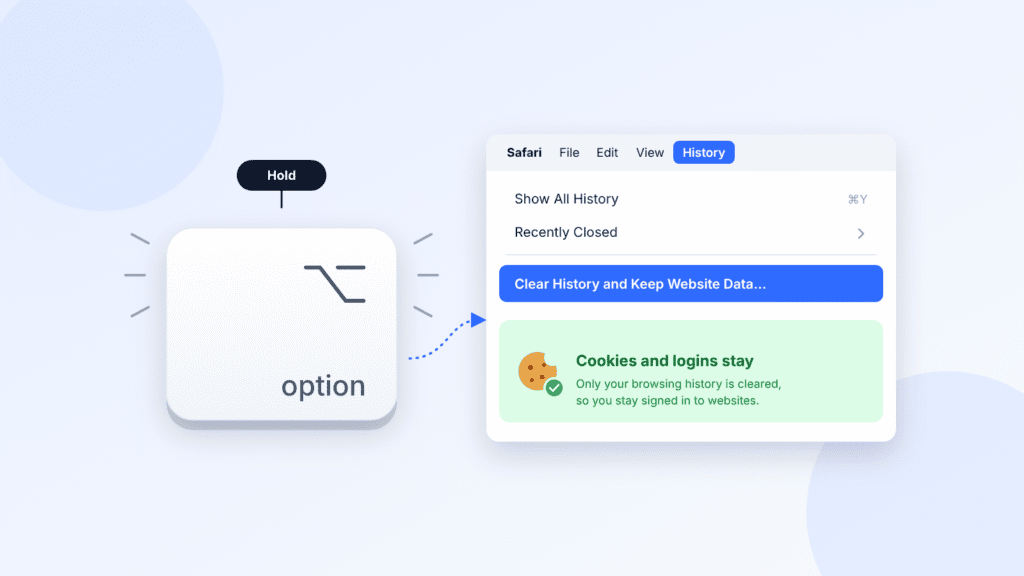
On Mac, keep your logins:
- Open the History or Safari menu.
- Hold the Option key. Clear History changes to Clear History and Keep Website Data.
- Click it, choose a timeframe, and confirm.
The reverse: clear cookies but keep history
This is useful when a site misbehaves but you want to keep your history.
- iPhone or iPad: Go to Settings > Apps > Safari > Advanced > Website Data, tap Remove All Website Data, then Remove Now, as described in Apple’s Safari data article.
- Mac: Go to Safari > Settings > Privacy, click Manage Website Data, then remove one site or click Remove All.
How to hide recent searches in Safari without deleting history
If you just don’t want past searches popping up when you tap Safari’s search field, you don’t need to delete anything. On iPhone and iPad, you can hide recent search suggestions without deleting your browsing history, as Apple’s guide to hiding recent searches explains.
- Open Settings > Apps > Safari.
- Under Search, turn off Show Recent Searches.
This only hides the list. Your searches stay in your browsing history until you clear it.
How to fix Clear History greyed out in Safari
A grey Clear History button usually has one of three causes. Apple names the first two in its Safari history and cookies article.
- There’s nothing to clear. If you just cleared your history, the button stays grey until you browse again.
- Website filtering is on. Screen Time web content restrictions can prevent Safari history from being cleared. On a child’s device, a parent or guardian manages these settings.
- The device is managed. On work or school devices running iOS, iPadOS or macOS 26 or later, the organization can block history clearing. Only your IT team can change that.
Check website filtering on a child’s device
In iOS 27, a parent or guardian can see which filter is active from their own iPhone or iPad, following Apple’s parental controls guide:
- Open Settings, tap Family, then tap your child’s name.
- Tap Apps & Websites and enter your Screen Time passcode if asked.
- Tap Restrictions, then Filtering under Websites.
[Screenshot. Alt text: “Website filtering options in Screen Time parental controls on iPhone”]
Filtering choices include Limit Adult Websites and Approved Websites Only (Apple’s new Ask to Browse feature). Limit Adult Websites is on by default for children under 18, and in some countries and regions it can’t be turned off. While a filter is on, a greyed-out Clear History button is expected behavior, not a fault. These filters protect children, so they’re best left in place.
If your family hasn’t moved every device to the 27 releases, you can keep using the older Screen Time settings, or adjust the restrictions directly on the child’s device.
For a restriction you set on your own device, open Settings > Screen Time and review its website limits.
Does clearing Safari history delete everything?
No. Clearing history wipes what Safari stores on your devices, but not your saved logins or anything kept elsewhere.
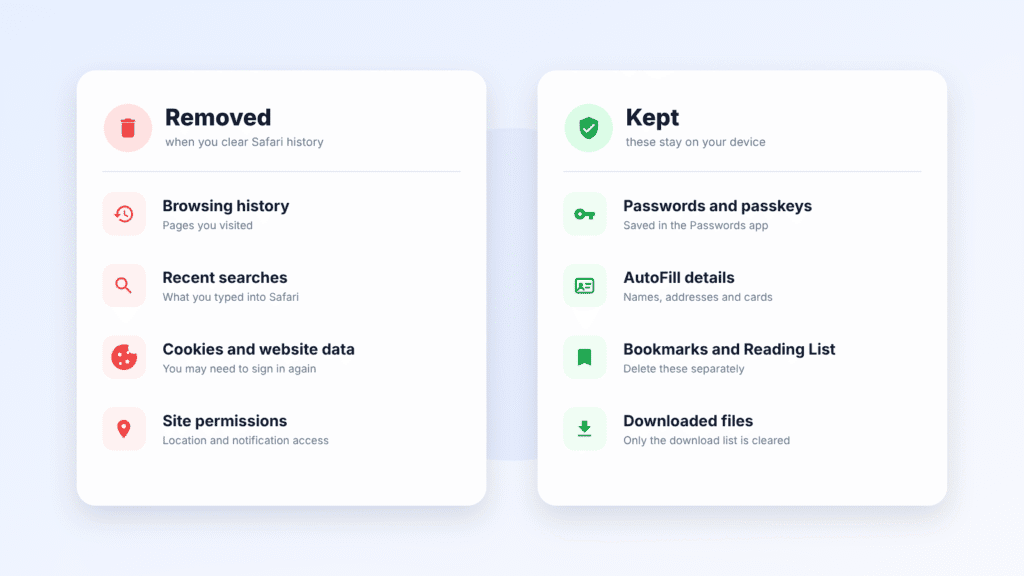
| Item | Removed? | Notes |
|---|---|---|
| Visited pages and recent searches | Yes | On every device that syncs Safari through iCloud |
| Cookies and website data | Yes | Except the Mac’s Option-key method, which keeps them |
| Site permissions for location and notifications | Yes | Sites will ask again |
| Download list | Yes | The downloaded files stay on your device |
| Saved passwords and passkeys | No | They stay in the Passwords app |
| AutoFill details | No | Apple confirms clearing doesn’t change AutoFill |
| Bookmarks and Reading List | No | Delete these separately |
| Search history in your Google or Microsoft account | No | Manage it in your account, e.g. Google My Activity |
| Records kept by websites, your network or your internet provider | No | These live outside your device |
Watch out for iCloud sync
According to Apple’s Safari guide for Mac, when Safari syncs through iCloud, clearing your browsing history on one device also removes it from your other Apple devices signed in to the same Apple Account. To keep each device’s history separate, turn off Safari in your iCloud settings. On iPhone, go to Settings > [your name] > iCloud, tap See All under Saved to iCloud, and turn off Safari. This also stops syncing bookmarks and open tabs.
How to use Private Browsing in Safari
Private Browsing stops Safari from saving history in the first place. According to Apple’s iPad Safari guide, private tabs don’t appear in your History or in the tab list on your other devices. Safari also applies its strongest tracker blocking in private tabs, including stripping known tracking IDs from links.
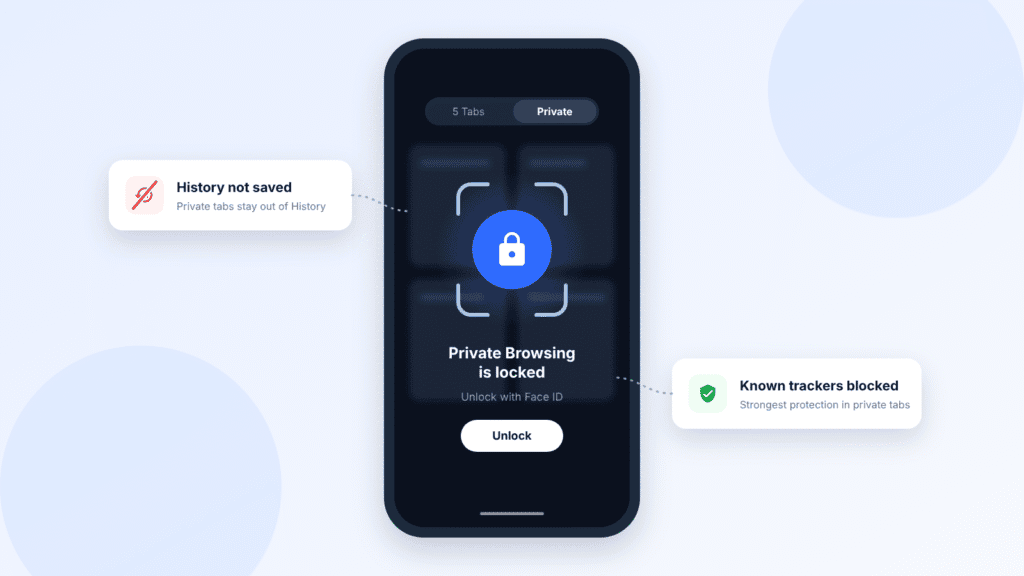
- iPhone: Tap the Tabs button, switch to Private, then tap + to open a private tab.
- iPad: Tap Show Sidebar, then tap Private.
- Mac: Choose File > New Private Window, or press Shift-Command-N.
To keep private tabs away from anyone who picks up your iPhone, go to Settings > Apps > Safari and turn on Require Face ID to Unlock Private Browsing (Touch ID or passcode on some models).
Private Browsing isn’t invisibility. Your internet provider, your workplace or school network, and any site you sign in to can still see what you do.
Privacy settings worth a minute
Clearing history cleans up the past; these settings limit what gets collected next. Safari includes built-in tracking and fingerprinting protections. The available settings depend on your software version.
| Setting | iPhone and iPad | Mac | What it does |
|---|---|---|---|
| Advanced Tracking and Fingerprinting Protection | Settings > Apps > Safari > Advanced: set to All Browsing | Safari Settings: set Use advanced tracking and fingerprinting protection to all browsing | Extends Private Browsing’s tracker blocking to every tab. A few sites may break. |
| Prevent Cross-Site Tracking | Settings > Apps > Safari | Safari Settings > Privacy | Stops ad networks following you between sites. On by default. |
| Hide IP Address | Settings > Apps > Safari | Safari Settings > Privacy | Hides your IP address from known trackers. |
| HTTP warning | Settings > Apps > Safari: Not Secure Connection Warning | Safari Settings > Security: warn before connecting over HTTP | Warns you before loading an unencrypted page. |
| iCloud Private Relay | Settings > [your name] > iCloud > Private Relay | System Settings > [your name] > iCloud > Private Relay | Hides the sites you visit in Safari from your internet provider. Requires an iCloud+ plan. |
Private Relay is the only item here that addresses what your internet provider can see. A VPN does a similar job for all apps, not just Safari.
Conclusion
Clearing Safari history takes less than a minute on any Apple device. On iPhone and iPad, the quickest route is Settings > Apps > Safari > Clear History and Website Data. On a Mac, it’s History > Clear History.
The right method depends on what you want:
- Wipe everything: use the full clear. If Safari syncs through iCloud, doing it once clears all your devices.
- Stay signed in to websites: on a Mac, hold Option and choose Clear History and Keep Website Data. On iPhone or iPad, delete individual sites instead.
- Stop history being saved at all: use Private Browsing.
Keep in mind that clearing history only cleans up your device. It won’t remove searches saved to your Google account or hide your browsing from your internet provider. If privacy is your main reason for clearing it, turn on the Safari settings above as well.
Frequently asked questions
Does clearing Safari history delete my saved passwords?
No. Passwords and passkeys stay in the Passwords app, and your AutoFill details are unchanged.
Can I clear Safari history without deleting cookies?
On a Mac, yes: hold Option and choose Clear History and Keep Website Data. On iPhone and iPad, clearing history always removes cookies, so delete individual websites instead.
Why can’t I clear Safari history on my iPhone?
Either there’s no history to clear, Screen Time website filtering is on, or the device is managed by a school or employer. See the troubleshooting section above.
If I clear history on my iPhone, does it disappear from my Mac too?
Yes, if Safari syncs through iCloud on both devices. Turn off Safari in iCloud settings to keep each device separate.
Does clearing Safari history delete my Google searches?
No. Searches saved to your Google account stay there until you delete them in Google My Activity.
Can Safari clear my history automatically?
On a Mac, yes: set Remove history items in Safari Settings > General. iPhone and iPad have no automatic option, so use Private Browsing for sessions you don’t want saved.
Does Private Browsing hide my activity from my internet provider?
No. It only stops Safari saving your history on the device. iCloud Private Relay or a VPN is needed to hide which sites you visit from your provider.

Louis Mugan is a seasoned technology writer with a talent for turning complicated ideas into clear, practical guidance. He focuses on helping everyday readers stay confident in a world where tech moves fast. His style is approachable, steady, and built on real understanding.
He has spent years writing for platforms like EasyTechLife, where he covers gadgets, software, digital trends, and everyday tech solutions. His articles focus on clarity, real-world usefulness, and helping people understand how technology actually fits into their lives.
Outside of his regular columns, Louis explores emerging tools, reviews products, and experiments with new tech so his readers don’t have to. His steady, friendly approach has made him a reliable voice for anyone trying to keep up with modern technology. get in touch at louismugan@gmail.com


