
Updated On: 10 September 2026
Connecting a Logitech K540 is usually simple: plug its Unifying USB receiver into your computer, make sure the keyboard has working batteries, and switch it on.
The one thing that trips people up: the K540 isn’t a Bluetooth keyboard. It uses Logitech’s 2.4 GHz Unifying wireless system instead. If you’ve been searching your computer’s Bluetooth settings wondering why “K540” never shows up, that’s why — and this guide covers the correct way to connect it, replace a lost receiver, and troubleshoot a connection that’s stopped working.

Why the K540 Won’t Show Up in Bluetooth Settings
According to Logitech’s official technical specifications for the K540, its connection type is the Logitech Unifying protocol (2.4 GHz) — a small USB receiver, not Bluetooth. That’s also why the keyboard has no Easy-Switch button: Logitech’s own MK540 documentation lists Easy-Switch support as “No.” Easy-Switch and Bluetooth pairing instructions you may find elsewhere online belong to a different family of Logitech keyboards, not this one.
So you won’t pair a K540 from Settings > Bluetooth > Add device the way you would with a Bluetooth Logitech keyboard. Instead, the connection runs entirely through the small USB receiver plugged into your computer.
If your keyboard came as part of the MK540 Advanced combo, the bundled M310 mouse shares that same receiver — Logitech describes the combo as using one small Unifying USB receiver for both devices.
How to Connect a Logitech K540 Keyboard
If you still have the receiver that came with the keyboard, start here.
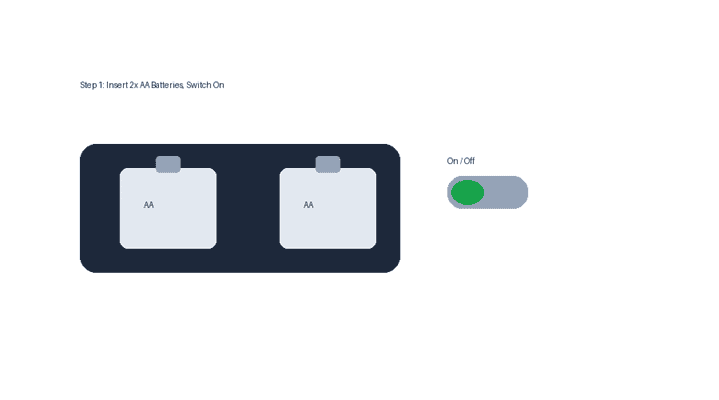
1. Check the batteries and turn on the keyboard
The K540 uses two AA batteries and has an On/Off switch with a power/battery indicator. If it’s been sitting unused for a while, put in a fresh pair even if the old ones look fine, then switch it on.
2. Plug the Unifying receiver into your computer
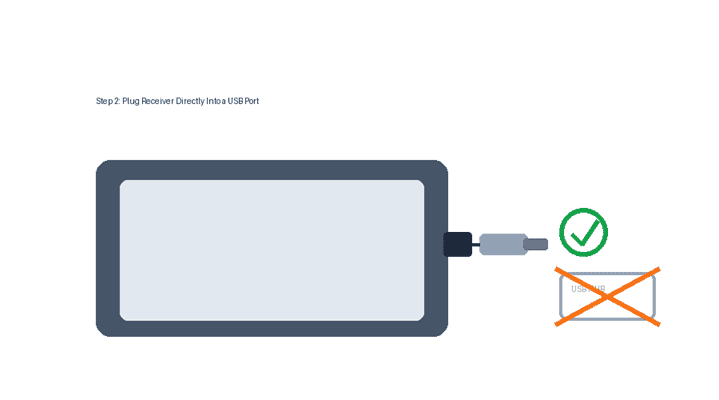
Plug the small USB receiver into an available USB-A port. For the original MK540 setup this is a plug-and-play connection — Logitech says the keyboard and mouse connect through the supplied Unifying receiver with no Bluetooth pairing step needed.
One habit worth building now: plug the receiver directly into the computer rather than through a USB hub or switch. This is Logitech’s own recommendation for diagnosing wireless connection problems, and it’ll save you a step later if the keyboard ever stops responding.
3. Test it
Open Notepad or a browser address bar and press a few keys. If characters appear, you’re connected — no need to check Windows’ Bluetooth menu, since that’s not the connection method in use. If nothing happens, don’t assume the keyboard is broken; work through the troubleshooting steps below first.
Lost the Receiver? Here’s How to Replace It
Losing the original receiver doesn’t mean losing the keyboard. Logitech identifies the Unifying receiver models C-U0007 and C-U0008 and distinguishes them from its standard 2.4 GHz and Logi Bolt receivers — so when buying or reusing a receiver, confirm it’s specifically a Logitech Unifying receiver rather than assuming any Logitech dongle will work. A Unifying receiver can connect up to six compatible Logitech keyboards and mice.
To pair a replacement:
- Plug the compatible Unifying receiver into the computer.
- Open Logi Options+ — Logitech’s older Unifying Software is no longer supported or maintained.
- Choose Add Devices > Unifying Receiver and follow the on-screen pairing prompts.
If you’d rather buy directly from the manufacturer instead of a third-party listing, Logitech sells a standalone Unifying receiver (part 910-005235) specifically as a replacement for a lost Unifying receiver. You can also check Logitech’s Spare Parts Store for replacement parts available for your product.
Troubleshooting a K540 That Won’t Connect
If you have the correct receiver but the keyboard still isn’t responding, work through these before assuming there’s a hardware failure.
- Move the receiver to a different USB port. Plug it directly into the computer, not through a hub or switch (see Step 2 above).
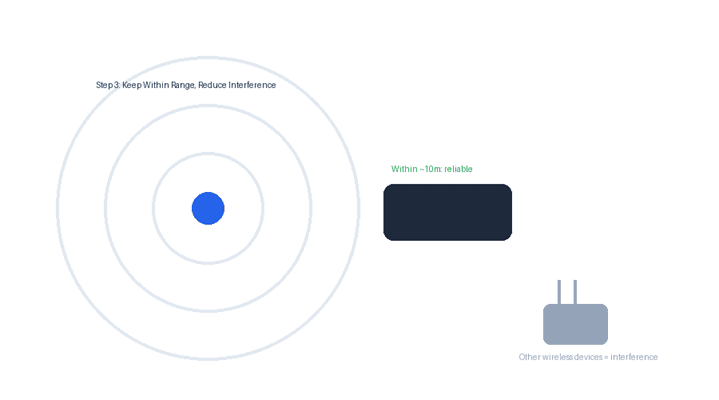
- Move the keyboard closer to the receiver. Logitech advertises up to 10 meters of range, but a computer case can obstruct the signal on a rear USB port — try a front port on a desktop tower.
- Replace the batteries. Do this before troubleshooting software, especially if the connection is intermittent or the keyboard has sat unused for a long time.
- Reduce nearby wireless interference. Logitech lists RF interference from other wireless electronics as a cause of laggy or dropped connections — move other wireless devices away from the receiver.
- Re-pair the keyboard in Logi Options+. Use Add Devices > Unifying Receiver again, especially if you’re on a replacement receiver rather than the original.
- Test it on another computer. This narrows down whether the problem is the original computer or the keyboard/batteries/receiver itself — one of Logitech’s own troubleshooting steps.
A Few Quick Questions
Does the K540 work with Mac or Chrome OS?
Logitech’s own MK540 spec sheet lists Windows and Chrome OS as the officially supported operating systems. Logitech’s product support page separately states it “will work with macOS,” though the keyboard has a Windows key layout and its hotkeys don’t map to Mac shortcuts — so it’s usable on a Mac, just not built for one.
How long does the battery actually last?
Logitech’s data sheet advertises up to 36 months on a pair of AA batteries for the keyboard, under typical use. If you’re seeing meaningfully less than that, weak batteries are a reasonable first suspect before anything else.
Do I need to install software just to use it day-to-day?
No. With the original paired receiver, the K540 is plug-and-play. Software (Logi Options+) only becomes necessary when pairing a replacement receiver or customizing hotkeys — not for normal daily use.
Quick Recap
- The K540 connects over Logitech’s 2.4 GHz Unifying protocol through a USB receiver — not Bluetooth, and not Easy-Switch.
- Normal setup: fresh batteries, switch on, receiver into a direct USB port, then type to test.
- Lost the receiver? Any genuine Logitech Unifying receiver works — pair it through Logi Options+, or buy one directly from Logitech.
- Still not connecting? Work through USB port, range, batteries, interference, re-pairing, and a second computer — in that order — before assuming it’s broken.

Louis Mugan is a seasoned technology writer with a talent for turning complicated ideas into clear, practical guidance. He focuses on helping everyday readers stay confident in a world where tech moves fast. His style is approachable, steady, and built on real understanding.
He has spent years writing for platforms like EasyTechLife, where he covers gadgets, software, digital trends, and everyday tech solutions. His articles focus on clarity, real-world usefulness, and helping people understand how technology actually fits into their lives.
Outside of his regular columns, Louis explores emerging tools, reviews products, and experiments with new tech so his readers don’t have to. His steady, friendly approach has made him a reliable voice for anyone trying to keep up with modern technology. get in touch at louismugan@gmail.com


