A strip of app icons along the bottom of a Samsung screen can be handy for multitasking, but it also takes up space and gets in the way of games, videos and gestures. The good news is that you can switch it off. The setting you need depends on what kind of bar you’re looking at, because on most Galaxy phones the “taskbar” is really something else.
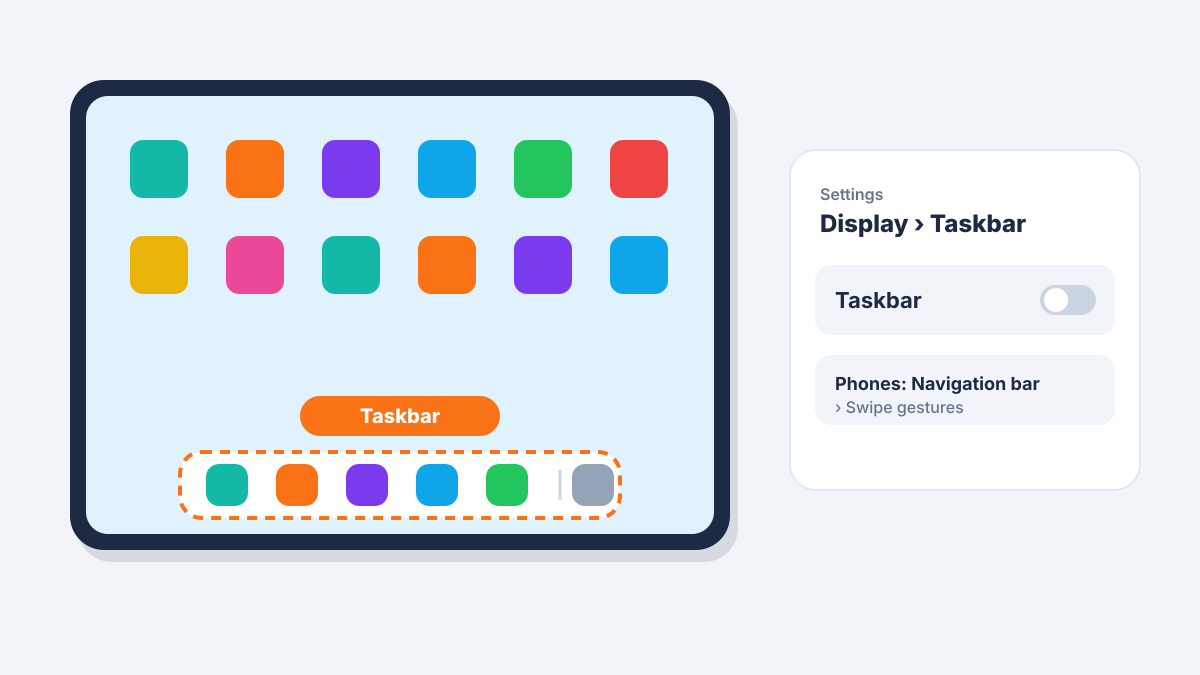
Quick answer: On a Galaxy tablet or a Galaxy Z Fold, go to Settings > Display > Taskbar and turn the switch off. On a Fold, unfold the phone first, because the setting can’t be changed from the cover screen. On other Galaxy phones, the bar at the bottom is the navigation bar. To hide it, go to Settings > Display > Navigation bar and choose Swipe gestures.
 Which bar is on your screen?
Samsung has several bars and handles that people call a taskbar. Find yours first, then jump to the fix.
| What you see | What it is | Where to turn it off |
|---|---|---|
| A row of app icons at the bottom of a tablet or unfolded Fold, often with recent apps on the right | The Taskbar | Settings > Display > Taskbar |
| Three buttons (Recents, Home, Back) or a thin line at the bottom of a phone | The Navigation bar | Settings > Display > Navigation bar |
| A small, see-through tab on the right or left edge | The Edge panel handle | Settings > Display > Edge panels |
| A full desktop-style bar after connecting to a monitor or turning on DeX | The DeX taskbar | DeX settings |
| A rounded pill on the lock screen showing music, timers or sports scores | The Now bar | Settings > Lock screen and AOD > Now bar |
How to turn off the Taskbar on a Samsung tablet or Z Fold
The Taskbar is built into recent Galaxy tablets, such as the Galaxy Tab S series, and Galaxy Z Fold phones. It’s on by default.
- Open Settings.
- Tap Display.
- Scroll down and tap Taskbar.
- Turn off the switch at the top of the screen.
The bar disappears right away, and apps get the full height of the screen. To bring it back later, follow the same steps and turn the switch on.
On a Galaxy Z Fold, the Taskbar only works on the large inner screen. If the Taskbar option is grayed out, unfold the phone and try again.
Keep the Taskbar but make it tidier
If you like the Taskbar and only want fewer icons on it, you don’t need to turn it off.
- Remove an app: The Taskbar shows the apps in your home screen’s favorites bar (the dock). Drag an app out of the favorites bar, or touch and hold it and tap Remove, and it leaves the Taskbar too.
- Hide recent apps (Z Fold): In Settings > Display > Taskbar, turn off Show recent apps (called Show recent or suggested apps on some versions) so only your chosen apps appear.
- Add an app: Drag it from the Home or Apps screen into the favorites bar.
How to hide the navigation bar on a Samsung phone
Galaxy S, A and Z Flip phones don’t have the Taskbar. The bar at the bottom of those phones is the navigation bar, with the Recents, Home and Back buttons. You can replace it with gestures.
- Open Settings and tap Display.
- Tap Navigation bar.
- Choose Swipe gestures.
The buttons disappear. Swipe up from the bottom to go home, swipe up and hold to see recent apps, and swipe in from either side of the screen to go back.
A thin gesture hint line still shows at the bottom. Since One UI 6.1, the switch to hide it only appears after you install Samsung’s Good Lock app from the Galaxy Store, add its NavStar module and turn on Enable extra gesture settings in NavStar. Then go back to Settings > Display > Navigation bar > More options and turn off Gesture hint. Good Lock isn’t offered in every country or on every model.
The navigation bar also hides on its own in many full-screen apps, such as games and video players. Swipe up from the bottom edge to show it for a moment.
How to remove the Edge panel handle
If the “bar” is a faint tab on the side of the screen that slides out a panel of apps, it’s the Edge panel.
- Open Settings and tap Display.
- Turn off Edge panels.
To keep the panel but move or shrink the handle, tap Edge panels instead of the switch, then tap Handle and change its position, size or transparency.
Taskbar in DeX or on an external monitor
When you connect a Galaxy phone or tablet to a monitor, or turn on DeX on a tablet, you get a desktop-style taskbar. That bar has its own settings, separate from the regular Taskbar switch. Whether you can hide it depends on your One UI version. Samsung removed the option in One UI 8, then brought it back for phones on an external display in One UI 8.5 and for tablets in One UI 9. Update your device, then look for the taskbar option in the DeX settings.
Why can’t I turn off the Taskbar?
If the switch is missing or grayed out, check these:
- You’re on a phone that doesn’t have one. Regular Galaxy phones use the navigation bar instead. Use the navigation bar steps above.
- Your Fold is closed. Unfold it and open the setting from the main screen.
- You use a different launcher. The Taskbar is tied to Samsung’s own home screen app, One UI Home. With a third-party launcher set as your default, the option may not work as expected. Switch back in Settings > Apps > Choose default apps > Home app if you need to change it.
- The home screen app is acting up. Restart the device. If the setting still won’t respond, go to Settings > Apps, open One UI Home, tap Storage and tap Clear cache. This doesn’t change your home screen layout.
Frequently asked questions
How do I get rid of the bar at the bottom of my Samsung screen?
On a regular Galaxy phone, go to Settings > Display > Navigation bar and choose Swipe gestures. On a Galaxy tablet or unfolded Z Fold, go to Settings > Display > Taskbar and turn it off.
Does turning off the Taskbar remove my apps?
No. It only hides the bar. Your apps stay on the home screen, the favorites bar and the Apps screen.
My Samsung home screen suddenly changed and has a bar at the bottom. Why?
A software update, a new launcher or a changed display setting can all change how your home screen looks. Our guide to getting your Samsung home screen back to normal walks through each cause.
How do I get the Taskbar back?
Go to Settings > Display > Taskbar and turn the switch back on. On a Z Fold, do this with the phone unfolded.

Louis Mugan writes how-to and troubleshooting guides for EasyTechLife, covering Android phones, iPhones, laptops, Chromebooks, headphones and everyday software.
He aims to base each guide on official manufacturer documentation and support pages, and to link the sources so readers can check the steps for themselves. Questions or corrections? Use the contact page.