
You tap Install in the Google Play Store and nothing happens. Maybe the download says “Pending” forever, maybe it gets stuck at 100 percent, or maybe updates just won’t finish. This is one of the most common Android problems, and it usually comes down to a busy download queue, a weak connection, low storage or a Play Store glitch that clearing its cache will fix.
Quick answer: First check your internet connection and that you have free storage. Then cancel other downloads and updates in the Play Store so the app you want goes first. If it’s still stuck, go to Settings > Apps > Google Play Store > Storage & cache > Clear cache, then restart your phone and try again.
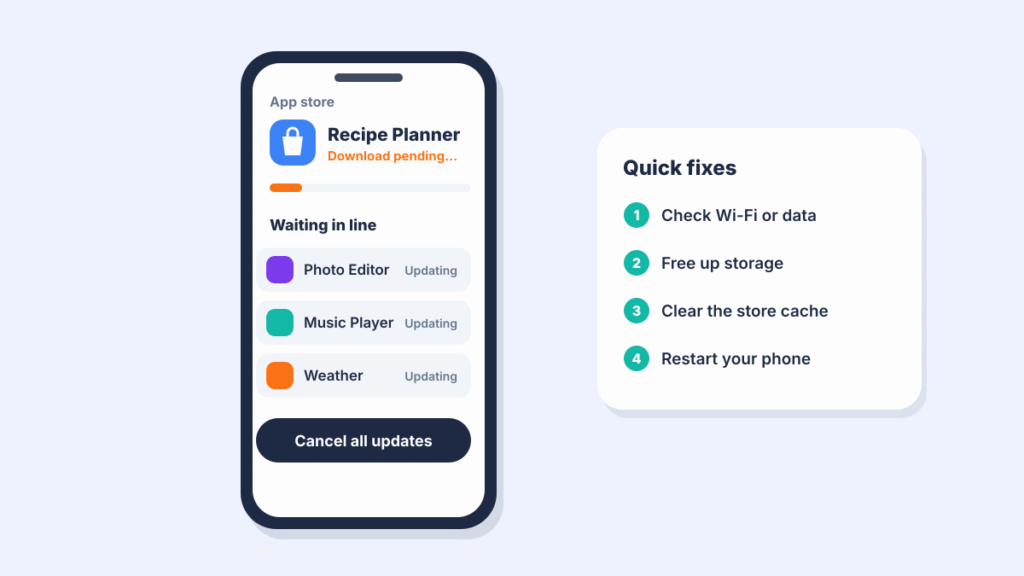
Which problem do you have?
| What you see | Most likely cause | Start with |
|---|---|---|
| Download pending | Other apps updating, or a Wi-Fi-only setting | Fix 2 and Fix 3 |
| Stuck at 0% or a few percent | Weak connection or Play Store glitch | Fix 1 and Fix 5 |
| Stuck at 100% or “Installing” | Low storage or install step stuck | Fix 4 and Fix 5 |
| “Can’t download app” or an error code | Cache, account or date problem | Fix 5 to Fix 8 |
| App isn’t available at all | Device, region or age restriction | Fix 10 |
1. Check your internet connection
A weak or unstable connection is the most common cause of stalled downloads. Switch from mobile data to Wi-Fi or the other way around, and try loading a web page to make sure the connection works. If you use a VPN, turn it off temporarily.
2. Clear the download queue
If several apps are updating or waiting in the background, your new download can sit as “Pending” until they finish.
- Open the Play Store and tap your profile picture.
- Tap Manage apps & device.
- Open the updates section and cancel or stop pending updates where the option is shown.
- Go back to the app you want and tap Install.
3. Check your download preference
If the Play Store is set to download only on Wi-Fi, downloads will wait while you’re on mobile data.
- In the Play Store, tap your profile picture > Settings > Network preferences.
- Tap App download preference and choose Over any network, or connect to Wi-Fi.
4. Free up storage
Apps need room to download and then more room to install, so a download can stall at 100 percent if your phone is nearly full. Open Settings > Storage and make sure you have at least a few gigabytes free. Our guide to fixing Android storage full shows where hidden space goes.
5. Clear the Play Store cache
This is the most common fix for stuck downloads.
- In Settings, go to Apps and open the full app list.
- Find Google Play Store and open Storage & cache.
- Tap Clear cache.
- Go back to the Play Store and retry the download.
If that doesn’t work, come back and tap Clear storage. This resets the Play Store’s settings without removing your apps or purchases, but it can also reset parental controls and purchase authentication, so check those settings afterward. For more on how cache works, see how to clear cache on Android.
6. Clear Google Play services cache
Google Play services works in the background to handle downloads and sign-ins.
- Go to Settings > Apps > See all apps.
- Tap Google Play services > Storage & cache > Clear cache.
Only clear Google Play services storage if Google’s own troubleshooting suggests it, since it can reset some Google settings on your phone.
7. Restart your phone and check the date and time
A restart clears temporary glitches. Wrong date or time settings can also stop the Play Store from connecting. Go to Settings > System > Date & time (on Samsung, General management > Date and time) and turn on automatic date and time.
8. Update or reset the Play Store app
- Update: in the Play Store, tap your profile picture > Settings > About > Update Play Store.
- Reset to factory version: in Settings > Apps > Google Play Store, tap the three dots > Uninstall updates. The Play Store updates itself again automatically afterward.
9. Remove and re-add your Google account
If downloads fail with account errors, signing out and back in can help.
- Go to Settings > Passwords, passkeys & accounts (or Accounts and backup > Manage accounts on Samsung).
- Tap your Google account > Remove account.
- Restart your phone and add the account again.
Before you do this, back up anything important and make sure you know your Google password and have access to your two-step verification method, so you can sign back in. Our guide on removing a Google account explains what happens to your data.
10. If an app isn’t available to download
Sometimes the problem isn’t a glitch. The Play Store may say an app isn’t compatible or isn’t available because:
- It doesn’t support your phone model or Android version.
- It isn’t offered in your country.
- Parental controls or Family Link limit what you can install.
- The developer removed it from the Play Store.
Avoid downloading apps from random websites to get around this. Files from unofficial sources can contain malware.
Frequently asked questions
Why does Google Play say “Download pending”?
Usually because other apps are updating first, the Play Store is set to download only on Wi-Fi, or your connection is weak. Cancel other updates and check your network preference.
Why is my Play Store download stuck at 100 percent?
The download finished but the install can’t complete, usually because of low storage or a Play Store glitch. Free up space, clear the Play Store cache and restart your phone.
How do I clear the cache on the Play Store?
Go to Settings > Apps > Google Play Store > Storage & cache > Clear cache.
Will clearing Play Store data delete my apps?
No. It resets the Play Store’s own settings, but your installed apps, purchases and app data stay on your phone.
Why can’t I download certain apps from the Play Store?
The app may not support your phone, may not be available in your country, may be blocked by parental controls, or may have been removed by its developer.
How we researched this guide
For this guide, we lined up Google Play’s own troubleshooting advice with the current Play Store app and Android settings on Pixel and Galaxy phones on November 21, 2026. We didn’t reproduce every error code. If a menu name is slightly different on your phone, use the search bar in Settings.

Louis Mugan writes how-to and troubleshooting guides for EasyTechLife, covering Android phones, iPhones, laptops, Chromebooks, headphones and everyday software.
He aims to base each guide on official manufacturer documentation and support pages, and to link the sources so readers can check the steps for themselves. Questions or corrections? Use the contact page.


