
The fastest way to block a website depends on your device. Use Screen Time on an iPhone, iPad or Mac, Google Family Link on a child’s Android phone, and an extension for Chrome, Firefox or Edge. To cover other browsers too on a Windows PC or Mac, edit the hosts file. To cover devices across your home network, use a filtered DNS service or your router’s block list.
The right method also depends on why you’re blocking. Blocking distractions on your own laptop calls for something quick to set up and easy to undo. Protecting a child calls for something they can’t switch off. This guide covers both, includes the new parental controls in iOS 27 and macOS 27, and explains where each method falls short.
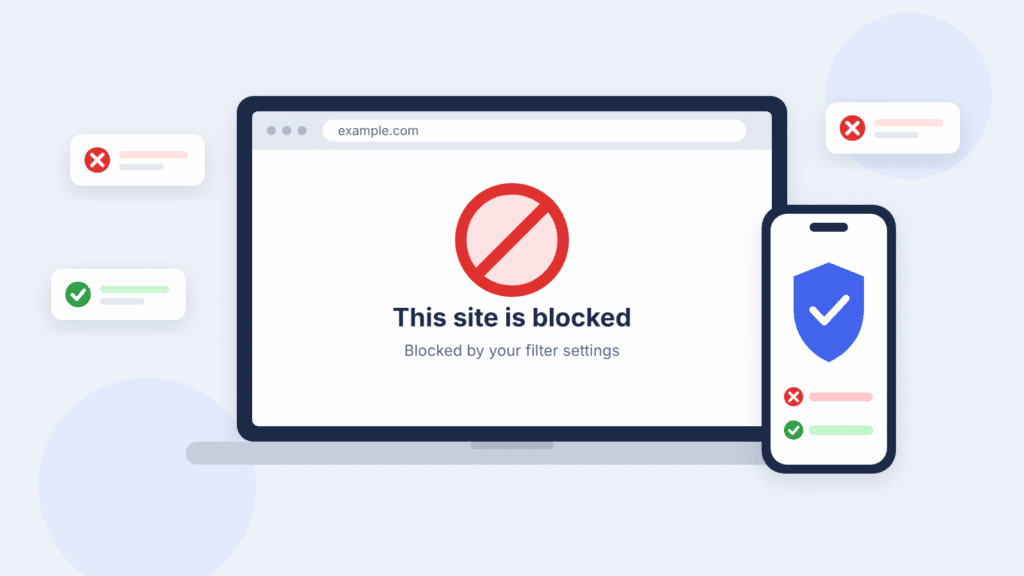
Quick answer: the best method for each device
Pick the row for your device, then the column for who you’re blocking for. Each method is explained step by step further down.
| Device | Your own device | A child’s device | Covers every browser? |
|---|---|---|---|
| iPhone or iPad | Screen Time web content filter | Family > Apps & Websites (iOS 27) | Safari and other supported browsers; coverage varies by browser and iOS version |
| Mac | Hosts file | Family > Apps & Websites (macOS 27) | Hosts file: most browsers |
| Windows 11 | Hosts file | Microsoft Family Safety | Hosts file: most browsers. Family Safety filters Edge and can block other browsers |
| Chrome, Firefox or Edge on a computer | A website-blocker extension | Use the computer’s own method above | No, one browser only |
| Android | Private DNS with NextDNS | Google Family Link | Private DNS: most apps and browsers. Family Link: Chrome only |
| Every device at home | Filtered DNS or router block list | Filtered DNS or router block list | Most devices, but only on your home network |
Before you start
Three decisions shape which method will work for you.
- A whole site or a single page? The hosts file, DNS filters and routers block whole domain names, never individual pages. They also treat
example.comandwww.example.comas separate names, so list both. Extensions and Screen Time can match a specific web address. - Your device or someone else’s? On your own device, pick something easy to set up and undo. On a child’s device, the block needs a passcode or a separate account, or it can simply be switched off.
- Block list or allow list? A block list allows everything except the sites you name, which suits teens and adults. An allow list blocks everything except approved sites, which suits young children.
How to block websites on iPhone, iPad and Safari
For a child, use the redesigned Apps & Websites controls in iOS 27. For your own iPhone, use Screen Time’s web content filter. Both are built in and free.
On a child’s iPhone or iPad (iOS 27 and iPadOS 27)
Your child needs a Child Account in your Family Sharing group. Every device in the group must run version 27 of iOS, iPadOS, macOS or watchOS before the new controls work. Older devices keep the previous controls.
- On your iPhone, open Settings, tap Family, then tap your child’s name.
- Tap Apps & Websites.
- Tap Add, type the website’s name or address, and choose to block it.
To filter by category instead, go to Apps & Websites > Restrictions and tap Filtering under Websites. Choose Approved Websites Only, Limit Adult Websites or Unrestricted.
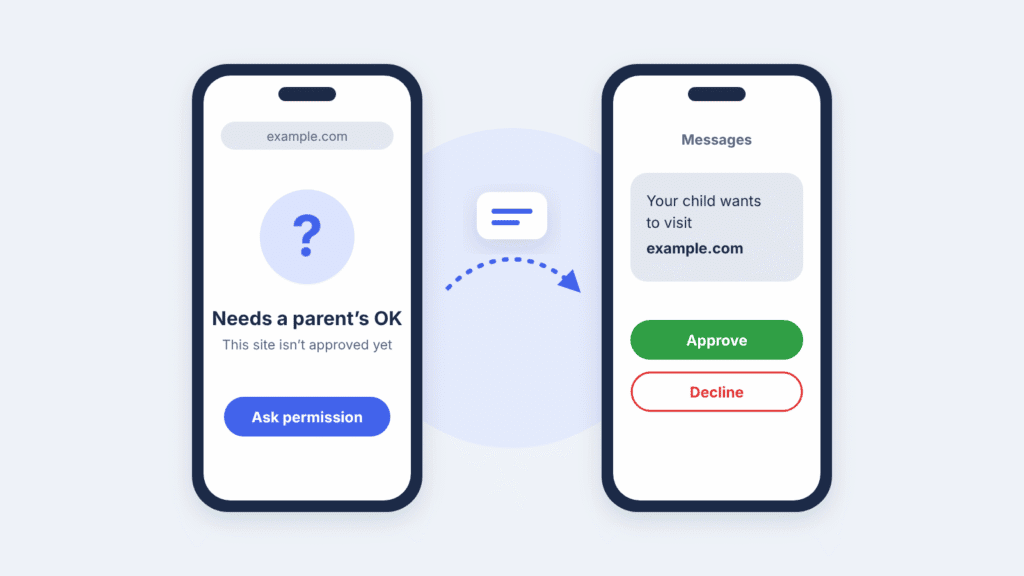
Ask to Browse is on by default for children under 13. When your child tries a site you haven’t approved, the request arrives in Messages and you approve or decline it there. These controls work in Safari and other supported browser apps on iOS 27, iPadOS 27 and macOS 27.
On your own iPhone (iOS 26 and earlier)
- Open Settings and tap Screen Time.
- Tap Content & Privacy Restrictions and turn it on.
- Tap App Store, Media, Web, & Games, then Web Content.
- Select Limit Adult Websites, tap Add Website under Never Allow, and type the address.
To stop the block being switched off, set a Screen Time passcode under Screen Time > Lock Screen Time Settings. On iOS 27 the same option sits under Screen Time > Manage Screen Time > Lock Screen Time Settings.
On your own iPhone (iOS 27)
- Open Settings and tap Screen Time.
- Tap Apps & Websites, then Restrictions.
- Under Websites, tap Filtering and choose Limit Adult Websites.
- Add the sites you want to block to the restricted list.
How to block websites on Mac
Use Family settings for a child’s Mac. On your own Mac, the hosts file blocks a site across your browsers at once.
On a child’s Mac (macOS 27)
- Open System Settings, click Family, then click your child’s name.
- Click Apps & Websites.
- Click Add, enter the website, and block it.
The Filtering and Ask to Browse options work the same way as on iPhone.
On your own Mac with Screen Time (macOS 27)
- Choose Apple menu > System Settings, then click Screen Time.
- Click Apps & Websites, then click Restrictions.
- Under Websites, click Filtering and choose Limit Adult Websites.
- Click Customize and add the sites you want to block to the restricted list.
To block everything except sites you approve, choose Approved Websites Only instead.
On macOS 26 and earlier, go to System Settings > Screen Time > Content & Privacy and turn it on. Depending on your version, open Content Restrictions or App Store, Media, Web, & Games. Set web content to Limit Adult Websites, then click Customize to add sites.
On your own Mac with the hosts file (works across browsers)
The hosts file tells your Mac where to find a website before it asks the internet. Pointing a domain at 0.0.0.0 makes it unreachable.
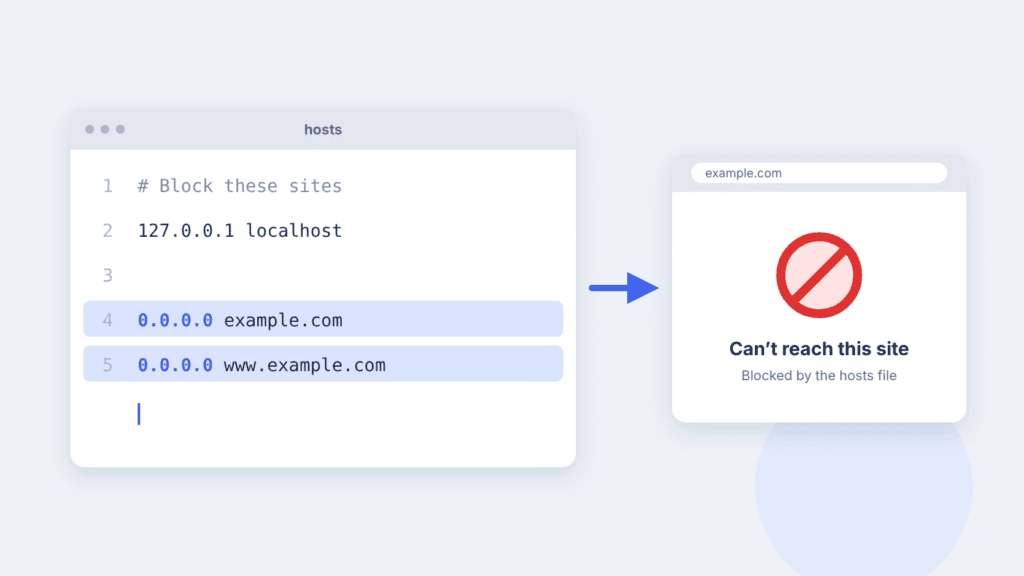
- Open Terminal from Applications > Utilities.
- Type
sudo nano /etc/hosts, press Return, and enter your Mac password. Nothing appears as you type the password; that’s normal. - Use the arrow keys to move to the bottom of the file and add one line per name. List both versions of each domain:
0.0.0.0 example.com
0.0.0.0 www.example.com- Press Control-O, then Return to save. Press Control-X to exit.
- Clear the DNS cache so the change applies right away:
sudo dscacheutil -flushcache
sudo killall -HUP mDNSResponder- Quit and reopen your browser.
To unblock a site, open the file again, delete its lines, save, and clear the cache.
How to block websites on Windows 11
The hosts file blocks a site across the browsers on the PC. Microsoft Family Safety suits a child’s account, but its web filter only works in Microsoft Edge.
Use the hosts file (works across browsers)
You need an administrator account for these steps.
- Open Start, type Notepad, right-click it and choose Run as administrator. Click Yes at the prompt.
- In Notepad, choose File > Open and paste
C:\Windows\System32\drivers\etcinto the address bar. - The folder will look empty. Change the file type menu next to the file name box from Text Documents (*.txt) to All Files (*.*).
- Select hosts and click Open.
- At the bottom of the file, add one line per name, listing both versions of each domain:
0.0.0.0 example.com
0.0.0.0 www.example.com- Press Ctrl+S to save. If Windows says access is denied, Notepad wasn’t opened as administrator; start again from step 1.
- Open Command Prompt as administrator and run
ipconfig /flushdnsso the change applies right away. - Close and reopen your browser.
Use Microsoft Family Safety (a child’s account)
Family Safety’s web filter only works in Microsoft Edge. When you turn it on, Family Safety can block other common browsers on the child’s account, such as Chrome and Firefox, which makes the filter harder to get around.
- Give your child their own Microsoft account: go to Settings > Accounts > Family and choose Add someone.
- Open the Microsoft Family Safety app or family.microsoft.com and select your child.
- Open Content filters and turn on Filter inappropriate websites and searches.
- Add the addresses you want to block under Blocked sites.
You can unblock another browser from the same settings, but Family Safety won’t filter it.
How to block websites on Google Chrome
Desktop Chrome has no built-in block list for ordinary users, so use an extension. On a child’s Android phone or Chromebook, use Google Family Link instead.
With an extension (your own computer)
- Open the Chrome Web Store and search for “website blocker”.
- Pick an extension with many users, recent updates and good reviews. Blockers can read every page you open, so this choice matters.
- Click Add to Chrome, then Add extension.
- Click the puzzle-piece icon in the toolbar and pin the blocker so it’s easy to reach.
- Open the blocker’s settings and add the sites you want to block.
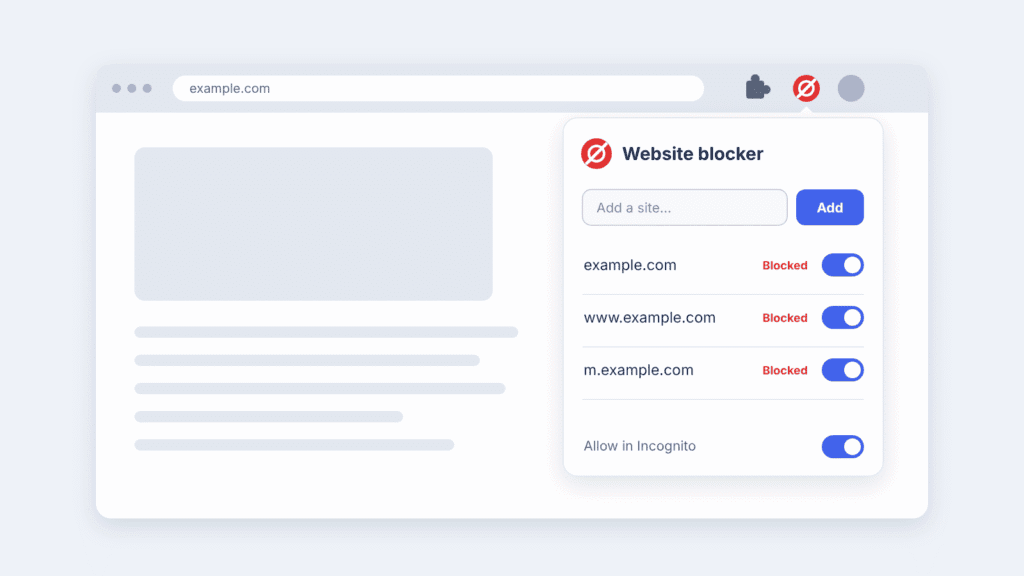
Extensions don’t run in Incognito windows unless you allow it. Go to chrome://extensions, click Details on the blocker, and turn on Allow in Incognito. An extension only covers Chrome, so use the hosts file if other browsers are installed.
Can you block websites on Chrome without an extension?
Yes. On Windows or Mac, add the site to the hosts file, as shown in the Windows 11 and Mac sections, and Chrome will usually refuse to load it. A filtered DNS service on your router does the same for devices on your Wi-Fi. Both also cover other browsers, though Chrome’s secure DNS setting can occasionally get around them.
With Google Family Link (a child’s Android phone or Chromebook)
- Open the Family Link app and select your child.
- Tap Controls, then Google Chrome and Web.
- Under Manage sites, tap Blocked sites.
- Tap Add a website and enter the address or domain.
A blocked address only matches sites that start and end the same way. Blocking www.example.com won’t block www.example.co.uk, so add each version you need. Incognito is turned off for supervised children in Chrome.
With Chrome Enterprise (work and school devices)
Administrators can block sites on every managed Chrome browser from the Google Admin console. Go to Devices > Chrome > Settings, open Users & browsers, and add addresses under URL blocking. The underlying policies are called URLBlocklist and URLAllowlist.
How to block websites on Microsoft Edge
Edge is the one browser Microsoft Family Safety fully supports, so it’s the natural choice for a child’s Windows account. For your own use, an extension or the hosts file works.
- For a child: set up Family Safety as described in the Windows 11 section, and make sure your child signs in to Edge with their Microsoft account. Blocked sites apply in Edge automatically.
- For yourself: open the Edge Add-ons store, search for “website blocker”, click Get, then add your sites in the extension’s settings. The same advice about choosing a trustworthy extension applies.
- Every browser on the PC: use the Windows hosts file.
- Managed devices: Edge supports the same
URLBlocklistpolicy as Chrome, set through Group Policy or Microsoft Intune.
How to block websites on Firefox
Firefox has no built-in block list. Use an extension for quick personal blocking, or the hosts file to cover Firefox and every other browser.
With an extension
- Type
about:addonsin the address bar and press Enter. - Search for “website blocker” and open a well-reviewed, recently updated result.
- Click Add to Firefox and approve the permissions.
- Add your sites in the extension’s settings.
To cover private windows, open the extension’s page in about:addons and set Run in Private Windows to Allow.
With the hosts file
Follow the Windows or Mac hosts file steps above. If Firefox still loads a blocked site, turn off DNS over HTTPS under Settings > Privacy & Security and try again.
On managed computers
Administrators can block sites with Firefox’s WebsiteFilter enterprise policy, set in a policies.json file or through Group Policy.
How to block websites on Android
Use Google Family Link for a child, as described in the Chrome section. For your own phone, Android’s built-in Private DNS setting blocks sites in every app and browser without installing anything.
With Private DNS and NextDNS (your own phone)
Private DNS has been built into Android since version 9. Pointing it at a filtering service blocks sites on Wi-Fi and mobile data alike.
- Create a free account at nextdns.io. Under Denylist, add the domains you want to block.
- On the Setup tab, copy your personal hostname. It looks like
abc123.dns.nextdns.io. - On your phone, open Settings > Network & internet > Private DNS. On Samsung phones, it’s Settings > Connections > More connection settings > Private DNS.
- Choose Private DNS provider hostname, paste your hostname, and tap Save.
NextDNS’s free plan covers 300,000 queries a month. Past that, filtering stops until the next month unless you upgrade; check NextDNS’s site for current prices.
If you only want to block adult content and malware, skip the account and enter a family hostname instead: family.cloudflare-dns.com or family.adguard-dns.com. These block preset categories, not sites you choose.
Anyone holding the phone can change Private DNS back, and an active VPN app can override it. That makes it right for your own focus, but not a parental control.
With a blocker app
Website blocker apps on Google Play can also block sites and apps on a schedule. Most need accessibility or VPN permissions, which let them see a lot of your activity. Check the developer, reviews and recent updates before installing one.
How to block websites across your home network
Changing your router’s DNS server filters most phones, laptops, consoles and TVs on your Wi-Fi at once, with nothing to install on each device. Devices with their own DNS settings or a VPN can skip it, and it stops working on mobile data or other networks.
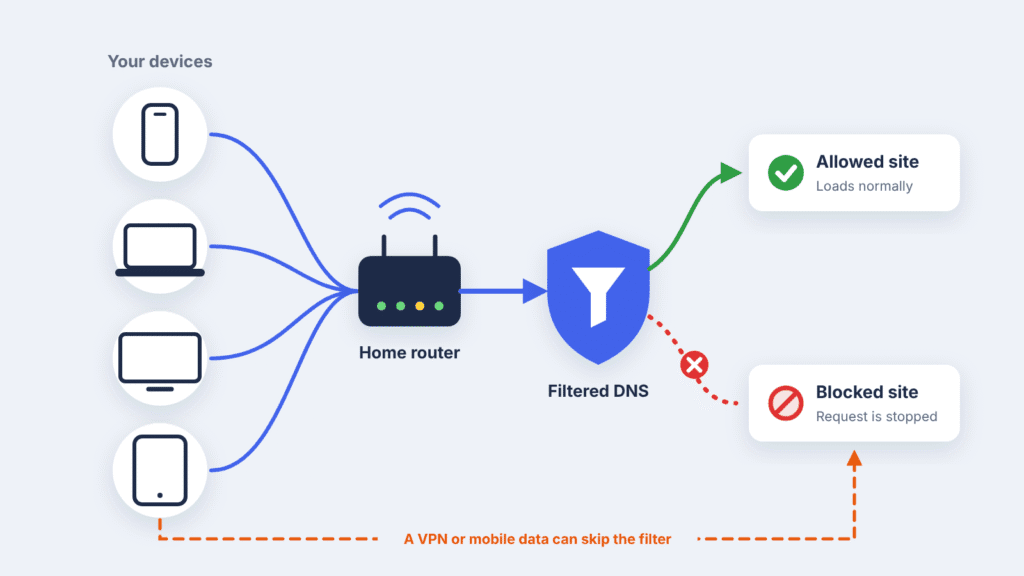
Choose a filtered DNS service
| Service | What it blocks | DNS addresses for your router |
|---|---|---|
| Cloudflare for Families | Malware and adult content | 1.1.1.3 and 1.0.0.3 |
| AdGuard DNS (family servers) | Ads, trackers, malware and adult content; enforces safe search | 94.140.14.15 and 94.140.15.16 |
| NextDNS | Any site you add, plus optional category lists | Shown on your account’s Setup tab |
Of the three, NextDNS offers the simplest dashboard for blocking sites you choose. Cloudflare for Families and AdGuard’s public family servers filter preset categories instead.
Change your router’s DNS
- Find your router’s address. On Windows, run
ipconfigand note the Default Gateway. On a Mac, open System Settings > Wi-Fi, click Details next to your network, then TCP/IP, and note Router. It’s often192.168.1.1or192.168.0.1. - Type that address into a browser and sign in with the router’s admin password. It’s often printed on a sticker on the router.
- Find the DNS settings. They’re usually under Internet, WAN, LAN or DHCP, depending on the brand.
- Replace the DNS addresses with your chosen service’s addresses and save.
- Restart the router, or turn Wi-Fi off and on again on each device.
Use your router’s own block list
Many routers have a parental controls or access restrictions page where you can type in domains to block. Steps vary by make and model, so check your router’s manual. Some routers also let you set different rules for each device.
How to stop website blocks from being bypassed
Every method here can be worked around by someone determined. Layering a device-level control with a network-level filter closes most of the gaps.
| Workaround | How to close it |
|---|---|
| Switching the block off in Settings | Set a Screen Time passcode, use Family Link, or give the child a standard (non-administrator) account on Windows or Mac |
| Opening a different browser | Use a method that covers other browsers too: the hosts file, filtered DNS, or Family Safety’s browser blocking |
| Private or Incognito windows | System-level methods are unaffected; for extensions, allow them in private windows |
| A browser’s own secure DNS setting | Turn off secure DNS in Chrome (Settings > Privacy and security > Security) or Firefox (Settings > Privacy & Security), or lock it with a policy on managed devices |
| A VPN or proxy app | Require approval for new apps (Ask to Buy on Apple devices, Family Link on Android); NextDNS’s parental control settings can also block known bypass services |
| Mobile data or another Wi-Fi network | Router and home DNS filters stop at your front door, so add a device-level control such as Screen Time, Family Link or Private DNS |
Technical blocks work best alongside a conversation. Children who understand why a site is blocked are less likely to go looking for a way around it.
Troubleshooting: the blocked site still loads
Most failures come from a missed domain variant or a cached address. Check these in order.
- Missing domain versions. Block
example.com,www.example.com, and any mobile or country versions the site uses, such asm.example.com. - A typo in the hosts file. Each line needs the IP address, a space, then the bare domain. Leave out
https://and anything after the domain. - The wrong file. Notepad can save a copy as
hosts.txt, which Windows ignores. The file must be named exactlyhosts, with no extension. - Cached addresses. Flush the DNS cache as shown above, then restart the browser. In Chrome, you can also go to
chrome://net-internals/#dnsand click Clear host cache. - The browser’s secure DNS. Turn it off as described in the bypass section, then test again.
- iCloud Private Relay. On Apple devices it can route Safari around your home network’s DNS filter. Turn it off in your iCloud settings, or rely on Screen Time instead.
- The device is on another network. Router and home DNS filters don’t apply on mobile data or other Wi-Fi.
- NextDNS hit its free limit. Filtering pauses after 300,000 queries in a month. Check usage in your NextDNS dashboard.
Frequently asked questions
Can I block a website without installing an extension?
Yes. Screen Time on Apple devices, Family Link on Android, the hosts file on Windows and Mac, Android’s Private DNS, and your router all block sites without an extension.
How do I block a website in every browser at once?
Edit the hosts file to cover the browsers on one computer. Use a filtered DNS service on your router to cover most devices on your home network. A browser’s own secure DNS setting can occasionally get around either.
Does website blocking work in Incognito or private mode?
The hosts file, DNS filters, router blocks and Screen Time all keep working in private windows. Extensions only work there if you allow them. Family Link turns off Incognito for supervised children.
Can I block a website only at certain times?
Yes. On Apple devices with version 27, Screen Time Schedules give a child different access at different times of day, such as before and after school. Many blocker extensions also offer schedules, which suit blocking distractions during work hours.
What does a blocked website look like?
Screen Time and Family Link show a page saying the site is restricted, often with a way to ask for access. The hosts file and DNS filters usually show a browser error saying the site can’t be reached.
How do I unblock a website?
Reverse the steps you used to block it. Remove the site from the block list, delete its lines from the hosts file, or remove it from your DNS denylist. Then clear the DNS cache and restart the browser.
Sources
- What’s new with parental controls in Screen Time and Family Sharing (Apple Support)
- Use Ask to Browse to approve the websites your child can access (Apple Support)
- Block or allow access to apps and websites on your child’s device (Apple Support)
- Change Apps & Websites Restrictions settings in Screen Time on Mac (Apple Support, macOS 27)
- Block apps, app downloads, websites, and purchases on iPhone, iOS 26 (Apple Support)
- How to use the parental controls on iOS 27 (Engadget)
- Filter websites and searches using Microsoft Family Safety (Microsoft Support)
- Manage your child’s account on Chromebook (Google Help)
- Can I use NextDNS “naked”? (NextDNS Help, free-plan limit)

Louis Mugan is a seasoned technology writer with a talent for turning complicated ideas into clear, practical guidance. He focuses on helping everyday readers stay confident in a world where tech moves fast. His style is approachable, steady, and built on real understanding.
He has spent years writing for platforms like EasyTechLife, where he covers gadgets, software, digital trends, and everyday tech solutions. His articles focus on clarity, real-world usefulness, and helping people understand how technology actually fits into their lives.
Outside of his regular columns, Louis explores emerging tools, reviews products, and experiments with new tech so his readers don’t have to. His steady, friendly approach has made him a reliable voice for anyone trying to keep up with modern technology. get in touch at louismugan@gmail.com


