
Adobe Lightroom is the best all-round camera app for shooting and editing on both Android and iPhone. Open Camera is the best free manual camera on Android, and Halide Mark III is a strong choice for iPhone photographers who want less computational processing and more manual control. If you mainly want creative looks and editing, Snapseed is the strongest free option.
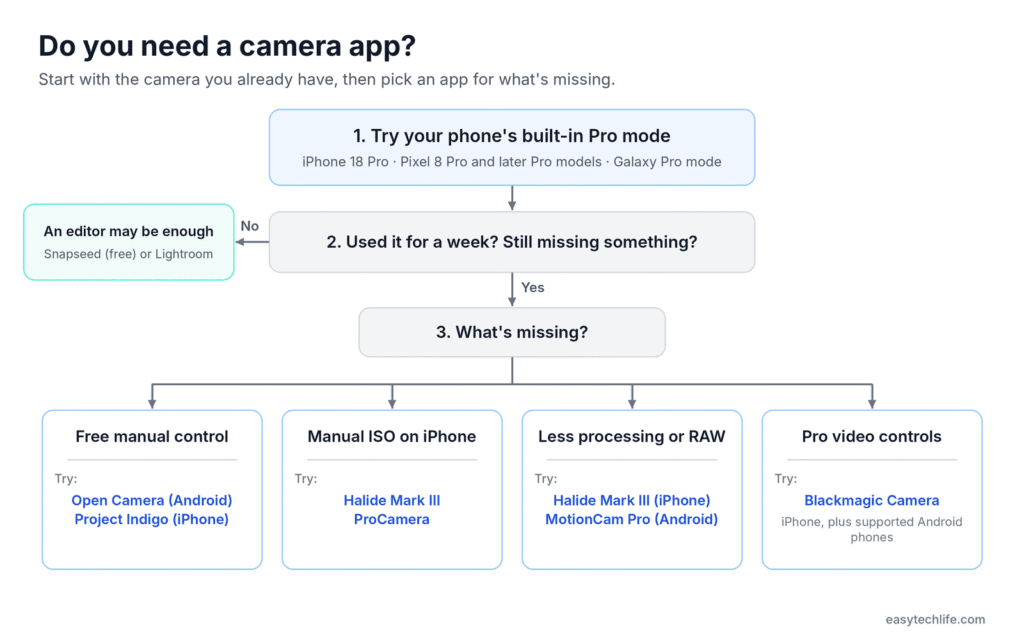
But check your phone first. The iPhone 18 Pro, recent Pixel Pro models and most Galaxy flagships now have manual controls built in.
A third-party camera app is worth installing only when it does something your stock camera can’t. That usually means manual control, RAW files, a more natural look, or pro video settings. Every app below takes photos or video. Editing-only apps are in a separate section near the end.
Quick picks
- Best overall: Adobe Lightroom. It shoots and edits in one app on both platforms.
- Best free camera for creative looks: Snapseed. It shoots with film-style looks on both platforms, and its camera reached Android in May 2026.
- Best free manual camera for Android: Open Camera.
- Best for less-processed iPhone photos: Halide Mark III.
- Best free iPhone camera: Adobe Project Indigo.
- Best for full manual control on iPhone: ProCamera.
- Best one-time purchase: ProShot.
- Best for video: Blackmagic Camera.
Try your phone’s Pro mode first
If your phone is in this table, try its built-in controls for a week before you pay for an app. You may find an editing app is the better upgrade.
| Phone | Built-in manual controls | RAW in the stock camera | Where to find it |
|---|---|---|---|
| iPhone 18 Pro and Pro Max | Aperture (four settings, f/1.48 to f/4), shutter speed (1/1600 to 1 second), white balance, live histogram | Apple ProRAW | Camera app: tap the six-dot button, then choose a control |
| iPhone 12 Pro to 17 Pro | No full manual mode | Apple ProRAW | Settings > Camera > Formats > ProRAW & Resolution Control |
| Pixel 8 Pro, 9 Pro and 10 Pro models, plus Pixel Fold models | Focus, shutter speed, ISO, white balance, brightness, shadows | RAW + JPEG | Pixel Camera: settings slider at the bottom right; RAW in the Pro settings tab (Google’s guide) |
| Samsung Galaxy | Pro mode in the Camera app on most models | Expert RAW app (16-bit DNG) on supported flagships | Camera > More > Pro; Expert RAW from the Galaxy Store |
Two details matter here:
- The iPhone 18 Pro still has no manual ISO. Apple’s Pro controls cover aperture, shutter speed and white balance only. If you want to set ISO yourself, use Halide Mark III or ProCamera (MacRumors).
- Expert RAW only works on Samsung’s flagships. As of February 2026, Samsung lists the Galaxy S22 to S26 series and recent Z Fold and Z Flip models (Samsung Members).
Pixel Pro controls are listed for the Pixel Fold, Pixel 8 Pro, and the 9 Pro and 10 Pro families (Android Authority). Standard Pixel models don’t get them.
How to check what your Android phone supports
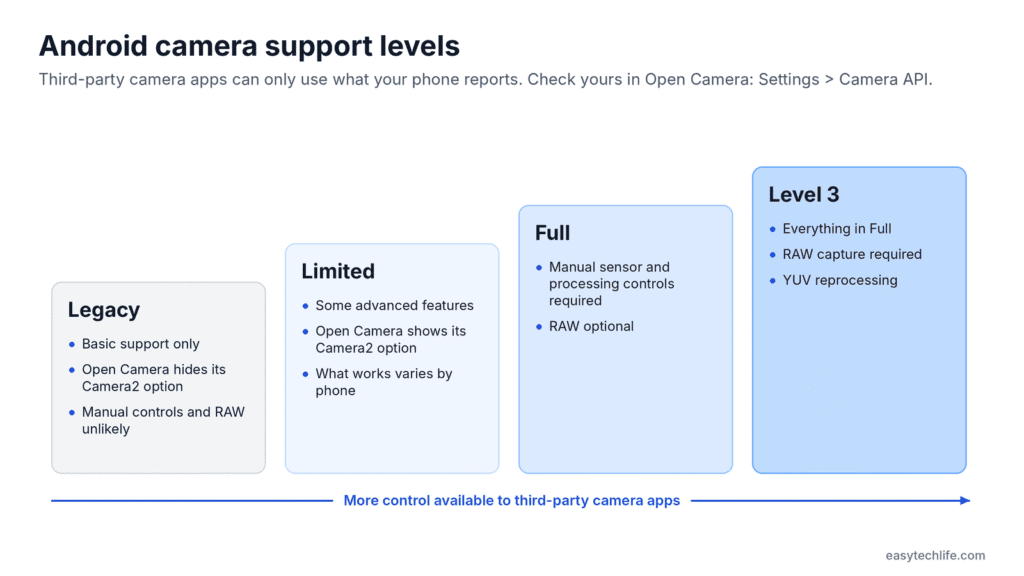
On Android, a camera app can only use the controls your phone’s maker exposes. Two phones running the same app can show very different features, so check yours before you buy anything.
- Install Open Camera (free) and open Settings > Camera API. If “Camera2 API” is offered, select it. Manual exposure, ISO, focus and RAW then appear wherever your phone supports them. Open Camera only shows that option when your phone reports enough Camera2 support. If it’s missing, manual controls and RAW probably won’t be available in Open Camera, and other manual camera apps may be limited too (Open Camera help).
- Check RAW in Lightroom. Lightroom’s camera settings show whether “DNG capture” is supported on your phone (Adobe’s guide).
- For video, check Blackmagic’s device list before installing Blackmagic Camera (see app 10 below).
Why this happens: Each Android phone reports a camera support level, such as legacy, limited, full or level 3. Only “full” and “level 3” phones must offer manual sensor controls, and RAW is optional on full phones but required on level 3 phones (Android Open Source Project).
Comparison at a glance
US prices were checked against the App Store, Google Play and developer pages on October 26, 2026. Prices vary by country and change often, so confirm the price in the store before you buy.
| App | Best for | Android | iPhone | Price (US) |
|---|---|---|---|---|
| Adobe Lightroom | Shooting and editing in one app | Yes | Yes | Free; Premium subscription |
| Snapseed | Free camera with film looks, plus a full editor | Yes | Yes | Free, no ads or subscription |
| Open Camera | Free manual control on Android | Yes | No | Free, open source |
| Halide Mark III | Less-processed iPhone photos and RAW | No | Yes | $19.99/year, $9.99/month or $69.99 one-time |
| Project Indigo | Multi-frame low-light shots on iPhone | No | Yes | Free (experimental) |
| ProCamera | Full manual control on iPhone, including ISO | No | Yes | Free download; $29.99/year, $7.99/month or $99.99 lifetime |
| ProShot | Manual control without a subscription | Yes | Yes | $7.99 one-time on iPhone; Android price varies |
| MotionCam Pro | Advanced RAW photo and video capture on Android | Yes | No | Paid one-time; free 5-second trial version |
| Camera FV-5 | Long exposures on a budget | Yes | No | Paid one-time; free Lite version |
| Blackmagic Camera | Pro video controls | Supported phones only | Yes | Free |
The 10 best camera apps
1. Adobe Lightroom: best all-in-one camera and editor
Platforms: Android, iPhone | Price: Free; Premium subscription
Lightroom’s built-in camera has three modes: Auto, Professional and HDR (Adobe). Professional mode lets you set shutter speed, ISO, white balance and focus, and saves DNG RAW files on phones that allow it.
HDR mode merges several exposures into one RAW file. It’s the mode to use for a bright sky over a shaded street. On some Android phones it’s still an early-access feature you switch on in the menu (Adobe).
The free version covers core edits like exposure, color and cropping. Premium adds tools such as Masking, Lens Blur and Generative Remove.
- Pick it over Snapseed if: you want RAW HDR capture and one photo library across your devices.
- Skip it if: you won’t pay for the best editing tools. Snapseed’s editor is free.
2. Snapseed: best free camera for creative looks
Platforms: Android, iPhone | Price: Free, with no ads, watermarks or subscriptions
Google’s Snapseed is now a camera as well as an editor. Version 4.0 brought the Snapseed Camera and its Pro mode to Android in May 2026, after it launched on iPhone earlier in the year (PetaPixel).
The camera applies film-style looks or your own saved styles while you shoot. Its Pro mode adds some manual control, but the camera is built for creative looks rather than detailed manual work. The editor adds smart masking, batch editing and non-destructive edits. Its Selective tool is still the standout: tap a dark face in a backlit photo and brighten only that area.
On Android, long-press the Snapseed icon to open the camera directly. Google notes that some ultra-wide and zoom lenses don’t appear in the camera on certain phones (9to5Google).
- Pick it over Lightroom if: you want strong editing and a fun camera without paying anything.
- Skip it if: you want the fullest manual control and exposure tools. Open Camera, ProCamera and Halide Mark III go further.
3. Open Camera: best free manual camera for Android
Platforms: Android 6.0 or later | Price: Free, open source, no ads
Open Camera gives you manual exposure, focus and white balance without paying anything. With the Camera2 API turned on, it adds focus assist, burst mode, RAW (DNG) files, slow-motion video and log-profile video (Open Camera).
Manual exposure helps most in tricky light. With a bright subject against a dark background, you can stop the camera from blowing out the subject.
- Pick it over ProShot if: you’re learning manual photography and don’t want to pay yet.
- Skip it if: your phone doesn’t offer the Camera2 API option (see the check above).
4. Halide Mark III: best for less-processed iPhone photos
Platforms: iPhone and iPad (iOS 18 or later) | Price: $19.99/year, $9.99/month or $69.99 one-time on the US App Store
Halide Mark III launched on May 27, 2026, and is a free upgrade for Mark II buyers and existing subscribers (Lux). Lux’s launch post listed the one-time price at $59.99, but the App Store now shows $69.99.
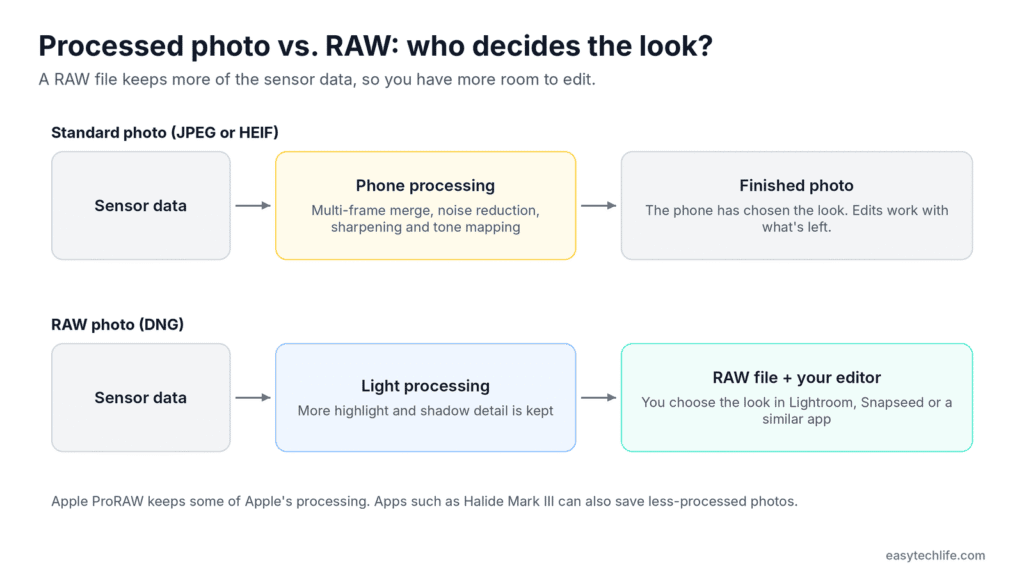
Halide can shoot without Apple’s computational processing, which Lux says gives stronger contrast and more natural results. It adds film-style Looks with adjustable grain and halation, plus Shutter Priority and ISO Priority modes. Its Photo Lab edits RAW files, including some files from dedicated cameras (DPReview).
- Pick it over ProCamera if: a natural, less-processed look matters more to you than having every control.
- Skip it if: you have an iPhone 18 Pro and only need aperture and shutter control. Apple’s built-in Pro controls may be enough.
5. Adobe Project Indigo: best free iPhone camera
Platforms: iPhone 12 Pro and 13 Pro models, and all iPhone 14 models and later | Price: Free
Project Indigo is an experimental Adobe Labs app from a team that includes former Pixel camera engineers. It merges several frames for each photo to cut noise and widen dynamic range, and it offers full manual controls with JPEG or RAW output (Adobe FAQ).
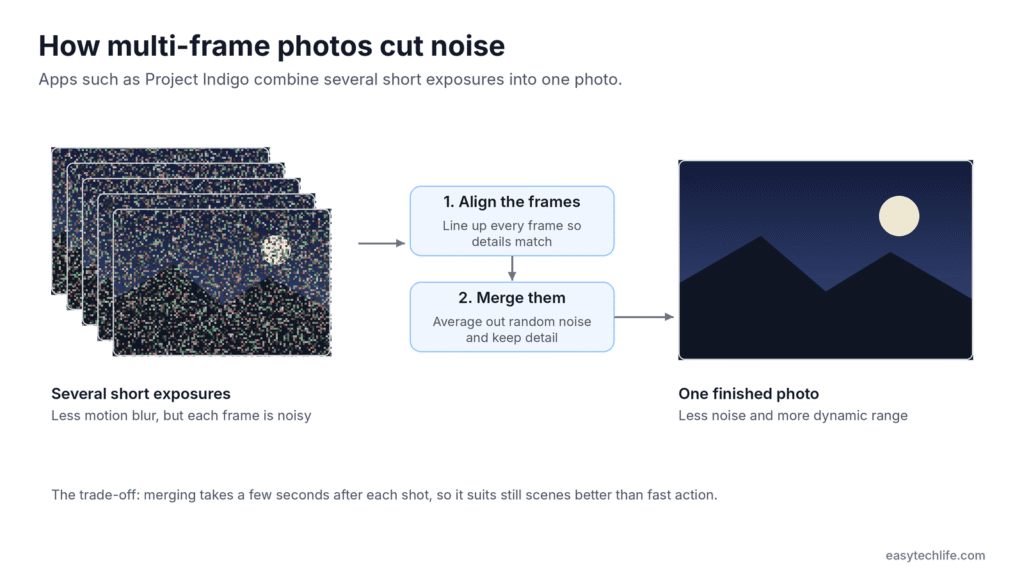
Adobe recommends an iPhone 15 Pro or newer for the best results. Support for each new iPhone has sometimes arrived months after launch, and an Android version has been promised without a date.
- Pick it over Halide if: you shoot in low light and want multi-frame noise reduction for free.
- Skip it if: you shoot fast action. Each photo takes a few seconds to process.
6. ProCamera: best for full manual control on iPhone
Platforms: iPhone and iPad | Price: Free download; $29.99/year, $7.99/month or $99.99 lifetime on the US App Store
ProCamera offers auto, semi-auto and full manual modes. You get separate focus and exposure control, focus peaking, zebra stripes, and RAW, ProRAW, TIFF, JPEG or HEIF output (App Store).
On the iPhone 18 Pro, its manual mode controls aperture, shutter speed and ISO together. That’s the full exposure triangle, which Apple’s own Camera app doesn’t offer.
- Pick it over Halide if: you want the most controls in one app for both photos and video.
- Skip it if: you dislike subscriptions. ProShot is a one-time purchase.
7. ProShot: best one-time purchase on both platforms
Platforms: Android, iPhone | Price: $7.99 one-time on the US App Store; Android price varies by region
ProShot gives you manual control on both platforms without a subscription. It has Auto, Program, Manual and custom modes, RAW capture (ProRAW on iPhone), and a Bulb mode for light trails (App Store).
The custom modes save your settings for situations you shoot often, like a night setup or a sports setup. On Android, available features depend on your phone.
- Pick it over Open Camera if: you want a more polished interface and saved custom modes.
- Skip it if: you’re on Android and haven’t tried the free Open Camera yet.
8. MotionCam Pro: best for advanced RAW capture on Android
Platforms: Android | Price: Paid one-time; free trial version
MotionCam says it was the first app to record RAW video on a smartphone. For photos, it replaces your phone’s processing with its own computational pipeline (Google Play).
The free trial has every feature but limits each recording to 5 seconds. Use it to confirm your phone works with the app before you pay.
- Pick it over Open Camera if: you want RAW video, or more control over how your RAW photos are processed.
- Skip it if: you want quick snapshots. RAW files are large and need editing.
9. Camera FV-5: best for long exposures on a budget
Platforms: Android | Price: Paid one-time; free Lite version
Camera FV-5 puts DSLR-style manual controls on your phone and captures RAW photos (Google Play). It’s best known for long exposures, such as light trails and night scenes. Like other manual apps, it depends on your phone’s Camera2 support.
- Pick it over Open Camera if: you shoot long exposures often and prefer a DSLR-style layout.
- Skip it if: Open Camera already covers what you need.
10. Blackmagic Camera: best for video
Platforms: iPhone and iPad; Android 13 or later on supported phones | Price: Free
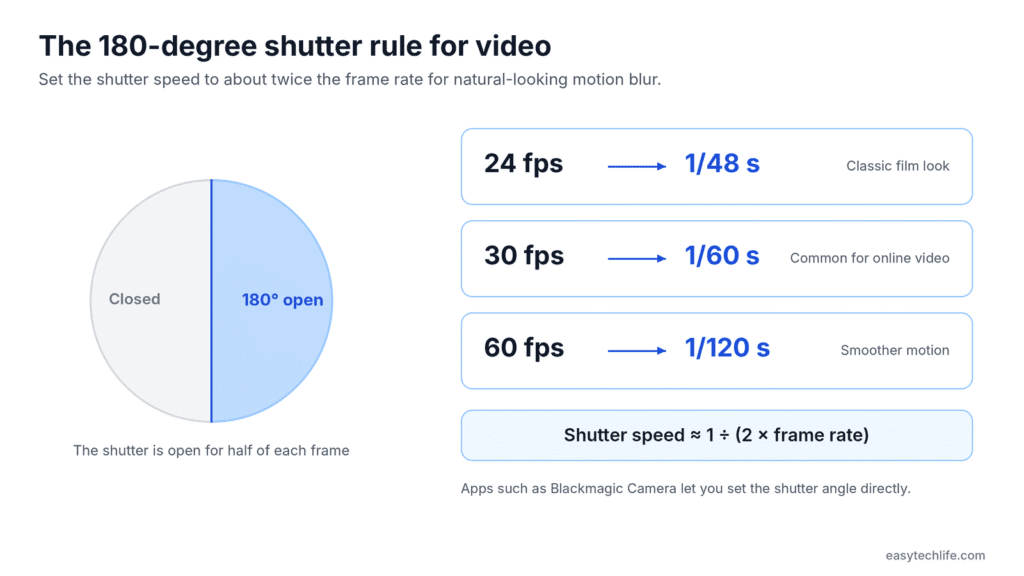
Blackmagic Camera brings cinema-camera controls to your phone: frame rate, shutter angle, white balance and ISO. It can also upload footage to Blackmagic Cloud for editing in DaVinci Resolve.
A 180-degree shutter angle produces the motion blur viewers associate with cinematic video. At 24 fps, that’s roughly a 1/48-second shutter speed. It won’t remove camera shake, but movement looks more natural.
On Android, Blackmagic lists the Galaxy S21 to S25 series, Galaxy Z Fold models, Pixel 6 to 9 (except Fold), OnePlus 11 and 12, Xiaomi 13 and 14, and Sony Xperia 1, 5 and Pro-I models (Blackmagic Design). Not every phone supports every feature.
- Pick it over your stock camera if: you want consistent motion and manual exposure while recording.
- Skip it if: you only shoot stills.
Head-to-head: which one should you pick?
Most readers end up choosing between two similar apps. Here’s how to decide.
| Choosing between | Pick the first if | Pick the second if |
|---|---|---|
| Open Camera vs. ProShot (Android) | You’re learning manual photography and want to spend nothing | You want a more polished interface and saved custom modes for a one-time price |
| Halide Mark III vs. ProCamera (iPhone) | You want a natural, less-processed look with film-style Looks | You want every control in one app, including video tools |
| Halide Mark III vs. Project Indigo (iPhone) | You want instant shots and a finished app | You shoot in low light and are happy to wait a few seconds per photo, for free |
| Lightroom vs. Snapseed (both) | You want RAW HDR capture and a library synced across devices | You want strong editing and a camera without paying |
| Blackmagic Camera vs. your stock camera (video) | You want fixed shutter angle and manual exposure while recording | You want quick clips with automatic stabilization and processing |
For most people, one camera app plus one editor is enough. Good free starting kits are Open Camera + Snapseed on Android and Project Indigo + Snapseed on iPhone.
Apps to pair with your camera
These apps don’t take photos, or the camera isn’t their main job. They’re worth adding once you have a camera app you like.
| App | Use it for | Platforms | Price (US) |
|---|---|---|---|
| Photomator | Editing Apple ProRAW and other RAW files, with AI selections, repair and denoising | iPhone, iPad, Mac | Free download; subscription or lifetime license (price varies by country) |
| VSCO | Film-style presets for a consistent look across a series of photos | Android, iPhone | Free Starter plan; VSCO’s site lists Plus at $29.99/year (in-app prices can differ) |
| Picsart | Background removal, collages, templates and AI edits for social posts | Android, iPhone | Free; paid plans with monthly AI credits |
| PhotoPills | Planning where the sun, moon or Milky Way will be, plus exposure and depth-of-field calculators | Android, iPhone | $10.99 one-time on the App Store |
PhotoPills is the odd one out, and the most useful for landscape and travel shooters. It can show the evening a full moon will rise behind a skyline, and where to stand to line it up. If you move photos between apps on an iPhone, our guide to where copied photos go on iPhone explains how copying, duplicating and saving differ.
Best picks by platform
| What you need | Android | iPhone |
|---|---|---|
| Free manual camera | Open Camera | Project Indigo |
| Free camera and editor in one | Snapseed | Snapseed |
| Paid manual camera, one-time price | ProShot | ProShot |
| Most manual control | MotionCam Pro (one-time) | ProCamera (subscription or lifetime) |
| Natural, less-processed photos | MotionCam Pro | Halide Mark III |
| RAW HDR capture plus editing | Lightroom | Lightroom |
| Long exposures | Camera FV-5 | ProShot (Bulb mode) |
| Video | Blackmagic Camera (supported phones) | Blackmagic Camera |
| Shot planning | PhotoPills | PhotoPills |
Start with the free pick for your platform. Pay only when you hit a specific limit, such as needing manual ISO on an iPhone or RAW video on Android.
How we chose these apps
Every app here had to do something a phone’s stock camera can’t: manual control, RAW capture, a different processing choice, or pro video settings. We then ranked them on four things: what they add over the stock camera, the cost to start, platform support, and how easy they are for a beginner. Each “best for” label is our editorial judgment based on those criteria and each app’s documented features, not on lab tests.
What we checked. On October 26, 2026, we checked each app’s current price and availability on the US App Store, Google Play or the developer’s site. We checked feature claims against developer documentation where it exists: Adobe Help, Open Camera’s help pages, Blackmagic’s tech specs, Lux’s announcement and Samsung’s Expert RAW guide.
What we didn’t do. We didn’t run a side-by-side image-quality test on a single phone.
What changed in this update (October 2026):
- Snapseed’s camera reached Android with version 4.0 in May 2026.
- Halide Mark III launched on May 27, 2026; its one-time price is now $69.99 on the US App Store.
- The iPhone 18 Pro added built-in Pro controls, but no manual ISO.
- We added ProCamera, Project Indigo, MotionCam Pro and Camera FV-5, and moved editing-only apps to their own section.
Frequently asked questions
What is the best camera app for Android?
Open Camera is the best free choice for manual control. ProShot is the best one-time purchase, and MotionCam Pro is our pick for advanced RAW photo and video capture. Check your phone’s Camera2 support first, because advanced features vary by device.
What is the best camera app for iPhone?
Halide Mark III is our pick if you want less-processed photos, and ProCamera if you want full manual control, including ISO. Project Indigo is the best free option if your iPhone supports it.
Does the iPhone 18 Pro still need a camera app?
Often not. Its built-in Pro controls cover aperture, shutter speed and white balance, with a live histogram. You still need Halide Mark III or ProCamera if you want to set ISO yourself.
Does Snapseed have a camera on Android?
Yes. Snapseed 4.0, released in May 2026, added the Snapseed Camera and its Pro mode to Android. It’s free on both platforms.
Are third-party camera apps better than the stock camera?
Not for everyday snapshots. Stock cameras use processing that third-party apps can’t always match. Third-party apps help when you need manual control, RAW files, a less-processed look or pro video settings.
Which of these camera apps are free?
Open Camera, Snapseed, Project Indigo and Blackmagic Camera are free. Lightroom is free with a paid Premium upgrade, and ProCamera is a free download with a subscription. Halide Mark III, ProShot, MotionCam Pro and Camera FV-5 are paid.
Do camera apps work on every phone?
No. On Android, manual controls and RAW depend on your phone’s Camera2 support. Blackmagic Camera only supports specific Android models, and Project Indigo needs an iPhone 12 Pro or later Pro model, or any iPhone 14 or newer.
Do I need more than one app?
Usually not. Most people do well with one camera app and one editing app.
Final thoughts
You don’t need all ten. Check your phone’s built-in Pro mode first, then pick the one app that fixes the problem your camera can’t. Learning that one app well will improve your photos more than a phone full of apps you rarely open.
If you’re not sure where to start, try Open Camera for free manual photography on Android, or Project Indigo for free manual shooting on a supported iPhone. Choose Snapseed if editing and film-style looks matter most to you.

Louis Mugan is a seasoned technology writer with a talent for turning complicated ideas into clear, practical guidance. He focuses on helping everyday readers stay confident in a world where tech moves fast. His style is approachable, steady, and built on real understanding.
He has spent years writing for platforms like EasyTechLife, where he covers gadgets, software, digital trends, and everyday tech solutions. His articles focus on clarity, real-world usefulness, and helping people understand how technology actually fits into their lives.
Outside of his regular columns, Louis explores emerging tools, reviews products, and experiments with new tech so his readers don’t have to. His steady, friendly approach has made him a reliable voice for anyone trying to keep up with modern technology. get in touch at louismugan@gmail.com


