
You can delete any picture, sent or received, from your own text conversations on Android: touch and hold the picture message and tap Delete. That removes your copy only. The other person keeps theirs unless your app offers Delete for everyone and the message qualifies, or they delete it themselves.
This guide covers Google Messages (the default on most Android phones) and Samsung Messages (still installed on many Galaxy phones, though newer models default to Google Messages). WhatsApp, Telegram and other chat apps have their own deletion rules, which this guide does not cover.
What happens when you delete a picture from a text message
Deleting a picture message removes it from your conversation on your phone, and nothing else. A picture you’ve texted can exist in up to three places, and each one is deleted separately:
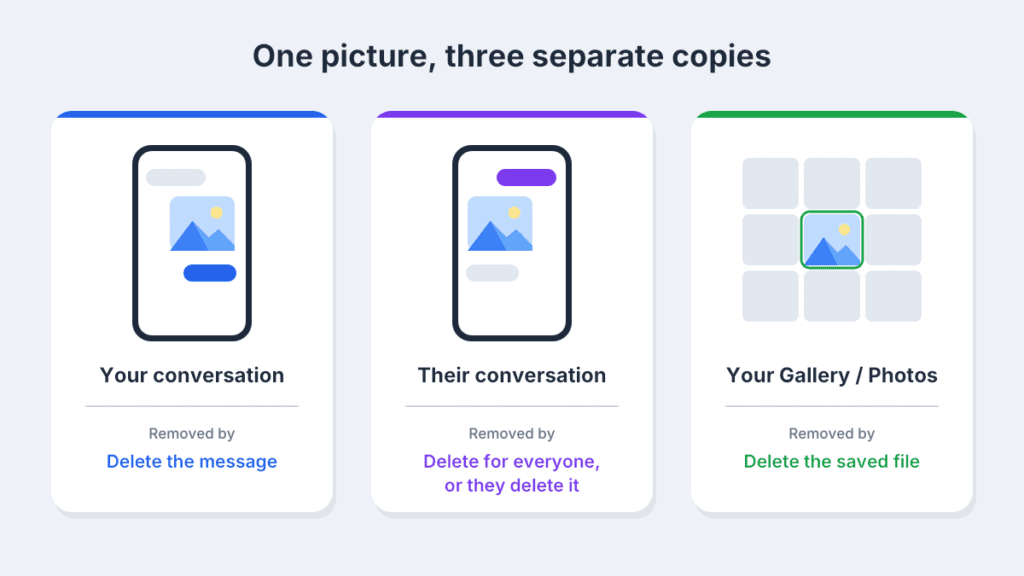
| Where the copy lives | What removes it |
|---|---|
| Your conversation | Deleting the message in your messaging app |
| The other person’s conversation | Delete for everyone (RCS chats in Google Messages only), or the other person deleting it |
| Your Gallery, Google Photos or a folder | Deleting the file there; deleting the message doesn’t touch it |
The third row is the one people most often miss. If you saved or downloaded a picture from a chat, deleting the message leaves the saved copy behind.
How to delete a picture in Google Messages
Touch and hold the picture, tap the trash icon, then confirm.
- Open Messages and tap the conversation with the picture.
- Touch and hold the picture until it’s highlighted.
- Tap the trash icon at the top of the screen.
- Choose Delete for me if you see two options, or tap Delete to confirm.
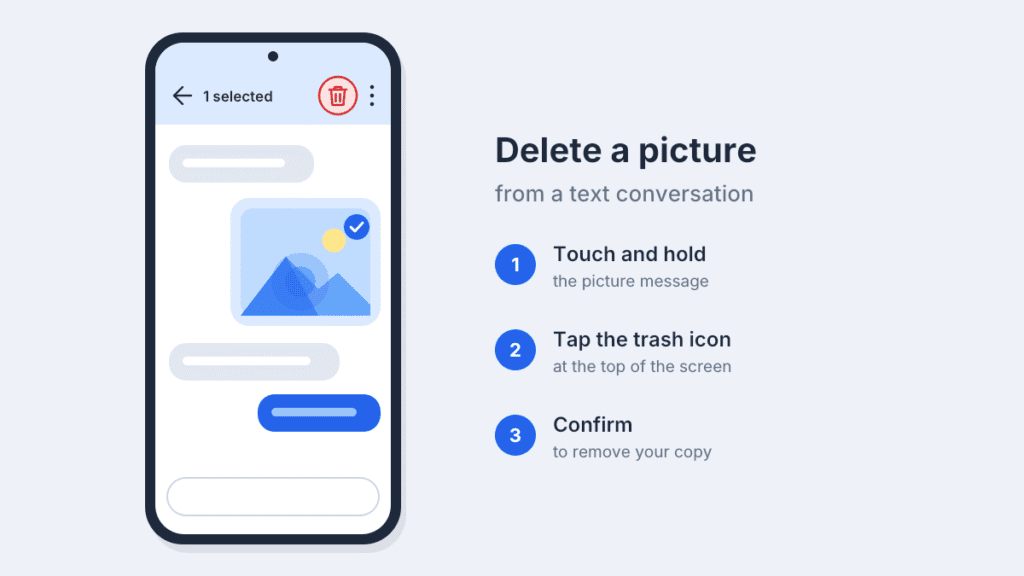
The picture disappears from your conversation, and the rest of the conversation stays as it is. Deleting one message is different from deleting a whole conversation: whole conversations go to Trash (see below), while a single deleted picture may not be recoverable.
To find an older picture without scrolling, open the conversation details: tap the contact name at the top, or tap the menu (three dots) and choose Details, depending on your app version. Shared photos and videos are listed there. Tap one to open it, then find it in the conversation to delete it.
How to delete pictures in Samsung Messages
The steps match Google Messages: touch and hold, then delete.
- Open Messages and tap the conversation.
- Touch and hold the picture.
- Tap Delete (on recent versions it may say Move to Recycle bin).
- Confirm.
Samsung Messages keeps deleted messages in a Recycle bin for 30 days. To remove them for good, tap the menu (three dots) on the main screen, choose Recycle bin, and empty it or delete the items you select. Menu names can differ slightly between One UI versions.
How to delete multiple picture messages
Select one picture, tap the others, then delete them together.
- Open the conversation.
- Touch and hold the first picture.
- Tap each additional picture or message you want to remove. A checkmark or highlight shows what’s selected.
- Tap the trash icon (Google Messages) or Delete (Samsung Messages) and confirm.
This works one conversation at a time. Neither app currently offers a single “delete all pictures from all chats” button. If a conversation holds hundreds of pictures and you don’t need any of it, deleting the whole conversation is faster.
How to delete an entire conversation
On the main chat list, touch and hold the conversation, then tap the trash icon (Google Messages) or Delete (Samsung Messages). You can select several conversations before deleting.
In current versions of Google Messages, this moves the conversation to Trash rather than erasing it immediately. Conversations stay there for 30 days (7 days on Android Go phones) before they’re permanently deleted. To erase them sooner, tap your profile picture, open Trash, and choose Delete all.
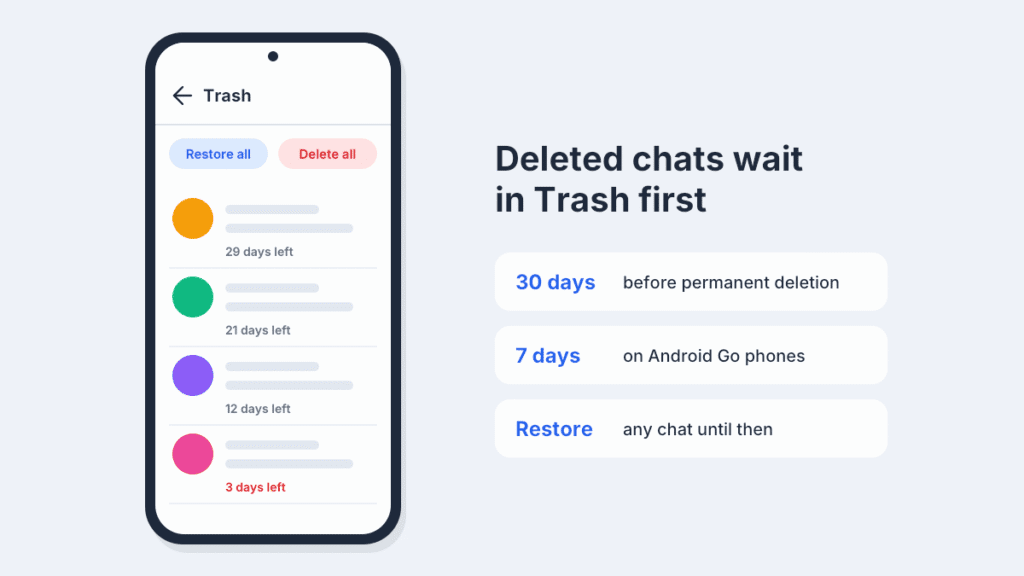
If you don’t see Trash, check for Google Messages updates in the Play Store. Availability may depend on your app version and feature rollout. You can also set a swipe action to send conversations to Trash: in Messages settings, open Swipe actions and assign Trash to a swipe direction.
Can you delete a sent picture from someone else’s phone?
Sometimes. Google Messages offers Delete for everyone for eligible messages in supported RCS chats. Whether the option appears depends on the conversation and the message.
- Touch and hold the picture you sent.
- Tap the trash icon.
- Choose Delete for everyone.
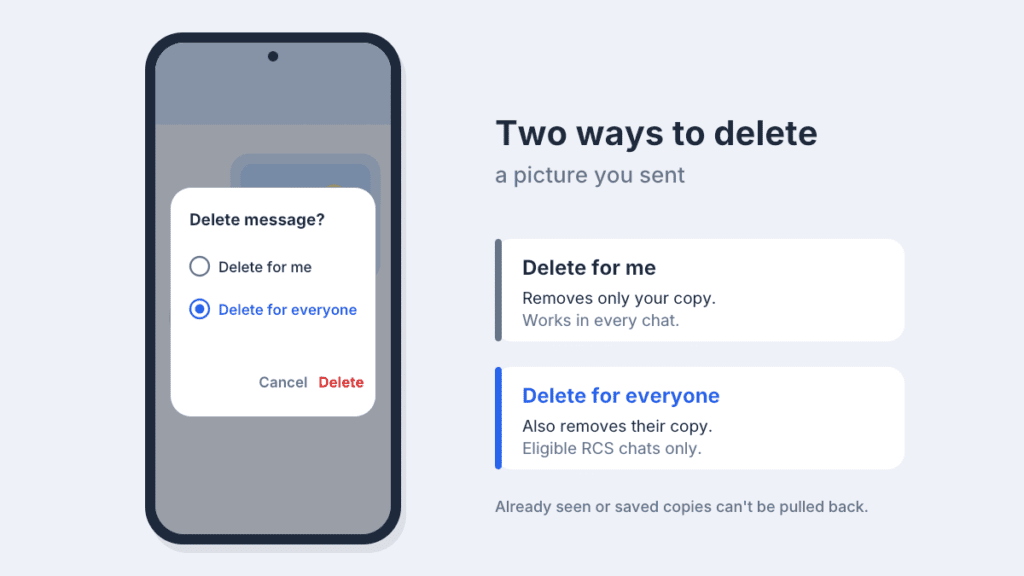
If you only see one delete option, the message doesn’t qualify. Common reasons:
- The chat uses SMS/MMS, not RCS. RCS chats usually show “RCS message” in the text box.
- Timing or app versions. Availability can depend on when the message was sent and which app versions people in the chat are using.
- You’re deleting a picture someone else sent. You can only unsend your own messages.
If Delete for everyone isn’t offered, you can still remove your own copy with Delete for me.
Even when it works, it can’t undo what already happened. The other person may have seen the picture, saved it or taken a screenshot. People using an older version of the app may still see it. For ordinary SMS/MMS, the only way to remove their copy is to ask them to delete it.
How to remove saved message pictures from your Gallery
Pictures you saved from a chat are ordinary photo files, so delete them where photos live.
- Google Photos: open Collections, then On this device, and look for a folder of saved message pictures, often named Messages. Select the pictures and tap Delete. They go to Trash before permanent deletion.
- Samsung Gallery: open Albums and look for a messages album. Delete the pictures, then empty Gallery’s Recycle bin (menu, then Recycle bin) to remove them immediately.
- Files app: check Images, then look for a messages folder.
A dedicated messages folder isn’t guaranteed. Where a picture ends up depends on the app and how it was saved, so it may sit in Downloads or another folder instead.
If Google Photos backs up your phone, Delete removes the picture from your backup and synced devices too. To free space on the phone but keep the backed-up copy, open the picture, tap the menu (three dots) and choose Delete from device.
How to free up storage used by message pictures
Deleting old picture messages and saved copies can free storage. How much you recover depends on where the files are stored and whether deleted items are still waiting in a Trash or Recycle bin.
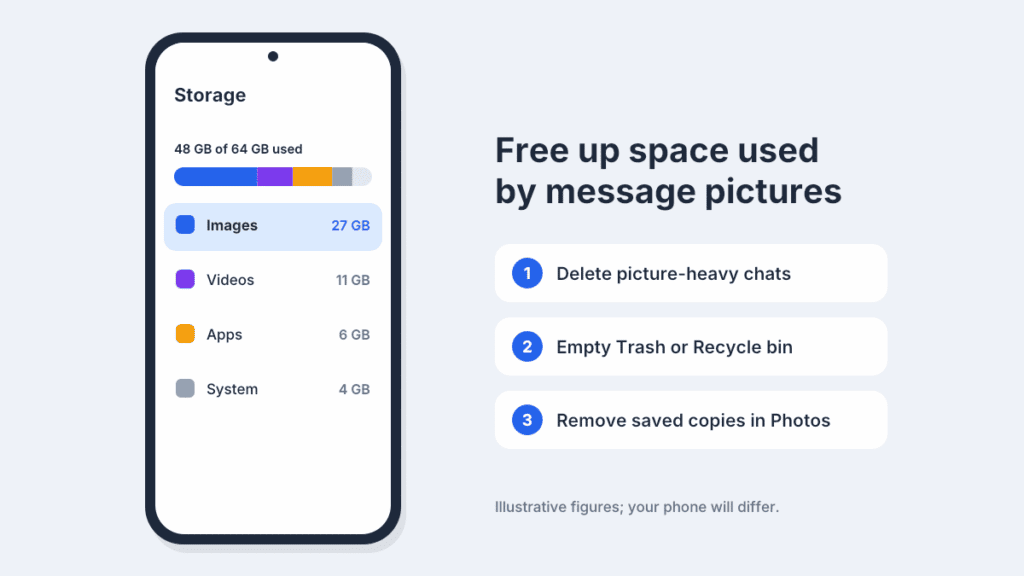
- Check what’s using space: go to Settings, then Storage (on Samsung, Battery and device care, then Storage).
- Delete old picture-heavy conversations or individual pictures, as described above.
- Empty Trash in Google Messages, or the Recycle bin in Samsung Messages.
- Delete saved copies from Google Photos or Gallery, and empty those trash folders too.
You don’t need to clear the messaging app’s data. It isn’t a deletion method, and it can reset your app settings.
How to recover accidentally deleted picture messages
Check the app’s trash first. Recovery depends on how you deleted it and how long ago.
- Google Messages: tap your profile picture, then Trash. Touch and hold a conversation and tap the restore icon, or restore all. Trashed conversations can’t be opened until restored.
- Samsung Messages: tap the menu (three dots), then Recycle bin, then Edit. Select the conversation and tap Restore.
- Saved copies: check the trash in Google Photos or Gallery’s Recycle bin.
- Backups: if trash has been emptied, you may be able to restore from a Google or Samsung Cloud backup. This usually means restoring the whole phone or app, so it’s a last resort. A backup only helps if it was made before you deleted the message, and restoring an older backup can overwrite newer data, so check its date first.
Trash holds deleted conversations. A single picture deleted inside a conversation may not be recoverable, depending on your app version.
Frequently asked questions
Does deleting a picture on my phone delete it from the other person’s phone?
No. It only removes your copy, unless you use Delete for everyone in an eligible Google Messages RCS chat.
Will the other person know I deleted a picture?
Not if you choose Delete for me. With Delete for everyone, the message disappears from their chat, which they may notice.
Does deleting a picture message remove it from Google Photos?
No. Saved or backed-up copies stay until you delete them separately.
Can I delete just the picture and keep the text sent with it?
Usually not. A picture and the text sent with it count as one message, so deleting one deletes both.
Does this work in WhatsApp or Facebook Messenger?
No. Those apps have their own delete options and time limits. The steps in this guide apply to Google Messages and Samsung Messages.

Louis Mugan is a seasoned technology writer with a talent for turning complicated ideas into clear, practical guidance. He focuses on helping everyday readers stay confident in a world where tech moves fast. His style is approachable, steady, and built on real understanding.
He has spent years writing for platforms like EasyTechLife, where he covers gadgets, software, digital trends, and everyday tech solutions. His articles focus on clarity, real-world usefulness, and helping people understand how technology actually fits into their lives.
Outside of his regular columns, Louis explores emerging tools, reviews products, and experiments with new tech so his readers don’t have to. His steady, friendly approach has made him a reliable voice for anyone trying to keep up with modern technology. get in touch at louismugan@gmail.com


