
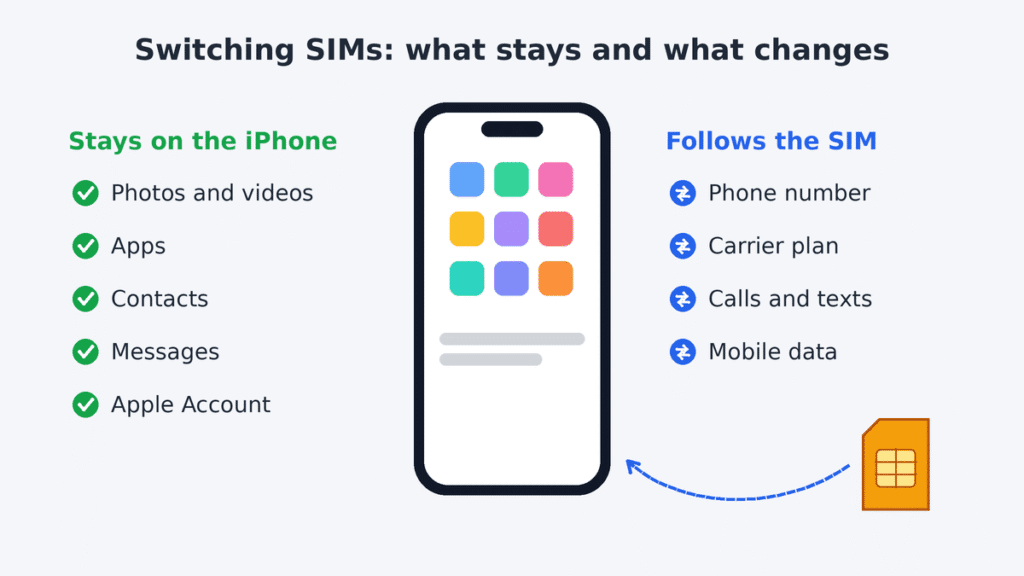
Switching SIMs changes which cellular line your iPhone uses, not your data. Your phone number changes only if the new SIM or eSIM has a different number. Photos, apps, contacts and your Apple Account stay as they are.
| Feature | What happens when you switch |
|---|---|
| Photos and videos | Stay on the iPhone |
| Installed apps | Stay installed |
| Contacts | Stay, if saved on the phone or in iCloud |
| Existing texts | Stay on the iPhone |
| Phone number | Changes only if the new SIM has a different number |
| iMessage and FaceTime | May need to register the new number |
| Chats stay; a new number needs WhatsApp’s Change Number step | |
| Mobile data | Uses the new carrier’s plan |
| Apple Account and iCloud | Stay signed in |
| Carrier lock | Still applies until the carrier unlocks the phone |
Will you lose photos, contacts, messages, or apps?
No. Modern iPhones store your data on the phone itself or in iCloud, not on the SIM card. Removing a SIM doesn’t erase anything from the iPhone.
Apple confirms that iPhone doesn’t save contacts to a SIM card. The only data that might sit on a SIM is contacts saved there by an older, non-Apple phone. You can import those before you switch (see What to do before switching).
The old SIM keeps whatever was on it. Nothing is deleted from the card when you take it out.
Will your phone number change?
Only if the new SIM belongs to a different number. Your number lives with your carrier account, not with the iPhone. Put your own SIM into another iPhone and your number goes with it.
If you’re moving carriers and want to keep your number, ask the new carrier to port it. Don’t cancel your old plan first, or the number may be released.
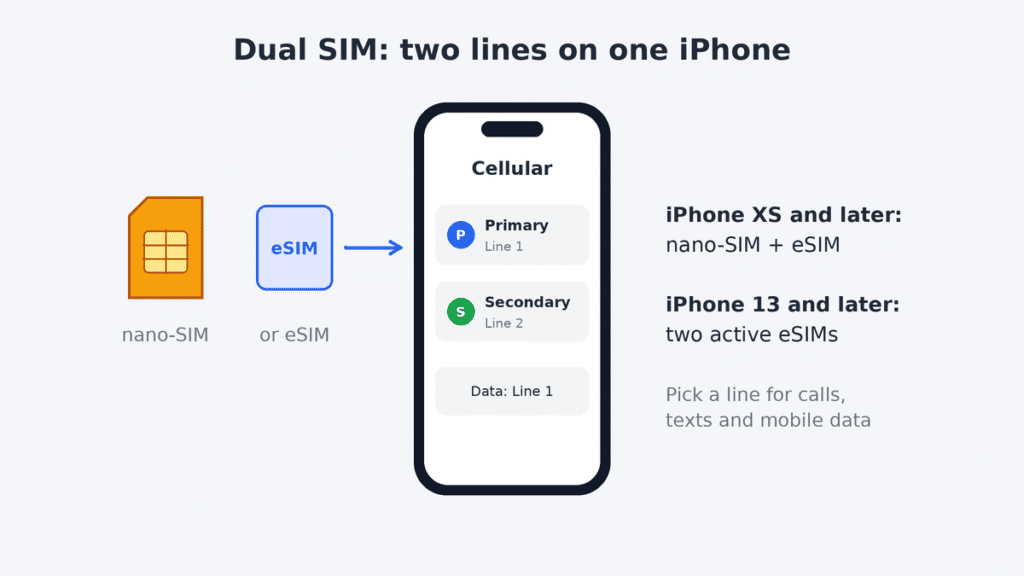
If your iPhone supports Dual SIM, you may not need to give up your current line at all. iPhone XS and later models can use two lines, and iPhone 13 and later can hold two active eSIMs. You choose which line handles calls, texts and mobile data.
What happens to iMessage, FaceTime, and WhatsApp?
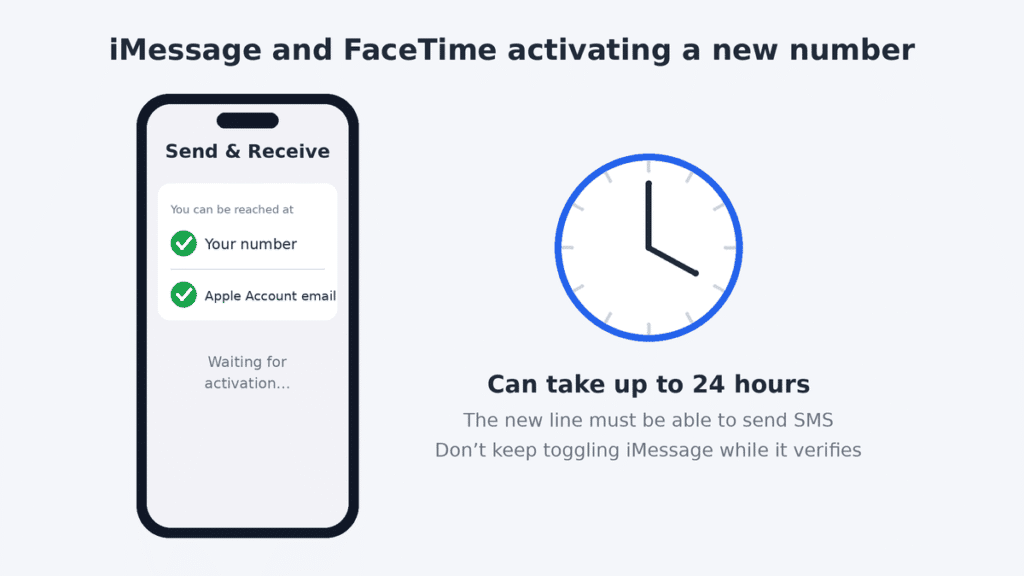
iMessage and FaceTime stay tied to your Apple Account. If your number is the same, usually nothing changes. If the number is new, iMessage and FaceTime need to activate it. This is often quick but can take up to 24 hours, and the new line must be able to send and receive SMS meanwhile. Avoid switching iMessage off and on while it verifies. If the number still hasn’t appeared after 24 hours, confirm the SIM or eSIM is active and can send SMS, then check:
- Settings → Apps → Messages → Send & Receive and tick the new number.
- Settings → Apps → FaceTime → You Can Be Reached By and tick it there too.
- Still missing? Restart the iPhone, follow Apple’s iMessage and FaceTime activation troubleshooting, or contact your carrier.
WhatsApp keeps your chats on the phone and in your iCloud backup. Your account is tied to a phone number, though. If the number changes, use WhatsApp → Settings → Account → Change Number so your chats and groups move to the new number (see WhatsApp’s guide to changing your number). Make sure the new number can receive SMS or calls, because WhatsApp sends the verification code there. Afterwards, create a fresh backup under WhatsApp → Settings → Chats → Chat Backup, since older backups are linked to your previous number.
Other messaging apps, including Signal and Telegram, also use your phone number for verification, but each handles number changes differently. Check the app’s own instructions before you switch.
Can you switch SIM cards between two iPhones?
Yes. You can move a compatible physical SIM between two iPhones with SIM trays, as long as the receiving iPhone is unlocked or supports that SIM’s carrier. Your number and plan move with the SIM, while each iPhone keeps its own photos, apps and settings.
If either phone is eSIM-only, there’s no card to move. Use eSIM transfer instead (see How to switch or transfer an eSIM).
How to change a physical SIM card on iPhone
First check which SIM type your iPhone uses. US models from iPhone 14 onward have none, and neither do iPhone 17-series models sold in Canada, Mexico, Japan and several Gulf countries. The iPhone Air is eSIM-only everywhere.
All iPhones with a tray since iPhone 5 use a nano-SIM. If your card is larger, ask your carrier for a nano-SIM replacement.
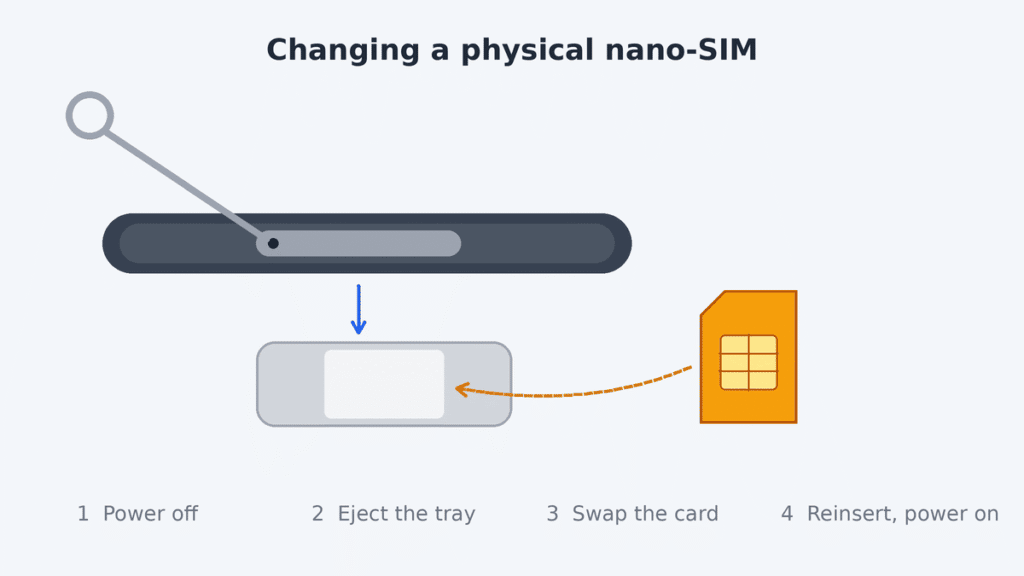
- Turn off the iPhone. It isn’t strictly required, but it’s a safe habit.
- Find the tray on the side of the phone. Apple shows its position for each model. Push the SIM ejector tool or a straightened paper clip into the small hole until the tray pops out.
- Take out the old SIM and place the new one in the tray. The notched corner only fits one way.
- Slide the tray back in the same way it came out.
- Turn the iPhone on. Enter the SIM PIN if asked, and follow any activation prompts.
Once the carrier name and signal bars appear, the new SIM is working.
How to switch or transfer an eSIM
An eSIM is a digital SIM built into the iPhone, so “switching” means moving or adding a plan rather than swapping a card. iPhone XS, XS Max, XR and newer models generally support eSIM, though availability varies by model, country of purchase and carrier. Some models sold in mainland China use physical SIMs only.
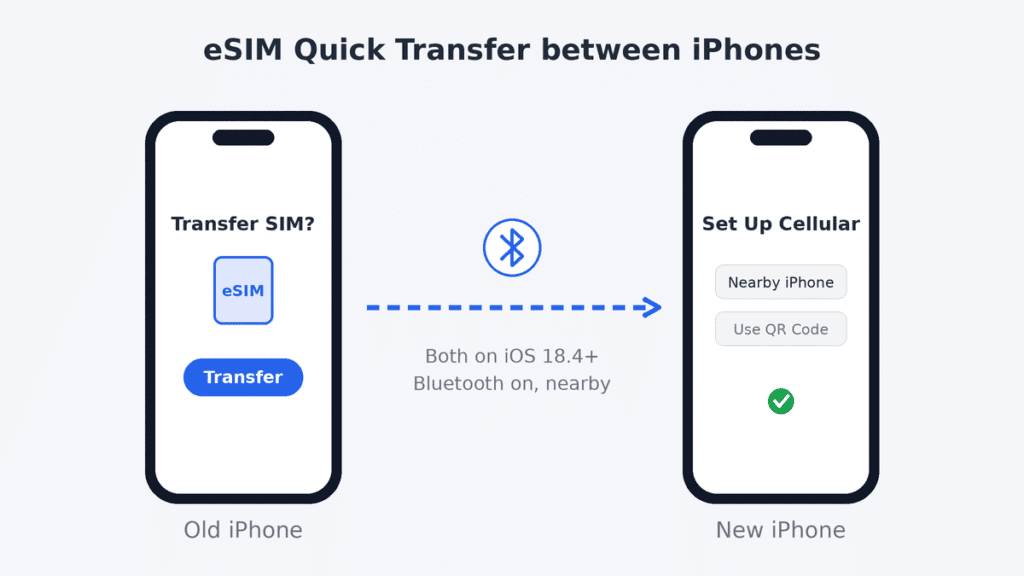
Moving your eSIM to a new iPhone (Quick Transfer):
- Make sure both iPhones are nearby, unlocked, signed in with your Apple Account, have Bluetooth turned on, and run iOS 18.4 or later.
- On the new iPhone, choose Transfer from Nearby iPhone on the Set Up Cellular screen during setup. After setup, go to Settings → Cellular → Add eSIM → Transfer from Nearby iPhone. Some regions label this menu Mobile Service.
- On the old iPhone, tap Transfer and enter the code shown on the new iPhone if asked.
- Follow the on-screen prompts and wait for your carrier to activate the eSIM; activation time varies. Once the transfer completes, the eSIM on the old iPhone is deactivated.
Not every carrier supports Quick Transfer. If the option doesn’t appear, ask your carrier for a QR code or activation link, then use Settings → Cellular → Add eSIM → Use QR Code.
Switching to a new carrier on eSIM: get an eSIM from the new carrier through its app, a QR code, or in store. You can keep your old line active alongside it on any Dual SIM iPhone.
How to check whether your iPhone is carrier-locked
Go to Settings → General → About and look at Carrier Lock. “No SIM restrictions” means the iPhone is unlocked and works with any compatible carrier.
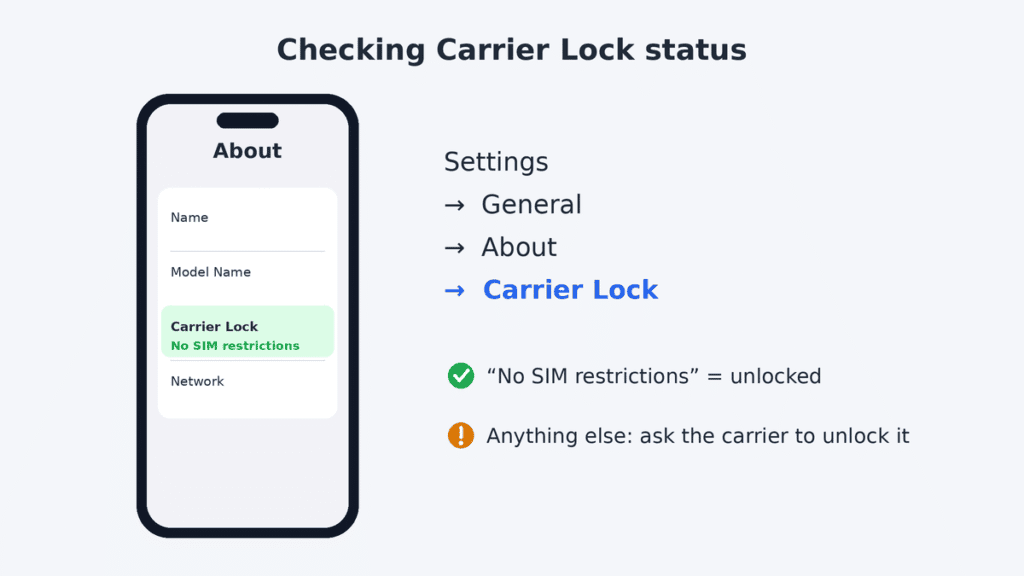
If the iPhone is carrier-locked, contact the carrier responsible for the lock and request an unlock. Apple can’t remove carrier restrictions, and neither can third-party software. Eligibility, fees and processing times depend on the carrier.
Avoid paid “SIM unlock” tools, especially any that ask you to jailbreak. Jailbreaking weakens the iPhone’s security, and these tools don’t change the carrier’s records, so the lock can return after an update or restore.
What to do before switching SIM cards
- Check the carrier lock under Settings → General → About.
- Back up your iPhone to iCloud or a computer. Switching SIMs doesn’t normally erase data, but a recent backup is a sensible precaution.
- Import contacts from an old SIM if it came from a non-Apple phone: Settings → Apps → Contacts → Import SIM Contacts. On iOS 17 and earlier, it’s Settings → Contacts.
- Update two-factor sign-ins if your number is changing. Banks, email and other accounts that text you login codes will keep sending them to the old number until you change it.
- Keep the old SIM or plan active until your number is ported or your new line works.
- Know your SIM PIN if one is set, or get the PUK code from your carrier.
- Check the SIM type: nano-SIM for a tray, or an eSIM for eSIM-only models.
Why your new SIM isn’t working
| What you see | Possible cause | What to do |
|---|---|---|
| “SIM not supported” | Carrier lock, or the SIM isn’t compatible with this iPhone | Check Carrier Lock in Settings → General → About; ask the locking carrier to unlock it, or confirm the SIM works with your model |
| “No SIM” or “Invalid SIM” | Card seated badly, damaged, or deactivated by the carrier | Reinsert the tray; try the SIM in another phone |
| No service, but SIM detected | Line not active yet, weak coverage, a carrier outage, or an account restriction | Check coverage and the carrier’s outage page, allow time for activation, then contact the carrier |
| Calls work, mobile data doesn’t | Data line or settings | Check the right line is selected under Settings → Cellular → Cellular Data, confirm the plan includes data, then toggle Airplane Mode or restart |
| “SIM locked” | SIM PIN is set | Enter the PIN, or get the PUK from your carrier |
| eSIM transfer option missing | Carrier doesn’t support Quick Transfer | Ask the carrier for a QR code |
If nothing works, restart the iPhone and check for a carrier settings update under Settings → General → About.
Reset network settings (Settings → General → Transfer or Reset iPhone → Reset → Reset Network Settings) only as a last resort. It erases saved Wi-Fi networks and resets cellular, VPN and APN settings.
Frequently asked questions
Does removing the SIM card erase anything from my iPhone?
No. Nothing is erased from the iPhone or from the SIM card. Photos, apps, contacts and messages stay on the phone.
Will my text messages disappear after switching SIMs?
No. Existing messages stay on the iPhone. New SMS messages go to whichever number is currently active.
Can I use a SIM card from another country in my iPhone?
Yes, if your iPhone is unlocked and has a SIM tray. If you have an eSIM-only model, buy a travel eSIM instead.
Do I need to reset my iPhone after switching SIM cards?
No. A reset is only needed in some cases when finishing a carrier unlock, and only if Apple’s unlock instructions call for it.
Can I have two phone numbers on one iPhone?
Yes. iPhone XS and later support Dual SIM, and iPhone 13 and later can run two eSIMs at the same time.
Does switching SIM cards change my Apple Account or iCloud?
No. Your Apple Account and iCloud stay signed in. Only the cellular line changes.

Louis Mugan is a seasoned technology writer with a talent for turning complicated ideas into clear, practical guidance. He focuses on helping everyday readers stay confident in a world where tech moves fast. His style is approachable, steady, and built on real understanding.
He has spent years writing for platforms like EasyTechLife, where he covers gadgets, software, digital trends, and everyday tech solutions. His articles focus on clarity, real-world usefulness, and helping people understand how technology actually fits into their lives.
Outside of his regular columns, Louis explores emerging tools, reviews products, and experiments with new tech so his readers don’t have to. His steady, friendly approach has made him a reliable voice for anyone trying to keep up with modern technology. get in touch at louismugan@gmail.com


