

Quick answer
You set up your Home Screen exactly how you like it, and now a widget (or several) has gone missing. Annoying, but it’s usually an easy fix. Here’s the short version: touch and hold an empty area of your Home Screen, tap Edit in the upper-left corner, then tap Add Widget. Pick the widget, choose a size, and tap Add Widget again. Don’t see it in the list? Make sure the app is still installed and up to date, open it once, and then look again.
Did a whole Home Screen page disappear along with your widgets? Check whether a Focus mode is hiding it, or whether the page was hidden manually. Both are covered below. Lock Screen and Smart Stack widgets work a little differently, so they get their own sections too.
This guide covers iOS 26 and iOS 27. iOS 27 was released on September 14, 2026. If you’re on an older version, you can still follow along. A few buttons just have slightly different names.
Why did my iPhone widgets disappear?
The good news is that widgets rarely vanish for no reason, and the cause is usually something simple. Before you start digging through settings, find the row below that matches what you’re seeing.
| What you notice | Likely cause | Where to fix it |
| A whole Home Screen page is gone, widgets included | A Focus mode is hiding that page, or it was hidden manually | Check Focus modes and hidden pages |
| One widget is gone, the rest are fine | The widget was removed, or its app was deleted or offloaded | Restore Home Screen widgets |
| A new app’s widget never appears in the gallery | The app hasn’t been opened yet, or it doesn’t offer widgets | App not in the widget gallery |
| Widgets look different or moved after an update | The update changed the app’s widgets or your layout | Widgets missing after an iOS update |
| The widget is there but blank or out of date | An app bug, missing permissions, or background limits like Low Power Mode | Widgets blank or not updating |
| A Smart Stack shows a different widget than before | Smart Rotate switched what’s on top | Smart Stacks |
| Lock Screen widgets are gone | You switched to a different Lock Screen | Restore Lock Screen widgets |
One sneaky cause is worth calling out. If your iPhone is set to offload apps you don’t use much, it can quietly remove an app to save space. When that happens, the app’s widget may stop working or become unavailable. Tap the app’s icon (it’ll have a little cloud next to its name) to reinstall it, open the app, then check the widget gallery. Your data stays put.
How to restore missing Home Screen widgets
If you (or a curious kid, or a stray thumb) removed a widget by accident, putting it back takes less than a minute.
- Touch and hold an empty area of the Home Screen until the apps start to jiggle.
- Tap Edit in the upper-left corner.
- Tap Add Widget.
- Scroll the gallery or use the search field to find the app.
- Swipe through the sizes, then tap Add Widget.
- Drag the widget where you want it, then tap Done.
Apple walks through the same steps in its official guide, How to add and edit widgets on your iPhone.
Want a different size after you’ve placed it? Touch and hold the widget and pick a size from the menu. On iOS 27, you can also drag the handle in its bottom-right corner. iOS 27 also added an extra-large size that takes up a 4×6 grid, about a full page, for apps that support it.
Apple announced both the drag-to-resize handle and the extra-large size as part of iOS 27 at WWDC 2026, as 9to5Mac reported.
Can’t find the app in the gallery at all? Check that it’s still on your phone by searching App Library. If the app was deleted, its widgets went with it, so you’ll need to reinstall it first.
Check Focus modes and hidden Home Screen pages
If a whole page of widgets is gone, don’t panic. It’s most likely hidden rather than deleted, and two settings can do that.
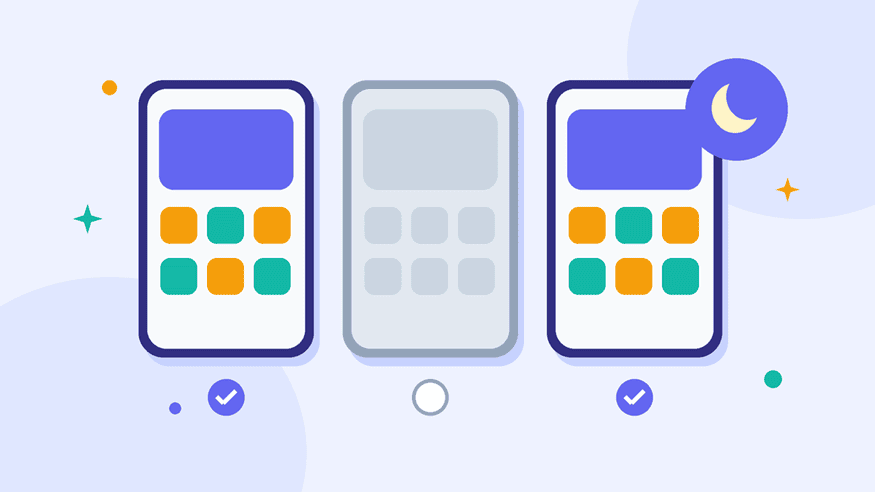
A Focus mode is showing only certain pages. You can set each Focus (like Work or Sleep) to show only certain Home Screen pages. Since a Focus can switch itself on based on the time, where you are or which app you open, it’s easy to forget one is running.
- Open Control Center and see if a Focus is on. Turn it off. If your page pops back, you’ve found the culprit.
- To change it permanently, go to Settings > Focus, tap the Focus, and look under Customize Screens.
- Tap the Home Screen preview and select the pages you want visible, or turn the option off.
The page was hidden manually.
- Touch and hold an empty area of the Home Screen.
- Tap the row of page dots near the bottom of the screen.
- Tick the checkbox under any page that’s unchecked, then tap Done.
How to restore Lock Screen widgets
Here’s something that trips a lot of people up: Lock Screen widgets are tied to one specific Lock Screen. If you’ve made more than one, or linked one to a Focus, switching between them swaps your widgets too. Your widgets might be perfectly fine. You’re just looking at a different Lock Screen.
- Unlock your iPhone with Face ID or Touch ID, but stay on the Lock Screen.
- Touch and hold the Lock Screen, then swipe to check whether your old Lock Screen is still there. Tap it to switch back.
- To add widgets again, tap Customize, then select Lock Screen.
- Tap Add Widgets below the clock, then tap or drag the widgets you want.
- Tap Done.
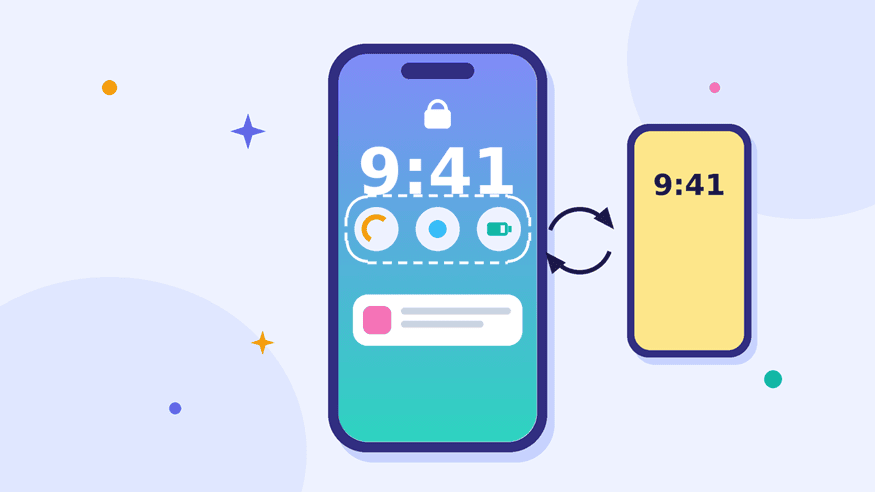
Each Lock Screen keeps its own widgets, so switching Lock Screens swaps them too.
Space under the clock is tight. If a widget won’t fit, tap the minus button on one you don’t need to make room.
How to find missing widgets in Today View
Today View is the scrolling column of widgets you get when you swipe right from your first Home Screen page or the Lock Screen. It keeps its own set of widgets, separate from the Home Screen, so a widget can be missing in one place and still be sitting happily in the other.
- Swipe right on the Home Screen to open Today View.
- Scroll down to check whether the widget is lower in the list.
- If it’s gone, touch and hold an empty area, tap Edit in the upper-left corner, then tap Add Widget.
- Select the widget, then tap Add Widget and Done.
Can’t open Today View from the Lock Screen? Go to Settings > Face ID & Passcode (or Touch ID & Passcode) and make sure Today View and Search is allowed when locked.
Fix widgets missing from Smart Stacks
A Smart Stack is a pile of up to 10 widgets sharing one spot, and iOS shuffles through them during the day based on what it thinks you’ll want. So the widget you’re looking for may not be gone at all. It might just be buried further down the stack.

A Smart Stack layers up to 10 widgets in one spot and rotates through them.
- Swipe up or down on the stack to cycle through its widgets.
- To see everything in it, touch and hold the stack and tap Edit Stack.
- Drag widgets to reorder them, or remove ones you don’t use.
- Turn off Smart Rotate if you want the top widget to stay put.
- Turn off Widget Suggestions if iOS keeps adding widgets you didn’t choose.
Want to add a widget to a stack you already have? Just drag it on top of the stack while your icons are jiggling.
How to fix widgets that are blank or not updating
Sometimes a widget stays right where you left it but shows a blank screen, old information or a loading message. That can come from an app bug, missing permissions, background activity restrictions or a temporary iOS glitch. Start at the top of this list and work your way down.

A blank widget can come from an app bug, missing permissions or background limits like Low Power Mode.
- Open the app. It sounds too simple, but many widgets won’t refresh until the app has run at least once, or until you sign in.
- Turn off Low Power Mode. Go to Settings > Battery. Low Power Mode cuts background activity, including widget refreshes.
- Turn off Low Data Mode. Go to Settings > Cellular > Cellular Data Options (or your Wi-Fi network’s settings). Low Data Mode pauses background updates.
- Allow Background App Refresh. Go to Settings > General > Background App Refresh and make sure it’s on for that app.
- Check location and permissions. Weather, Maps and similar widgets need location access. Check under Settings > Privacy & Security > Location Services.
- Remove and re-add the widget. This forces a fresh copy.
- Update the app and restart your iPhone. A buggy app version is a common culprit.
Still stuck with one stubborn third-party widget? At that point the problem is probably in the app itself, so it’s worth reaching out to the developer.
How to recover widgets missing after an iOS update
Big updates like iOS 27 tend to shake things up. An app might rename its widgets, swap them for new ones or reset part of your layout. Third-party apps also often need their own update before their widgets play nicely with a new version of iOS.
- Restart your iPhone once the update finishes. Your phone often keeps tidying things up in the background after that first boot.
- Open the App Store, tap your profile picture, and install any pending app updates.
- Open each app whose widget is missing, then check the widget gallery again.
- Check the gallery for a renamed or replacement widget. Developers sometimes retire an old widget and offer a new one.
- Go to Settings > General > Software Update and install any follow-up update. Early fixes such as x.0.1 releases often address bugs like this.
If a widget still doesn’t show up after you’ve updated or reinstalled its app, check the developer’s support page. The widget may have been renamed, temporarily disabled or discontinued, and the developer is the best person to tell you which.
What to do if an app doesn’t appear in the widget gallery
Searched the widget gallery and your app just isn’t there? One of these is usually the reason.
- The app doesn’t offer widgets. Plenty of apps don’t, even popular ones. Check the app’s App Store page or its settings for widget options.
- The app hasn’t been opened yet. After installing an app, open it once so iOS registers its widgets.
- The app was offloaded. Offloaded apps show a small cloud icon. Tap the icon to reinstall, then open the app.
- Screen Time restrictions are on. Check Settings > Screen Time > Content & Privacy Restrictions to see whether they limit access to the app. App Limits on their own don’t necessarily remove a widget from the gallery.
- The widget doesn’t support that location. Some widgets work only on the Home Screen, others only on the Lock Screen or in StandBy.
And before you go down any rabbit holes, try the search bar at the top of the gallery. Sometimes the app is just further down the list than you expected.
Frequently asked questions
Do I need to reset my iPhone to get widgets back?
Almost certainly not. A reset is overkill here. Re-adding the widget, checking your Focus pages and updating the app will fix nearly every case.
Can I download widgets from the App Store?
Not on their own. Widgets come bundled with apps, so once you install or update the app and open it, its widgets show up in the gallery automatically.
Why do my widgets keep changing on their own?
That’s probably a Smart Stack doing its thing with Smart Rotate or Widget Suggestions turned on. You can switch both off in Edit Stack.
Does low storage delete widgets?
Not directly. But if your iPhone offloads an app you haven’t used in a while, its widget can stop working until you reinstall the app.
Why did my widget change size after updating to iOS 27?
iOS 27 added new resizing options and an extra-large size. If something looks off, touch and hold the widget and pick the size you want.
What if nothing works?
Update iOS and the app, then restart your phone. If it’s still acting up, contact the app’s developer. If it’s one of Apple’s own widgets, Apple Support can help.

Louis Mugan is a seasoned technology writer with a talent for turning complicated ideas into clear, practical guidance. He focuses on helping everyday readers stay confident in a world where tech moves fast. His style is approachable, steady, and built on real understanding.
He has spent years writing for platforms like EasyTechLife, where he covers gadgets, software, digital trends, and everyday tech solutions. His articles focus on clarity, real-world usefulness, and helping people understand how technology actually fits into their lives.
Outside of his regular columns, Louis explores emerging tools, reviews products, and experiments with new tech so his readers don’t have to. His steady, friendly approach has made him a reliable voice for anyone trying to keep up with modern technology. get in touch at louismugan@gmail.com


