Most Android tablets can make phone calls, even without a SIM card. The right method depends on which tablet you own and who you want to call.
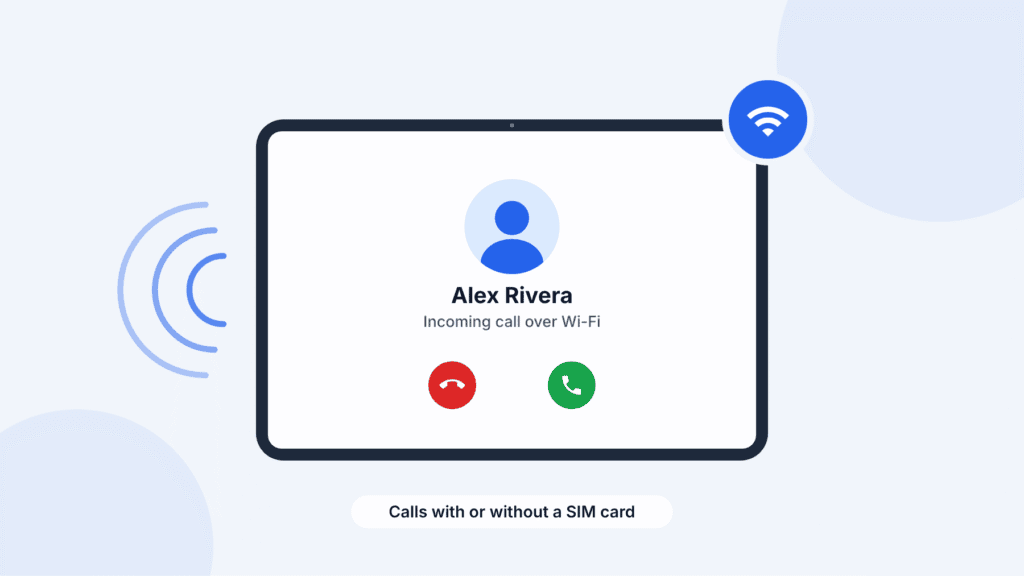
- Samsung Galaxy tablet with a Galaxy phone: use Call & text on other devices to make regular calls with your phone’s number.
- Most Android tablets on Wi-Fi: use WhatsApp, Google Meet or Microsoft Teams to call people who use the same app.
- In the US: use Google Voice to call regular phone numbers over Wi-Fi.
- Tablet with a SIM slot: some LTE and 5G tablets make regular calls with a SIM card, but a SIM slot alone doesn’t guarantee voice calling.
Below, we explain each method, what it needs, and what to do if calling doesn’t work on your tablet.
Calling Methods at a Glance
| Method | Works on | SIM in tablet? | What you need | Who you can call | Cost |
|---|---|---|---|---|---|
| Samsung Call & text on other devices | Compatible Galaxy tablets | No | Galaxy phone with service, same Samsung account, same Wi-Fi for calls | Any phone number | Your phone plan |
| Most Android tablets | No | Internet, a phone to register the account | WhatsApp users only | Free (data charges may apply) | |
| Google Meet | Most Android tablets | No | Internet, Google account for direct calls | Meet users, or anyone you send a meeting link | Free |
| Microsoft Teams Free | Most Android tablets | No | Internet, Microsoft account | Teams users, or anyone you send a meeting link | Free |
| Google Voice | Most Android tablets (US only) | No | Internet, Google account, eligible US number for verification | Supported domestic and international phone numbers | Free to the US and Canada from the US; international rates apply |
| Cellular tablet with voice | Tablets that support voice calls | Yes | A plan that includes calling | Any phone number | Your mobile plan |
Method 1: Make Calls From a Samsung Galaxy Tablet
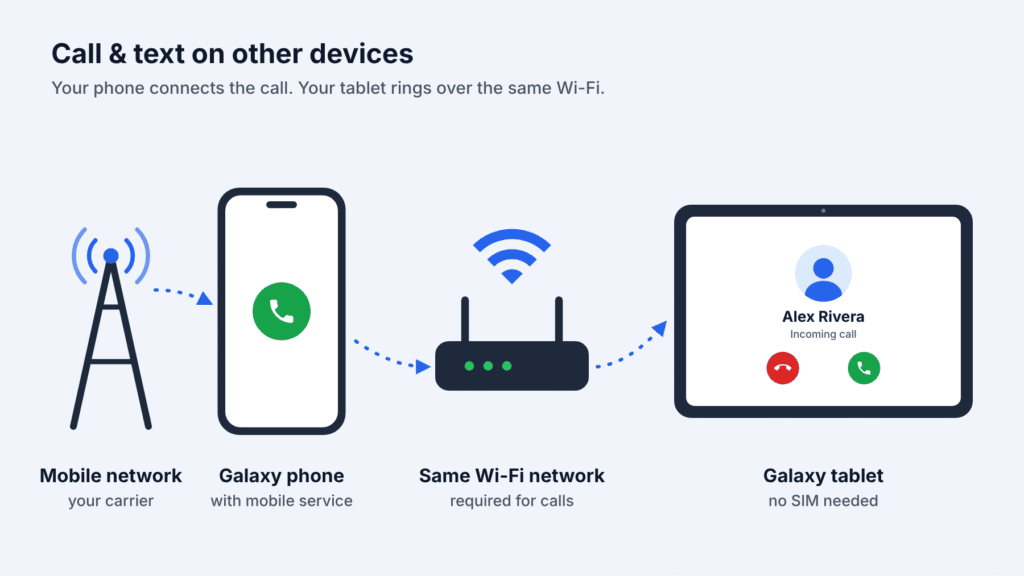
If you own a Galaxy tablet and a Galaxy phone, Samsung’s built-in Call & text on other devices feature is the easiest way to make regular calls from your tablet. Your phone places the call, and your tablet uses your phone’s number over Wi-Fi. Your tablet doesn’t need a SIM card.
What you need
- A Galaxy phone with active mobile service
- A compatible Galaxy tablet. Supported models vary by region, carrier and software version, so check Samsung’s official compatibility list first. In the US, the list includes the Tab S4 through Tab S11 series, the Tab A9+ and the Tab A11+.
- The same Samsung account signed in on both devices
- Both devices on the same Wi-Fi network for calls (texts work across networks)
How to set it up
- On both devices, open Settings, tap Samsung account at the top, and sign in with the same account.
- On both devices, swipe down from the top of the screen with two fingers to open Quick settings.
- Tap Call & text on other devices. If you don’t see the tile, go to Settings > Connected devices > Call & text on other devices instead.
- Wait a few seconds. The devices connect automatically.
- On your phone, open Settings > Connected devices > Call & text on other devices. Check that Call on other devices and Text on other devices are both switched on.
To make a call, open the Phone app on your tablet and dial a number or pick a contact. Incoming calls ring on both devices. To move a call from the tablet back to your phone, tap Pull call on the phone.
If your phone uses Google Messages, you also need to turn on texting for your tablet. On your phone, open Google Messages, tap your profile icon, then go to Messages settings > Advanced > Text on Galaxy devices. Turn on Allow Bixby and text on Galaxy devices.
Limits to know
- Carriers: Samsung says the feature currently doesn’t work with Verizon and AT&T phones in the US. It may also be missing on some models from other carriers (Samsung’s setup guide).
- Same Wi-Fi for calls: on newer versions of the feature (above 3.3.00), calls only work when the phone and tablet share a Wi-Fi network. Older guides that say you can leave your phone at home are out of date.
- Same country: the phone must be in the same country or region as the tablet (Samsung Philippines support).
- Samsung only: this feature doesn’t work with non-Samsung phones or tablets.
Method 2: Make Calls Using WhatsApp, Google Meet or Teams
On compatible Android tablets, apps such as WhatsApp, Google Meet and Microsoft Teams offer free internet calling over Wi-Fi, without a SIM card in the tablet. These apps let you make free internet calls to other users. Google Meet and Microsoft Teams also let you invite people through meeting links, even if they don’t use those apps. However, they aren’t substitutes for regular cellular phone calls.
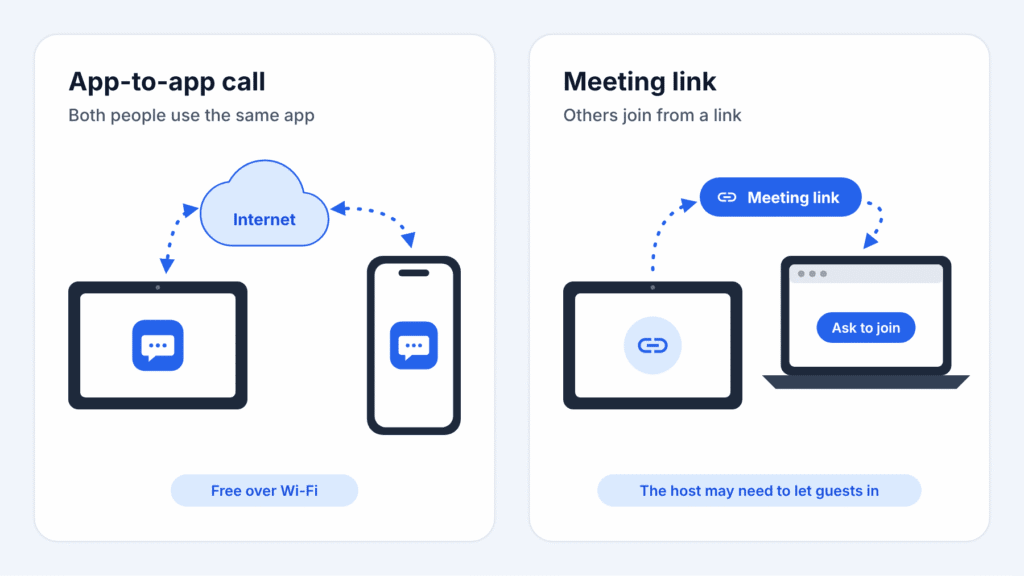
WhatsApp is the best choice if the people you call already use it. Voice and video calls are free over Wi-Fi, though mobile data charges may apply (WhatsApp for Android tablets).
- On your tablet, install WhatsApp from the Google Play Store and open it.
- Follow the prompts to link the tablet to your existing account. A QR code appears.
- On your phone, open WhatsApp and go to Linked devices > Link a device. On Android, it’s in the three-dot menu; on iPhone, it’s in Settings.
- Scan the QR code. Your chats sync to the tablet.
- Open a chat or the Calls tab and tap the phone icon to call.
You can link up to four devices to one phone. You need a phone to register the account in the first place.
Google Meet
Google Meet replaced Google Duo and handles both direct calls and meetings. You can call a contact directly when you’re both signed in to Meet, or share a meeting link with anyone. People joining through a link don’t need a Google account, but they may have to ask to join and wait for the host to let them in (Google Workspace Updates).
Microsoft Teams (free)
Teams replaced Skype after Microsoft shut Skype down on May 5, 2025 (Microsoft Support). With a free Microsoft account, you can make audio and video calls to other Teams users. You can also send a meeting link to anyone, and they can join from a web browser.
Teams Free doesn’t support paid calling plans, so it can’t call regular phone numbers. The old Skype Dial Pad still works inside Teams Free, but only for people who already had a paid Skype subscription or Skype Credit.
Method 3: Make Regular Phone Calls Using Google Voice (US Only)
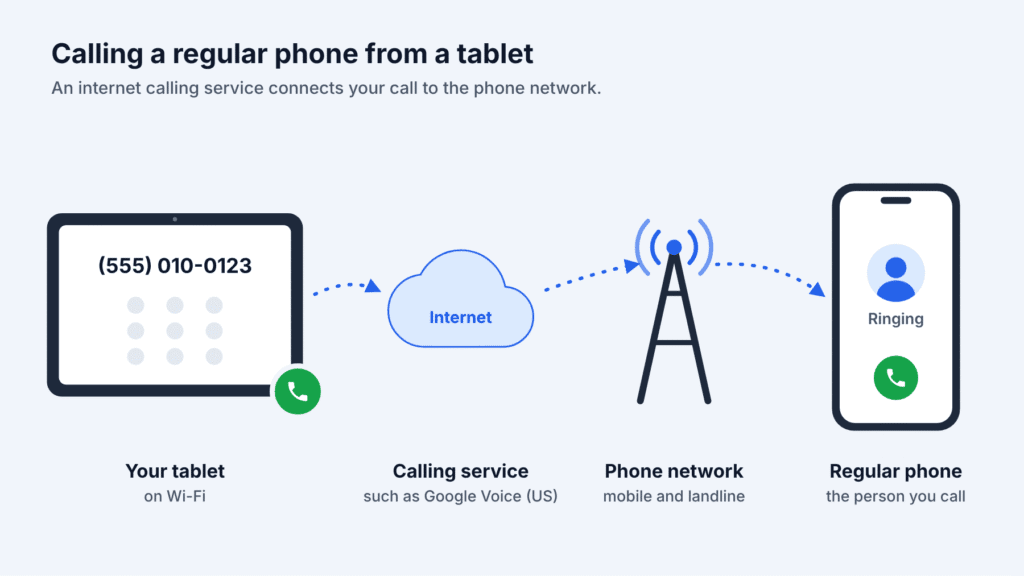
Google Voice gives you a free phone number that can call regular phones from your tablet over Wi-Fi. Unlike WhatsApp, Meet or Teams, it can call regular phone numbers, but personal accounts only work in the US. Google Voice for businesses is available in select countries through Google Workspace (Google Voice app listing).
What you need
- A Google account
- Eligibility for a personal Google Voice number, which is only available in the US
- An eligible US phone number, which you may need to complete verification
How to set it up
- Install Google Voice from the Google Play Store and open it.
- Sign in with your Google account, review the terms, and tap Continue.
- Tap Search and look for a number by city or area code.
- Tap Select next to the number you want, then follow the instructions to verify your phone.
To make a call, open the Voice app, tap Calls, and dial a number or choose a contact.
What it costs
When you call from the US, almost all Google Voice calls to the US and Canada are free. Some US and Canadian numbers cost 1 cent per minute, and international calls are charged at listed rates (Google Voice Help).
Method 4: Make Regular Calls From a Cellular Tablet
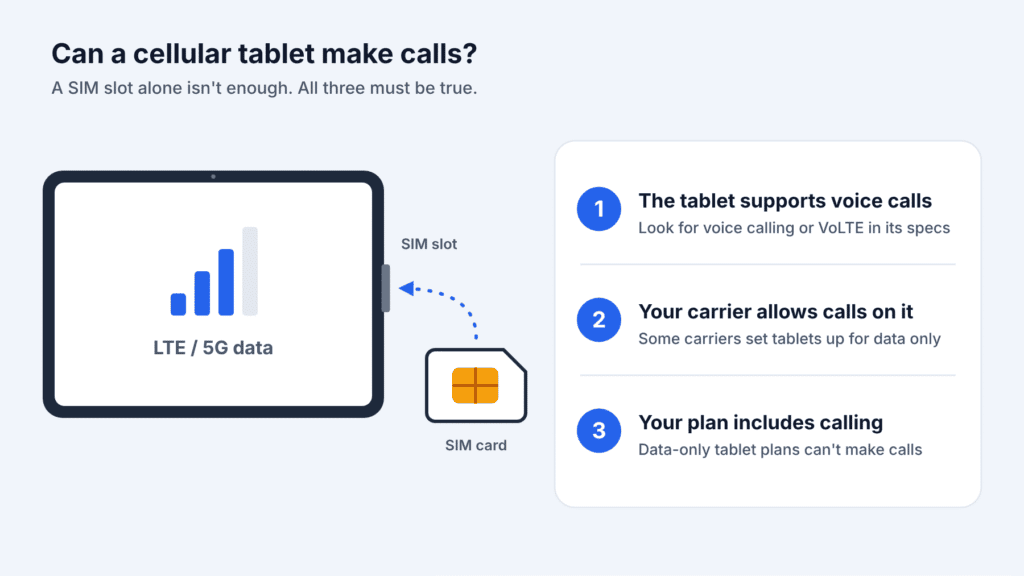
Some LTE and 5G tablets can make regular calls with a SIM card, just like a phone. Many can’t. A SIM slot or LTE/5G support doesn’t automatically mean a tablet can make regular voice calls. Three things decide whether calls work:
- The tablet model and region: some tablets support voice calls (often listed as VoLTE), others are data-only. The same model can support calls in one country and not in another.
- The carrier: some carriers block calling on tablets. In the US, carriers usually set up tablets for data and texts only, so calls need a phone account (Samsung Community).
- The plan: a tablet data plan usually doesn’t include voice. You need a plan with calling.
How to check before you buy
- Look for voice calling or VoLTE in the tablet’s official spec sheet, for your country’s version of the model.
- Ask your carrier whether your plan supports voice calls on that tablet.
- If you already have the tablet, insert the SIM and open the Phone app. If you see “No calling accounts,” check whether the tablet supports cellular voice calling and whether your carrier has enabled it on your plan. The error can also point to a calling configuration problem. See the troubleshooting section below.
If the tablet supports calls, you dial from the built-in Phone app, the same way as on a phone. Samsung says Galaxy LTE tablets with an active SIM or eSIM can call on their own, without a connected phone, when the carrier’s service supports it (Samsung’s setup guide).
Can You Call Without a SIM Card?
Yes. A Wi-Fi-only tablet can make calls in three ways:
- Any phone number, with a Galaxy phone: use Samsung’s Call & text on other devices (Method 1).
- Regular phone numbers, from the US: use Google Voice (Method 3).
- Other app users, anywhere: use WhatsApp, Google Meet or Microsoft Teams (Method 2).
Without a SIM, every call travels over the internet, so call quality depends on your Wi-Fi connection.
Why Can’t My Android Tablet Make Calls?
The fix depends on which method you’re using.
Samsung Call & text on other devices
- The option is missing: your phone may be from a carrier that doesn’t support the feature, such as Verizon or AT&T in the US. Also check that both devices are on Samsung’s compatible list.
- Calls don’t ring on the tablet: make sure both devices use the same Wi-Fi network and the same Samsung account. On your phone, open Settings > Connected devices > Call & text on other devices and check that the switch next to your tablet’s name is on.
- Texts won’t send from the tablet: on your phone, turn on Allow Bixby and text on Galaxy devices in Google Messages (see Method 1) (Samsung’s troubleshooting guide).
- A “too many devices” error: remove an old device from the list in your phone’s Call & text on other devices settings (Samsung Australia support).
- Still not working: sign out of your Samsung account on both devices, sign back in, and turn the feature on again.
Calls with a SIM card
- “No calling accounts” or calls fail instantly: check whether your tablet supports cellular voice calls and whether your carrier has activated calling on your plan. Also check that the SIM is active and the tablet’s calling settings are set up correctly.
- The SIM may be the problem: test it in a phone. If it can’t make calls there either, contact your carrier.
- VoLTE is off: many networks now carry calls only over 4G or 5G. If your tablet’s mobile network settings include a VoLTE option, turn it on.
Calling apps
- The other person can’t hear you: give the app microphone access in Settings > Apps > [app name] > Permissions.
- The call won’t connect: for direct app-to-app calls, check that the other person can receive calls on the same service. With Google Meet or Teams, try sending a meeting link instead. WhatsApp can’t directly call people on other messaging apps.
- Poor call quality: move closer to your router or switch to a stronger Wi-Fi network.
If calls reach your Android phone but you can’t pick them up from the lock screen, our guide on how to answer an Android phone when the screen is locked covers the gestures and settings to check.
Frequently Asked Questions
Can I pair my tablet with my phone over Bluetooth to make calls?
Not on most Android tablets. Pairing a tablet and phone over Bluetooth doesn’t turn the tablet into a hands-free speaker for your calls. On Galaxy devices, use Call & text on other devices instead.
Can I use my phone number on my tablet?
Yes, if both devices are Samsung Galaxy devices: Call & text on other devices lets your tablet call and text with your phone’s number. Some carriers also offer their own number-sharing services, so ask yours.
Is Skype still available for calls?
No. Microsoft retired Skype on May 5, 2025. Microsoft Teams Free replaces it for app-to-app calls.
Can I send text messages from my tablet?
Yes. Samsung’s Call & text on other devices syncs your phone’s texts to your tablet. Google Voice also sends texts in the US, and WhatsApp works for messaging other WhatsApp users.
Do calling apps use mobile data?
Only when your tablet isn’t on Wi-Fi. A voice call over mobile data uses your data allowance, so connect to Wi-Fi when you can.
Can I call emergency services from my tablet?
Don’t count on it. WhatsApp, Meet and Teams can’t call phone numbers, so they can’t reach emergency services. Keep a phone with mobile service for emergencies.
Related: how to add contacts to an Amazon Fire tablet.
Conclusion
The best way to make calls from your Android tablet depends on what you already own:
- You have a Galaxy phone and tablet: turn on Call & text on other devices. It’s built in and uses your real phone number.
- You’re in the US and need to call regular numbers: set up Google Voice.
- You only call friends and family who use apps: WhatsApp, Google Meet or Microsoft Teams works on most tablets for free.
- You want your tablet to replace your phone: buy a cellular tablet that supports voice calls, and confirm your carrier plan includes calling.

Louis Mugan writes how-to and troubleshooting guides for EasyTechLife, covering Android phones, iPhones, laptops, Chromebooks, headphones and everyday software.
He aims to base each guide on official manufacturer documentation and support pages, and to link the sources so readers can check the steps for themselves. Questions or corrections? Use the contact page.