
Widgets are the small live panels on a home screen: a clock, the weather, your calendar, a music player. If you’ve never added one, or yours went missing, the first question is simply where Android keeps them.
Quick answer: On most Android phones, touch and hold an empty space on the home screen and tap Widgets. You’ll see the apps that offer widgets. Select an app to view its widgets, then touch and hold the one you want and drag it onto the home screen.
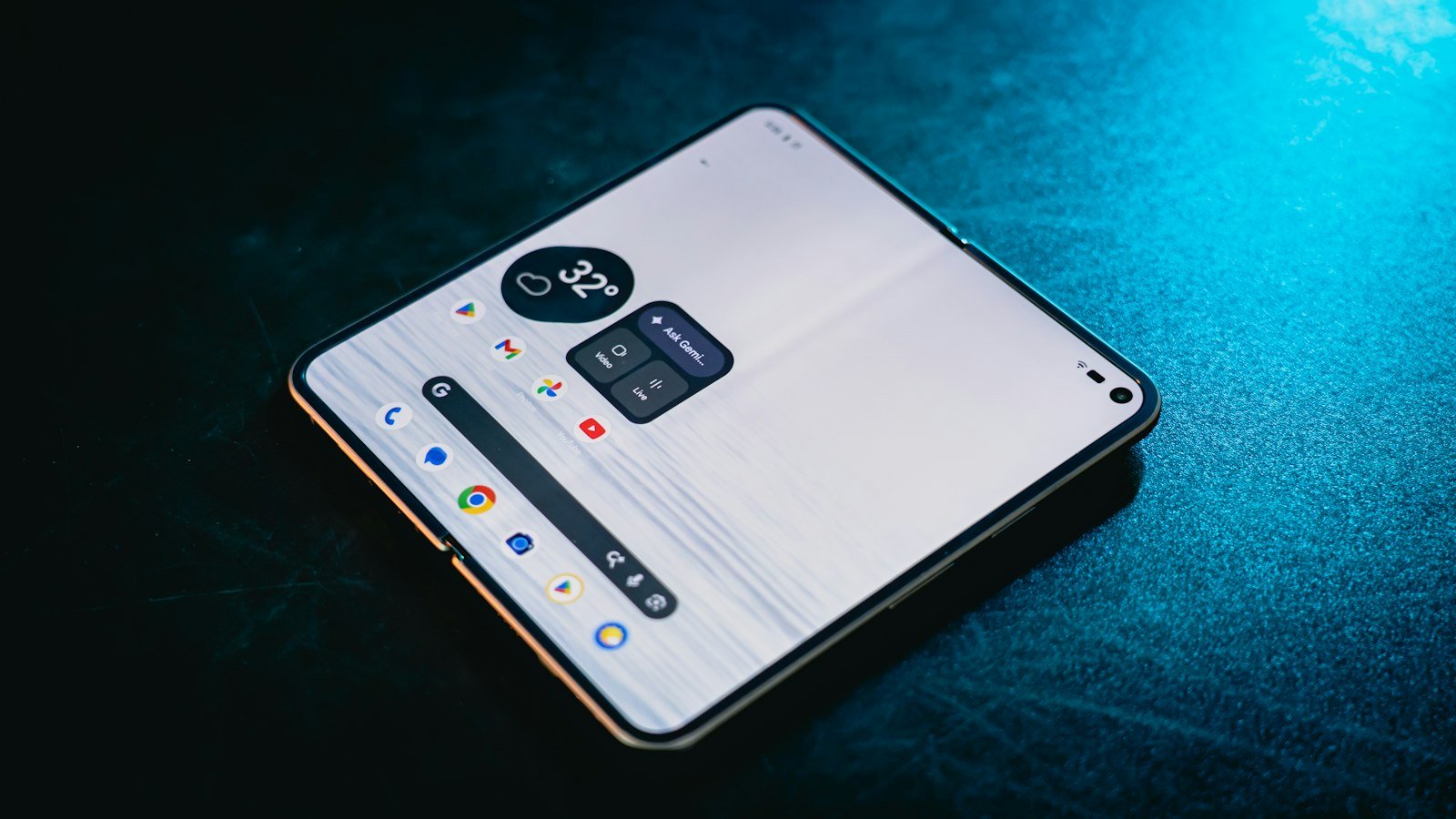
If a widget you already had has vanished, see widgets disappeared on Android. On an iPhone, see iPhone widgets disappeared.
Where the widget list is
| Phone | How to open the widget list |
|---|---|
| Google Pixel and most Android phones | Touch and hold an empty space on the home screen, then tap Widgets |
| Samsung Galaxy | Touch and hold an empty space (or pinch the home screen), then tap Widgets |
| Supported launchers | Touch and hold an app icon and tap Widgets, if this shortcut is supported and the app offers widgets |
Exact wording varies by brand and launcher.
How to add a widget
- Touch and hold an empty space on the home screen.
- Tap Widgets.
- Find the app and expand its widget options if needed. The exact controls vary by launcher.
- Touch and hold the widget, slide it to where you want it and lift your finger.
These are the steps in Google Android Help. On some phones you can also touch and hold an app icon and tap Widgets.
How to resize, move or remove a widget
- Resize: touch and hold the widget, then lift your finger. If it can be resized, an outline with dots appears. Drag the dots, then tap outside the widget.
- Move: touch and hold the widget and drag it, including to another page.
- Remove: touch and hold it and drag it to Remove, or choose Remove from the menu. This doesn’t uninstall the app.
Google notes that some of these steps only work on Android 14 and up.
Why an app isn’t in the widget list
- The app doesn’t offer a widget. Not every app does.
- The app may be disabled or need initial setup. Check that it’s enabled and updated.
- Your organization may restrict widgets for work-profile apps.
- The app or the home screen launcher may need an update. Check for updates and restart the phone.
Other places widgets can live
- Lock screen: some phones support lock screen widgets, set up in the lock screen settings. Availability depends on the model and software version.
- Pixel At a Glance: on Pixel phones, the built-in At a Glance area at the top of the home screen may be fixed in place. Its controls depend on the Pixel model and launcher version.
If the list opens but a widget won’t go onto the screen, see can’t add a widget to the home screen. For the wider layout, see how to get your Android home screen back to normal.
Frequently asked questions
Where are my widgets on my Android phone?
In the widget list. Touch and hold an empty space on the home screen and tap Widgets.
Do I need to download widgets?
Widgets are provided by apps, so you don’t normally download them separately. Install or update an app that offers widgets, then check the widget list.
Why can’t I see the Widgets option?
Make sure you’re pressing an empty area, not an icon. On some launchers the option appears after a pinch gesture or in a home screen menu. If it’s still unavailable, check whether the phone uses a different launcher or a managed home screen. If the Widgets menu opens but one widget is missing, check that its app supports widgets and is enabled and updated.
How do I get my widgets back after they disappear?
Open Widgets and add the missing widget again. If it isn’t listed, update the app and see widgets disappeared on Android. Safe mode may remove some home screen widgets; after restarting normally, check whether you need to add them again.
Does removing a widget delete the app?
No. Removing a widget only takes it off the home screen.
How we researched this guide
This guide draws on Google’s Android Help pages and Samsung’s support article on widgets, reviewed on November 17, 2026. We did not test these steps on a device. Menu names and available options vary by phone brand, launcher and Android version.

Louis Mugan writes how-to and troubleshooting guides for EasyTechLife, covering Android phones, iPhones, laptops, Chromebooks, headphones and everyday software.
He aims to base each guide on official manufacturer documentation and support pages, and to link the sources so readers can check the steps for themselves. Questions or corrections? Use the contact page.


