Your Samsung TV doesn’t have to sit there as a big black rectangle when nobody’s watching. Some Samsung smart TVs can display artwork, photos, weather information or your own pictures through Ambient Mode or Art Mode, depending on the model. Samsung just doesn’t call it a “screensaver” in the menus, which is why it’s hard to find.
There are actually two different things people mean by a Samsung TV screensaver. One is the decorative screen you choose on purpose. The other is an automatic protection screen that pops up on its own when a still image sits on the screen too long. This guide covers how to set up the first, how to turn off or change the second, and how to tell which ones your TV has.
Quick answer: On many compatible Samsung QLED and Neo QLED TVs from 2018–2024, press Home, move to the left side of the Home screen and choose Ambient Mode. On select 2025 QLED models, Ambient content now lives inside Art mode. On The Frame, press the Power button to switch to Art Mode. If a screensaver keeps appearing by itself, look for Auto Protection Time or Screen Saver in your TV’s settings. On older LED and QLED models you may be able to adjust Auto Protection Time; newer models may not let you change it, and on Samsung OLED TVs it can’t be turned off.
Jump to: Set up a screensaver · Stop the automatic screensaver
Which screensaver does your Samsung TV support?
Samsung uses different names depending on the model and year, and not every Samsung TV has a decorative screensaver. Samsung describes Ambient Mode as a QLED feature that may not be supported on every model, and menus vary by region and software version.
| Feature | What it does | Do you turn it on? | Typically found on |
|---|---|---|---|
| Ambient Mode | Shows art, photos, info or patterns when you’re not watching | Yes | Many 2018–2024 QLED and Neo QLED TVs (model-dependent) |
| Art Mode | Shows artwork and photos; includes Ambient-style content on select 2025 QLEDs | Yes | The Frame and select 2025 QLED models |
| Auto Protection Time / Screen Saver | Starts on its own when a still image stays on screen, to reduce burn-in risk | No, it runs automatically | Most Samsung TVs; can’t be disabled on OLED models |
Not sure what you have? Press Home and look along the left side of the Home screen for Ambient Mode or Art. If neither shows up, check your TV’s full model number against Samsung’s support documentation, since availability varies by model, region and software version. If Samsung doesn’t list Ambient Mode or Art Mode for your model, the decorative feature may not be supported. Check your TV’s user manual for any automatic screen protection settings it offers.
How to turn on Ambient Mode on a Samsung TV
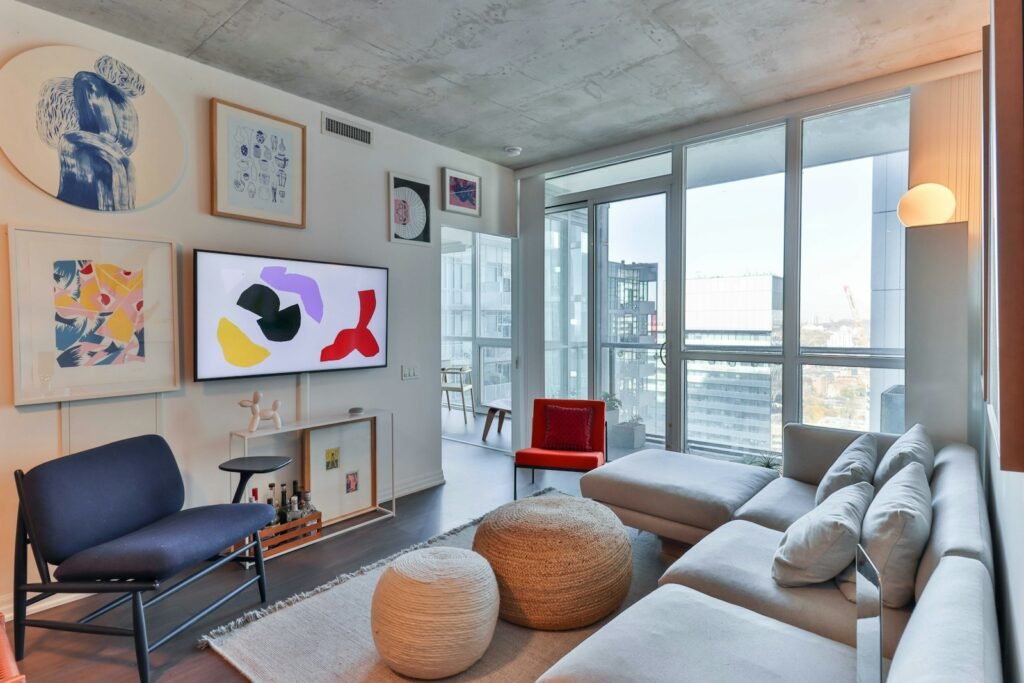
Ambient Mode is the closest thing Samsung has to a classic screensaver. It replaces the black screen with artwork, photos, patterns or useful info when you’re not watching.
- Press Home on your Samsung remote.
- Move to the left side of the Home screen and select Ambient Mode. Some remotes also have a dedicated Ambient button.
- Pick a category and choose the content you like.
- To keep a favorite, press Select on the remote and choose Favorite.
- Press Home when you want to go back to regular TV.
Ambient Mode styles you can choose
The exact list varies by model, region and software version. Samsung’s Ambient Mode guide lists these options:
- Special Edition: art and interior design pieces from artists and designers.
- Cinemagraph: photos with a small looping animation.
- My Album: your own photos in frame styles (needs the SmartThings app).
- Q Collection: content made for Samsung QLED TVs.
- Mood and Relaxation: calming and nature-inspired scenes.
- Décor: nature, interior design and lighting themes.
- Info: weather, temperature, time and news.
- Artworks: curated photography.
- Background Theme: a themed alternative to a plain black screen.
- Routine: preset or custom routines you build in SmartThings.
Heads up: Samsung says some of these rows are no longer accessible on Frame and QLED TVs that use its newer Art interface, including Cinemagraph, Special Edition, Q Collection, Relaxation and Décor, plus some My Photo Album features. Your personal photos are still available under Art > My Art Store > My Photos and Favorites, according to Samsung’s support page on inaccessible Art rows. If a category above is missing on your TV, that’s likely why.
Adjust brightness and when it turns off
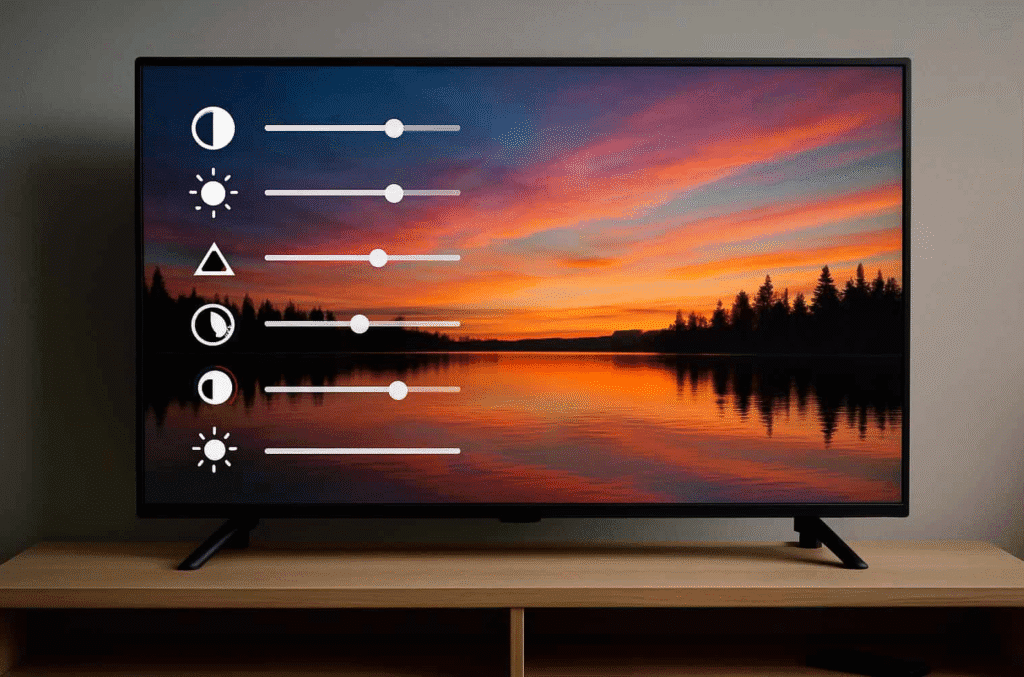
While Ambient content is showing, press Up on the remote to adjust brightness, saturation and color tone. At the bottom of the Ambient Mode screen you’ll find more settings:
- Auto Brightness: lets the TV adjust brightness for the room.
- Sleep After: sets how long Ambient Mode stays on before the screen turns off.
- Reset My Album: clears photos you’ve sent to the TV.
Sleep After is worth setting. Without it, the TV keeps displaying content and using power for as long as Ambient Mode is on. For tips on the regular picture, see our guide to simple smart TV picture tweaks.
How to use your own photos as a screensaver
To show your own pictures in Ambient Mode, you’ll use the free Samsung SmartThings app on your phone. Add your TV to SmartThings first if you haven’t already. (The Frame uses a different workflow, covered below.)
- Open SmartThings and tap the Devices tab.
- Select your TV’s card.
- Tap the Ambient tab at the bottom, then tap My Album. If you don’t see the Ambient option, swipe down on the virtual remote to hide it.
- Pick a template, then tap Select photos.
- Choose your photos and crop or edit them if you want.
- Tap View on TV.
Your photos then appear in Ambient Mode’s My Album section. Use Reset My Album in the Ambient settings if you want to remove them later.
How to use Art mode on 2025 Samsung QLED TVs
If you have a 2025 QLED and can’t find Ambient Mode, that’s expected. Samsung says Ambient Mode has been integrated into Art mode on its 2025 QLED models, according to its Art Store guide for 2025 QLED TVs. The Art Store itself is only available on select models.
- Press Home and move to the left sidebar.
- Select Art.
- Select My Art Store to use your photos and favorites, or browse the artwork available on your TV, then follow the on-screen prompts.
Some models may also show Ambient-style categories such as Cinemagraph or Décor, but Samsung has removed access to certain content rows in newer Art interfaces. If they’re missing, use My Photos or browse what’s currently offered.
Samsung notes that a subscription is required to apply Art Store content. That applies to subscription artwork, not your own photos, which you can display without an Art Store subscription. Availability of any complimentary artwork varies by model and the current Art interface.
How to set up Art Mode on Samsung The Frame
Samsung’s The Frame is built around Art Mode. Press Power once on the remote to switch between watching TV and showing art. To turn The Frame off completely instead of displaying art, press and hold Power on the remote. Samsung notes that Art Mode can’t be permanently disabled.
To add your own photos, open the SmartThings app, select your Frame, tap Art Mode, then tap Add Your Photos, pick your photos and tap Save on The Frame. You can also load photos from a USB drive.
In SmartThings, tap Art Mode and then Settings to control when the art turns off:
- Sleep After: turns the screen off when no motion is detected for the time you choose.
- Motion Detector Sensitivity: controls how readily The Frame turns on or off when it senses movement.
- Night Mode: turns the screen on or off based on the light in the room.
Motion detection isn’t supported on every Frame model or in every region.
How to turn off or change the automatic Samsung TV screensaver
If your Samsung TV suddenly switches to a moving pattern while you’ve paused a movie or left a menu open, that’s not Ambient Mode. It’s a protection feature that starts when the same still image stays on screen, to help prevent burn-in and image retention. What you can do about it depends on your screen type.
Samsung OLED TVs: the screen saver can’t be turned off
On Samsung OLED TVs, Samsung says the Screen Saver turns on automatically when the TV shows the same still image, or gets no input signal, for 2 minutes. It’s a default protection feature and can’t be disabled, according to Samsung’s OLED Screen Saver explainer. To get back to what you were watching, press any button on the remote except Power.
That’s why an OLED TV can jump to the screensaver after just a couple of minutes on a paused show or a menu.
Samsung QLED and LED TVs: Auto Protection Time
On some older Samsung QLED and LED TVs, the setting is called Auto Protection Time, and you can adjust the delay or turn it off. Newer models may show a Screen Saver function under Power and Energy Saving, but whether you can change it depends on the model and software version. The menu path depends on your TV’s age:
- Many 2017–2021 models: Home > Settings > General > System Manager > Auto Protection Time (see Samsung’s older-model example).
- 2016 models: Home > Settings > System > Expert Settings > Auto Protection Time. Samsung lists 2 hours as the default on these.
- 2022 and newer models: Settings > All Settings > General & Privacy, then look under Power and Energy Saving. If there’s no adjustable option, don’t assume the screensaver can be disabled. Your model may not allow it, or the name may differ.
If your model offers adjustable intervals, choose a longer one rather than disabling the feature. Keeping screen protection on helps reduce image retention from static content like menus, game HUDs and paused frames.
Why your Samsung TV shows a logo, a screensaver or turns off
Several different features can make a Samsung TV change its screen or shut off on its own. Match the symptom to the cause:
| What you see | Likely cause | What to check |
|---|---|---|
| A moving screensaver after a paused image or menu | Auto Protection Time or OLED Screen Saver | Adjust Auto Protection Time; on OLED it can’t be disabled |
| The Samsung logo, or the screen turns off | Auto Power Saving or Auto Power Off | General & Privacy > Power and Energy Saving |
| Ambient or art display turns off after a while | Sleep After | Ambient Mode or Art Mode settings |
| The Frame turns on or off when people walk by or lights change | Motion Detector or Night Mode | Art Mode settings in SmartThings |
To change the power features Samsung says can cause a TV to turn off or show its logo:
- Press Home and go to Settings > All Settings.
- Go to General & Privacy > Power and Energy Saving.
- Turn off Auto Power Saving, or set Auto Power Off to a longer time or Off.
Turning off Auto Power Off won’t stop the protection screensaver. They’re separate features.
What to do if your Samsung TV doesn’t have Ambient Mode
First, make sure your TV’s software is up to date (Settings > Support > Software Update), since menus and features can change with updates. If you still can’t find Ambient Mode or Art, check your TV’s full model number against Samsung’s support documentation. If Samsung doesn’t list the feature for your model, it may not be supported.
In that case, a streaming stick or box is the easiest workaround. Many streaming devices have their own idle screensavers that can show photos or scenery, though features vary by device. The screensaver only appears while that device’s HDMI input is selected and the device is on.
Frequently asked questions
Can I put a screensaver on my Samsung smart TV?
Yes, if your TV supports Ambient Mode or Art Mode. Press Home and look for Ambient Mode or Art on the left side of the Home screen. Many older and entry-level models only have the automatic burn-in protection screen.
How do I change the screensaver on my Samsung TV?
Open Ambient Mode (or Art on select 2025 QLEDs and The Frame) and pick a different category or piece of content. To use your own pictures, send them through My Album in the SmartThings app, or use My Art Store > My Photos on TVs with the newer Art interface.
My Samsung TV keeps going to the screensaver. How do I turn it off?
That’s usually Auto Protection Time or Screen Saver, which starts when a still image stays on screen. On some older Samsung QLED and LED TVs, you can adjust Auto Protection Time in Settings, while newer models may not offer an adjustable option. On Samsung OLED TVs, it starts after two minutes of a still image or no input signal and can’t be disabled; press any remote button except Power to return to your screen. If the TV turns off or shows the Samsung logo instead, check Auto Power Saving and Auto Power Off.
Does my Samsung smart TV have Ambient Mode?
Ambient Mode is mainly found on Samsung QLED and Neo QLED TVs from 2018 on, and Samsung says support depends on the model. On select 2025 QLEDs, look for Art instead. If neither appears, check your model number on Samsung’s support site to confirm.
Why does my Samsung TV show a screensaver after two minutes?
On Samsung OLED TVs, the built-in Screen Saver activates after two minutes of a still image or no input signal. Samsung says this protection feature can’t be disabled. Press any remote button except Power to dismiss it.
Can I use my phone’s photos as a Samsung TV screensaver?
Yes. On Ambient Mode TVs, use the SmartThings app: open your TV, tap the Ambient tab, choose My Album, select your photos and tap View on TV. On The Frame, use Art Mode’s Add Your Photos option in SmartThings instead.
Can I use Google Photos as a Samsung TV screensaver?
Samsung’s documented method uses photos from your phone through SmartThings, and Google Photos isn’t listed as a direct Ambient Mode source in Samsung’s instructions. If your pictures live in Google Photos, save the ones you want to your phone first, or use a streaming device that offers its own photo screensaver.
Will the screensaver burn in my TV?
Ambient and Art content is designed to be displayed when you’re not watching, and Sleep After limits how long it runs. The automatic Screen Saver exists specifically to reduce burn-in risk from static images, which is why Samsung keeps it on by default and doesn’t let you disable it on OLED models.
How we researched this guide
We based the steps in this guide on Samsung’s official support pages and TV manuals, including its Ambient Mode guide, its note on inaccessible Art rows, its Art Store guide for 2025 QLED TVs, its Frame Art Mode guide, its OLED Screen Saver explainer, its Auto Protection Time instructions and its power settings troubleshooting page. We also checked what US searchers ask on Google and Bing. Samsung changes menu names between model years, so your TV’s labels may differ slightly. This guide is based on Samsung’s documentation, not hands-on testing of every model.
If your TV is acting up in other ways, our guides to fixing smart TV apps that keep crashing and turning on a TV without the remote may help.

Louis Mugan is a seasoned technology writer with a talent for turning complicated ideas into clear, practical guidance. He focuses on helping everyday readers stay confident in a world where tech moves fast. His style is approachable, steady, and built on real understanding.
He has spent years writing for platforms like EasyTechLife, where he covers gadgets, software, digital trends, and everyday tech solutions. His articles focus on clarity, real-world usefulness, and helping people understand how technology actually fits into their lives.
Outside of his regular columns, Louis explores emerging tools, reviews products, and experiments with new tech so his readers don’t have to. His steady, friendly approach has made him a reliable voice for anyone trying to keep up with modern technology. get in touch at louismugan@gmail.com