Instagram Live is easy to watch on a phone, but a bigger screen is better for long streams, concerts or Q&As. You can watch Instagram Live on a computer in any web browser, and there are a few ways to get it on your TV.
Quick answer: On a computer, go to instagram.com, sign in and click a profile picture with a LIVE badge to join the broadcast. On a TV, the simplest options are mirroring your phone with AirPlay or Chromecast, or connecting a laptop to the TV with an HDMI cable. Instagram’s own TV app also lists live shows on some devices, such as Apple TV, but what it offers varies by platform.
How to watch Instagram Live on a computer
You don’t need to install anything. Instagram’s website supports live videos in Chrome, Edge, Firefox and Safari on Windows and Mac.
- Open your browser and go to instagram.com.
- Sign in to your account.
- Look at the Stories row at the top of your feed. Accounts that are live have a LIVE label under their profile picture.
- Click it to join. You can also open the person’s profile and click their profile picture.
- Use the box at the bottom to comment, or the heart to react. Close the window or click the X to leave.
You can make the video bigger by maximizing the browser window, and some browsers let you zoom in for a larger picture. If you got a notification that someone went live, clicking it on your phone opens the app, but on the website you’ll find the stream in the Stories row.
How to watch Instagram Live on a TV
Mirror your iPhone with AirPlay
If you have an Apple TV or a smart TV that supports AirPlay:
- Connect your iPhone and TV to the same Wi-Fi network.
- Open Control Center on your iPhone and tap Screen Mirroring.
- Choose your TV or Apple TV. Enter the code if one appears on the TV.
- Open Instagram and start watching the live video.
Turn your phone sideways only if the stream is in landscape. Most Instagram Lives are vertical, so you may see black bars on the sides.
Cast your Android screen
If you have a Chromecast, Google TV or another TV that supports screen casting:
- Connect your phone and TV to the same Wi-Fi network.
- Swipe down to open Quick Settings and tap Screen Cast on supported phones or Smart View on Samsung. If your phone supports Google Cast, you can also open the Google Home app, pick your casting device and choose Cast my screen. Smart View and Google Cast don’t support exactly the same TVs.
- Choose your TV and start casting.
- Open Instagram and join the live video.
Connect a laptop with an HDMI cable
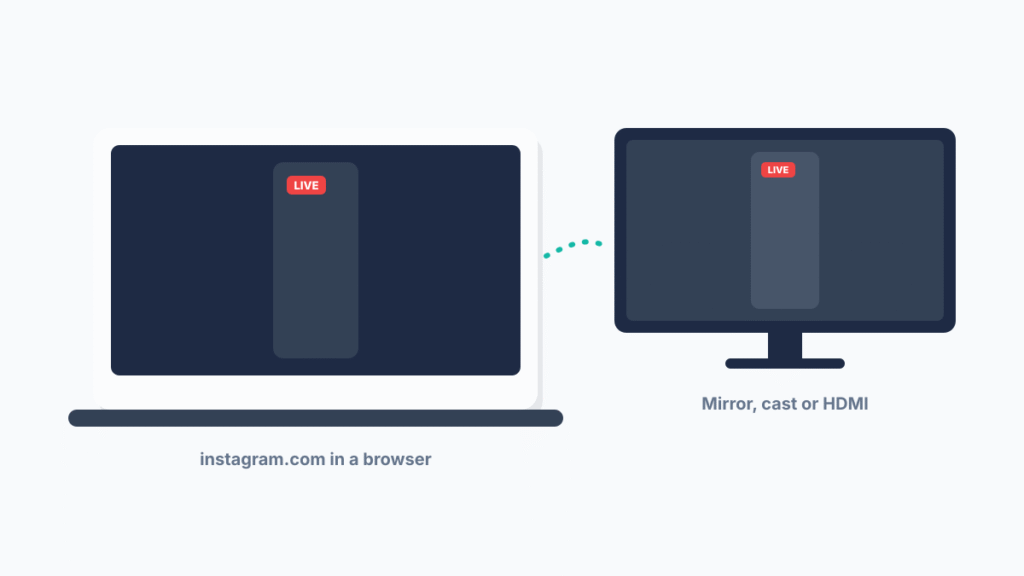
This is the most reliable option if your TV doesn’t support casting. Plug an HDMI cable from your laptop into the TV, switch the TV to that HDMI input, then open instagram.com on the laptop and join the live stream. If you get a blank screen, our guide to fixing a TV that says No Signal on HDMI can help.
What about Instagram’s TV app?
Instagram now has an app for TVs. In the US, it’s available on Amazon Fire TV, Google TV, Samsung smart TVs (2020 models and newer) and Apple TV. It’s designed mainly for watching Reels and longer videos from creators on a big screen, and you can add several accounts for different people in your home.
Meta announced plans in June 2026 to bring live video to Instagram for TV, and the Apple TV app already lists live shows among what you can watch. Because live viewing differs between TV platforms, check the app on your TV. If you don’t see a live stream there, use one of the mirroring options above.
Tips for a better viewing experience
- Use a strong Wi-Fi connection, especially when mirroring. Moving closer to the router can stop the stream from freezing.
- Turn on Do Not Disturb on your phone when mirroring so notifications don’t pop up on the TV.
- Keep your phone plugged in for long streams, since mirroring uses a lot of battery.
- Missed the live? Many creators share the replay on their profile afterward, but only if they choose to save it.
Frequently asked questions
Can I watch Instagram Live on my computer?
Yes. Go to instagram.com in any modern browser, sign in and click a profile with a LIVE badge.
Can I watch Instagram Live on my TV?
Yes. Mirror your phone with AirPlay or screen casting, or connect a laptop with HDMI. Instagram’s own TV app is mainly for Reels and videos, though live viewing is rolling out on some devices.
Can I comment on an Instagram Live from a computer?
Yes. The website has a comment box and reactions during live videos, just like the app.
Can I go live on Instagram from a laptop?
Instagram’s regular website is built for watching, not broadcasting. Creators and businesses can stream from a computer using Meta’s streaming tools, which take more setup.
Does the person know I’m watching their Live?
Yes. The broadcaster can see who joined the live video, including viewers on the website. Stories work differently; see whether you can view Instagram Stories anonymously.

Louis Mugan writes how-to and troubleshooting guides for EasyTechLife, covering Android phones, iPhones, laptops, Chromebooks, headphones and everyday software.
He aims to base each guide on official manufacturer documentation and support pages, and to link the sources so readers can check the steps for themselves. Questions or corrections? Use the contact page.